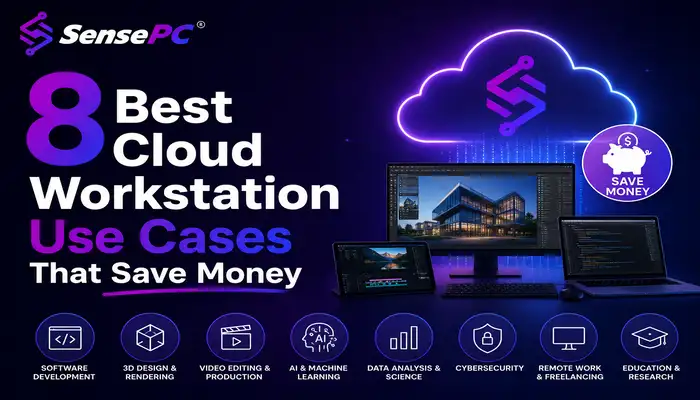
Short answer: A cloud workstation makes the most financial sense whenever your need for high performance is occasional rather than constant — gaming a few nights a week, a development project that outgrew your laptop, learning AI without buying a GPU, a semester of coursework, or a client deadline that needs extra rendering power. If you need the same heavy performance every single day for years, owning hardware is usually still the better long-term value.
A thin laptop can be great for email, meetings, and browser tabs. It becomes a problem when you need to compile code, render video, run Windows-only software, train an AI model, or play a demanding PC game. The best cloud workstation use cases start when your local device is no longer the right tool, but buying a powerful new computer doesn't make financial sense.
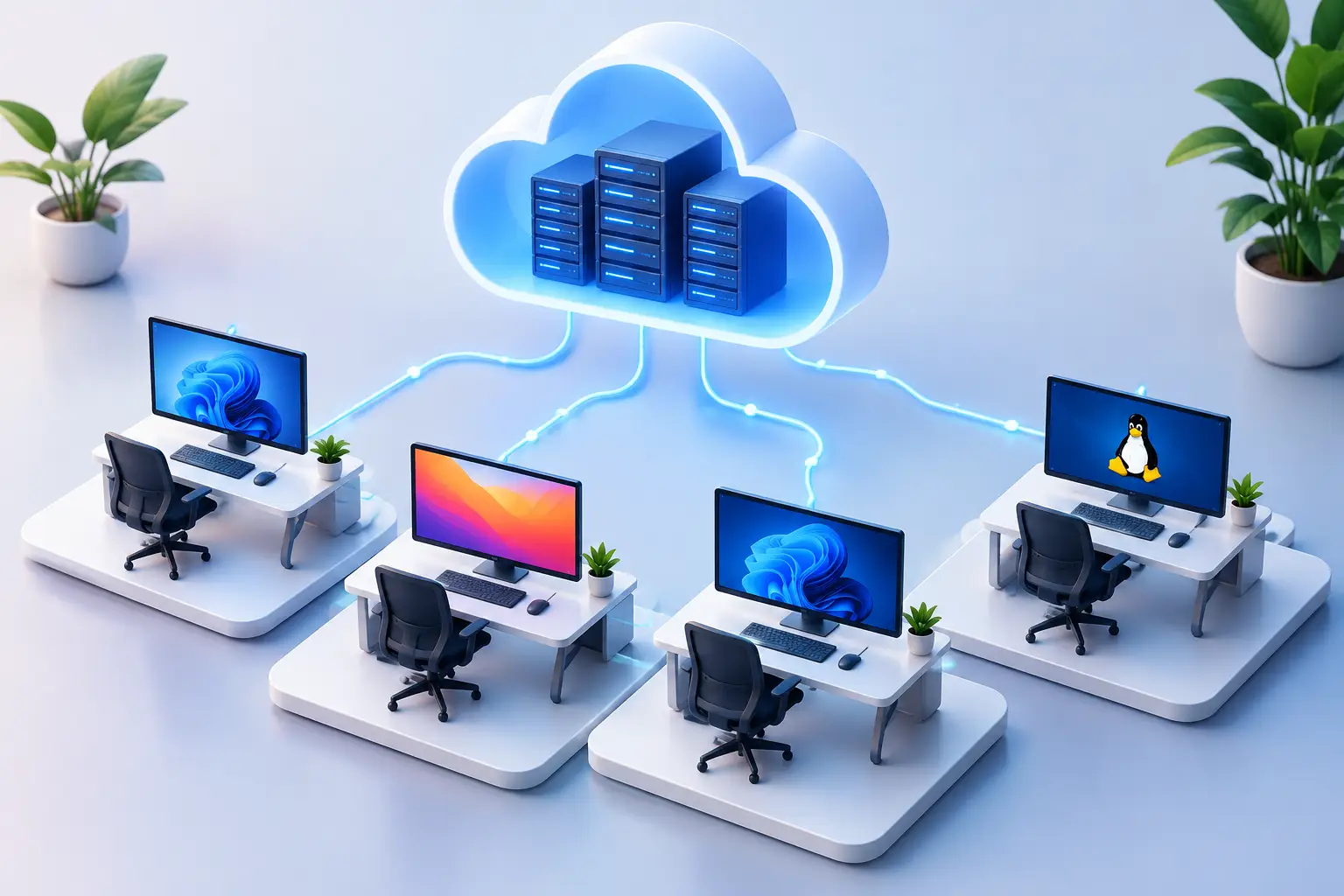
A cloud workstation gives you access to a full Windows desktop hosted remotely — you connect from the desktop, laptop, Mac, or supported browser you already use, the heavy work runs on the cloud machine, and persistent storage keeps your files and workspace available between sessions. That doesn't mean it's automatically right for everyone: internet quality, distance from the data center, your applications, and how often you need high performance all matter.
1. Playing Demanding PC Games Without Buying a Gaming Desktop
Quick answer: Gaming is one of the clearest cloud workstation use cases — a dedicated GPU cloud PC gives you modern Windows gaming performance without building a rig, and it's especially practical for selective players rather than daily heavy gamers.
A standard laptop or Mac may handle indie games and older titles, but modern Windows games can demand far more GPU, CPU, memory, and storage than a lightweight device provides. A dedicated GPU cloud PC lets you use a stronger Windows machine without building a gaming rig, replacing a power supply, managing heat, or waiting through an upgrade cycle — though you still need a stable connection, and experience depends on latency, network conditions, and each game's compatibility with cloud environments. For people who play often and want the lowest possible local latency, owning a physical gaming PC can still be the better fit. See the full cost comparison for gaming specifically and common questions before you commit.
2. Building and Testing Windows Software
Quick answer: A cloud workstation gives developers a separate Windows environment with more CPU, RAM, or storage than a daily laptop offers, keeping project dependencies off personal machines and letting developers return to one persistent workspace from anywhere.
Developers often outgrow their local machines quietly — a project starts with one editor and a few browser tabs, then adds Docker containers, a local database, emulators, multiple test environments, and a large build process, until a laptop that felt quick six months ago becomes the slowest part of the workflow. This isn't the same as renting a bare cloud server and managing infrastructure from scratch; the goal is a usable Windows desktop ready for real development work. See a full guide to cloud computers for coding and how a real six-developer team set this up.
3. Learning AI and Running GPU-Based Experiments
Quick answer: A cloud workstation is a more sensible starting point than buying a high-end graphics card before you know how often you'll actually use it, useful for PyTorch, CUDA workflows, Stable Diffusion, ComfyUI, and local model testing.
The advantage is control — create a machine with the performance tier your work requires, install your tools, keep project files on persistent storage, and use it for focused sessions. SensePC offers dedicated NVIDIA L4 GPU configurations for these workloads. There are limits: large training jobs, specialized multi-GPU workloads, and production-scale pipelines may need infrastructure designed specifically for those tasks — a cloud workstation is best for hands-on experimentation, application development, learning, model testing, and GPU-powered desktop tools rather than every possible AI workload. See GPU and VRAM guidance for AI development and renting GPU capacity instead of buying.
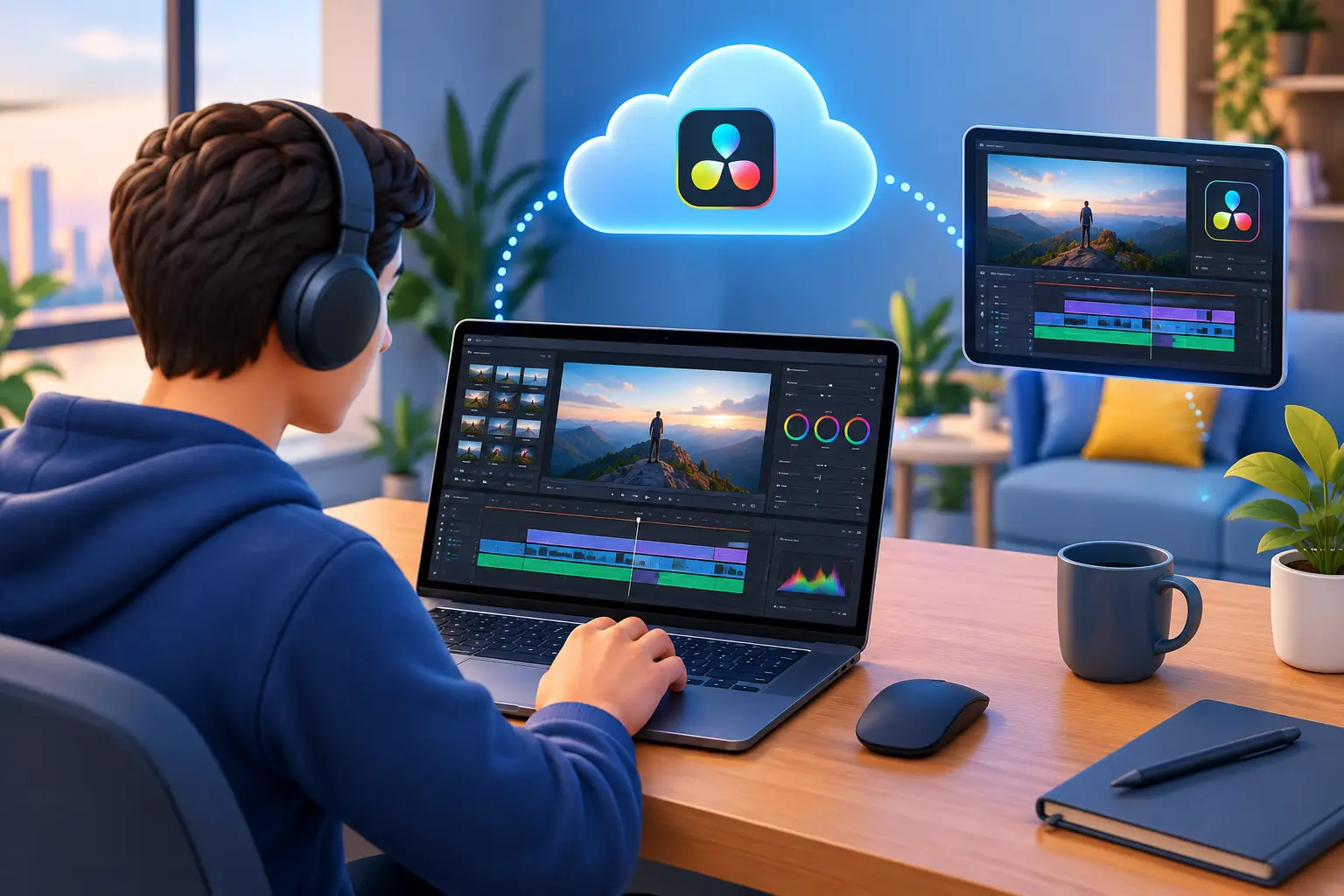
4. Editing Video, Creating Graphics, and Working in 3D
Quick answer: A cloud workstation gives creators stronger CPU, RAM, and GPU resources while they keep using a Mac, basic laptop, or older desktop as the connection device — best for periodic projects rather than daily editing from a fixed studio.
Creative applications punish underpowered hardware: stuttering timeline playback, slow effects previews, exports that tie up a laptop for hours, hard-to-navigate 3D scenes. These delays break concentration and make it harder to iterate. The trade-off is file movement — large raw video files and project assets take time to upload and download, so this model works best when you can plan storage and workflow. If you edit massive media libraries every day from a fixed studio, a local workstation with fast attached storage may still be more efficient long-term. See the full breakdown for creative work.
5. Accessing Windows Tools From a Mac or Lightweight Laptop
Quick answer: A cloud workstation solves a software-availability problem, not a hardware-quality one — you keep the portability and battery life of your local device and use the cloud PC only for the applications that need Windows or more power.
Sometimes the issue isn't that your device is bad — it's that the software you need isn't available on it. A Mac user may need a Windows-only engineering program, a game launcher, a development tool, or a GPU-dependent application. This avoids partitioning storage, maintaining a second physical computer, or carrying a heavy workstation between home, class, and work.
6. Working Remotely From One Persistent Desktop
Quick answer: A persistent cloud workstation keeps your applications, files, and preferences in one place rather than spread across several devices — valuable for analysts, engineers, contractors, and freelancers working from different locations.
Remote work gets messy when files, apps, and settings are scattered across devices — starting work on a home desktop, continuing on a laptop, then needing an urgent file while traveling. It's also useful for separating personal and work activity, with your local computer as the access point while project work stays inside the cloud environment. This isn't a replacement for an employer's security policies or required IT setup — it's a flexible option for users needing their own high-performance Windows workspace without maintaining another physical machine.
7. Completing Student Projects Without Buying a Workstation
Quick answer: Students often need high performance for a semester, not year-round — cloud access lets you scale up during a project deadline and scale down after, without committing to hardware that quickly loses value.
A semester may involve CAD, coding, simulation, AI coursework, game design, video production, or a software lab needing Windows tools — buying a premium laptop or workstation for one course can be hard to justify. A persistent desktop means returning to the same assignments and software setup from different computers. Students should still check their school's and course's specific licensing, network, peripheral, or compatibility requirements, and test the workflow early rather than the night a project is due.
8. Handling Occasional High-Performance Work
Quick answer: Not every use case needs a label — if your local computer is fine 90% of the time and only occasionally hits a wall (a large dataset, a product demo, a complex build, a graphics-heavy application for a few days), hourly-first access is usually more practical than ownership.
Instead of paying for peak performance all year, you pay for it when the workload appears. A cloud PC can be created in minutes, with performance tiers letting you choose more resources exactly when the work demands them. See hourly vs. monthly billing to match the model to your actual pattern.
When Buying a Physical PC Still Makes Sense
A cloud workstation is a flexible alternative, not a universal replacement. If you use demanding software every day, need consistently low local latency, work with very large files, or have unreliable internet, owning a physical desktop may be the better long-term choice — a local machine also gives direct hardware access and can be more predictable for specialized peripherals or offline work.
The decision usually comes down to usage frequency. Heavy daily users often get better value from owning a powerful PC. People with changing needs, short projects, travel-heavy routines, or an existing laptop they like often get more value from cloud access.
Start with the task that's holding you back. If a slow computer is delaying a deadline, limiting what software you can use, or forcing an expensive upgrade for occasional work, a cloud workstation gives you another option: serious Windows performance without making hardware ownership the default.
Can I use a cloud workstation just for gaming?
Yes — dedicated GPU cloud PCs handle modern Windows games well, especially for players who game selectively rather than daily. Check specific game and anti-cheat compatibility before committing.
Is a cloud workstation good for a small development team?
Yes, particularly for teams with mixed local hardware (Mac, Windows, varying specs) who need a consistent Windows environment for building and testing without a hardware purchase per developer.
Can I learn AI development without buying a GPU?
Yes — a cloud workstation with a dedicated GPU configuration lets you experiment with PyTorch, CUDA tools, and model testing before committing to expensive local hardware, though large-scale training may need dedicated infrastructure.
Is a cloud workstation worth it for a single school semester?
Often yes, if the course needs Windows tools, CAD, simulation, or GPU-heavy software you won't use much after the semester ends — it avoids buying hardware that loses value once the course is over.
How do I know if I should buy a physical PC instead of using a cloud workstation?
If you use demanding software every day, need the lowest possible local latency, work with very large files constantly, or have unreliable internet, a physical PC is usually the better long-term value. Occasional, bursty, or unpredictable needs generally favor cloud access instead.
How do I access my cloud workstation remotely?
You connect using the platform's supported client or a compatible browser from whatever device you're using — a desktop, laptop, or Mac. A gaming-first or performance-focused platform typically offers a native low-latency streaming mode (rather than a generic remote desktop protocol) for a more responsive experience during interactive work like gaming, 3D navigation, or video playback.
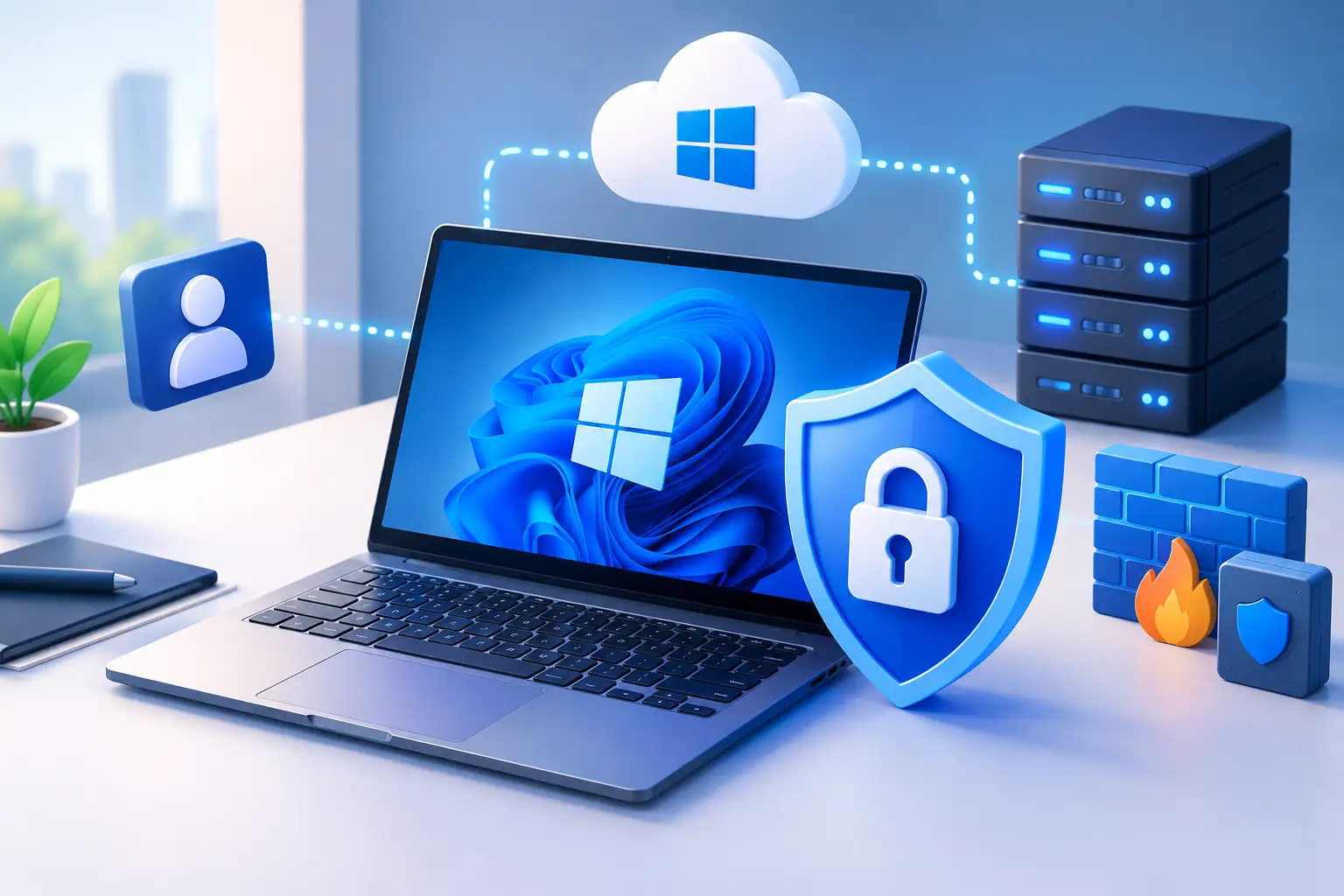
What security measures should I take for my cloud workstation?
At minimum: use a strong, unique password and enable multi-factor authentication where available, connect over a trusted network (use a VPN on public Wi-Fi), and keep good backup habits for critical files rather than treating persistent storage as your only copy. See the full cloud workstation security checklist for the complete breakdown of provider vs. user responsibility.