Short answer: A cloud computer is worth it once your local laptop becomes the actual bottleneck — Docker containers, Android emulators, multiple test environments, large repositories, GPU tools, or a full Windows stack that your device can't comfortably run. If you're only writing and running standard code, a local laptop is usually still enough. The decision isn't about wanting bigger specs; it's about removing a real constraint.
A local laptop can be enough for writing code. It becomes the bottleneck when your work also needs Docker containers, Android emulators, multiple test environments, large repositories, GPU tools, or a full Windows stack. This guide covers how to decide whether a remote machine fits your workflow, what to prioritize, and how to avoid paying for more power than you need.
A cloud computer isn't a stripped-down browser workspace or a server you build from scratch — it's a persistent Windows desktop you access remotely from the device you already own. Your editor, files, tools, and settings stay on the machine between sessions.
When a Cloud Computer Makes Sense for Coding
The best reason to use a cloud computer isn't simply bigger specs — it's separating your coding environment from your physical device. A Mac user can run Windows-only development software. A student with a lightweight laptop can access stronger CPU, RAM, and GPU resources for a demanding project. A remote developer can sign in from home or while traveling without moving a desktop workstation.
It's especially useful for bursty work — a powerful machine for a two-week AI course, a game development build, a client migration, or a release cycle. Buying a high-end laptop or workstation for a short period leaves you with expensive hardware that sits idle later; usage-based access gives you more control when demand changes.
A cloud PC also simplifies separation between projects. Instead of loading personal devices with SDKs, test databases, toolchains, and experimental packages, you keep that work in one persistent Windows environment — practical for contractors, students, and developers working across different machines.
There are limits. Your experience depends on internet connection, distance from the available cloud location, and the type of work you do. A cloud computer is a strong fit for coding, compiling, testing, GPU-assisted development, and Windows applications. It may be less appealing if you need to work offline often, rely on specialized local peripherals, or spend nearly every working hour at maximum hardware capacity — in that case, owning a workstation may offer better long-term value.
Choose Specs by Workload
Start with the work, not the largest configuration. More resources cost more, and most coding tasks don't need a dedicated GPU — the right setup is the one that stays responsive while your real tools are running.
| Workload | Prioritize | Watch for |
|---|---|---|
| Standard web, app, and scripting work | Enough RAM for browser tabs, editor extensions, terminal sessions, local services; balanced CPU/RAM | If the system swaps memory or slows during tests, move up a tier — otherwise don't overbuy |
| Containers, mobile dev, larger builds | CPU cores for compilation, RAM for containers/emulators, persistent SSD for caches and images | Several containers and emulators consume memory faster than expected |
| AI, CUDA, GPU-accelerated projects | Dedicated GPU (see GPU and VRAM needs for AI/ML work) | CPU-only setups still work for data prep and lightweight testing, but training needs more |
Standard web, app, and scripting work. For browser-based development, Python scripts, small web applications, command-line tools, and a typical editor, a balanced CPU and RAM configuration is usually more useful than paying for high-end graphics. This applies to many backend projects too — if your stack runs a database, API, cache, and several services locally, memory becomes important quickly.
Containers, mobile development, and larger builds. Docker-heavy workflows, virtualized test environments, Android emulators, and large builds place more pressure on CPU cores, RAM, and SSD performance. Persistent SSD storage matters here specifically — package caches, source repositories, images, development databases, and build artifacts remain available after you disconnect, avoiding the repeated setup work that makes temporary environments frustrating. Estimate storage honestly: a few repositories need little space, but several projects with container images, local databases, and build outputs can grow fast.
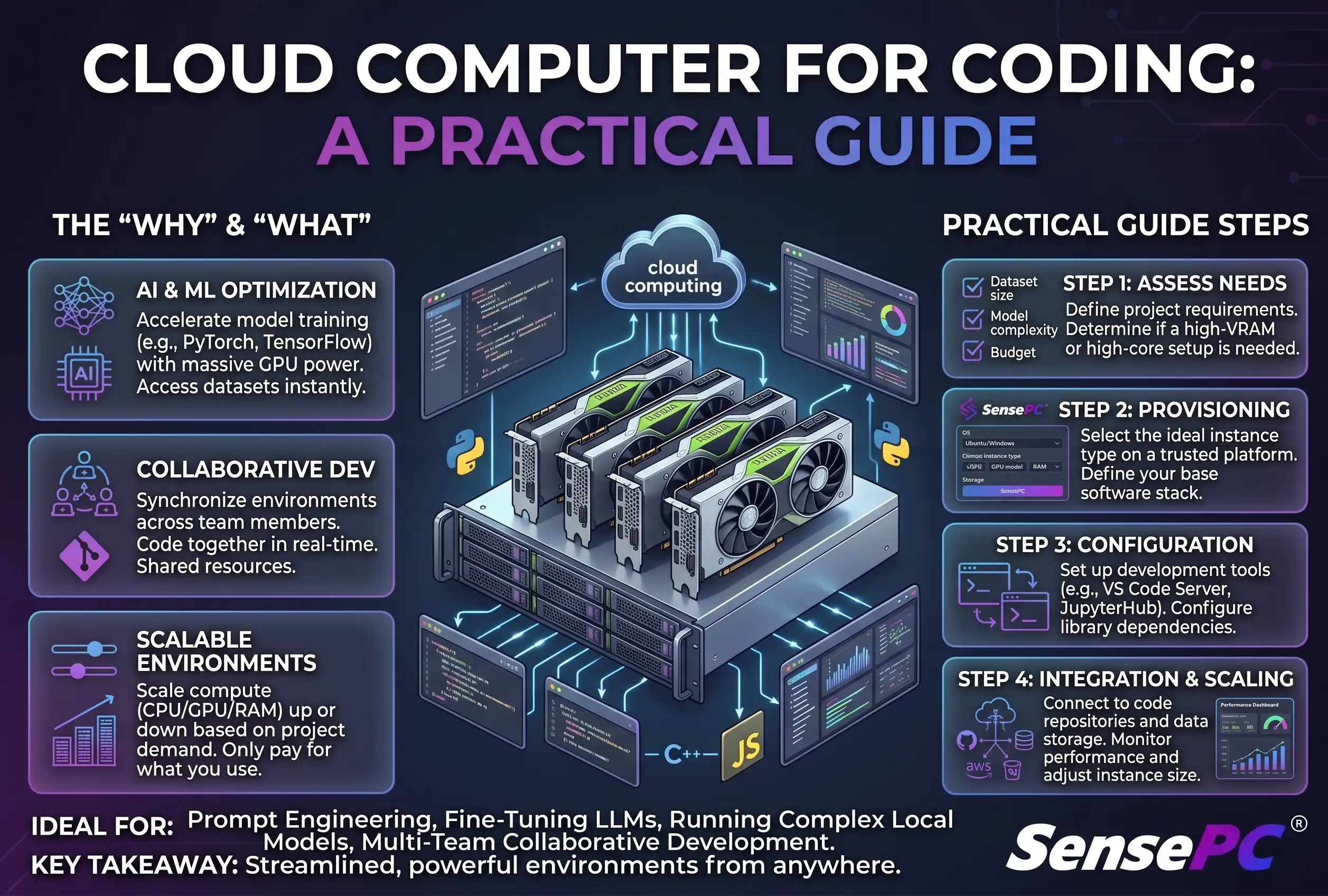
AI, CUDA, and GPU-accelerated projects. GPU access changes the equation for machine learning learners and developers — CUDA-based tools, local inference experiments, image-generation workflows, model testing, and some creative or simulation tasks benefit from a dedicated GPU. A dedicated NVIDIA L4 GPU configuration can be a practical option for projects needing GPU power without the upfront cost of a local GPU workstation, though it's worth checking your framework's, model's, and driver's specific requirements first. GPU time is most cost-effective when used intentionally: prepare code and data first, run experiments, save outputs, then scale down when the intensive phase is over.
Build a Coding Environment You Can Return To
A good cloud PC should feel like your machine after the first session, not a blank desktop every time:
- Create the Windows environment with the CPU, RAM, storage, and GPU level your project needs.
- Install your editor, language runtimes, Git tools, package managers, SDKs, and project dependencies.
- Store repositories in a clear folder structure and use source control from day one.
- Configure backups or remote repository syncing for work that cannot be replaced.
That last point matters: persistent storage keeps your environment available, but source control and backups still protect you from accidental deletion, bad changes, or a lost local copy — treat a cloud desktop like any serious development machine.
Use separate folders or repositories for experiments and production work. Record setup instructions in a project README, including runtime versions, environment variables, and startup commands, so it's easy to return after a break or move work when your needs change. Install only what the project needs — a machine packed with unused IDEs, SDKs, launchers, and background tools becomes harder to maintain, and you'll spend less time troubleshooting and more time building.
Remote Access Is Part of the Developer Experience
Coding isn't just compilation speed — it's also typing responsiveness, screen clarity, and the ability to work from the devices you already have. A low-latency remote desktop mode can make a cloud Windows PC feel far more natural than a basic remote connection, especially when switching between terminals, editors, browser tools, and design software.
SensePC provides a full Windows 11 cloud desktop with persistent SSD storage, dedicated GPU options, and a native Performance Mode powered by NICE DCV. Setup typically takes minutes rather than days of assembling hardware, installing Windows, and tuning drivers — useful when a project can't wait for a new laptop or workstation. See how a real team set this up across six developers for a working example.
Your local setup still matters. A stable wired connection is ideal when possible; strong Wi-Fi can work well, but crowded networks and weak signals can affect responsiveness. A cloud computer supplies the processing power, but your local workspace shapes the daily experience.
Cloud PC vs. Buying a Coding Workstation
Buying a physical workstation gives you direct local performance, offline access, and predictable ownership once the purchase is complete — the right call for developers using demanding tools every day, with a stable workload, expecting to keep the machine busy for years.
The trade-off is upfront cost and maintenance. You pay for the hardware before you know how much capacity you'll actually use, and you handle upgrades, heat, noise, storage management, driver issues, and eventual replacement. A laptop adds portability but often means compromising on GPU power, cooling, or upgradeability.
A cloud computer shifts that model — no expensive workstation purchase, no waiting for a build to arrive, no need to replace your laptop just because one project requires more resources. That flexibility has its own cost trade-off: if you run a high-performance system continuously, month after month, compare the ongoing usage cost against owning hardware. Cloud access is strongest for fast setup, remote access, temporary scaling, or avoiding a large purchase; hardware ownership makes more sense for constant, long-term demand.
Make the Decision Based on Your Next Project
Don't choose a cloud computer because it sounds more advanced — choose it when it removes a real constraint: a laptop that can't run your stack, a Windows tool you can't access locally, a GPU task that doesn't justify a hardware purchase, or a need to work from more than one device.
If your work leans toward fast-moving, AI-assisted coding specifically, see the perfect PC for vibe coders for that angle. Otherwise, start with the smallest configuration that fits your normal workload, then measure — if builds drag, containers compete for memory, or GPU tasks become central to the project, move up. The goal isn't owning the biggest machine; it's having the right machine ready when your code needs it.
Do I need a cloud computer for coding, or is a laptop enough?
A laptop is usually enough for standard coding, scripting, and small web projects. A cloud computer becomes worthwhile once your work adds Docker containers, emulators, large builds, GPU tools, or Windows-only software your current device can't handle well.
How much RAM does a cloud coding environment need?
It depends on what runs alongside your editor. Standard web/scripting work is comfortable with a balanced CPU/RAM setup; running a database, API, cache, and multiple services locally, or several containers and emulators at once, pushes memory needs up quickly — watch for swapping or slowdowns during normal test runs as the signal to move up a tier.
Does a cloud computer keep my code and tools between sessions?
Yes, with persistent SSD storage — your editor, language runtimes, repositories, and installed tools remain in place after you disconnect. Source control and backups are still necessary alongside persistent storage, since it isn't a substitute for either.
Is a cloud computer good for GPU-heavy coding work like AI or CUDA projects?
Yes, and it's often more cost-effective than buying a local GPU workstation for occasional or project-based use. GPU time is most efficient when used intentionally — prepare code and data first, run the GPU-heavy phase, then scale back down.
Should I rent a cloud coding computer hourly or monthly?
Bursty or project-based coding work (a course, a migration, a release cycle) usually fits hourly access better. Daily, ongoing development work often makes more sense on a monthly plan — compare your actual weekly hours before committing to either.