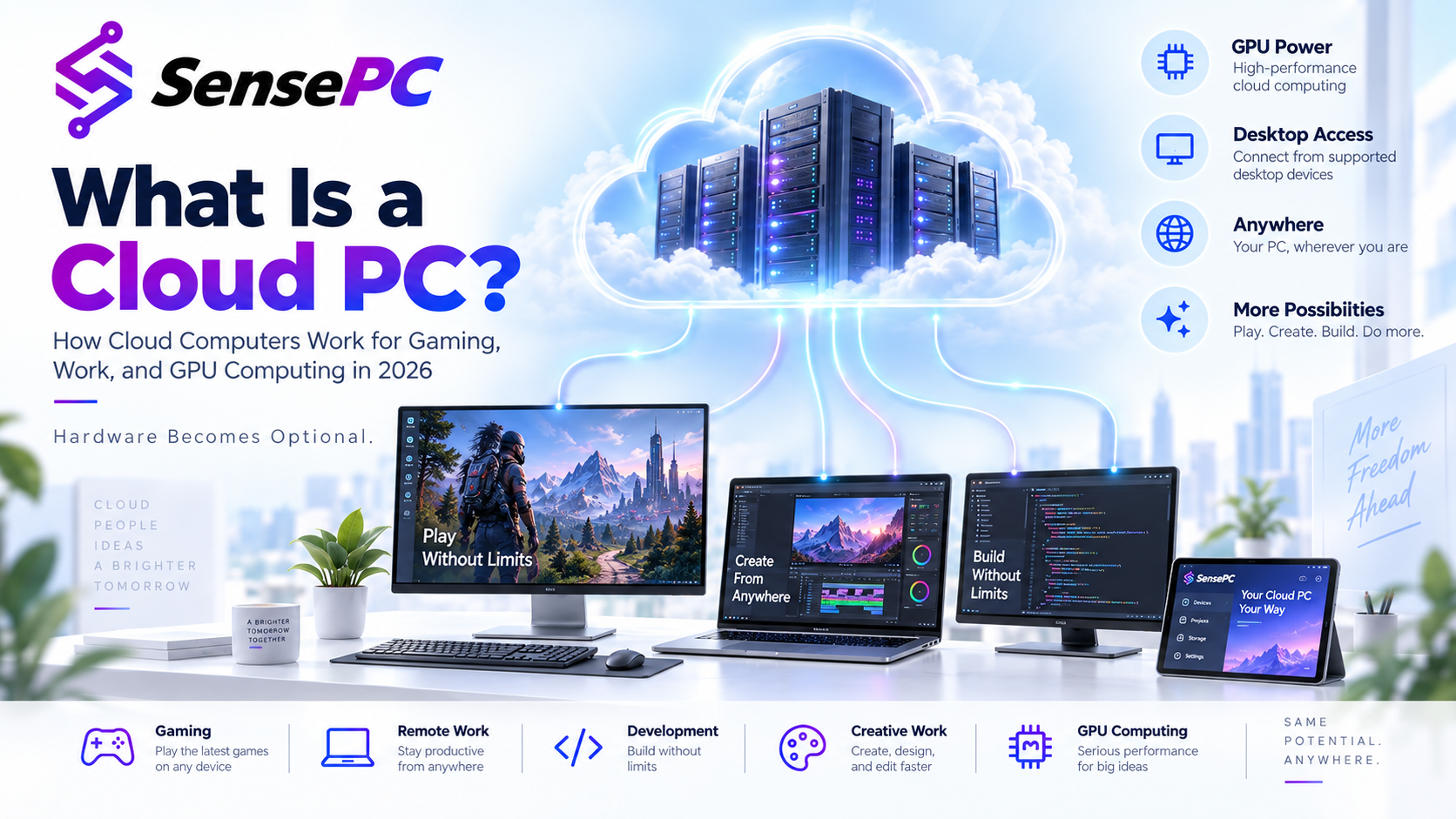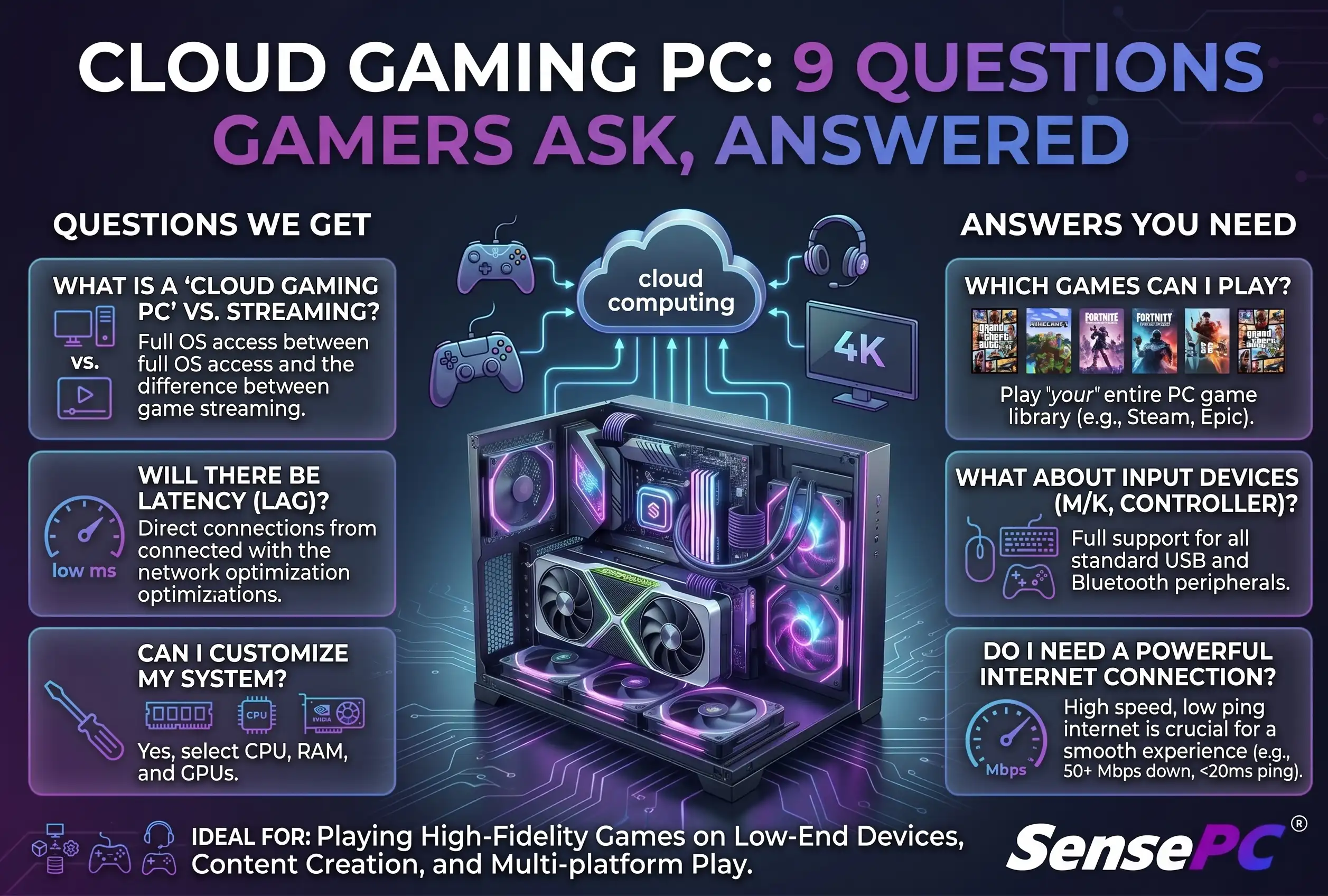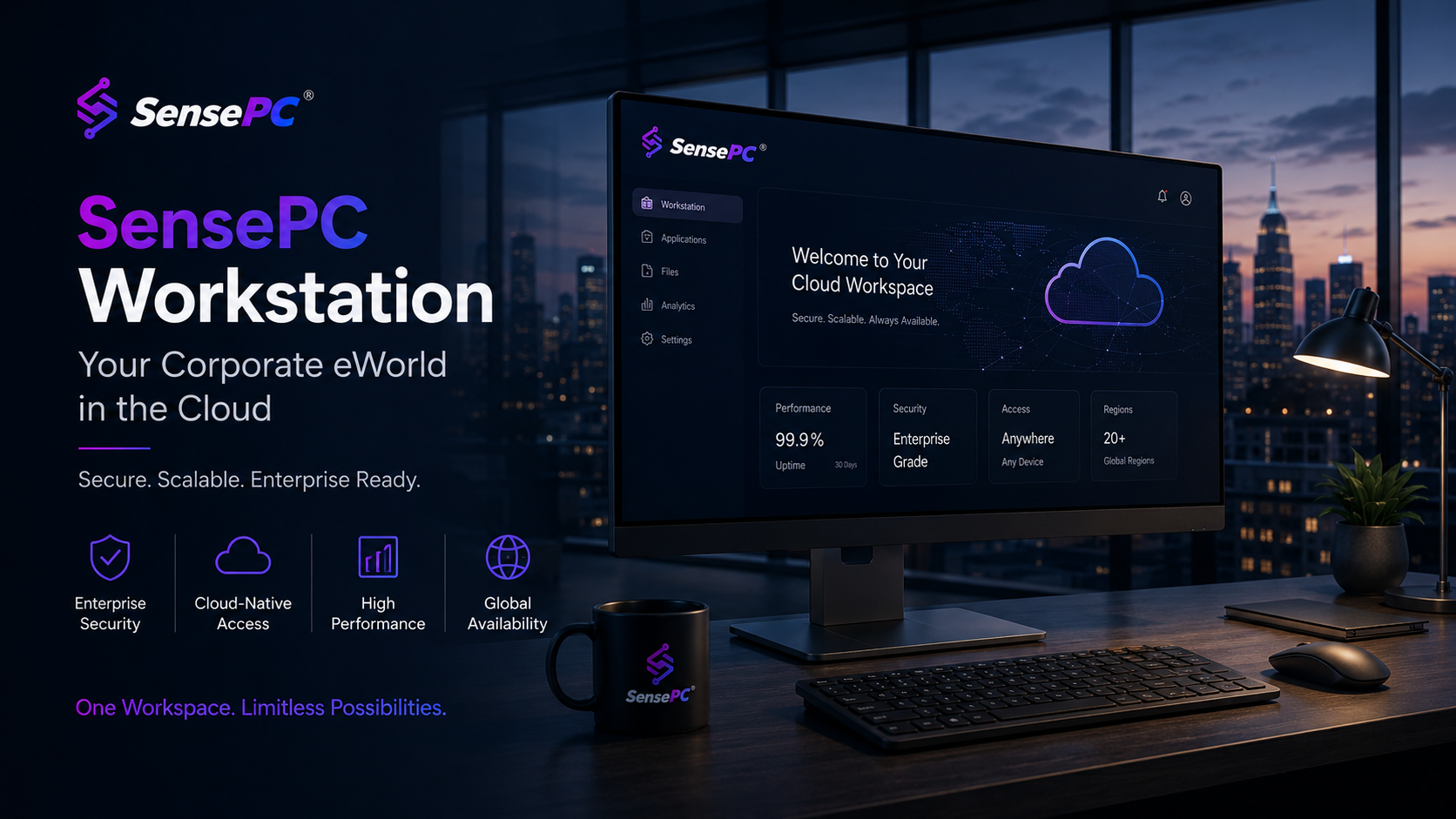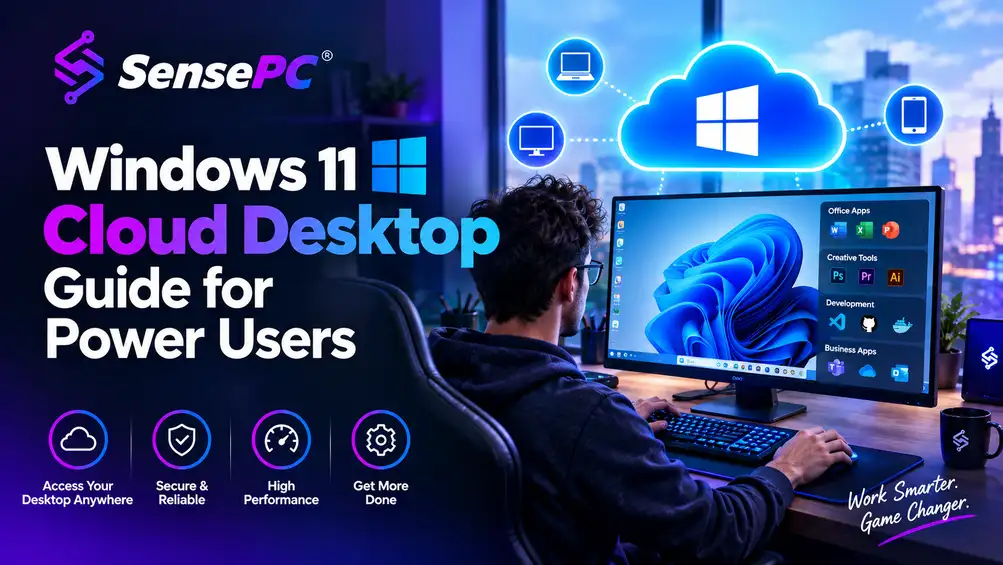
Short answer: A Windows 11 cloud desktop is a full Windows PC hosted remotely — you connect from your laptop, Mac, or desktop, while the CPU, RAM, GPU, and storage live in the cloud. It's a strong fit when you need more power than your local device provides but don't want to buy and maintain premium hardware, and a weaker fit if you need that performance every day for years or have unreliable internet.
A thin laptop, a Mac, or an aging desktop shouldn't decide what work you can take on. A cloud desktop gives you a full Windows 11 environment hosted in a data center — you connect from the device you already own, then run applications, store files, and work inside that remote PC, while your local device just handles display and input.
What a Windows 11 Cloud Desktop Actually Gives You
A cloud desktop isn't just a remote file folder or a browser version of Windows — it's a persistent Windows computer that remains available between sessions. Install supported software, keep project files on its SSD storage, configure your tools, and return to the same desktop later.
For a developer, that means keeping an IDE, SDKs, test environments, and build tools ready to go. For a creator, it means leaving a video project or 3D scene in place instead of moving large files between devices. For a gamer or GPU user, it means accessing a stronger Windows machine without dedicated graphics hardware under a desk.
Match the Machine to Your Workload
More power only helps if your application can use it. Coding, office apps, browser-based work, and light creative tasks generally need less than GPU rendering, large games, or AI experiments.
- Windows development — full spec guidance for coding workloads
- AI and GPU-accelerated work — VRAM, CUDA, and GPU memory specifics
- Editing, rendering, and 3D work — consider both graphics power and storage; large source files fill a drive faster than expected, and upload speed deserves as much attention as the machine configuration
SensePC offers tiered cloud PC options with dedicated GPU configurations and persistent SSD storage. The better choice is rarely the highest tier — pick the configuration that matches the software you use now, then scale when your workload changes.
Setting Up for Daily Use
Most cloud PC platforms reduce setup to account creation, machine selection, and a remote connection — with SensePC, a new cloud PC is generally ready in a few minutes. Treat the first session like setting up a new Windows workstation: update Windows, install core applications, sign in to your services, and organize a working folder structure. Because the desktop is persistent, this setup pays off over time. The full setup walkthrough covers this step by step.
A native remote desktop client is usually best for performance-sensitive work — SensePC's Performance Mode, powered by NICE DCV, is built for responsive graphics-heavy sessions. A supported browser is convenient for quick access from a borrowed or locked-down device, but a native client tends to feel better for long sessions, multiple monitors, or tasks where input response matters.
Check your local setup before a serious session. Wired Ethernet is preferable when available; strong Wi-Fi can work well, but crowded networks, weak signals, VPN routing, and background downloads can make a remote desktop feel less responsive. If the experience is inconsistent, check your local network first before assuming the cloud machine is the problem.
Storage and File Transfers
Persistent SSD storage is one of the biggest differences between a real cloud desktop and a temporary remote session — installed apps, settings, and saved files remain on the machine, so you're not rebuilding your workspace each time. That storage isn't unlimited, though: keep an eye on project size with game libraries, video assets, model checkpoints, datasets, and backups, and move inactive files to long-term storage when they're no longer part of active work.
Large uploads change project economics too. Sending hundreds of gigabytes of footage or datasets to a cloud PC weekly is worth calculating against your workflow — for smaller projects, code repositories, and documents, the process is usually much simpler.
Hourly, Daily, or Monthly?
The main advantage of a cloud desktop is control over when you pay for performance — especially useful for irregular needs like a weekend game session, a short-term development sprint, a school project, or a rendering job.
Hourly-first billing works well when you need power occasionally; daily or monthly options make more sense when the desktop is part of your regular routine. The full billing decision framework covers how to run the actual cost comparison — the short version: daily heavy use over years often favors ownership, while bursty or changing demand favors cloud flexibility.
When a Cloud PC Is the Better Fit
Strongest for Mac users needing Windows-only applications, students with temporary project demands, remote professionals working across locations, and creators or developers needing a stronger machine for specific tasks. The full cloud vs. physical PC comparison and the broader category landscape cover this decision in depth — there's no universal winner, and the right answer depends on frequency of use, software requirements, and how much flexibility you value.
A Simple Checklist Before You Commit
- Is your connection stable?
- Does your chosen machine have enough CPU, RAM, GPU capacity, and storage for what you actually run?
- Are your key applications suitable for a remote Windows environment (check licensing for specialized software)?
- If gaming is part of the plan, have you checked the specific title's compatibility rather than assuming universal support?
- Where will files live, and how many hours a week will you actually use the machine?
The best cloud desktop setup is the one that removes a bottleneck without creating a new one — start with the performance you can justify, build a persistent workspace around your real tools, and keep the freedom to scale when the next demanding project arrives.
What is a Windows 11 cloud desktop?
A full Windows 11 PC hosted remotely in a data center, accessed from your laptop, Mac, or desktop. The remote machine handles CPU, RAM, GPU, and storage; your local device handles display and input.
Is a cloud desktop the same as remote desktop software?
Not quite — remote desktop software typically connects to a physical PC you already own. A cloud desktop is a dedicated remote machine with its own CPU, RAM, GPU, and storage that exists independently of any physical computer you own.
How much does a Windows 11 cloud desktop cost?
It depends on the configuration and billing model — hourly, daily, and monthly options exist for different usage patterns. See the full cost and billing comparison for specifics.
Do I need a powerful computer to use a Windows cloud desktop?
No — your local device just needs to handle the video stream and your input reliably. The demanding work happens on the remote machine.
Is a cloud desktop good for gaming, development, and creative work all at once?
Yes, since it's a full Windows environment rather than a single-purpose tool — the same persistent desktop can run games, development tools, and creative applications, as long as the configuration is sized for your heaviest actual use.