Short answer: The deciding factor isn't budget or raw power — it's how often you need peak performance. If you use demanding software for long hours every business day, a desktop workstation is usually more economical over time. If your need for high performance comes in bursts — a project, a course, a release cycle — a cloud workstation avoids paying for capacity that sits idle most of the time. Many users end up with both: a local device for daily work, cloud access for occasional heavy lifting.
A powerful workstation is no longer defined by the machine sitting under your desk. For many users, the cloud workstation vs desktop workstation decision comes down to a practical question: do you need peak performance every day, or do you need it when demanding work appears?
The Core Difference
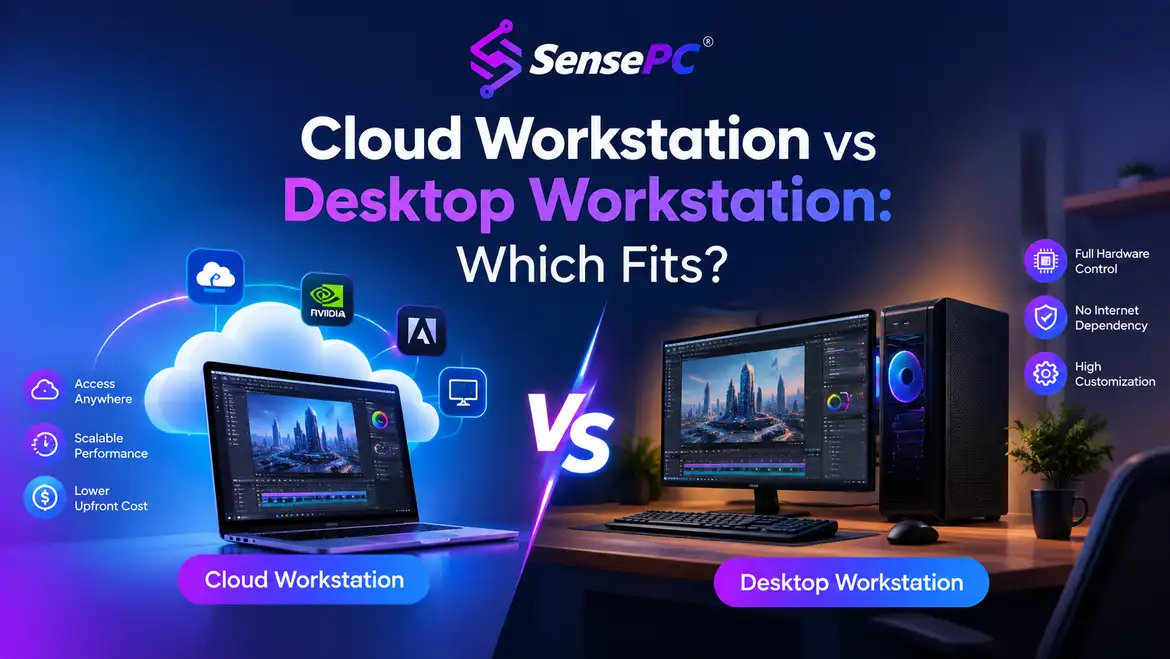
A desktop workstation is a physical computer you purchase, configure, and keep in your home, office, or studio. Its CPU, GPU, RAM, SSDs, cooling, and peripherals are local — you pay upfront, then manage the machine over its life.
A cloud workstation is a high-performance virtual Windows computer hosted in a data center. You connect from another device — a laptop, Mac, desktop, or supported browser — while the compute-heavy work happens remotely and your local device handles display and input.
That changes the ownership model. With a desktop workstation, you buy capacity before you know how much you'll use it. With a cloud workstation, you choose a configuration when you need it and pay based on your usage plan — but performance now depends on a stable internet connection that matches your location and expectations.
Quick Comparison
| Desktop Workstation | Cloud Workstation | |
|---|---|---|
| Cost structure | Large upfront purchase | Usage-based (hourly/daily/monthly) |
| Component control | Full — choose every part | Fixed tiers, chosen per need |
| Input latency | Lowest possible (local hardware) | Depends on connection quality |
| Maintenance | Yours — drivers, heat, upgrades, repairs | Handled by the provider |
| Offline access | Yes | No — requires internet |
| Best for | Daily heavy use, years-long horizon | Occasional or bursty high-performance needs |
Upfront Cost Versus Ongoing Cost
The largest difference is often financial. A capable desktop workstation can require a substantial upfront purchase, especially with a strong GPU, high RAM capacity, fast storage, and a quality display setup — that investment makes sense if the machine is used heavily for years.
It's less appealing when your need is occasional: a student needing a GPU machine for one course, a creator needing extra rendering power for a project, a developer needing a stronger Windows environment for a release cycle. Buying a premium desktop for those short windows leaves expensive hardware idle afterward.
Cloud workstations shift cost from ownership to access — start with a machine that fits the job, use it for the time you need, and avoid paying for idle hardware between projects. SensePC offers hourly-first access alongside longer usage options for workloads that change month to month.
Still, usage adds up. If you need the same high-performance setup for long hours every business day, a well-chosen physical workstation may become more economical over time. The right comparison isn't just purchase price versus hourly price — include electricity, repairs, upgrades, warranties, downtime, and the value of having the machine available whenever you need it. The GPU-specific version of this cost comparison breaks this down further for GPU-heavy work specifically.
Performance: Local Power or Remote GPU Access
A desktop workstation has one major advantage: the hardware is physically close. Display, keyboard, mouse, storage, and GPU are all local — for workloads needing the lowest possible input delay or direct access to specialized local hardware, that matters. Desktop ownership also lets you select every component: a particular GPU, added drives, more RAM, different cooling, tuned around a specialized workflow.
A cloud workstation changes the equation for users whose local device is underpowered. A lightweight laptop or Mac becomes the access point for a dedicated GPU Windows machine — useful for Windows-only software, GPU-accelerated applications, development environments, creative tools, and selected gaming workloads. Your local device doesn't carry the full computing load; it needs to run the connection well and provide a comfortable display and input setup.
For interactive tasks, connection quality is part of the workstation. Wired internet is usually preferable when possible. Users working with fast-moving games, real-time 3D tools, or latency-sensitive creative work should test their connection and performance mode before making cloud access their primary setup.
Setup Time and Maintenance Are Not Small Details
A physical desktop arrives as a project. Even a prebuilt system may need software installs, account setup, driver updates, security configuration, file transfers, and peripheral adjustments — building your own takes longer, and maintaining it never fully stops. GPUs run hot, storage fills up, drivers change, fans collect dust, hardware ages. Eventually, a workstation that was excellent becomes the bottleneck you need to troubleshoot or replace.
A cloud workstation removes much of that hardware burden. Instead of waiting for delivery or spending a weekend building a PC, you create a machine, connect, and begin setting up your software environment — with SensePC, cloud PCs are designed to be ready in minutes, not days. That doesn't mean no management at all: you still install applications, organize files, manage your Windows environment, and protect your accounts. The difference is you're not responsible for physically maintaining a high-end computer, replacing parts, or planning a major upgrade every few years.
Persistent Storage Makes Cloud Work Practical
A cloud workstation is more useful when it feels like your own computer rather than a temporary session. Persistent storage keeps installed applications, project files, settings, and your workspace available between sessions — this matters for developers with toolchains and repositories, creators with large project assets, students using specialized software, and remote workers needing the same Windows desktop from different locations.
A local desktop remains simpler for very large file transfers or workflows built around local drives — if you regularly work with huge raw media libraries, local storage may be faster and more convenient. A hybrid approach can also work well: keep active project data organized carefully, use cloud storage where appropriate, and run performance-heavy applications on the cloud workstation.
Who Should Choose Each
Choose a desktop workstation if you:
- Have a dedicated workspace and use demanding software many hours every day
- Want full control over your physical hardware
- Have inconsistent internet service
- Depend on local equipment that can't be easily accessed remotely
- Run an established studio or full-time editing work with constant local media demands
Choose a cloud workstation if you:
- Have a capable but lightweight device (laptop or Mac) needing occasional Windows or GPU power
- Have performance needs that come in bursts — an AI project, a video series, a large build, a 3D workload, or selective gaming
- Need mobility — working from a home office, school, shared workspace, or while traveling
- Would rather not commit to a large upfront purchase and its depreciation and maintenance cycle
The Best Choice May Be Both
This doesn't have to be an all-or-nothing decision. Many users keep a reliable local laptop or desktop for everyday work and use a cloud workstation when they need extra GPU power, more RAM, Windows-only software, or a higher-performance environment — see a development team that chose exactly this hybrid approach.
That hybrid setup avoids overbuying hardware while keeping a familiar local device for offline tasks and daily convenience, and gives you a backup path if your local machine is unavailable or your workload suddenly grows. Choose the model that matches your real usage, not the machine you think you're supposed to own. If high-end power is an occasional need, flexible cloud billing can keep costs and complexity under control. If it's your daily foundation, a physical desktop may still earn its place on your desk.
Is a cloud workstation cheaper than a desktop workstation? For occasional or bursty use, usually yes — you avoid the large upfront purchase and pay only for time used. For daily heavy use over several years, a well-chosen physical workstation often becomes more economical. Compare total cost including electricity, repairs, and upgrades, not just purchase price versus hourly rate.
Does a cloud workstation feel as responsive as a local desktop? For most productivity, development, and creative work, yes, especially with a stable wired connection and a low-latency performance mode. For extremely input-sensitive tasks or unreliable internet, a local desktop still has the edge.
Can I use both a desktop and a cloud workstation? Yes — this is a common and often ideal setup. Many users keep a local device for everyday and offline work, then use a cloud workstation for occasional GPU-heavy, Windows-specific, or high-performance tasks.
What internet speed do I need for a cloud workstation to feel responsive? Consistency and low latency matter more than peak bandwidth. A stable wired connection is usually more reliable than Wi-Fi for interactive, latency-sensitive work like real-time 3D tools or gaming.
Do I lose my files if I stop using a cloud workstation? With a persistent-storage service, your files, applications, and settings remain in place between sessions as long as your account is active — check your specific provider's data retention policy for what happens after cancellation.