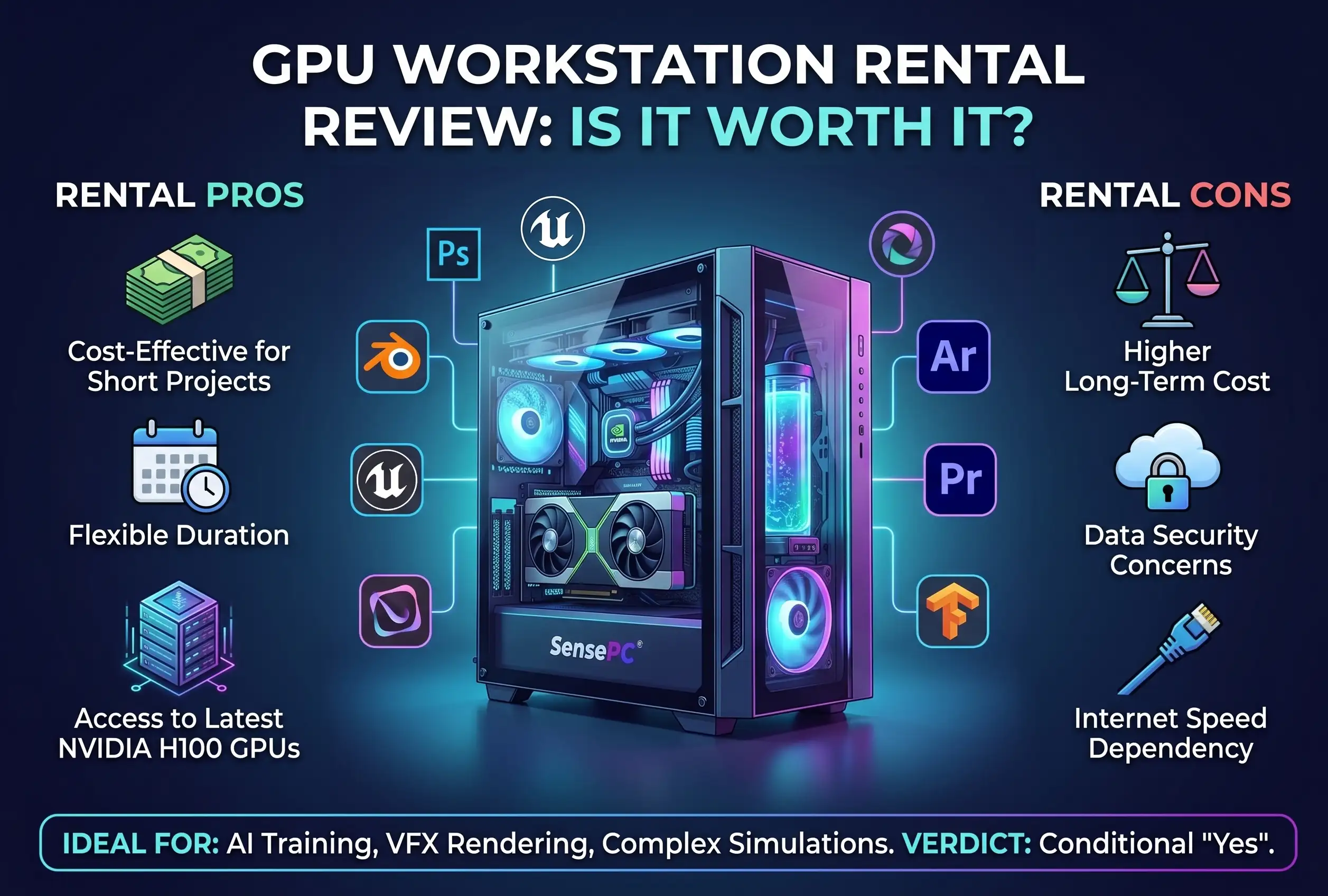
Short answer: Renting a GPU workstation makes sense when your need for serious GPU power is real but not constant — burst workloads, temporary projects, learning, or a laptop that can't keep up. Owning still wins if you run demanding software eight-plus hours a day, every day, since at that usage level a physical workstation is often the better long-term investment. The deciding factor is workload consistency, not which option sounds more powerful.
A demanding project shouldn't force you to buy a $2,000-plus computer you may only need for a few days each month. The real question with GPU workstation rental is when renting dedicated GPU power makes more sense than owning it — and the answer depends on your workload, your internet connection, and how often you actually need that performance.
A rented GPU workstation gives you a full remote Windows desktop with stronger CPU, RAM, GPU, and storage than your local device may have. You connect from the computer you already own, do the work, and keep the cost tied to the time you actually need the machine.
What You're Really Renting
A GPU workstation rental is more than a remote graphics card. The useful version is a persistent Windows environment with dedicated compute resources, where your applications, files, settings, and project tools remain available between sessions.
That matters for real work. A developer doesn't want to reinstall an IDE and download dependencies every session. A creator doesn't want to reconfigure editing tools before every render. An AI learner needs room to keep environments, model files, and test data organized. Persistent SSD storage turns a temporary hardware decision into a workspace you can return to.
The GPU handles graphics-heavy and parallel workloads, but the rest of the configuration still matters — large codebases, multiple browser tabs, virtual machines, simulation tools, video timelines, and datasets can all stress CPU, RAM, and storage. Choosing a rental based on the GPU name alone is a common mistake. A user testing CUDA tools or running a GPU-accelerated creative app needs a balanced machine with enough memory and CPU capacity to avoid bottlenecks; a user mainly needing Windows for specialized software may benefit more from dependable access and persistent storage than the highest available GPU tier.
The Cost Test: Rental vs. Ownership
| Rent a GPU Workstation | Own a GPU Workstation | |
|---|---|---|
| Upfront cost | $0 | $2,000+ |
| Ongoing costs | Usage-based (hourly/daily/monthly) | Maintenance, storage upgrades, driver issues, electricity |
| Availability | Depends on internet connection | Always nearby, works offline |
| Upgrade path | Included/automatic | Manual, and expensive at the GPU tier |
| Customization | Fixed configurations, choose a tier | Full control over components, multiple direct displays |
| Best for | Uneven or burst demand | Constant, daily, years-long use |
Buying gives you control — always nearby, no internet dependency, and easier to justify when used constantly. But the upfront payment can consume a large budget before you finish a single project, and then come maintenance, storage upgrades, driver issues, heat, noise, and power costs. Laptops add another compromise: portability is useful, but top-tier GPU performance is expensive and often hard to upgrade — and if you're starting from a laptop, bolting on an external GPU isn't always a simple or cost-effective fix either.
Renting shifts the model — instead of funding hardware for its full expected life, you pay for access when the workload appears. Hourly-first billing is especially practical for uneven demand; daily and monthly options make more sense once usage becomes regular. Match the billing period to your real schedule, not your ideal one.
There is a break-even point. If you need the same high-spec machine most workdays for years, run the numbers against ownership — including purchase price, expected upgrade costs, warranty coverage, electricity, and the value of a local machine available even when your connection is poor. Renting is flexible, not automatically cheaper in every high-usage scenario.
Performance Depends on More Than GPU Specs
A dedicated NVIDIA GPU makes a major difference for GPU-accelerated applications, Windows gaming, 3D scenes, AI experiments, and rendering. But remote performance has two sides: what happens in the cloud workstation, and what happens between the workstation and your screen.
Your local device doesn't need workstation-class components to display a remote desktop well — a Mac, basic laptop, or desktop can become the access point for a more capable Windows machine. But your network still matters: connection stability, available bandwidth, distance from the data center, Wi-Fi quality, and local network congestion all affect the experience.
For interactive work, low-latency streaming is a real feature, not a marketing detail. SensePC uses a native Performance Mode powered by NICE DCV, built for responsive remote use — valuable when moving through a 3D workspace, using visual applications, or playing supported PC games. Still, test the experience with your own connection and workflow before committing to a longer plan.
Some jobs are naturally well suited to a cloud workstation: long renders, code builds, model experimentation, software testing, and project work that benefits from stronger hardware without needing it on your desk. Tasks requiring extremely precise real-time input, unreliable local internet, or disconnected travel may favor a local machine instead.
Maintenance Is a Real Part of the Comparison
Hardware ownership gives you direct control, but it also makes you the support team. You monitor storage, manage driver updates, clean dust, deal with noise and heat, and decide when an aging component needs replacing.
For some users, that's fine — PC builders often enjoy tuning and upgrading a system piece by piece. For others, it's time better spent coding, creating, studying, or playing.
Renting shifts most of that hardware burden away from the user. You still manage your applications, files, and account security, but you're not maintaining a physical GPU, cooling system, or power supply. If your laptop fails or you're traveling with a basic machine, your main Windows environment can still be reached from another supported device.
The trade-off: cloud access depends on the service and your internet connection. A locally owned PC stays usable during an outage and offers the lowest possible input delay, since the hardware is in the same room. If those factors are critical for latency-sensitive work, ownership has a clear advantage there.
Setup and Access: Where Cloud Workstations Win
Traditional cloud servers can provide powerful compute, but often expect you to manage operating systems, remote access, networking, security settings, and command-line tools. Traditional virtual desktop infrastructure can be polished, but it's frequently built around IT departments, centralized policy, and enterprise contracts.
A self-serve cloud PC takes a more direct approach: create the machine, choose the performance level that fits the job, connect to a Windows 11 desktop, and start working. SensePC is built around this model, with dedicated GPU configurations, persistent storage, and setup designed to take minutes rather than days of procurement and installation.
That simplicity matters for individuals and small teams — a designer accessing Windows-only tools from a Mac, a developer keeping a separate testing environment without filling a personal laptop (see how one team sized GPU access per developer), or a remote worker returning to the same desktop from different supported computers without carrying a heavy workstation everywhere. It also creates separation: big project files, development environments, and demanding applications live in the cloud workspace rather than consuming your daily laptop's storage and battery — though you still need to manage files carefully and follow any employer or client requirements for sensitive material.
Who Should Rent a GPU Workstation?
Renting is a strong fit when performance needs are real but not constant: a creator needing extra rendering capacity during client work (see GPU needs for creative workloads specifically), an AI developer testing tools and workflows, a student completing a software lab, or a gamer wanting access to a capable Windows PC without buying a desktop.
It also suits users with a good everyday device that lacks GPU power — a lightweight laptop may be great for writing, meetings, and travel, but wrong for Unreal projects, GPU-based development tools, high-resolution editing, or demanding Windows applications. A cloud workstation lets one device serve both roles.
Ownership may be better for full-time local production, offline work, highly sensitive workflows with strict data controls, or inconsistent internet — or when your software relies on unusual peripherals or needs verified compatibility with specific drivers and third-party systems.
Four Questions to Answer Before You Rent
- How many hours will I use it each month? Estimate honestly, not aspirationally.
- Does my internet connection hold up during interactive remote work? Test it before committing to a longer plan.
- Which applications need the GPU, CPU, RAM, or storage specifically? Don't size the machine off the GPU name alone.
- Do I need a one-off machine, or a persistent desktop I'll return to over time? This determines whether hourly, daily, or monthly billing fits best.
Clear answers here prevent both overspending and underpowered configurations.
A Better Way to Handle Peak Computing Demand
The best GPU workstation rental isn't necessarily the one with the largest spec sheet — it's the one that gives you enough dedicated power, a usable remote experience, storage that persists, and billing that fits how you work.
For many users, that means treating cloud compute as a flexible performance layer: keep your everyday laptop or Mac, add a high-performance Windows workstation when the project calls for it, and revisit the ownership calculation if your workload becomes permanent and predictable. Before spending thousands on a new rig, measure the workload you have now, not the one you might have someday — if the need is occasional, start with flexible access and let it earn a bigger commitment later.
Is it cheaper to rent or buy a GPU workstation?
It depends on usage consistency. Renting is usually cheaper for burst, temporary, or uneven workloads. Owning becomes more cost-effective once you need the same high-spec machine most workdays for years — run the numbers including purchase price, upgrades, and electricity before assuming either option wins by default.
Do I need a powerful local computer to use a rented GPU workstation?
No. Your local device just needs to display the remote stream and handle input reliably — a Mac, basic laptop, or older desktop works. The GPU-heavy work happens on the remote machine.
What internet connection do I need to rent a GPU workstation?
Stability matters more than raw speed. Connection consistency, bandwidth, distance from the data center, and Wi-Fi quality all affect responsiveness — test your own connection with the actual workflow before committing to a longer-term plan.