Short answer: Yes, you can play Marvel Rivals through cloud gaming. There are two routes: catalog streaming services, which several reports say now list the game (GeForce NOW, Xbox Cloud Gaming, Boosteroid), and a full cloud Windows PC such as SensePC, where you install the game yourself and stream the desktop. Catalog services are simpler when they carry the game. A cloud PC gives you your own Windows environment and persistent storage, but you handle setup, and you should check the game's current anti-cheat and platform rules first. Either way, a stable connection matters more than the GPU.
Marvel Rivals cloud gaming can be a practical way to play a demanding PC shooter without buying a gaming desktop, replacing your laptop, or waiting through another upgrade cycle. Instead of running the game on your local device, you use a high-performance Windows PC in the cloud, or a streaming service, and stream the experience to the computer you already own.
That changes the question from "Can my laptop run it?" to "Can my connection deliver a responsive stream?" For many players, especially Mac users and people with lightweight Windows laptops, that is a much better question to solve.
Two Ways to Play Marvel Rivals in the Cloud
| Catalog cloud gaming (GeForce NOW, Xbox Cloud Gaming, Boosteroid) | Cloud Windows PC (e.g., SensePC) | |
|---|---|---|
| How it works | You pick from the service's supported game list and stream | You get a full Windows 11 desktop and install the game yourself |
| Marvel Rivals | Reported as available on these services; confirm on each service's game list | Possible if the game and its anti-cheat run in that environment; test before relying on it |
| Setup | Minimal | Create the PC, install the launcher and game, configure settings |
| Storage | Managed by the service | Persistent SSD; installs stay between sessions |
| Other uses | Games only | Windows apps, creative tools, development, GPU projects |
| Subscription | Service-specific (for example, Xbox Cloud Gaming needs a Game Pass subscription) | Hourly, daily or monthly access |
If a catalog service carries Marvel Rivals and you only want to play, that is often the simplest path. A cloud PC fits when you want a general Windows machine as well as games.
Check availability before you commit. Cloud catalogs change. The sources this article draws on, dated October 2026, report Marvel Rivals on GeForce NOW, Boosteroid and Xbox Cloud Gaming in the United States, with Xbox Cloud Gaming requiring a Game Pass subscription (not necessarily Ultimate). Confirm each on the service's own game list. Boosteroid has also been reported to have occasional outages.
What Marvel Rivals Cloud Gaming Actually Means
Cloud gaming can describe several different things. Some services provide a fixed catalog of games. A cloud PC takes a different approach: you access a full Windows desktop with dedicated computing resources, install the software you use, and manage your own files and settings.
For Marvel Rivals on a cloud PC, you are not limited to a preselected catalog. You work inside a Windows environment that can be used for gaming, Windows-only tools, creative apps or development when you need them. Your game files, launcher installs, graphics settings and saved downloads can remain on persistent storage rather than disappearing after each session.
The cloud PC handles the GPU-heavy work. It renders the game in a remote data center, encodes the video stream and sends it to your local screen. Your keyboard, mouse or controller inputs travel back to the cloud PC. The quality of that round trip has a major effect on how the game feels.
The Real Test Is Latency, Not Just GPU Power
Marvel Rivals is a fast multiplayer game. In this type of game, a powerful GPU alone does not create a good experience. Input response, frame consistency, network stability and display settings all matter.
Latency is the delay between your input and what you see on screen. A cloud PC adds distance, because your actions must travel to the remote machine and the rendered video must return to you. If the cloud PC is reasonably close and your connection is stable, the result can feel responsive enough for casual and many competitive sessions. If your connection has heavy jitter, packet loss or frequent congestion, no graphics card can fully fix that.
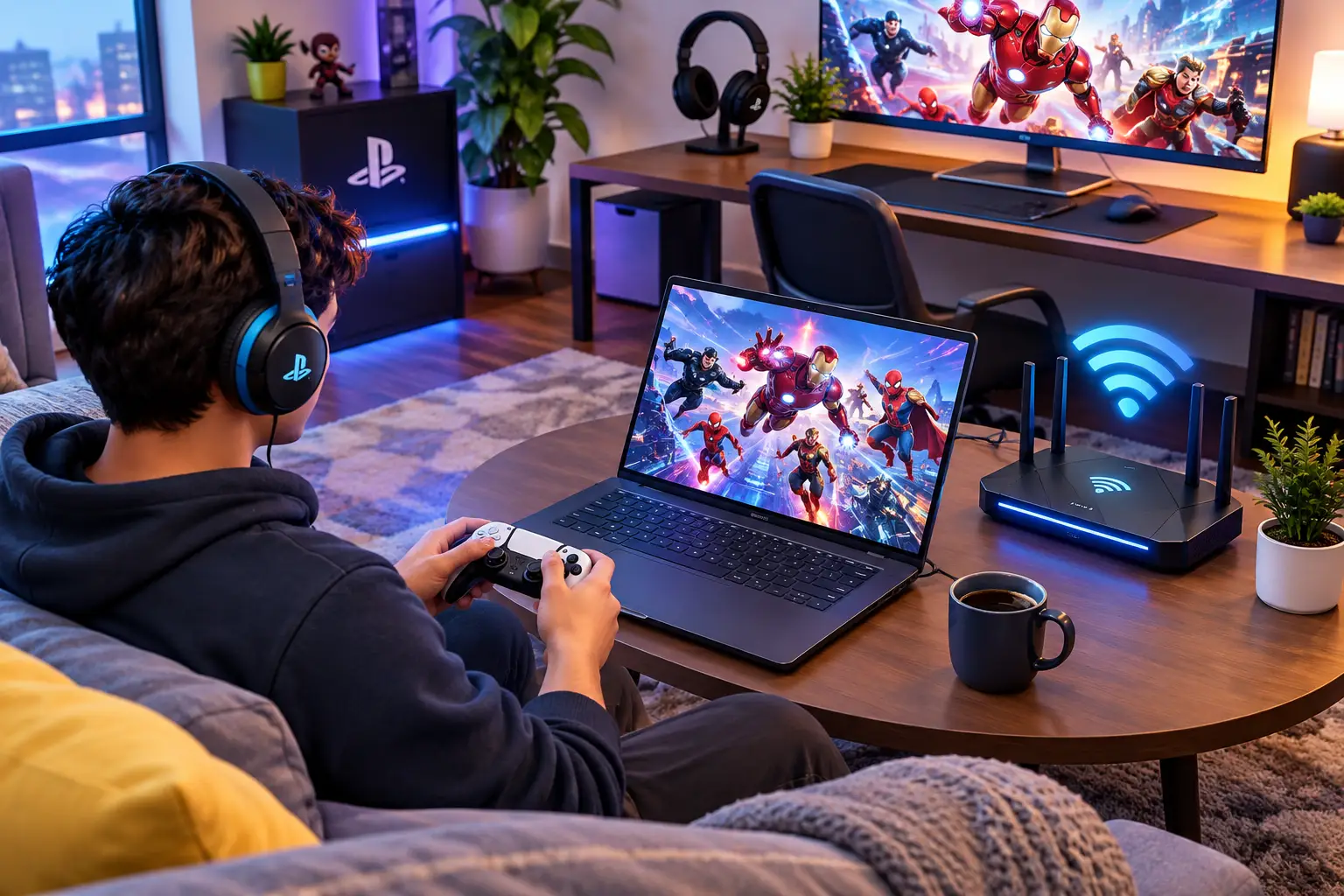
- Use Ethernet if you can. It is usually the best starting point. Strong Wi-Fi can also work, but it is more sensitive to walls, crowded networks, router quality and interference.
- On Wi-Fi, use a modern router, stay near the access point, and avoid sharing the network with large downloads or multiple 4K streams.
- Mind your route to the region. Two homes with the same advertised speed can have very different real-world results.
- Test at your usual play times, not only mid-day, when your home network and local ISP may be less busy.
What You Need Before You Start
You do not need a local gaming PC, but you do need a dependable device for receiving the stream. A Mac, Windows laptop, desktop or supported browser can be enough if it can decode high-quality video reliably. A modern display and a wired controller or mouse can also improve the feel.
A capable cloud PC should have a dedicated GPU, enough CPU and memory for the game and background services, and persistent SSD storage for installs and updates. SensePC provides full Windows 11 cloud PCs with dedicated NVIDIA L4 GPU configurations, persistent storage, and access designed for high-performance use rather than a stripped-down virtual desktop.
Think about how often you will play. Hourly access suits a few evenings a month, a short burst of play, or testing whether cloud play suits your connection. A monthly option may suit regular players who also want a persistent Windows workspace for school, work or creative projects.
The game still needs storage space, download time and updates. A persistent cloud PC avoids reinstalling large files every time you return, but leave enough free disk space for patches, launcher data and your other software.
How to Set Up Marvel Rivals on a Cloud PC
- Create your cloud PC and connect to the Windows desktop.
- Install the game launcher and Marvel Rivals through official channels. Let the game fully update before judging streaming performance.
- Set display resolution and graphics options. Multiplayer games generally benefit more from stable frame pacing than from maxing every visual setting. Start at a sensible resolution for your local display, play a few matches, then adjust.
- Use the performance-focused connection mode. On SensePC, Performance Mode uses NICE DCV to prioritize a low-latency remote desktop experience, which helps when moving between the game, voice chat and browser tabs.
- Test your controls before competitive matches: mouse sensitivity, controller detection and screen refresh settings. Small input differences are easier to notice in a hero shooter than in a slower single-player game.
Settings That Usually Matter More Than Ultra Graphics
- Frame-rate consistency first. A stable experience at a slightly lower preset beats visual swings from overly aggressive settings.
- Reduce home network load. Pause cloud backups, large downloads and system updates while playing. Someone else transferring files or streaming 4K can cause compression artifacts or sluggish response.
- Check your local screen. A low-quality display, poor video decoding or an old cable can look like a cloud gaming problem. If you use an external monitor, make sure its refresh rate is set correctly on your local device.
- Tune stream quality. Higher image quality uses more bandwidth. If the picture looks excellent but input feels inconsistent, lower the stream quality slightly. Competitive play often favors response over maximum image detail.
Cloud PC vs. Buying a Gaming Computer
A physical gaming PC is still a strong option if you game most days, want the lowest local input delay, have a stable setup at home and plan to keep the machine for several years. Once you own it, there is no dependency on an internet route to a remote data center, and you control the hardware, peripherals and upgrades.
The trade-off is cost and ownership: a large upfront purchase, space, electricity, maintenance and eventual upgrades. Gaming laptops reduce the footprint, but high-performance models can be expensive, run hot and age quickly.
A cloud PC is often more practical when your usage is irregular, your local device is otherwise good enough, or you need Windows GPU power for more than games. A student may use it for a demanding class project and play in the evening. A Mac user may need a Windows environment for a specific app and want the option to game without buying a second computer.
There are limits. Cloud gaming depends on a solid connection, acceptable distance to the infrastructure, and your tolerance for streamed video and added latency. It is not automatically the best choice for every highly competitive player.
Check Compatibility Before Making It Your Main Setup
Multiplayer PC games change over time. Launchers update, anti-cheat tools evolve, and publishers may change which environments are supported. Anti-cheat systems in some online games restrict virtual machines or remote setups. Before relying on a cloud PC for Marvel Rivals, review the publisher's current terms and requirements, then test your intended setup with your own account. We have not published a SensePC test of Marvel Rivals, so treat any cloud PC as unverified for this game until you try it.
Avoid building a purchase decision around one game. Consider whether you will use the same cloud PC for other Windows software, GPU-accelerated projects, other games or remote work. That broader use can make usage-based access more valuable than a single-purpose game machine.
The best setup is the one that fits how you actually play. If your connection is stable and you want high-performance Windows access without owning more hardware, a cloud PC can put Marvel Rivals within reach from the device already on your desk, provided the game's rules allow it.
Can I play Marvel Rivals with cloud gaming?
Yes. Recent sources report that Marvel Rivals is available through cloud gaming services including NVIDIA GeForce NOW, Xbox Cloud Gaming and Boosteroid, and you can also try a full cloud Windows PC such as SensePC. Availability changes, so confirm on each service's game list.
Is Marvel Rivals available on GeForce NOW?
Reports dated October 2026 say yes, in the United States. Check NVIDIA's GeForce NOW game list for the current status in your region.
Is Marvel Rivals available on Boosteroid?
Reports say yes in the United States, with occasional outages noted for Boosteroid. Confirm on Boosteroid's catalog before subscribing.
Can I play Marvel Rivals on Xbox Cloud Gaming?
Reports say yes, and that it needs a Game Pass subscription, but not necessarily Ultimate. Check Microsoft's current Game Pass tier details, since those change.
Do I need Xbox Live to play Marvel Rivals on Xbox Cloud Gaming?
You need an Xbox Game Pass subscription that includes cloud gaming. Check which tier covers Marvel Rivals before you pay.
When will Marvel Rivals be available on GeForce NOW or other cloud services?
According to October 2026 reports, it is already available on GeForce NOW and other services, so there is no need to wait. Confirm current status on each service's game list.
Can I play Marvel Rivals on a Mac?
Through cloud gaming, yes. Catalog services stream to a browser or app, and a cloud Windows PC such as SensePC streams a full Windows desktop to your Mac. You still need a stable connection and a device that can decode video smoothly.
Can I play Marvel Rivals on a cloud PC like SensePC?
SensePC provides a Windows 11 cloud PC with a dedicated NVIDIA L4 GPU, so the hardware side is covered. We have not published a SensePC Marvel Rivals test, and online games can restrict virtual or remote environments through anti-cheat. Check the game's current terms and test your own setup before relying on it.