A Mac can stay your main computer while Windows handles the work that needs it. Decide which tasks need Windows, pick a setup (local virtual machine, separate PC or cloud PC), keep files in one agreed location, and test one real task end to end before moving everything.
Published by SensePC, which sells cloud Windows PCs. The steps below apply to any Windows setup, and SensePC is described only where it is relevant.
Quick answer: which Windows setup fits?
| Option | Best for | Main limits |
|---|---|---|
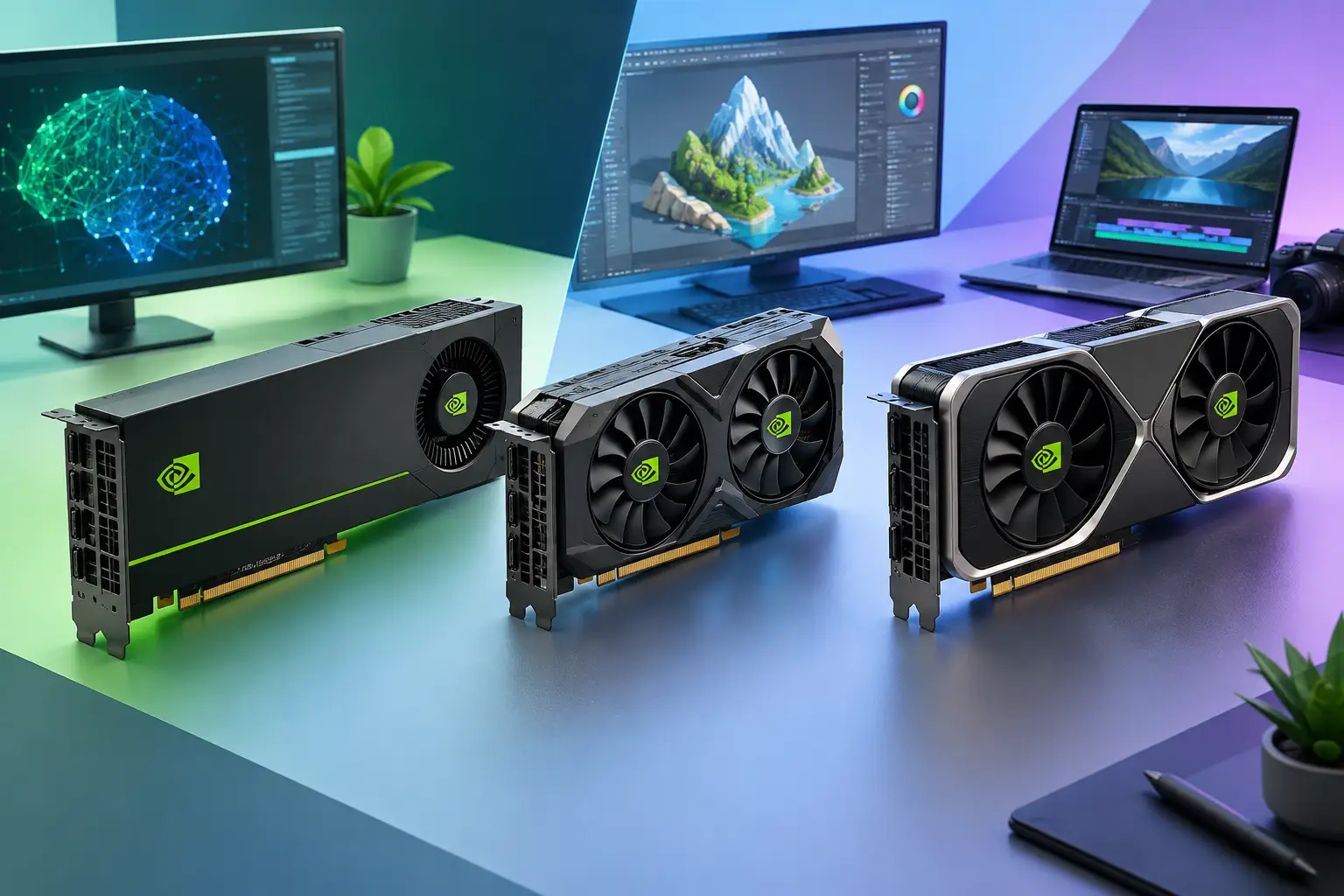
| Virtual machine on your Mac (Parallels, VMware Fusion, UTM) | Light office software, simple testing, occasional Windows | Uses your Mac's CPU, RAM and storage; limited for GPU-heavy work and demanding games |
| Separate Windows PC | Daily heavy use, offline work, specialized local hardware | Upfront cost, desk space, upgrades and maintenance |
| Cloud Windows PC | Bursty or temporary GPU work, Mac-first setups, travel | Needs a stable internet connection; adds network delay; licensing rules apply |
Step 1: Start with the workflow, not the Windows desktop
Write down the work that actually needs Windows. A developer might need Visual Studio, a test environment or GPU tools. A creator might need a Windows-only plug-in or 3D application. A student might need course-specified engineering software. A gamer might want PC games that don't run on macOS.
Then sort your apps into three groups:
- Keep on the Mac: Mac-native tools that already work well.
- Move to Windows: Windows-only software.
- Cross-platform apps (browsers, code editors, chat): choose one primary place for active work so files and settings don't drift apart.
That list sets how much CPU, RAM, GPU and storage you need, and prevents paying for a high-performance system when a standard one would do.
Step 2: Choose how to run Windows from a Mac
Local virtual machine. Convenient and works offline, but it shares your Mac's resources. On Apple Silicon Macs, Windows runs as the ARM version, so check that the apps you need are supported or run well under emulation. Boot Camp is not available on Apple Silicon Macs. Intel Macs can still use it.
Separate Windows desktop. Direct local performance and no dependence on internet. Worth it if you use demanding apps every day and will keep the machine for years.
Cloud Windows PC. You connect to a remote Windows computer that does the processing. SensePC offers Windows 11 cloud PCs with NVIDIA L4 graphics, persistent SSD storage, and Hourly, Daily or Monthly billing, reached through a browser or Performance Mode (a native Amazon DCV client for supported Windows and macOS computers). It suits intermittent GPU work, temporary projects, travel and Mac-first setups. It is a weaker fit if you need offline use or specialized local peripherals. Read about the GPU trade-offs before choosing.
Step 3: Build a file system that works on both platforms
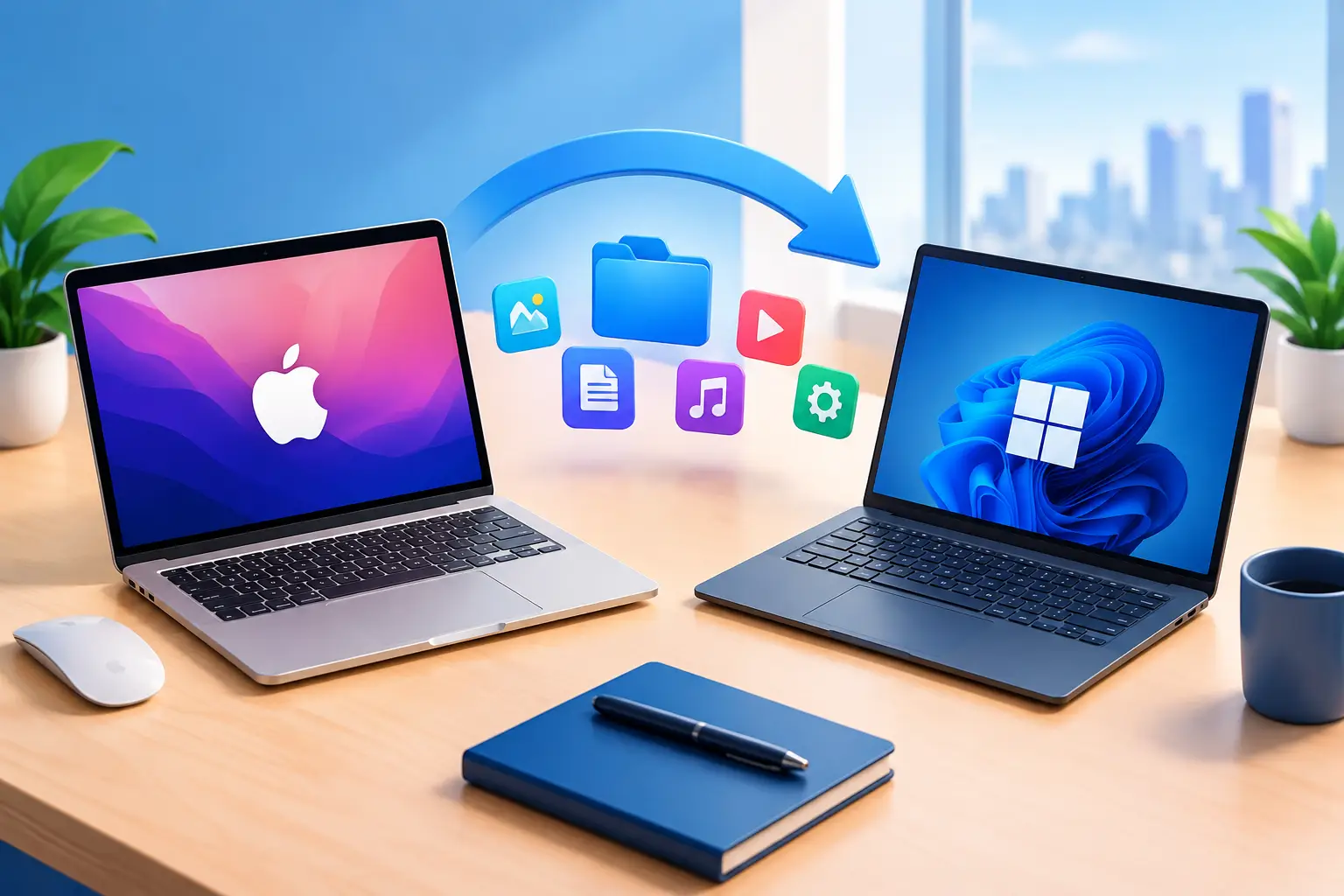
Most migration problems are file problems. Set one rule: active project files live in a location you can reach from both environments, or in the Windows machine's persistent storage when the project belongs there.
- Documents, code and smaller assets: use a cloud storage folder or a Git repository. Keep the folder structure identical on both systems and name one source of truth per project.
- Large footage, game libraries, model files and caches: keep them where the app runs, and move only deliverables and backups. SensePC's File Transfer panel can move files between your local device, the SensePC and Sense Cloud storage.
- External drives: format as exFAT if you will plug the same drive into both systems, because Windows can't read macOS-native formats by default.
- Credentials: never copy private keys, tokens or environment files casually. Use your existing secure process and keep secrets out of repositories.
- Back up first. Before any migration, make a full backup of the Mac, for example with Time Machine, and verify that important files open.
Common cross-platform file gotchas
| Issue | What to do |
|---|---|
| Case-sensitive vs case-insensitive names | Avoid names that differ only by capitalization |
| Forbidden characters in Windows file names (`< > : " / \ | ? *`) |
| Line endings in text and code (LF vs CRLF) | Set Git's autocrlf or an .editorconfig |
| Missing fonts | Install the same fonts on both systems |
| Hidden macOS files (.DS_Store, resource forks) | Exclude them from archives and repos |
| Long paths | Keep folders shallow |
Step 4: Recreate the tools you actually use
Don't clone every Mac app on day one. Install what one complete task needs, then test it start to finish: open a project, reach its files, sign in, run the workload, save the result, and confirm you can find it from your Mac.
Check licenses. Some software has device limits or activation rules, and game launchers, anti-cheat systems, plug-ins and external hardware can behave differently on cloud or virtual machines. On SensePC, Windows 11 follows a bring-your-own-license approach unless the dashboard or a written agreement says otherwise, so confirm that your Windows license permits virtualized use.
Step 5: Map your keyboard shortcuts
The Command key is the biggest muscle-memory gap. In most Windows apps, Control does what Command does.
| Mac | Windows |
|---|---|
| Cmd+C / V / X / Z / S | Ctrl+C / V / X / Z / S |
| Cmd+Tab (switch apps) | Alt+Tab |
| Cmd+Space (Spotlight) | Windows key, or Win+S |
| Cmd+Shift+4 (screenshot) | Win+Shift+S |
| Cmd+Q (quit) | Alt+F4 |
| Option (Alt) | Alt |
| Force Quit (Cmd+Option+Esc) | Ctrl+Shift+Esc (Task Manager) |
| Delete (backspace) | Backspace; forward delete is Delete |
Learn a few at a time. Keep Mac shortcuts for Mac work and Windows shortcuts for Windows work. If you use a remote Windows desktop, test whether copy and paste and your shortcuts pass through to the remote session, because behavior varies by client and browser.
Step 6: Tune the connection before you judge performance
For a cloud PC, responsiveness depends on the link between your Mac and the remote desktop.
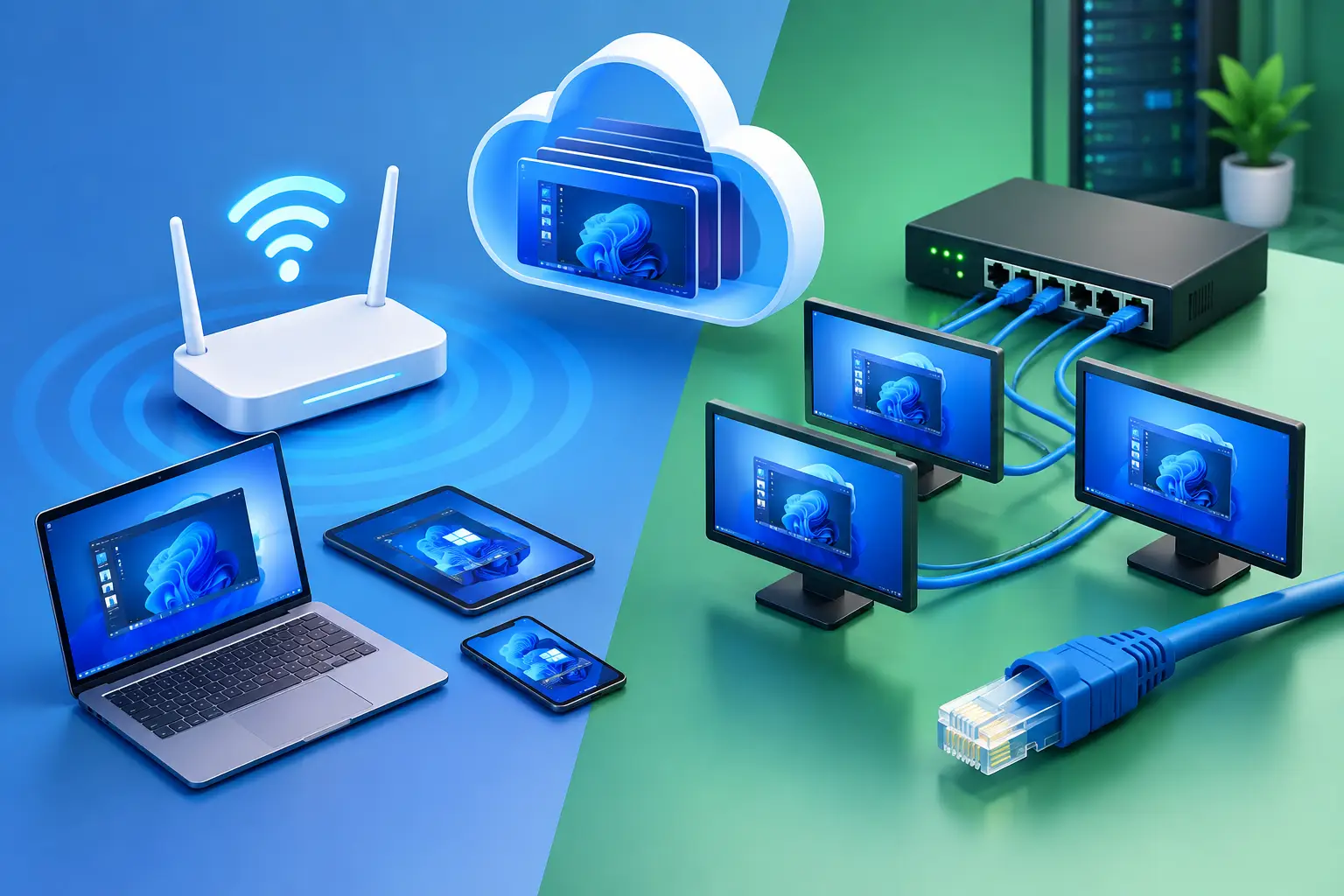
- Use wired Ethernet at a fixed desk, or strong 5 GHz Wi-Fi. See the Wi-Fi 6 vs. Ethernet guide.
- Choose the closest region. SensePC has 8 (New York, Chicago, California, London, Berlin, Madrid, Stockholm, Brazil).
- Pause large uploads while working in graphics-heavy apps.
- Start in the browser, then try Performance Mode on a supported Mac for interactive work.
- Run a real test: work in your main app for 20 to 30 minutes, move large windows, play back media, and note how it feels. On SensePC, watch Session Live for quality, latency, bandwidth and FPS.
Step 7: Create a repeatable routine
A good workflow is boring. Plan and communicate on the Mac. Launch Windows for the task that needs it. Work from the designated project folder. Save deliverables to the agreed location. Close apps cleanly. Keep the Windows desktop tidy, pin your few key apps, and clear downloads regularly.
On any cloud PC, understand what happens when it is stopped, deleted or runs out of funds, and keep an external backup of important files. On SensePC, a stopped PC with insufficient wallet funds can be automatically terminated after several days with its disk deleted, so check the billing rules in the FAQ.
When a cloud Windows workflow makes sense, and when it doesn't
Good fit: Mac users who need Windows software without buying another powerful computer, developers testing on Windows, creators using GPU-accelerated apps, students with short-term projects, remote professionals who want a consistent desktop, and gamers who want PC access.
Weaker fit: uninterrupted offline use, unreliable internet, or the same maximum-demand workload for enough hours that owning hardware costs less.
Start with one meaningful Windows task, give it a clean file path, and test it on the performance level you need. SensePC plans and pricing are billed Hourly, Daily or Monthly, so you can test before committing.
1. What is the best way to run Windows on a Mac?
It depends on your workload. A virtual machine suits light apps, a cloud Windows PC suits GPU-heavy or occasional work, and a separate Windows PC suits daily heavy use. Start with the Windows-only tasks you actually need.
2. Can I run Windows apps on a Mac without restarting?
Yes. A virtual machine or a cloud PC runs alongside macOS, so you can switch without rebooting. Dual-booting (Boot Camp) needs a restart and works only on Intel Macs.
3. Can I run Windows on an Apple Silicon Mac?
Yes, in a virtual machine, which runs the ARM version of Windows. Many apps work, but x86-only software, drivers and some games may be slow or unsupported, so check your apps first. A cloud Windows PC avoids the architecture issue.
4. Does Boot Camp work on M-series Macs?
No. Boot Camp is available only on Intel Macs. Apple Silicon Macs use virtualization or a remote Windows PC instead.
5. Is a cloud PC better than a virtual machine for Windows on a Mac?
For GPU-heavy or resource-heavy work, often yes, because it doesn't use your Mac's CPU, RAM or storage. For offline use or light tasks, a local VM may be simpler. A cloud PC depends on your internet connection.
6. How do I migrate data from a Mac to a Windows PC?
There is no single official Apple tool for Mac to Windows. Back up the Mac, then copy files with cloud storage, an exFAT external drive or a network share, and export data such as Photos, Contacts and Calendar. Verify the files open on Windows.
7. How do I transfer files from a Windows PC to a Mac?
Apple's Migration Assistant can move files, contacts, calendars and other data from a Windows PC to a Mac. For a few files, use cloud storage, an external drive or a network share.
8. How do I move files between my Mac and a SensePC cloud PC?
Use SensePC's File Transfer panel, which moves files between your local device, the SensePC and Sense Cloud storage. For large projects, keep working files on the Windows storage and transfer only deliverables.
9. Where should I keep project files when I use both Mac and Windows?
Pick one source of truth per project: a synced cloud folder or Git repository for documents and code, or the Windows machine's persistent storage for large working files. Keep folder names identical.
10. Which format should an external drive use for both Mac and Windows?
exFAT, because Windows can't read macOS-native formats by default and macOS can't write to NTFS drives by default.
11. How do I make sure files transfer without corruption?
Don't assume a finished copy is correct. Compare file counts and sizes, open a sample of files, and use checksums for important data. Keep the original until you have verified the copy.
12. What are the Mac keyboard shortcut equivalents on Windows?
Control replaces Command for most commands: Ctrl+C, V, X, Z and S. Use Alt+Tab to switch apps, Win+Shift+S for a screenshot, and Ctrl+Shift+Esc for Task Manager.
13. What are common problems when switching between Mac and Windows?
Shortcut differences, file-name and line-ending differences, missing fonts, drive formats, license limits and unsupported apps. Test one full task, and check these early.
14. Can I use my Mac's keyboard and mouse with a cloud Windows PC?
Yes. The remote session uses your local keyboard and mouse. Test whether shortcuts and clipboard pass through in your client, because behavior varies.
15. Do I need a powerful Mac to use a cloud Windows PC?
No. Your Mac mainly displays the stream and sends input, so a lightweight or older Mac can work. A stable, low-latency connection matters more.
16. What internet connection do I need for a cloud Windows PC?
A stable, low-latency connection matters more than raw speed. Use wired Ethernet or strong 5 GHz Wi-Fi, a nearby region, and test with your real apps for 20 to 30 minutes.
17. Can I use a Windows license on a cloud PC?
It depends on the license and the provider. On SensePC, Windows 11 follows a bring-your-own-license approach unless the dashboard or a written agreement says otherwise. Check that your license permits virtualized use.
18. Is my data safe on a cloud Windows PC?
Protect it like any remote system: use strong sign-in, avoid copying secrets carelessly, and keep an external backup. Check the provider's storage, deletion and termination rules before storing important files.