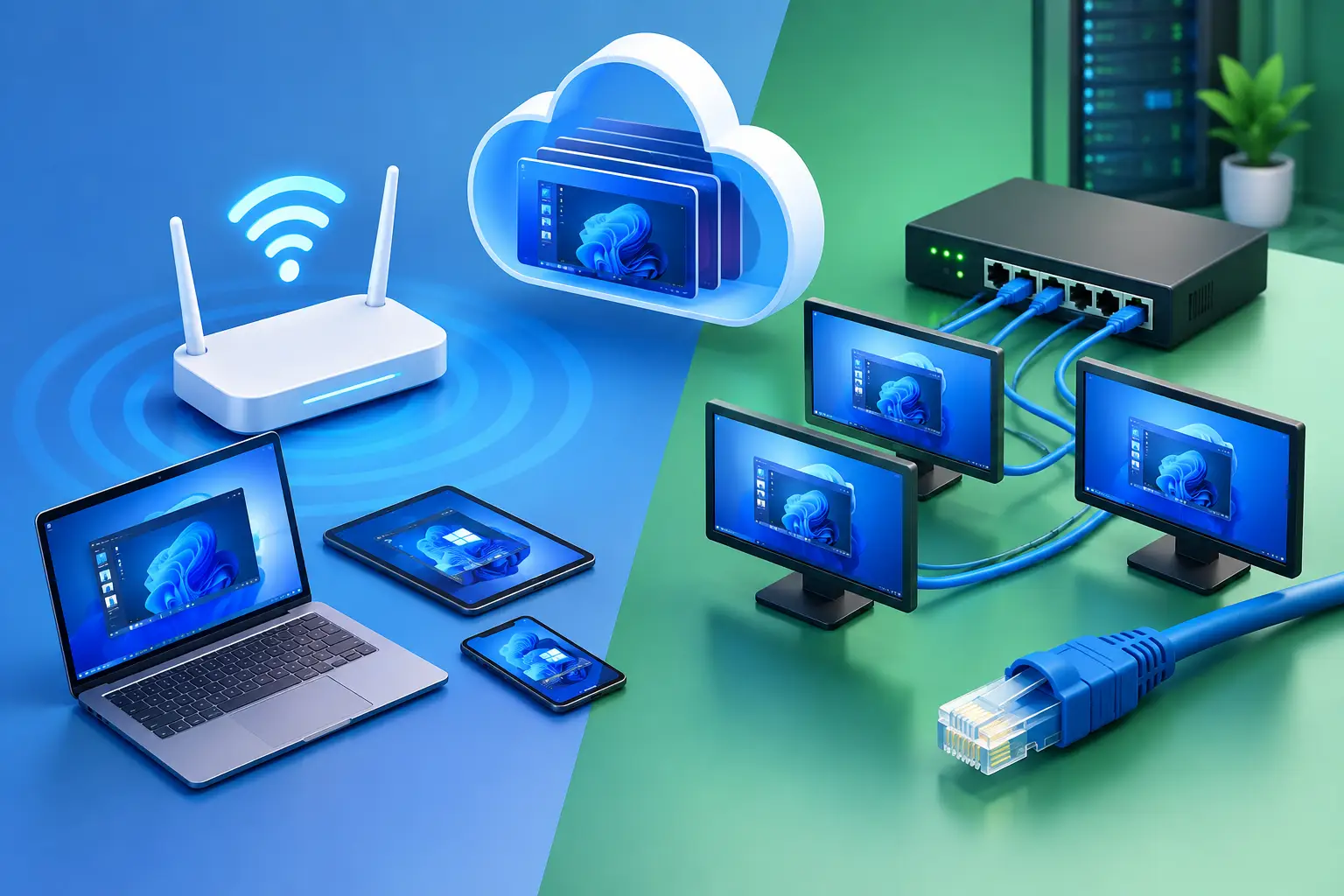
Ethernet is usually the better choice for cloud gaming because a cable gives more consistent latency, which means less jitter and fewer dropped frames. Wi-Fi 6 can work well close to the router on a clear 5 or 6 GHz channel. Stability matters more than the speed printed on the box, so test both with your own session.
A cloud PC puts serious Windows performance, CPU capacity and GPU power within reach from a Mac, laptop or desktop. But the connection between your device and that remote machine still shapes the experience. In the Wi-Fi 6 vs. Ethernet debate, the real question is not which technology has the bigger number. It is which one delivers a stable, responsive session for the way you play or work.
Published by SensePC, which sells cloud PCs. This guide explains the general networking factors and shows you how to measure them. SensePC has not published a measured Wi-Fi vs. Ethernet comparison, so this post gives no latency or frame-rate numbers of its own.
Quick answer: Wi-Fi 6 vs. Ethernet for cloud gaming
| Ethernet | Wi-Fi 6 | |
|---|---|---|
| Latency consistency (jitter) | Usually the most consistent | Good close to the router; varies with distance, walls and interference |
| Interference | Not affected by radio interference | Affected by neighbouring networks, walls and other devices |
| Mobility | Fixed to a cable | Move between rooms |
| Setup | Cable, or a USB-C/Thunderbolt adapter on laptops and Macs | Works out of the box on supported devices |
| Best for | Fixed desk, fast-paced games, long sessions | Casual play, mobility, no practical cable route |
| Main risk | Bad cable or adapter limits speed | Congestion, weak signal, power-saving settings |
Why your local connection matters for a cloud PC
When you use a cloud PC, the game runs on a remote Windows machine. Your device sends keyboard, mouse and controller input up to that machine and receives a live video stream back. Your local computer does not need the same raw processing power as the cloud PC, but it does need a dependable path to it.
That is why speed alone does not tell the whole story. A connection can show high download bandwidth and still feel inconsistent if it has jitter or packet loss.
- Latency is the time data takes to make a round trip.
- Jitter is how much that time changes from moment to moment.
- Packet loss is data that never arrives and has to be resent or skipped.
Each can show up as a delayed click, a soft image during fast movement, audio glitches or a brief stutter.
How jitter becomes frame drops
You can work out the budget with simple arithmetic. A stream at 60 frames per second needs a new frame about every 16.7 ms (1,000 ms ÷ 60). At 120 frames per second the interval is about 8.3 ms. For the picture to look smooth, each frame has to arrive close to its turn.
Steady delay is easy to absorb. A 30 ms path that stays at 30 ms feels consistent. A path that averages 30 ms but sometimes jumps by 20 ms or more is harder, because those late packets arrive after their frame was due. The player then sees one of three things:
- A stutter, when a late frame is held and the next one arrives close behind it.
- A skipped frame, when the stream drops a frame to catch up.
- A softer image, when the stream lowers quality to protect responsiveness.
This is why a connection with a lower average latency can feel worse than one with a slightly higher but steadier latency. For real-time games, consistency is the metric to watch.
Wi-Fi 6 vs. Ethernet: the practical difference
Ethernet uses a physical cable from your computer to your router or switch. Wi-Fi 6 (the common name for IEEE 802.11ax) uses radio signals that are shared with other devices and affected by distance, walls, neighbouring networks and interference. That basic difference drives nearly every trade-off.
Ethernet prioritises consistency
A wired connection avoids wireless interference and does not compete for radio airtime. With a quality cable and a healthy router, it typically delivers lower and more stable local-network latency. That makes it the preferred option when every input matters.
Ethernet also helps in busy homes. Several video streams, smart devices, game downloads and other users can put pressure on a wireless network. A wired computer is not immune to an overloaded internet connection, but it removes one common source of local instability.
The downside is convenience. The router may be in another room, and long cable runs are not realistic in every apartment, dorm or temporary workspace.
Wi-Fi 6 offers flexibility with the right setup
Wi-Fi 6 was designed to handle more devices efficiently than earlier Wi-Fi generations, and it can deliver strong throughput in crowded environments when both the router and your device support it. For cloud gaming, it can feel very good when you are close to a capable router, on a 5 GHz band (or 6 GHz with Wi-Fi 6E), in a relatively clear wireless environment.
Still, Wi-Fi 6 is not a guarantee of low latency. The Wi-Fi version on your laptop is one part of the equation. Signal strength, router placement, channel congestion, walls, Bluetooth devices and household traffic still matter. A laptop with Wi-Fi 6 connected from two rooms away can perform worse than an older device on a solid cable.
Think of Wi-Fi 6 as a capable convenience option, not an automatic replacement for a cable in demanding sessions.
Wi-Fi 6, Wi-Fi 6E and Wi-Fi 7: does the generation matter?
| Standard | IEEE name | Bands | What it means for cloud gaming |
|---|---|---|---|
| Wi-Fi 6 | 802.11ax | 2.4 and 5 GHz | Efficient with many devices; the 5 GHz band is the one to use |
| Wi-Fi 6E | 802.11ax extended | Adds 6 GHz | A newer, usually less crowded band, with shorter range |
| Wi-Fi 7 | 802.11be | 2.4, 5 and 6 GHz | Newest generation; helps most with multi-gigabit plans and many devices |
A newer generation helps only if both your router and your device support it. For a single cloud gaming session the practical gains come from a clear channel, good signal and a nearby router, not from the generation label alone. If you are buying a new router, newer standards are reasonable to choose, but fix placement and congestion before you spend money.
Bandwidth matters, but stability matters more
Most cloud desktop sessions do not need extreme download speeds. A responsive session depends more on consistent latency and clean packet delivery than on the highest bandwidth tier. A 1 Gbps plan can still perform poorly if the router is overloaded or the signal is weak, while a modest plan with a wired connection can feel better.
Upload quality matters too, because your mouse movements, keystrokes, microphone and controller input travel back to the cloud PC. Before blaming the cloud PC, check whether another device is downloading large files, syncing cloud storage, backing up photos or streaming video. These tasks can congest the upload side of a home connection.
Run the test: measure jitter and frame drops yourself
You do not need to guess. This 15-minute A/B test shows which connection suits your setup. It uses SensePC's Session Live panel, which reports stream quality, round-trip latency, live bandwidth and FPS while you are connected, plus a simple ping test.
What you need: a running cloud PC, the same game or workload for each run, and both connection types available.
- Pick one repeatable scene. Choose a minute of play that includes fast camera movement.
- Test the local leg first. Open a terminal and ping your router for 200 packets.
- Windows:
ping -n 200 192.168.1.1 - macOS or Linux:
ping -c 200 192.168.1.1(Replace the address with your router's.) Note the minimum, average, maximum and the spread (standard deviation on macOS and Linux). This isolates jitter in your home network from the route to the cloud.
- Windows:
- Connect to your cloud PC. For the best available experience on a supported Windows or macOS computer, start in the browser viewer, then switch the active session to Performance Mode, which uses the native Amazon DCV viewer.
- Record Session Live for one minute of play: quality (Good, Normal or Slow), round-trip latency, live Mbps and FPS. Note the lowest FPS you see.
- Rate the feel from 0 (smooth) to 3 (clearly stuttering).
- Repeat on each condition: Ethernet; Wi-Fi 6 near the router; Wi-Fi 6 in the room where you actually play; and Wi-Fi 6 while another device streams video.
Your results table (fill in with your own numbers):
| Condition | Ping to router: avg / max | Session Live latency | Lowest FPS | Quality | Feel (0–3) |
|---|---|---|---|---|---|
| Ethernet | |||||
| Wi-Fi 6, near router | |||||
| Wi-Fi 6, playing room | |||||
| Wi-Fi 6, busy network |
How to read it:
- A large gap between the average and maximum ping means jitter, even if the average looks good.
- Lowest FPS dips and quality dropping to Slow point to delayed or lost packets.
- If Ethernet barely helps, the limit is probably your internet route or the distance to the region, not your home network.
When Ethernet is worth the cable
Choose Ethernet first if you use a cloud PC at the same desk most days and your play or work is sensitive to lag. It is especially sensible for fast-paced games, long sessions and 3D work. It is also the practical choice if your Wi-Fi quality changes through the day, for example smooth in the morning but unstable when others are home.
Laptop and Mac users do not need a built-in Ethernet port. A quality USB-C or Thunderbolt Ethernet adapter gives a straightforward wired connection. Check that the adapter, the cable and the router ports support the speed you expect, and plug the adapter directly into the computer rather than through an overloaded hub. A damaged or poor cable can drag a link down to a slower speed, so check the link speed your computer reports.
If a cable is not practical, a wired access point, a powerline adapter or a Wi-Fi-to-Ethernet bridge can help. Results vary by home, so test them with the method above.
When Wi-Fi 6 is the better fit
Wi-Fi 6 makes sense when mobility is part of the point. Students moving between rooms, people with temporary workspaces, and users on a lightweight laptop may value flexibility more than the small consistency edge of a cable. In a small space with a clear signal path, a modern Wi-Fi 6 setup can be more than capable for casual gaming, coding and creative work.
The key is to test your real setup, at the hours you normally play, and in the room you normally play in. Advertised router speed is not a measurement of your experience.
How to improve cloud gaming on either connection
- Place the router well. Put it in an open, central position, not behind a TV, inside a cabinet or on the floor.
- Use the right band. Connect to 5 GHz, or 6 GHz if you have Wi-Fi 6E, rather than 2.4 GHz when the signal is strong enough. The 2.4 GHz band reaches farther but is usually more crowded.
- Reduce competing traffic. Pause large downloads, cloud backups and video streams during a session.
- Check adapter power settings. Wi-Fi power-saving modes on a laptop can add delay. Set the adapter to a performance setting if your system offers one.
- Update and restart. Keep router firmware current and restart networking equipment if a problem appears suddenly.
- Look for latency under load. If latency jumps when someone uploads or streams, your router may suffer from "bufferbloat". Some routers offer smart queue management or QoS settings that help.
- Pick the closest region. SensePC recommends building in the closest available location, ideally within about 500 miles for gaming. See SensePC locations for the 8 current regions.
- Separate home network from internet route. If Ethernet helps only a little, the limiting factor is likely your internet service, the route to the region, or traffic outside your home.
Build around the workload, not the label
You do not have to choose one forever. Use Ethernet at your main desk for demanding sessions and Wi-Fi 6 when you work from another room. SensePC lets you use a high-performance Windows environment without buying and maintaining a high-end physical PC, but your local network deserves the same attention as your display and controller. Start with the connection you can make stable, then test it against the games you actually play.
A cable is usually the performance-first move. A well-configured Wi-Fi 6 network can still be the right tool when the freedom to move is part of the value.
1. Which is more reliable for cloud gaming: Ethernet or Wi-Fi 6?
Ethernet is usually more reliable because it gives more consistent latency and avoids radio interference. Wi-Fi 6 can work well near the router on a clear 5 or 6 GHz channel, but its performance changes with distance, walls and congestion.
2. Is Ethernet faster than Wi-Fi?
Usually yes for a device that stays in one place, mostly because the connection is steadier. For cloud gaming, the steadiness matters more than the peak speed.
3. What is jitter, and why does it cause frame drops?
Jitter is the variation in how long data takes to arrive. A 60 fps stream needs a frame about every 16.7 ms, so packets that arrive late can cause a stutter, a skipped frame or a softer image.
4. What is Wi-Fi 6, and what are its benefits?
Wi-Fi 6 is the common name for the IEEE 802.11ax standard, the successor to Wi-Fi 5. It is designed to handle many devices more efficiently, which helps in crowded homes when both router and device support it.
5. What is the difference between Wi-Fi 6 and Wi-Fi 6E?
Wi-Fi 6E adds access to the 6 GHz band, which is usually less crowded but has shorter range. It needs a router and a device that both support it.
6. How does Wi-Fi 6 compare with Wi-Fi 7?
Wi-Fi 7 (802.11be) is the newer generation and helps most with multi-gigabit internet and many devices. For a single cloud gaming session, signal quality and a clear channel usually matter more than the generation.
7. Can I use Ethernet and Wi-Fi at the same time?
Yes, most computers allow both to be connected, and the system normally prefers the wired link. If you want to test, turn Wi-Fi off so you know which connection is carrying the session.
8. Does using Ethernet slow down my Wi-Fi?
No. Wiring one device generally leaves more wireless airtime for the others, which can improve Wi-Fi for everyone else.
9. How can I get Ethernet if my laptop or Mac has no port?
Use a USB-C or Thunderbolt Ethernet adapter. Check that the adapter and cable support the speed you expect, and connect it directly to the computer.
10. How do I convert Wi-Fi to Ethernet for a device that only has a wired port?
Use a Wi-Fi-to-Ethernet bridge (also called a wireless client bridge). It joins your Wi-Fi network and gives the wired device a connection, but it is still a wireless link, so test its stability.
11. Which Wi-Fi band should I use for cloud gaming?
Use 5 GHz, or 6 GHz with Wi-Fi 6E, when the signal is strong. The 2.4 GHz band reaches farther but is usually more crowded and prone to interference.
12. Will Ethernet fix lag if the problem is my internet route?
No. Ethernet gives a cleaner baseline inside your home, but it cannot fix a slow route, a distant region or congestion outside your network.
13. What should I watch in SensePC's Session Live panel?
Check stream quality (Good, Normal or Slow), round-trip latency, live Mbps and FPS. For gaming, aim for Good quality and watch for FPS dips and latency spikes, not only the average.
14. Which SensePC region should I choose for gaming?
Build in the closest available region. SensePC recommends staying within about 500 miles for fast-response gaming, and 500 to 1,000 miles may still work depending on routing, so verify live after launch.
15. Do I need a very fast internet plan for a cloud PC?
Not necessarily. A stable, low-latency connection with clean packet delivery usually matters more than the largest plan. Use Session Live to see how much bandwidth your session actually uses.