Short answer: Remote Windows can be secure — often more secure than a powerful laptop that travels everywhere with you — but it isn't automatic. Security depends on the provider's infrastructure, the connection method, your account habits, and the device you connect from. The biggest shift is structural: your files, apps, and active work stay on the cloud PC instead of being scattered across every device you use. That reduces some risks, but it doesn't make weak passwords, phishing, or an unprotected laptop disappear.
A high-performance Windows desktop can now live in a data center while you connect from a Mac, laptop, or another PC. That convenience raises a fair question: is remote Windows secure? The honest answer requires looking at what the provider controls, what you control, and where the real risks actually sit.
Is Remote Windows Secure by Design?
A properly configured remote Windows environment is built around a different security model than a typical home PC. The computing happens remotely — you send keyboard and mouse input to the cloud machine and receive the desktop image back. Your project files, installed applications, and processing workloads stay on the remote system, not on the device in your hands.
This matters when you work from more than one place. If a lightweight laptop is lost, the high-performance Windows environment isn't sitting on its drive. You can stop access, change your password, and connect from another approved device. You're protecting an account and a remote workspace rather than trying to recover everything stored on one physical computer.
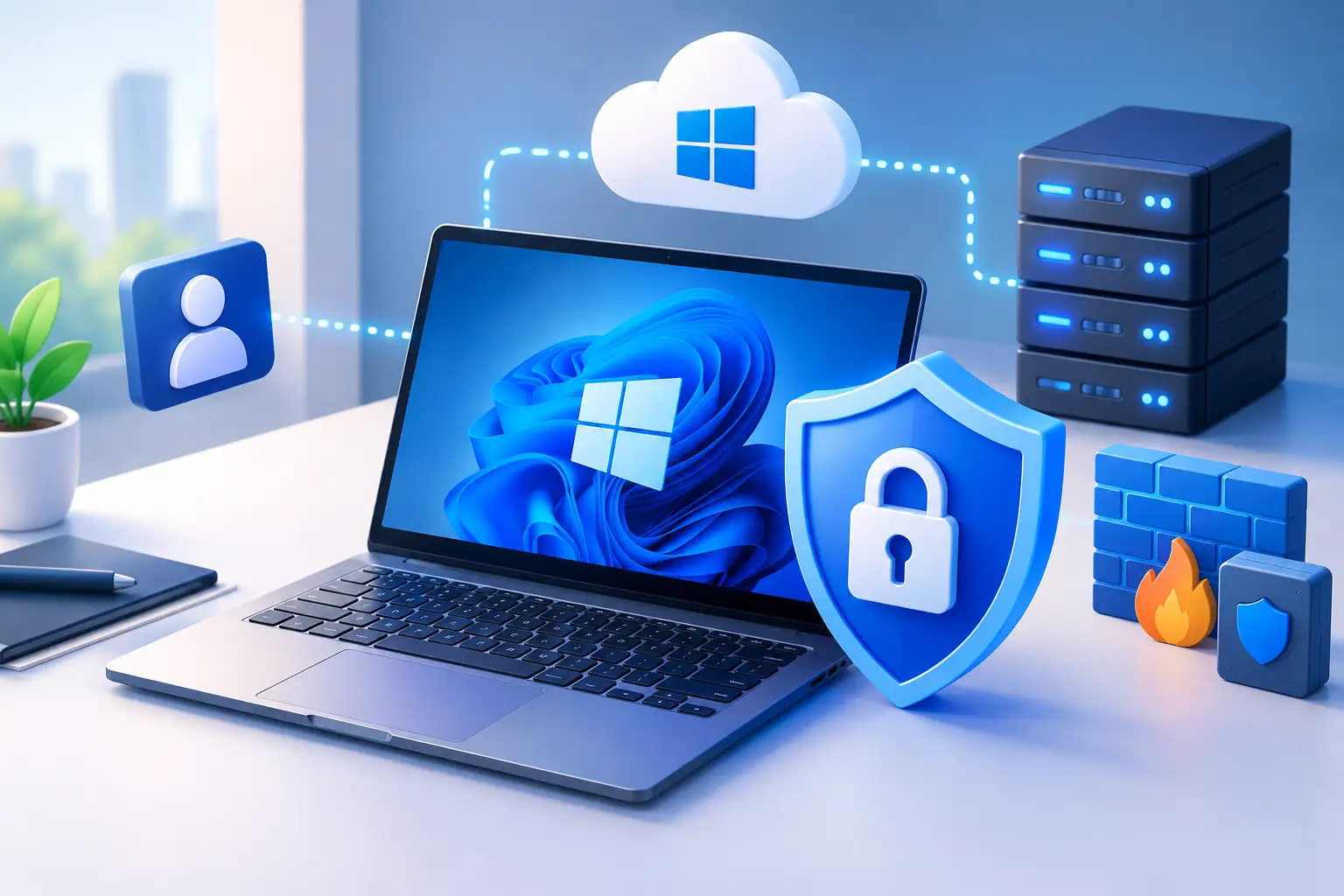
The connection itself should be encrypted while data moves between your device and the remote desktop. Secure remote display protocols help prevent people on the network from reading your screen traffic or capturing credentials in transit. Reputable platforms also run their underlying infrastructure in professionally managed data centers, where physical access, power, networking, and host systems are handled at a level most home setups can't match.
That said, "remote" is not automatically secure. An exposed Windows machine with weak login controls is still a target, whether it sits under your desk or in a data center. Security comes from the full setup, not the location alone.
What a Cloud PC Protects Better Than a Local PC
For many users, the practical advantage is reducing how much valuable data lives on the device they carry. A local gaming laptop or workstation can hold project files, saved browser sessions, development keys, source code, and personal documents. If it's stolen, damaged, or infected, the impact can be immediate.
A remote Windows desktop changes that equation. The persistent workspace stays in the cloud, while the endpoint can be a Mac, older laptop, or desktop that doesn't need to hold your main workload. That's useful for developers working across devices, students moving between campus and home, and creators who need one consistent project environment.
Remote Windows can also simplify updates. Instead of maintaining several high-powered machines, you maintain the Windows environment where the work actually happens. Keeping Windows, browsers, applications, and security tools current is still your responsibility in many cases, but it's easier to focus on one primary workspace.
There's a performance benefit too. A cloud PC with dedicated GPU resources and persistent storage lets you run demanding Windows software without placing that software and its data on every local machine. But convenience should never be confused with immunity from risk.
The Shared Responsibility Model
Security on a cloud PC splits between what the provider handles and what stays on you. Understanding the line matters more than trusting either side blindly.
| Provider's Responsibility | Your Responsibility | |
|---|---|---|
| Physical infrastructure | Data center security, hardware access, power/networking | — |
| Remote access layer | Connection encryption, remote display protocol security | — |
| Account security | — | Password strength, multi-factor authentication, email recovery |
| Local device | — | Malware protection, device lock, OS/browser updates |
| Windows session | — | OS updates inside the session, avoiding unlicensed software/cracked plugins |
| Network | — | Avoiding risky public Wi-Fi for sensitive access |
The provider protects the data center and the remote access layer. You still need to use a strong account, keep your local device clean, update the Windows session itself, and avoid risky networks or downloads. This shared model isn't unique to cloud PCs — a physical PC also needs patches, strong accounts, backups, and safe habits. The difference is where the desktop runs and how much of the underlying hardware security is handled for you.
The Risks That Still Matter
The most common weak point is usually the user account. If someone gets your password through a phishing page, reused credentials, or a compromised email account, they may not need physical access to your cloud PC at all. A remote desktop can be well protected at the infrastructure level and still be exposed by one stolen login.
Your local device also matters. If it has malware, a keylogger, or an untrusted remote-control tool, an attacker may be able to watch what you type or take over an active session. A remote Windows environment protects the data stored on the cloud PC, but it can't fully protect you from a compromised device at your hands.
Public networks are another consideration. Encryption helps protect the session in transit, but an open airport or coffee shop network is still a poor place to handle sensitive accounts if you can avoid it. Use a trusted network when possible, keep your device updated, and don't accept strange certificate prompts or install "required" software offered by a public Wi-Fi page.
Shared computers introduce a different risk. Logging into a cloud PC from a family machine, a public computer, or a device you don't control can leave credentials, downloaded files, browser data, or session traces behind. For sensitive work, use your own updated device and sign out fully when you finish.
How to Secure Your Remote Windows Workspace
Start with your account. Use a long, unique password that isn't reused for email, gaming, school, or any other service. Turn on multi-factor authentication whenever it's available. A password manager makes this much easier and removes the temptation to reuse credentials.
Protect the email tied to your cloud PC with the same care. Email often controls password resets, so a secure remote Windows account is only as secure as its recovery path. Review recovery email addresses and phone numbers, and remove options you no longer control.
Keep both ends updated. Install Windows security updates inside the remote desktop, then keep your local Mac or PC, browser, and remote desktop client current as well. Updates aren't glamorous, but they close known security gaps before they become someone else's entry point.
Use a device lock on every computer you connect from. A PIN, password, biometric login, or screen lock helps prevent casual access if the device is lost or left unattended. Avoid saving your cloud PC password in a browser on a shared system.
Be deliberate about files. Download sensitive files to your local machine only when you need them there. If you do, remember those files are now protected by the local device's own security, backup, and storage practices — the same applies to clipboard sharing and mapped drives, if your remote access setup allows them.
Separate workspaces when it makes sense. A dedicated cloud Windows environment for development, creative work, or testing can keep demanding tools and project files away from your everyday personal device. It isn't a substitute for security hygiene, but it reduces clutter and limits where important data lives.
Cloud PC vs. Owning a Powerful Windows Machine
A personal desktop may be the better choice when you need offline access, use specialized peripherals, have unreliable internet, or spend enough hours every day on demanding work that hardware ownership offers better long-term value. It gives you direct control and avoids dependence on connection quality.
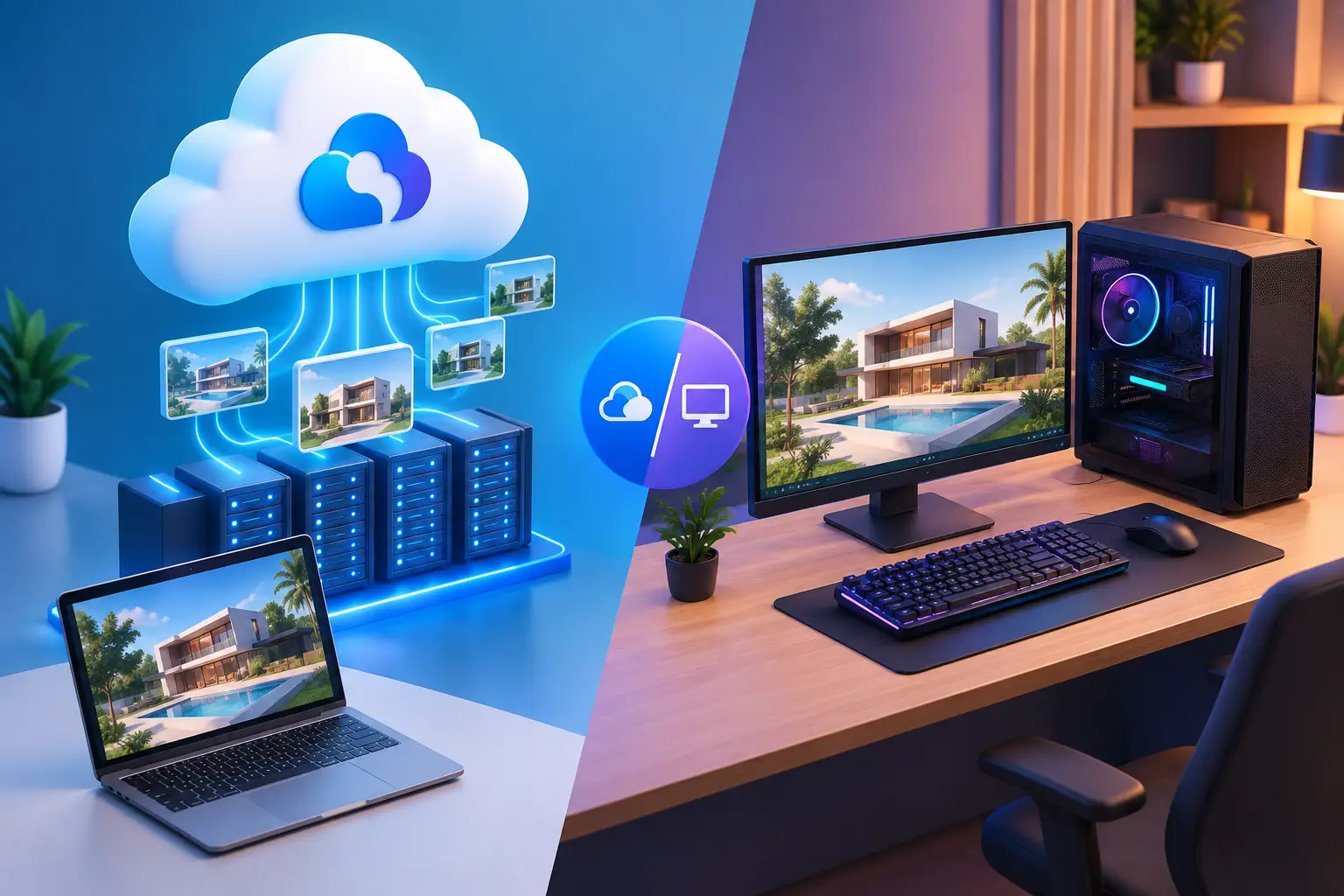
A cloud PC is often the stronger fit when performance needs change, budgets are tight, or you need Windows and GPU power without buying and maintaining premium hardware. It also makes sense when your main device is a Mac or lightweight laptop, and you need a persistent Windows workspace for certain applications, development tasks, creative projects, or games.
Security is part of that trade-off. A home PC gives you full physical control, but you also carry the full burden of protecting, updating, backing up, and eventually replacing it. A cloud PC moves the core desktop into managed infrastructure, while asking you to protect access to it carefully.
SensePC is built around that model: a persistent Windows workspace with performance options for users who need serious computing power without owning the underlying workstation. The right setup still depends on your internet connection, the sensitivity of your work, and how consistently you follow basic security practices.
Treat a remote Windows desktop like the valuable machine it is. Protect the account, secure the devices you connect from, keep software current, and be selective about where you sign in. Done well, remote Windows gives you a real security advantage: your workspace stays where you intended it to stay, not wherever your laptop happens to be.
Is remote Windows more secure than a local laptop?
It can be, mainly because your files and workload stay on the cloud PC rather than spread across every device you carry. If a laptop is lost, you can revoke access and reconnect from another device instead of losing data stored on the physical machine. It still depends on strong account security and a clean local device.
What's the biggest security risk with a remote Windows desktop?
A compromised account is the most common weak point — a stolen password through phishing or credential reuse can expose your session without the attacker needing physical access. A strong, unique password plus multi-factor authentication addresses most of this risk directly.
What tools or practices help manage passwords for a remote Windows account?
A password manager to generate and store a long, unique password, multi-factor authentication wherever it's offered, and keeping the recovery email tied to the account secure are the core practices. Avoid reusing the same password across other services, and remove recovery options (old emails, phone numbers) you no longer control.