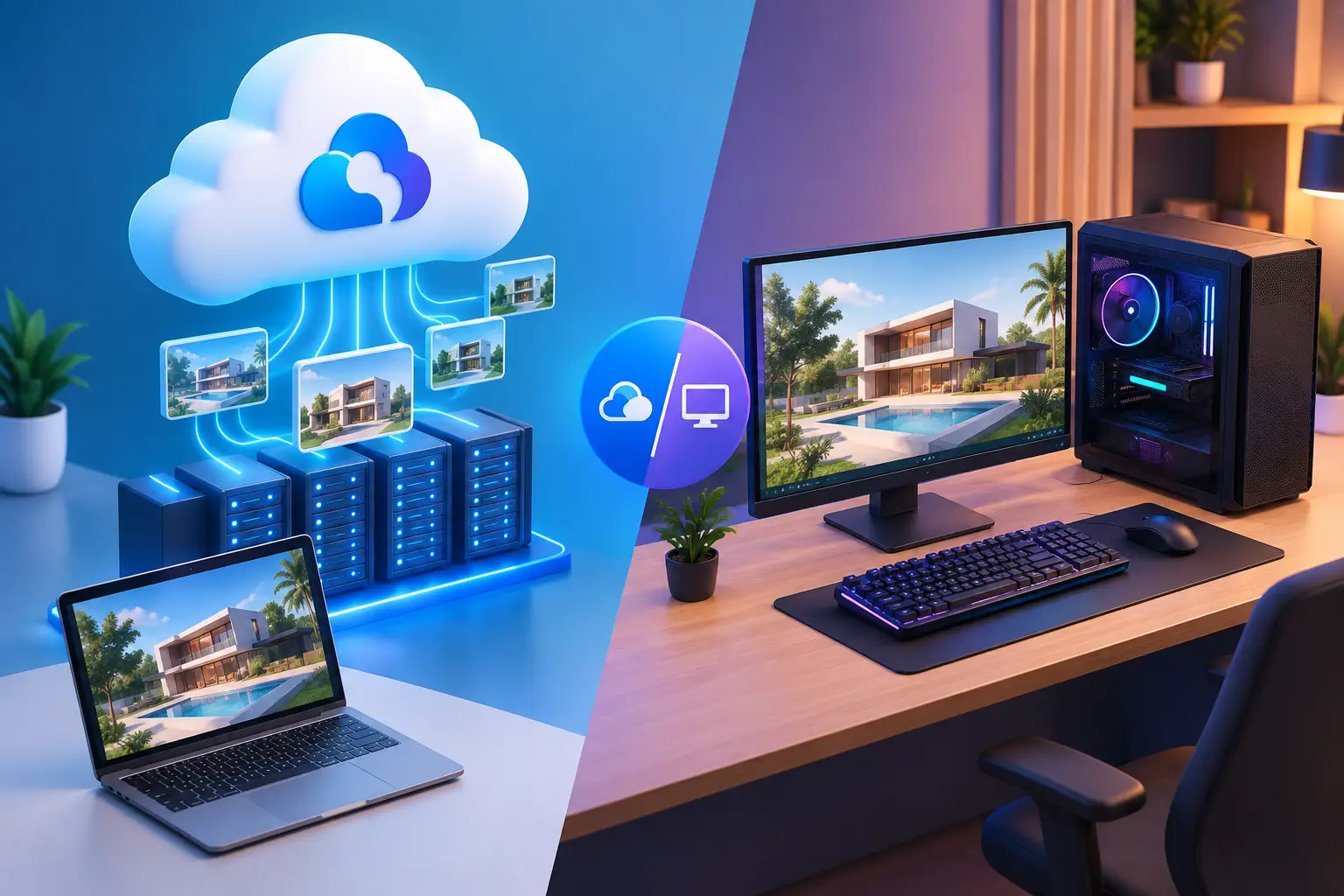
Short answer: For architects, local rendering tends to cost less only if you render large scenes constantly, already own a capable GPU workstation, and don't want to depend on an internet connection for file-heavy BIM work. Cloud rendering tends to cost less for firms and solo architects with uneven workloads — a few intensive projects a month, competition deadlines, or client walkthrough animations that need a GPU jump your current machine can't make. The deciding factor isn't "cloud vs. local" as a philosophy — it's how often you actually need peak rendering power and how large your models typically get.
A deadline can turn a capable computer into a bottleneck fast. Your Revit model is massive, the client walkthrough is due tomorrow, or a competition board needs one more high-resolution render pass. Then the render starts, fans ramp up, and your machine is unavailable for hours. Cloud rendering versus local rendering is really a choice about where that waiting happens, what it costs, and how much control you need over the process.
For some architects, local rendering is still the right answer. For others, renting high-performance compute when a project demands it makes more financial and practical sense. The best choice depends on your software, model size, deadline pattern, internet connection, and how often you render.
What Local Rendering Gives Architects
Local rendering means your workstation, desktop, or laptop does the work. The GPU, CPU, memory, and storage in your own device process Revit exports, SketchUp or Rhino scenes, Twinmotion and Enscape walkthroughs, Lumion animations, or V-Ray/Corona final passes.
The biggest advantage is direct control. Your BIM files are already on the machine. You can work offline, test material and lighting changes immediately, and avoid uploading large project folders before work begins. For quick previews, daily iteration, and client-meeting adjustments made on the fly, that convenience matters.
Local hardware also has predictable economics once you own it. If you render large scenes often enough, a strong workstation can become less expensive over time than paying for remote compute by the hour — especially true for firms with a steady pipeline of visualization-heavy projects.
But the upfront cost can be hard to justify, particularly for a solo architect or small studio. A workstation built for GPU rendering, large BIM models, and real-time walkthroughs can require a serious purchase — and it brings the usual ownership costs: upgrades, repairs, heat, power use, storage management, and the risk that a once-fast GPU feels limited once your models grow or your software's VRAM requirements climb.
A local system also creates a workflow problem that's specific to architecture: while it's rendering a large walkthrough animation overnight, it isn't available for the next day's model revisions. You either wait, work around the slowdown, or buy more hardware than your average project actually needs.
What Cloud Rendering Changes
Cloud rendering moves the compute-heavy part of the job to remote hardware. Instead of relying only on the machine at your desk, you use a high-performance cloud PC with stronger CPU, RAM, GPU, or storage resources when a project calls for it.
That changes the buying decision. Rather than paying for a premium workstation before you have a project that needs it, you pay for performance during the period you use it — no expensive workstation purchase for a one-off competition entry, no waiting on a GPU upgrade before a client deadline, no need to keep a high-end tower running all year for a few intensive production weeks.
This matters more for architects than for most creative fields because of how BIM workflows actually run: a cloud PC gives you a full Windows desktop, not a narrow render-farm job queue. You can open Revit, SketchUp, Rhino, Twinmotion, Enscape, or Lumion directly on the remote machine, model and revise there, render, and review — all in one environment, with project files kept on persistent cloud storage between sessions. That's a meaningfully different experience from submitting a file to a render farm and waiting for frames to come back with no ability to adjust the scene interactively in between.
There are trade-offs. Cloud workflows depend on a stable internet connection and reasonable network conditions. Large uploads can take time, especially for complex BIM models, point clouds, or texture-heavy scenes. Remote desktop responsiveness is also not identical to sitting at a powerful local workstation — it can be very workable for walkthrough and rendering work, but it should be tested against your own project sizes and software before you commit to it for a deadline-critical job.
The Real Comparison for Architectural Work
The decision isn't simply cloud good, local bad. It comes down to cost, model size, deadline pattern, and how often you render at full intensity.
| Factor | Favors Local | Favors Cloud |
|---|---|---|
| Rendering frequency | Daily, high-volume, year-round | A few intensive projects per month |
| Model/BIM size | Manageable with current hardware | Growing beyond local VRAM/RAM comfortably |
| Deadline pattern | Steady workload, predictable | Spiky — competitions, client crunches |
| Internet reliability | Site visits, unreliable connections common | Studio/office with stable broadband |
| File sensitivity | Must stay fully on-site/offline | Comfortable with cloud-stored project files |
| Budget shape | Can absorb a large upfront purchase | Prefers usage-based, spread-out cost |
Upfront Cost vs. Ongoing Cost
Local rendering requires you to buy the performance first — a powerful desktop, better monitor setup, external storage, and eventually a replacement GPU as model complexity and software requirements grow. That cost is fixed whether you render every day or once a month.
Cloud rendering shifts more of that cost to usage. This tends to fit solo architects, small studios, and firms with uneven project schedules well. If you only need serious GPU power for a competition deadline, a client walkthrough animation, or a one-off large-scale visualization, usage-based access can prevent overbuying hardware your day-to-day modeling work doesn't need.
The equation changes for constant heavy use. If your firm renders large scenes for many hours every day and needs the same class of performance year-round, owning workstations for the team may deliver better long-term value. Compare your firm's actual rendering frequency honestly before choosing either path.
Peak Performance vs. Fixed Hardware
A local machine has a ceiling. Once your BIM model exceeds available VRAM, your walkthrough export needs more memory, or your GPU becomes the limiting factor on a large site model, there's no setting that turns it into a newer workstation. You can optimize the model, reduce render quality, or upgrade hardware.
Cloud capacity gives you another option: use more capable hardware for demanding periods without permanently owning it. This is especially useful for architects, since project intensity is naturally uneven — a design-development phase with light modeling, followed by a presentation or construction-documentation push that suddenly needs a serious GPU for walkthrough renders or VR-ready exports.
SensePC is built around this model, providing persistent Windows 11 cloud PCs with dedicated NVIDIA L4 GPU options and hourly-first usage. The practical benefit for architectural work: keep your everyday laptop for site visits, client meetings, and light modeling, then use stronger Windows computing power when a render pass, large BIM model, or walkthrough animation calls for it.
File Access and Project Organization
Local rendering wins when your BIM files are already large, organized, and stored on your workstation. You don't need to transfer anything before starting. If you regularly work with sensitive client files or site data that must remain fully on-premises, local infrastructure may be the cleaner choice.
Cloud rendering requires a file plan. Upload active models, keep linked files and references organized, and understand where caches, output folders, and backups live. Persistent cloud storage helps because you don't have to re-upload the same project every session, but it doesn't remove the need for good file discipline — especially with Revit's linked-file structure and large asset libraries.
A hybrid setup often works well for architecture firms: keep source archives, backups, and sensitive client data locally or on your firm's preferred storage system, then move active, render-heavy projects to a cloud workstation when a deadline needs more compute power. This avoids treating cloud resources as an all-or-nothing replacement.
Speed Is More Than Render Time
A faster GPU can reduce rendering time, but total project speed also includes model preparation, file transfer, revisions, and client review. A cloud machine may finish a compute-heavy walkthrough render much faster than your laptop, yet the advantage can shrink if you spend hours uploading a large BIM model or rebuilding linked-file references first.
Local rendering has almost no transfer delay, but a slow system can tie up your whole workday during a render pass. The right comparison isn't just minutes per frame — it's how quickly you can get from an unfinished model to an approved client deliverable.
When Local Rendering Is the Better Choice for Architects
Choose local rendering when you work on-site or offline often, render large scenes at high volume every week, need immediate access to massive local project libraries, or rely on peripherals and plugin configurations that are difficult to reproduce remotely. It's also a strong option if your firm already owns workstations that handle current project sizes comfortably.
A powerful local machine remains valuable for interactive modeling, quick material and lighting previews, and workflows where every second of input response matters during client-facing walkthroughs. Owning hardware gives you full physical control, and you don't depend on an internet connection to access your core BIM environment.
When Cloud Rendering Makes More Sense
Cloud rendering is a practical fit when your current laptop or desktop can't handle a growing BIM model, but buying a high-end replacement doesn't make financial sense for occasional need. It's useful for a solo architect finishing a competition entry, a small studio taking on a larger client job than usual, a Mac-based designer who needs Windows-only architectural software, or a firm testing GPU-accelerated visualization tools before committing to new hardware.
It also helps when you need a stronger system quickly ahead of a deadline. Creating a cloud workstation can take minutes rather than days spent researching parts, ordering hardware, assembling a PC, installing drivers, and migrating project files. You still need to configure your apps and projects, but the hardware layer is already handled.
For architects who split time between the office, site visits, and client meetings, there's another benefit: your work environment stays in one place. You can access the same Windows desktop and files from different supported computers without carrying a heavy workstation between locations.
A Smarter Way to Decide
Before buying a new GPU or starting a cloud session, test your real workload. Use a representative project — a full BIM model at typical complexity, not a tiny sample file. Track how long it takes to prepare, render, revise, and export a client-ready walkthrough. Include upload time if you're evaluating cloud rendering.
Then look at usage frequency. If you need peak performance a few times each month around deadlines, flexible cloud access may keep costs under control. If large-scale rendering is the center of your firm's output every day, price out dedicated workstations as a long-term investment. Many architects and small studios will land between those extremes and benefit from using local hardware for daily modeling and cloud power for deadline-driven render pushes.
The goal isn't to prove loyalty to one setup. It's to stop letting limited hardware dictate what project sizes or deadlines you can accept. Compare SensePC's GPU configurations for architectural visualization work, and choose the rendering path that gives your current workload enough power while keeping your options open when the next project is bigger.
Is cloud rendering or local rendering cheaper for architectural visualization?
It depends on how often you render at full intensity. Cloud rendering is usually cheaper for occasional, deadline-driven work — competitions, client walkthroughs, one-off large models. Local rendering becomes more cost-effective once your firm renders large scenes daily or near-daily, since at that volume ownership spreads its upfront cost across constant use.
Can I run Revit, Twinmotion, or Enscape on a cloud PC?
Yes. A cloud PC gives you a full remote Windows 11 desktop, so BIM and visualization software — Revit, SketchUp, Rhino, Twinmotion, Enscape, Lumion, V-Ray, and similar tools — installs and runs the same way it would on a local Windows workstation.
What internet connection do I need for cloud rendering of large BIM models?
Stability and upload bandwidth matter more than raw download speed, since large BIM files and linked references need to transfer before you start working. Test your actual office or studio connection with a representative project file before relying on cloud rendering for a deadline-critical job.