Short answer: The right cloud development platform depends on what your work actually needs, not which option has the most features listed. A browser-based Cloud IDE (like GitHub Codespaces or Gitpod) fits lightweight, container-based web and backend projects well. A cloud server fits headless deployment and automation. A cloud PC — a full, persistent Windows desktop with dedicated GPU and CPU/RAM tiers — fits developers who need Windows-only tools, desktop IDEs, GPU-accelerated workflows (AI, game development, CUDA), or several applications running together. Most "which cloud dev platform" confusion comes from treating these as one category when they solve different problems.
Your development machine shouldn't decide what you can build. If your laptop slows down when you open Docker, run a local database, compile a large project, or test a GPU workflow, a cloud-based development platform can give you more room to work without forcing a major hardware purchase.
The right platform is more than a remote terminal or a virtual server. For many developers, it needs to feel like a real computer: a persistent desktop, the tools you already use, enough CPU and RAM for demanding projects, and GPU access when the workload calls for it. The goal is simple — spend time building, testing, and shipping instead of maintaining a machine that no longer keeps up.
What a Cloud Development Platform Should Provide
Development covers a wide range of workloads. A web developer may need a browser, code editor, containers, and a local test stack. A game developer may need Windows tools, a powerful GPU, and room for large project files. An AI developer may need CUDA-compatible workflows for model experiments, image generation, or local inference.
That's why the best choice depends on the work, not just a headline specification. A useful cloud platform should give you control over the full environment while removing the work of owning the physical hardware.
A full desktop instead of a restricted workspace
Some cloud development services are built around a browser editor, a hosted repository, or a limited container. Those can be useful for quick code changes and lightweight projects. They're less suitable when your workflow depends on Windows-only applications, desktop IDEs, visual tools, test software, or several applications running together.
A cloud PC approach gives you an actual Windows desktop that you can access from your existing desktop, laptop, Mac, or supported browser. You install your tools, organize your workspace, and work in an environment that stays familiar. For developers who want less infrastructure administration and more direct control, that matters.
Persistent storage that keeps your setup intact
A temporary machine is fine for a short build job. It becomes frustrating when every session starts with reinstalling SDKs, cloning repositories, recreating settings, and moving files back into place.
Persistent SSD storage changes that experience. Your development environment remains yours between sessions, including your IDE configuration, package caches, source files, test assets, and project dependencies. You can stop work on one device and return to the same desktop later from another supported device.
Persistence doesn't remove the need for version control or backups. It does remove a lot of repetitive setup work.
CPU, memory, and GPU choices that match the project
A cloud-based development platform should let you choose performance based on what you actually run. More power isn't always the smart choice. Paying for a high-end configuration to edit small scripts is wasteful. Trying to run a demanding build, emulator, 3D application, or machine learning workflow on an underpowered machine wastes time in a different way.
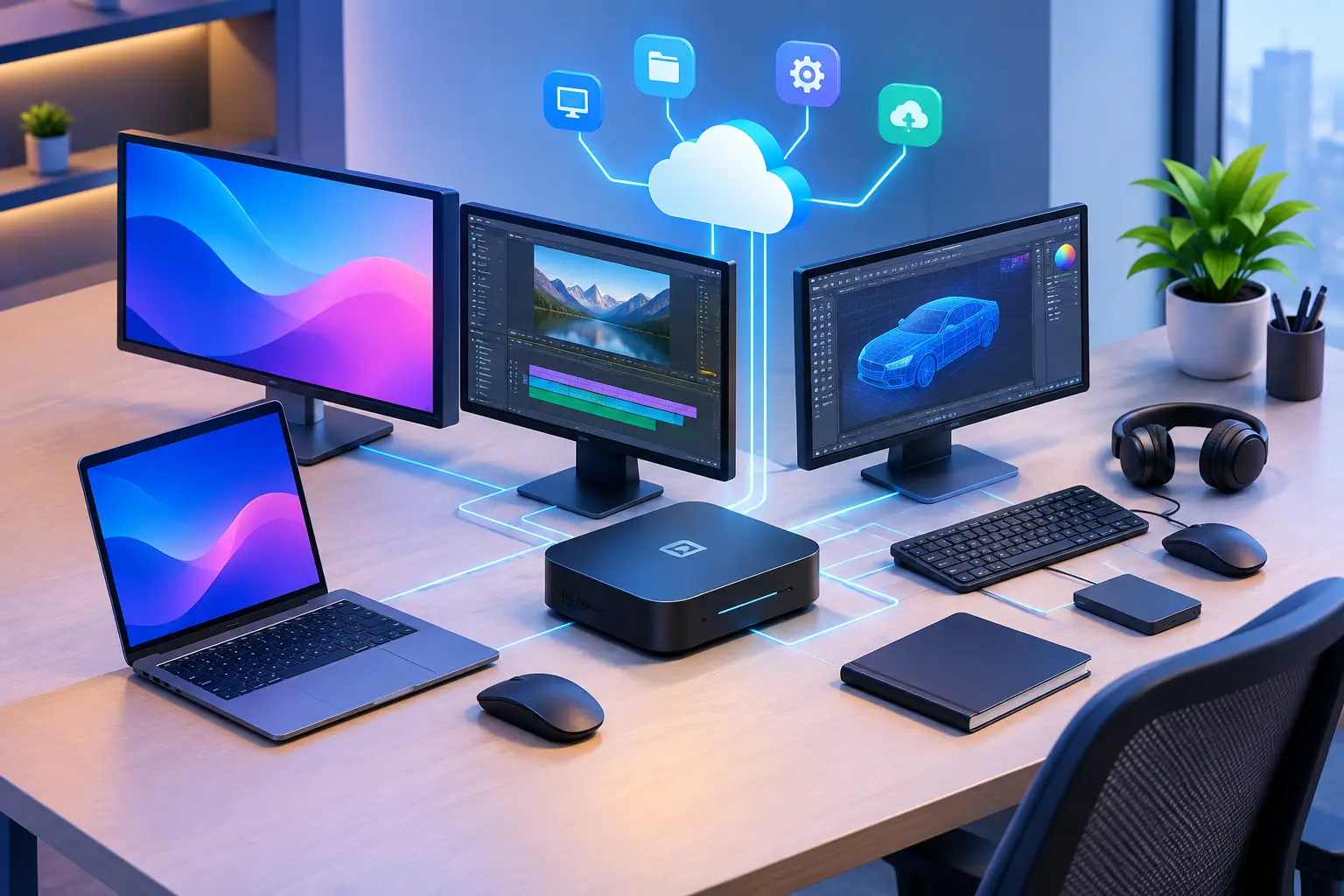
CPU and RAM affect compile times, multitasking, containers, local databases, virtualized test environments, and large codebases. A dedicated GPU becomes relevant for AI and machine learning tools, GPU-accelerated creative software, 3D work, visualization, and some game development tasks.
SensePC offers cloud Windows PCs with tiered CPU and memory configurations, persistent storage, and dedicated GPU options for users who need more than a basic remote desktop. That lets you select a machine around the workload instead of buying a physical system sized for the most demanding day of the year.
Cloud IDE, Cloud Server, or Cloud PC?
These categories get lumped together in search results, but they solve genuinely different problems — and picking the wrong one is the most common source of frustration with "cloud development."
| Cloud IDE | Cloud Server | Cloud PC | |
|---|---|---|---|
| What it gives you | Browser-based editor + container | Headless Linux/backend instance | Full persistent Windows desktop |
| Best for | Lightweight web/backend coding, quick collaboration | Deployment, automation, backend services | Windows-only tools, desktop IDEs, GPU workflows, multi-app setups |
| GPU access | Rare or limited | Depends on provider/configuration | Dedicated GPU tiers available |
| Desktop applications | No — browser-confined | No — no GUI by default | Yes — install anything a Windows PC can run |
| Management overhead | Low | Requires server/ops knowledge | Low — self-serve like a normal desktop |
| Examples of the category | GitHub Codespaces, Gitpod, Replit | AWS EC2, DigitalOcean Droplets | SensePC |
A Cloud IDE (GitHub Codespaces, Gitpod, Replit, and similar) gives you a code editor and a container running in the cloud, accessed through a browser. It's genuinely well-suited to lightweight web and backend development, quick onboarding, and real-time collaborative coding. It's a weaker fit the moment your workflow needs a Windows-only application, a visual desktop tool, GPU acceleration, or several heavy applications running side by side — a container isn't a desktop.
A cloud server is useful when you need a headless environment for deployment, backend services, automation, or Linux infrastructure. It's not always the easiest answer for a developer who needs a full Windows application stack, visual desktop tools, or a personal workstation that can also handle GPU-enabled software. Server management can add friction that has nothing to do with writing code.
A cloud PC sits in a different spot entirely: a personal, persistent Windows desktop without requiring you to own the physical computer underneath it. You keep a familiar Windows workflow while gaining the ability to use stronger hardware — including a dedicated GPU — when you need it. If your actual bottleneck is "my laptop can't run this desktop application" or "I need CUDA access for AI experiments," a Cloud IDE or cloud server won't solve that; a cloud PC will.
Traditional virtual desktop infrastructure (enterprise VDI) is a fourth, related option, but it's designed for centralized business IT — large managed fleets, strict administrative requirements. Individual developers, students, and small teams typically find that model too complex or too rigid for self-serve work.
When Flexible Billing Makes More Sense
Usage frequency is one of the biggest factors in the decision.
If you need high-performance computing for a few evenings, a project sprint, a course module, a game development milestone, or occasional AI experiments, hourly-first access can be easier to justify than buying a premium machine. No expensive hardware purchase. No upgrade cycle. No hardware waiting game.
Monthly access may make more sense when the cloud PC becomes part of your regular work routine. Buying hardware may still be the better value for developers who use high-end performance all day, every day, over several years. Compare hourly vs. monthly access based on your actual usage pattern, not your ideal one.
The practical advantage of a cloud platform is control. You can use more performance during a demanding phase and avoid committing to a costly physical upgrade before you know how often the workload will continue.
Check the Connection Before You Move Your Workflow
A powerful remote computer still depends on the connection between you and the machine. Coding, browser-based work, and many desktop tasks can feel comfortable on a solid connection. Fast-paced visual work, large file transfers, and interactive GPU applications are more sensitive to network quality, distance from the data center, local Wi-Fi conditions, and latency.
Test the platform with your real workflow before making it your primary setup. Open the tools you rely on. Run a build. Work with your normal project files. Check how the desktop feels from the device and network you use most often.
Native low-latency desktop protocols can make a major difference compared with a basic remote connection, but they can't overcome a weak or unstable local network. Use wired Ethernet when possible, or reliable Wi-Fi close to your router.
A Simple Way to Choose the Right Setup
Start with the bottleneck you have now. If builds consume all of your laptop's memory, prioritize RAM and CPU. If your local device can't handle GPU development tools, choose a configuration with a dedicated GPU — see sizing GPU memory for AI development for specifics. If you switch between a Mac, a lightweight laptop, and a home desktop, prioritize a persistent Windows environment you can reach from each supported device. If your workflow is purely web/backend with no desktop application or GPU need, a Cloud IDE may genuinely be the simpler and cheaper answer.
Then look at how long the work will last. A short course, contract, proof of concept, or model-testing phase calls for flexibility. A stable full-time workflow may justify a longer plan or physical hardware, depending on cost and connection quality.
Finally, avoid treating the cloud desktop like a disposable sandbox. Set up version control, store critical work responsibly, document your environment, and keep your project dependencies organized. A cloud PC reduces hardware maintenance — good development habits still protect the work.
Build Where the Hardware Is Not the Limit
A cloud-based development platform is most useful when local hardware is the constraint, not your project. It gives developers, creators, students, and technical teams a practical way to access a stronger Windows environment without buying, maintaining, or carrying a premium workstation.
Choose it for flexibility, persistent access, and on-demand performance. Keep physical hardware when it better fits your daily workload or internet conditions. Choose a Cloud IDE instead when your workflow is purely browser-based web or backend development with no GPU or desktop-application need. See SensePC's CPU, RAM, and GPU tiers to match capacity to your next project.
What's the difference between a Cloud IDE and a cloud PC for development?
A Cloud IDE gives you a code editor and container running in a browser — no desktop, no GPU in most cases, no installed desktop applications. A cloud PC gives you a full persistent Windows desktop where you can install any Windows application, use a dedicated GPU, and run multiple heavy tools side by side. Choose a Cloud IDE for lightweight web/backend coding; choose a cloud PC when you need Windows-only tools, GPU acceleration, or a full desktop environment.
What should I consider when choosing a cloud development platform?
Start with your actual bottleneck: CPU/RAM for builds and multitasking, a dedicated GPU for AI or visual workloads, and whether you need a full Windows desktop or just a browser-based editor. Then factor in how often you'll use it (hourly vs. monthly billing), your internet connection quality, and whether your workflow depends on desktop applications a container can't run.
Can a cloud PC handle large, demanding development projects?
Yes, as long as the configuration matches the project — a dedicated GPU, sufficient CPU and RAM, and persistent SSD storage for large codebases and dependencies. Size the machine to your actual workload (large builds, GPU training, multiple containers) rather than a default tier.