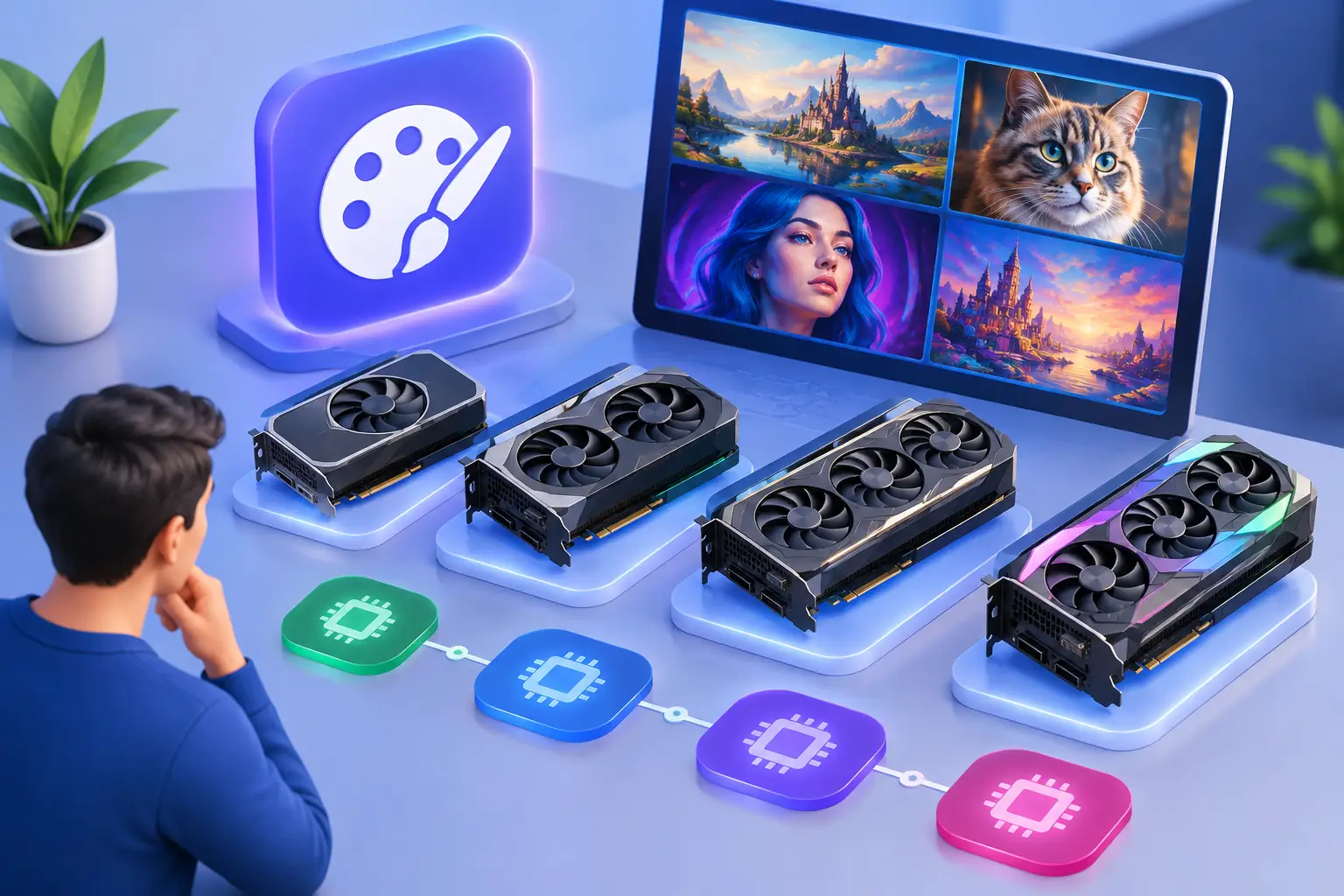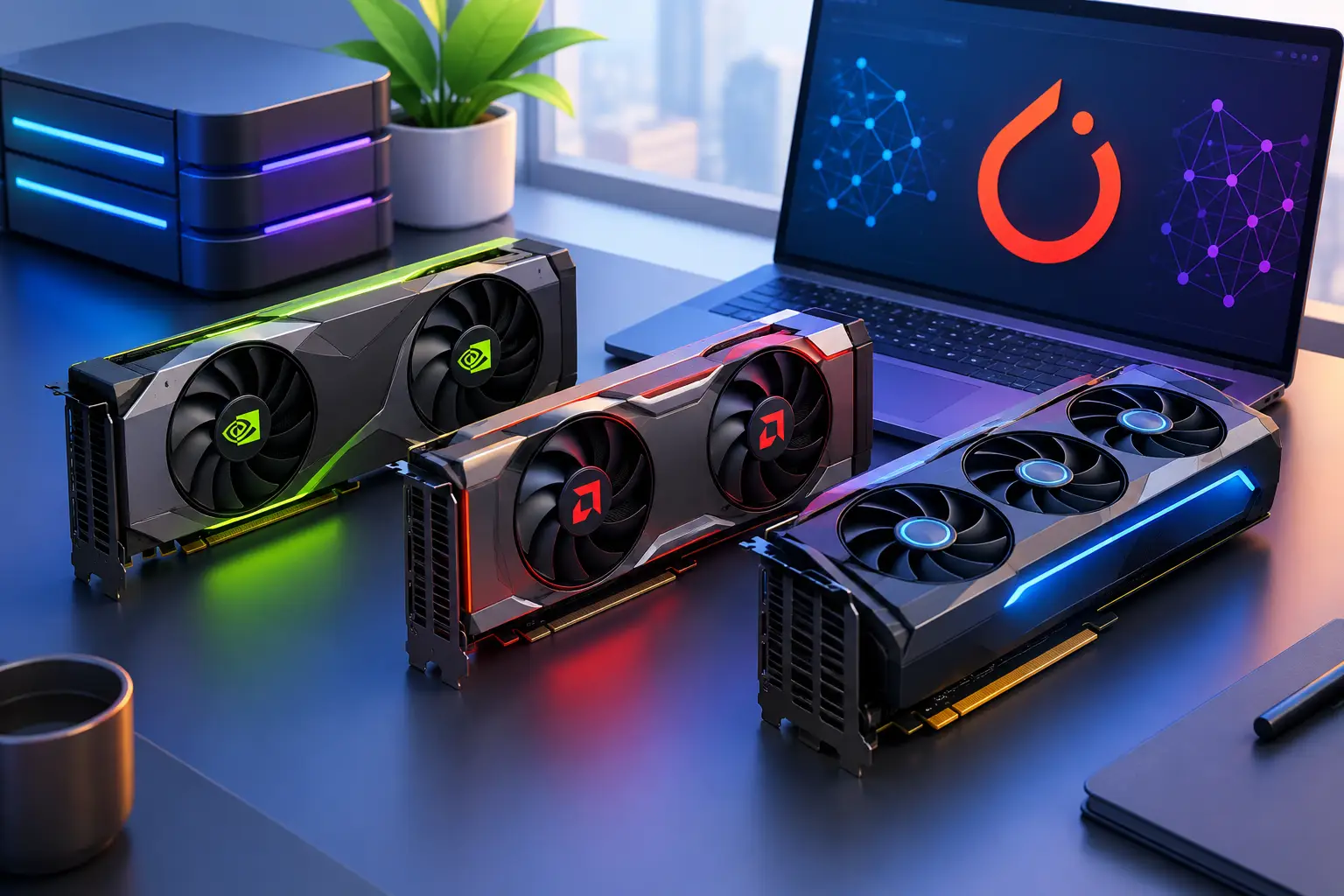
Short answer: VRAM capacity is the first hard limit for PyTorch, not raw compute speed — prioritize memory capacity first, then choose the fastest GPU within that VRAM tier and your budget. A 16GB consumer GPU covers learning and well-defined smaller projects; 24GB (NVIDIA L4, RTX 3090, RTX 4090) covers serious individual development and generative AI work; 40GB+ data center GPUs (A100, H100) are for large training runs most individual developers don't need to own. Whether to buy or rent depends on how often you need GPU access, not just which card is fastest.
A model that fits in 12GB of VRAM is easy to test. A model that runs out of memory halfway through training can stop an entire project. The best GPU options for PyTorch aren't simply the newest or most expensive cards — the right choice depends on model size, batch size, precision settings, training time, and how often you need GPU access.
What Makes a GPU Good for PyTorch?
PyTorch performance depends heavily on NVIDIA CUDA support, VRAM capacity, tensor processing capability, and memory bandwidth. CUDA is the software layer that lets PyTorch use NVIDIA GPUs for accelerated training and inference — before choosing any GPU, confirm its drivers and CUDA version work with the PyTorch build and libraries you plan to use. Setting up and verifying CUDA on a remote GPU PC covers this verification step directly.
VRAM is usually the first hard limit. More VRAM lets you load larger models, increase batch sizes, use higher-resolution images, and avoid memory-saving workarounds — gradient checkpointing or CPU offloading can help, but they often add complexity or slow training.
Raw compute still matters — a GPU with strong tensor performance trains common deep learning models much faster than an entry-level card. But compute without enough VRAM isn't very helpful if your model can't load in the first place. For most PyTorch users: prioritize memory capacity first, then choose the fastest GPU within that VRAM tier and budget.
Best GPU Options for PyTorch by Workload
NVIDIA L4: A Practical 24GB GPU for Flexible AI Work
The NVIDIA L4 is a strong option for developers needing 24GB of dedicated VRAM for PyTorch experiments, inference, computer vision, and many fine-tuning workflows — especially practical for users working remotely from a Mac, laptop, or lower-powered desktop who still need a full Windows environment with CUDA-capable GPU access.
With 24GB of VRAM, the L4 offers more room than many mainstream consumer GPUs — a real difference when testing Stable Diffusion workflows, running local AI applications, training image models, or working with medium-sized language model experiments. It's not the top choice for huge distributed training jobs, but it's a capable middle ground for serious individual development.
A cloud workstation with a dedicated L4 also changes the cost equation — rather than buying a physical machine for occasional GPU projects, you create a GPU-powered Windows desktop when you need it and keep files on persistent storage between sessions. SensePC is built around this model for users who want it without setting up and managing a cloud server themselves.
RTX 4090: Excellent Local Performance for Frequent Users
The RTX 4090 remains one of the most attractive consumer GPUs for PyTorch users who train models often and want maximum local performance. Its 24GB of VRAM covers a wide range of deep learning projects, while its compute power suits fast iteration, image generation, 3D work, and demanding inference tasks.
For a developer using GPU acceleration most days, a 4090 desktop can be a sensible long-term purchase — direct access, no internet dependency, full control over configuration. The trade-off is total cost of ownership: a 4090 isn't just a GPU purchase, it typically means a capable power supply, cooling, CPU, motherboard, RAM, storage, and a case that can handle the hardware, plus managing driver issues, heat, noise, repairs, and eventual upgrades. If your PyTorch work happens only during a course, a client project, or short testing cycles, that investment may not make sense.
RTX 3090: A Value Choice When Priced Correctly
The RTX 3090 has 24GB of VRAM and remains useful for PyTorch, especially in the used market — for developers with a limited budget, its memory capacity can be more valuable than a newer card with less VRAM. It has clear drawbacks: higher power consumption, more heat, and used cards come with uncertain history and no simple answer on remaining lifespan. Still, found at the right price, the 3090 is a practical entry point into 24GB PyTorch workloads.
RTX 4070 Ti Super and Similar 16GB Cards: Good for Learning and Focused Projects
A modern 16GB consumer GPU handles a lot — PyTorch tutorials, standard computer vision models, smaller language models, inference, and moderate fine-tuning. A reasonable tier for students and developers who know their workloads will stay within the memory limit.
The limitation appears as projects grow. Higher image resolution, larger batch sizes, multi-model pipelines, and larger transformer experiments can quickly make 16GB feel restrictive — reducing batch size or using mixed precision helps, but doesn't create more physical memory. Buy in this range when price matters and your workloads are well-defined, not because it's the cheapest way to start.
A100 and H100-Class GPUs: For Large Training Runs
Data center GPUs like the A100 and H100 are built for bigger models, larger datasets, and high-throughput training — their higher VRAM capacities and data center features suit teams training large language models, running multi-GPU jobs, or processing large-scale workloads where time has a direct business cost.
For most individual PyTorch users, these GPUs are overkill for daily experimentation — expensive to buy, and usually more practical through specialized cloud infrastructure when a project genuinely needs them. If you're fine-tuning a model for a client, benchmarking a demanding workload, or running a short intensive job, renting high-end capacity is often more sensible than owning it.
How Much VRAM Do You Actually Need?
There's no single VRAM number that works for every PyTorch project. A 12GB GPU may be enough for learning, basic classification, and smaller experiments. At 16GB, you gain room for practical development and modern image workflows. At 24GB, you move into a comfortable range for advanced individual work, including many fine-tuning and generative AI tasks. Once you need 40GB, 48GB, or 80GB, you're usually dealing with larger models, bigger batch sizes, higher-resolution data, or workflows where development time matters more than hardware cost.
Mixed precision can help — FP16 or BF16 reduces memory pressure and often improves speed on supported hardware. Quantization, gradient accumulation, parameter-efficient fine-tuning, and optimized attention methods can also make demanding projects possible on smaller GPUs. These are useful tools, not a substitute for enough VRAM when your work consistently exceeds the card's limits.
Cloud GPU Workstation vs. Raw Cloud Infrastructure
Not every "cloud GPU" option solves the same problem. Raw cloud infrastructure — AWS, Google Cloud Platform, Azure, and specialized providers like Lambda Labs or RunPod — gives you a GPU instance you provision and configure yourself: choosing an image, installing drivers, managing the OS, and often working from the command line. This is the right category for teams building production ML infrastructure, running large-scale or distributed training, or needing specific enterprise integrations.
A ready-to-use cloud GPU workstation gives you a complete Windows desktop with CUDA-capable GPU access already configured — no infrastructure to set up, no command-line server management. This fits individual developers, students, and researchers who want to open a familiar desktop, install PyTorch, and start working rather than spend time on DevOps. SensePC occupies this category specifically, with dedicated NVIDIA L4 configurations and persistent storage, rather than competing with hyperscalers on raw infrastructure scale or pricing. The infrastructure-vs-ready-to-use-desktop distinction covers this in more depth for workloads beyond PyTorch specifically.
Neither category is universally better — a production ML team training at scale genuinely needs infrastructure-grade platforms; an individual developer testing models, fine-tuning on a reasonable dataset, or learning doesn't need to become their own infrastructure manager to get GPU access.
Buying a GPU vs. Using a Cloud GPU Workstation
Buying hardware works best when GPU usage is frequent, predictable, and long-term. If you train models every week, need offline access, or prefer total control over your system, a local workstation may justify its cost — you pay more upfront, but regular use can make the investment worthwhile. The broader hardware-planning guide for AI development covers CPU, RAM, and storage considerations alongside the GPU decision.
A cloud GPU workstation is often a better fit for temporary, uneven, or growing workloads — avoiding the upfront cost of a high-end PC and removing the maintenance cycle: no parts research, no assembly, no waiting for a future upgrade because your current GPU has reached its limit. It also gives laptop and Mac users a practical path to CUDA-based tools that don't run well on their local device. The experience still depends on a stable internet connection, your location, and what you need from the session — for long daily training runs, ownership may be more economical; for coursework, prototyping, occasional model training, and GPU-heavy testing, usage-based access provides better cost control.
A Practical Shortlist for PyTorch
- Choose a 16GB consumer GPU for learning, smaller models, and projects with clear memory limits.
- Choose a 24GB GPU (NVIDIA L4, RTX 3090, or RTX 4090) for more serious PyTorch development, generative AI, and flexible experimentation.
- Choose 40GB to 80GB data center hardware when your models or batch sizes require it and project deadlines justify the added cost.
- Choose a cloud workstation when you need GPU power now but don't need to own it every day.
The GPU that looks best on a spec sheet isn't always the best one for your workflow. Start with the VRAM your models require, estimate how often you'll use it, and choose the access model that keeps your project moving without forcing an expensive hardware commitment. What dedicated GPU access means in a cloud environment is worth confirming before committing to any cloud option, regardless of which GPU tier you choose.
FAQ
What GPU do I need for PyTorch? It depends on your model size and batch requirements, not a single universal answer — 16GB (e.g., RTX 4070 Ti Super) covers learning and well-defined smaller projects; 24GB (NVIDIA L4, RTX 3090, RTX 4090) covers serious individual development and generative AI; 40GB+ data center GPUs are for large training runs most individuals don't need to own.
Is the NVIDIA L4 good for PyTorch and AI development? Yes, for flexible individual AI work — its 24GB of VRAM handles Stable Diffusion workflows, computer vision, and medium-sized model fine-tuning well. It's not built for huge distributed training jobs, but it's a strong middle ground for serious individual development, especially when accessed through a cloud workstation rather than purchased as local hardware.
How much VRAM do I need for deep learning? 12GB can work for learning and basic experiments. 16GB supports practical development and modern image workflows. 24GB is comfortable for advanced individual work including fine-tuning and generative AI. Beyond that, you're typically dealing with larger models or workflows where development time matters more than hardware cost.