Short answer: Create a Windows cloud PC with a dedicated NVIDIA GPU, verify Windows detects it with nvidia-smi, install a CUDA-compatible toolchain matched to your framework version, test with a small script before running anything large, then keep your datasets and environment on the cloud PC's persistent storage. CUDA compute happens entirely on the remote machine — your local device just needs a stable connection and enough responsiveness to edit code and control the desktop.
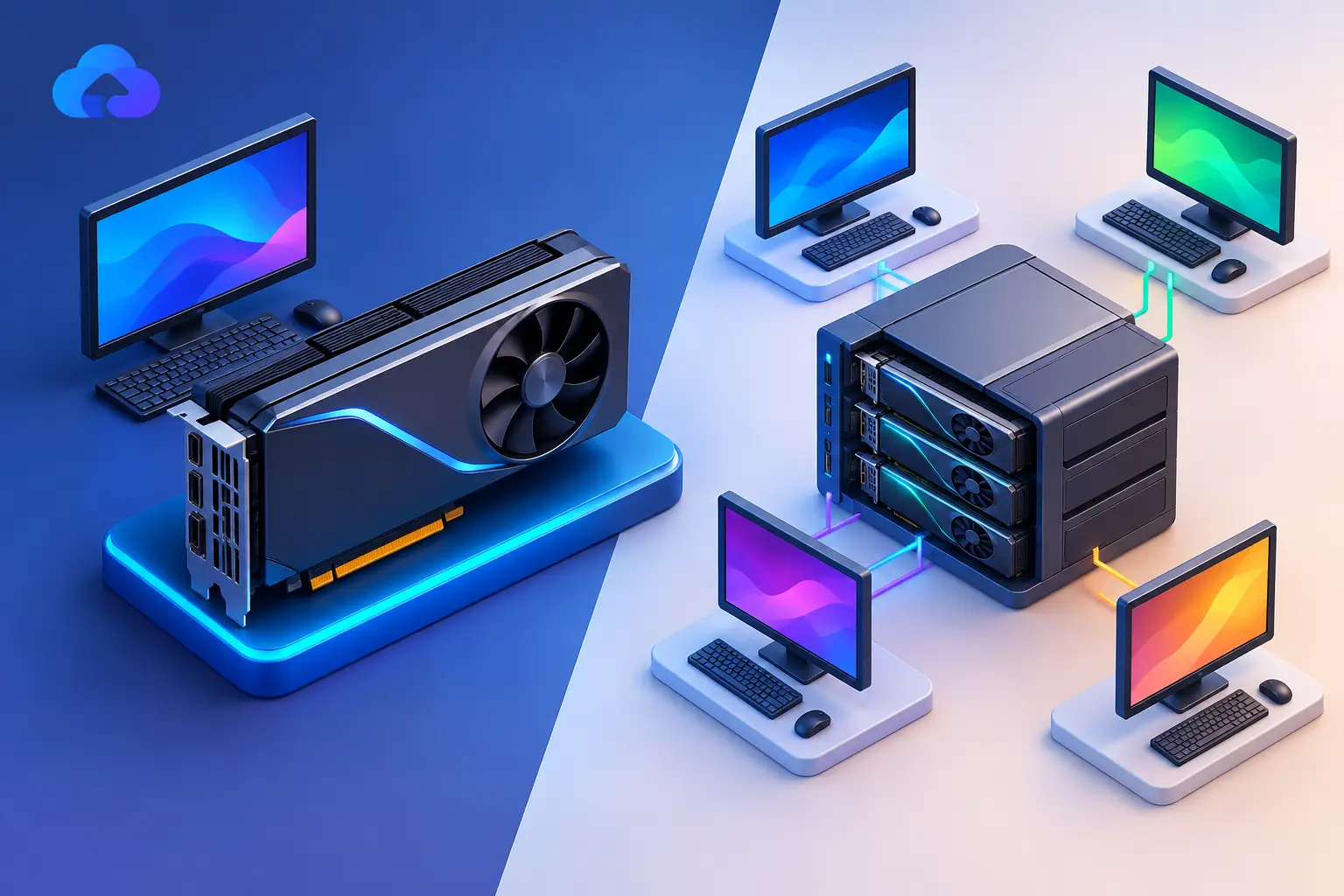
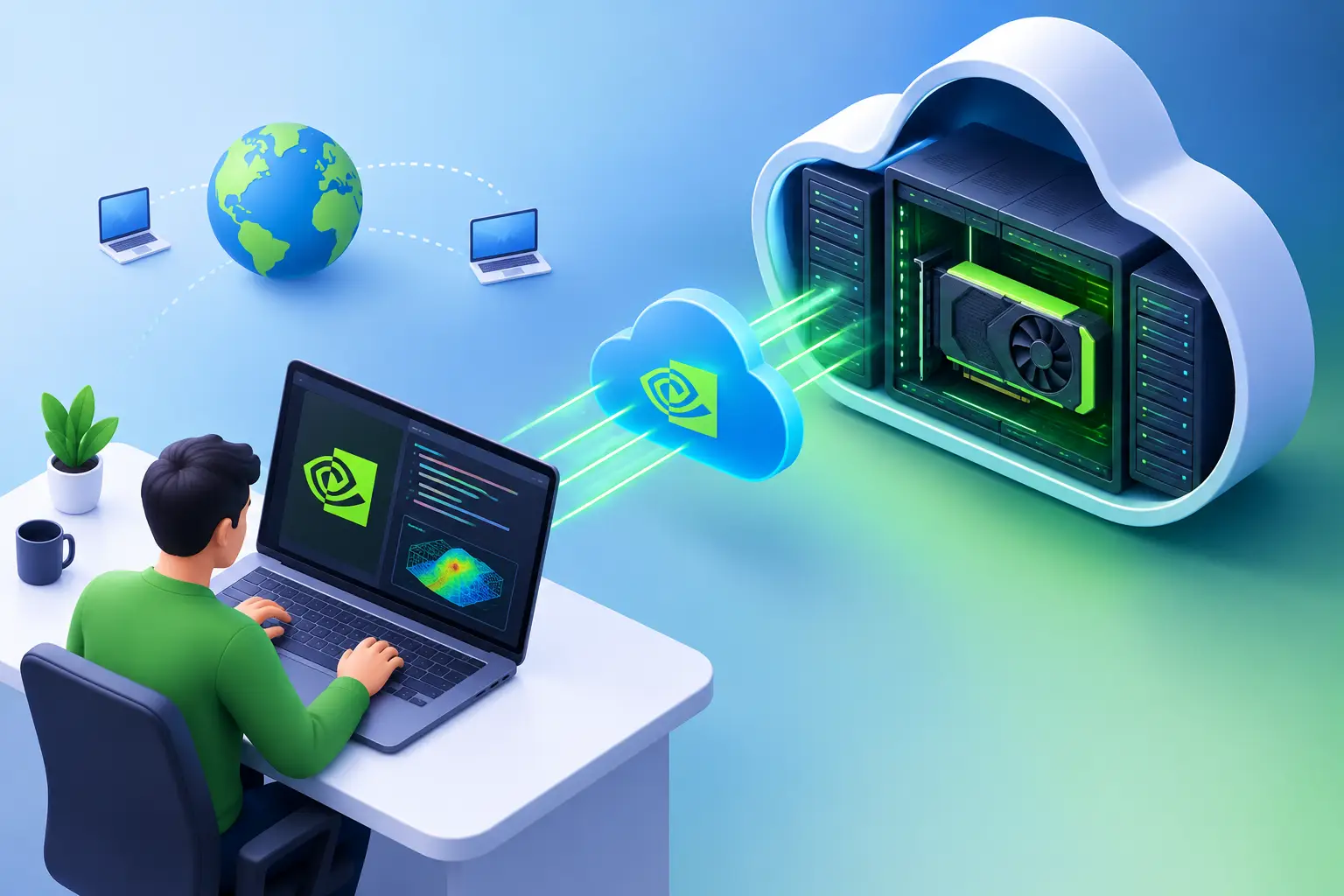
A CUDA project can stall for a simple reason: your laptop doesn't have an NVIDIA GPU, or it has one too limited for the job. Using CUDA remotely changes that — instead of rebuilding your local setup around expensive hardware, you connect to a GPU-powered Windows PC in the cloud and run CUDA where the GPU lives. Your laptop, Mac, or desktop becomes the screen, keyboard, and connection; the remote machine handles model training, CUDA compilation, rendering, or GPU-accelerated applications.
What It Means to Use CUDA Remotely
CUDA is NVIDIA's platform for using an NVIDIA GPU for parallel computing — AI frameworks like PyTorch and TensorFlow use it to train and run models, and it also supports custom C++ development, scientific computing, 3D tools, and other GPU-accelerated applications.
Using CUDA remotely doesn't mean CUDA runs through your local browser or on your local laptop. The CUDA application, NVIDIA driver, toolkit, framework, files, and GPU are all on the remote Windows PC — you connect to that desktop and work as if sitting in front of a powerful physical workstation. Dedicated GPU memory matters here specifically because CUDA workloads consume VRAM quickly.
This distinction matters practically: a weak local machine can still manage code editing, terminal commands, and a full Windows desktop session, since the remote GPU does the compute-intensive work. Your local device mainly needs a stable connection and a client or supported browser that can access the cloud PC.
Choose a Remote GPU Setup That Fits the Work
Start with the workload, not the biggest GPU option on a plan page. A machine learning learner testing notebooks has different needs from a developer fine-tuning larger models or a creator working with GPU-accelerated rendering.
For CUDA development, look for a full Windows desktop with a dedicated NVIDIA GPU, enough system RAM for your datasets and tools, and persistent SSD storage — CUDA toolkits, Python environments, project files, checkpoints, and model downloads should stay in place between sessions. A cloud PC is simpler than configuring a raw cloud server if you want a familiar Windows environment: install VS Code, Visual Studio, Python, Git, Conda, Docker Desktop where appropriate, Blender, or other desktop tools without building a remote infrastructure stack first.
SensePC can provide this cloud PC layer, keeping the experience close to using a high-performance desktop. The right tier still depends on your CPU, RAM, storage, and GPU memory needs — check your framework's, model's, or application's requirements before creating the machine.
How to Use CUDA Remotely in Five Steps
1. Create and access the cloud PC
Create a Windows cloud PC with a dedicated NVIDIA GPU and enough storage for your environment. Once it's ready, connect from your existing desktop, laptop, or Mac using the available remote access method.
Treat this remote system as your primary CUDA workstation — install your tools there, save projects there, and run the workload there. If you only copy code back and forth every session, setup becomes slower and version mismatches become more likely.
2. Confirm that Windows can see the GPU
Before installing development tools, confirm the remote machine detects the NVIDIA GPU. Open Command Prompt or PowerShell and run:
nvidia-smiIf the command returns GPU details, driver information, and active processes, the driver is working. If it doesn't, don't assume a CUDA toolkit reinstall will solve it — first verify you selected a GPU-equipped cloud PC and that its GPU is available to the operating system.
This check also helps later when troubleshooting: use nvidia-smi to see whether your training script is actually using the GPU and how much GPU memory it consumes.
3. Install a CUDA-compatible toolchain
Your next step depends on what you're building. For custom CUDA code, install the NVIDIA CUDA Toolkit and a supported compiler or IDE. For Python-based AI work, you may not need the full toolkit at first — many framework packages include the CUDA runtime components they need.
The key is compatibility. Your NVIDIA driver, CUDA version, Python version, and framework version must all work together — a newer toolkit isn't automatically better if your project requires a specific PyTorch build or a library that only supports certain CUDA releases.
Create a separate Python virtual environment or Conda environment for each project when possible — it keeps dependencies isolated and makes a working setup easier to reproduce.
4. Test CUDA from your framework or application
After installation, run a small test before downloading a large model or starting a multi-hour job. For PyTorch, this checks CUDA availability and prints the detected GPU name:
python -c "import torch; print(torch.cuda.is_available()); print(torch.cuda.get_device_name(0))"For a CUDA compiler workflow, use nvcc --version to confirm the compiler is installed, then build a simple sample project. A short test catches common issues early: a CPU-only framework build, incompatible package versions, missing environment variables, or code that defaults to the CPU.
5. Move your work to persistent storage and run it remotely
Upload or clone your project to the cloud PC's persistent drive. Keep datasets, model weights, source code, and output folders organized on the remote machine — for larger files, plan the transfer before you begin, since uploading a large dataset can take longer than installing the tools.
Then run your notebook, training script, compiler, or creative application from the remote desktop. Monitor utilization with nvidia-smi, save logs locally on the cloud PC, and reconnect later without rebuilding the environment from scratch.
Remote CUDA Performance Depends on More Than the GPU
CUDA compute happens near the remote GPU, so network latency doesn't slow each individual CUDA kernel the way it would slow a local calculation — but it does affect how responsive the desktop feels. Editing code, moving windows, using a visual notebook, and controlling a 3D application all depend on your connection quality.
Internet speed also affects data movement. If your workflow sends large datasets from your local device to the cloud PC every day, transfer time can become the real bottleneck — it's often better to keep active datasets and environments in persistent cloud storage, then only move results, exports, or smaller files back to your device.
Interactive and long unattended tasks behave differently. A Stable Diffusion workflow, a video export, or a training run may benefit from remote GPU access even with an imperfect connection, since the heavy compute continues on the cloud PC regardless. Fast-paced, highly interactive work places more pressure on connection quality and remote display performance.
Common CUDA Remote Setup Problems
The most common issue is installing a CPU-only version of a framework. If torch.cuda.is_available() returns False, check the package build before assuming the GPU is unavailable — framework installation commands often differ by CUDA version and operating system.
Mismatched versions cause silent failures. A project may run correctly with one CUDA runtime but fail after an unrelated package upgrade. Record the Python version, framework version, CUDA version, and key library versions when you create a working environment.
GPU memory limits are easy to overlook. A GPU can be active and correctly configured while a model still runs out of memory — reduce batch size, use mixed precision if your framework supports it, choose a smaller model, or select a configuration with more suitable GPU resources.
Watch where your files live. Projects saved in a temporary folder or disconnected network location can cause confusion after a session ends — use the cloud PC's persistent storage for work you plan to keep.
When a Remote CUDA PC Makes Sense
Remote CUDA access is a strong fit when you need GPU power occasionally, your local device is a Mac or lightweight laptop, or you want to test GPU workflows without buying a workstation — it also works well when you need a consistent Windows development environment from multiple computers.
Buying a physical GPU may be the better choice if you run heavy workloads every day, need to work without reliable internet, or have strict local data requirements. Hardware ownership gives direct access and can be more cost-effective over time for constant use, but brings upfront cost, maintenance, heat, power use, and eventual upgrade decisions. VRAM tiers and hardware planning for AI development generally covers this trade-off in more depth.
The practical goal isn't to replace every local computer — it's to put CUDA-capable hardware within reach when your existing device is no longer enough. Set up the remote environment once, keep your tools and projects organized, and let the GPU work from the cloud while you work from the device you already have.
Why does torch.cuda.is_available() return False on a GPU cloud PC?
Usually because a CPU-only build of the framework was installed instead of the CUDA-enabled version. Check your installation command matches your CUDA version and operating system rather than assuming the GPU itself is unavailable — confirm the GPU is detected first with nvidia-smi.
Do I need the full CUDA Toolkit for Python-based AI work?
Not always. Many framework packages (PyTorch, TensorFlow) bundle the CUDA runtime components they need. The full CUDA Toolkit is more often necessary for custom CUDA C++ development or compiling CUDA code directly.
Why does my model run out of GPU memory even though the GPU is working correctly?
GPU memory (VRAM) is a separate limit from whether the GPU is detected and functioning. Reduce batch size, use mixed precision if your framework supports it, choose a smaller model, or select a cloud PC configuration with more GPU memory.
Does internet latency slow down CUDA computation itself?
No — CUDA compute happens on the remote GPU regardless of your connection. Latency affects how responsive the remote desktop feels (typing, moving windows, interactive tools), not the speed of the actual GPU computation once a job is running.
Should I upload my whole dataset to the cloud PC every session?
No — keep active datasets and your development environment on the cloud PC's persistent storage between sessions rather than re-uploading. Only move results, exports, or smaller files back to your local device, since large uploads can become the real bottleneck in your workflow