Short answer: Start by identifying which resource your workload is actually exhausting — CPU, RAM, GPU, or storage — rather than buying the biggest available spec. Once you know the real bottleneck, you have three options: upgrade your current machine if it's current and the fix is component-level, buy a new workstation if demanding work is your daily routine, or use a cloud workstation when you need serious power only for specific projects or bursts. The right answer is the one that matches your actual usage pattern, not the one that sounds the most powerful.
A slow workstation rarely fails all at once. It fails in moments: a render that locks up your desktop, a local AI model that runs out of memory, a game that forces you to lower settings, or a development build that takes longer than the work itself. Scaling workstation power starts with identifying the resource your workload is actually exhausting.
More power isn't always the answer. The right power is. A stronger GPU won't fix a CPU-bound build process. More RAM won't help much if your storage is nearly full or your internet connection is the real limit. The goal is to add performance where it removes the most friction, without paying for hardware you'll barely use.
Start With the Workload, Not the Spec Sheet
Before comparing CPUs, GPUs, and memory numbers, look at what you actually do during a normal week. A workstation used for browser-based work and documents has very different needs from one running Unreal Engine, Adobe applications, CUDA tools, local language models, or 3D rendering software.
Pay attention to when performance drops:
- If your computer slows down when several heavy applications are open, RAM may be the constraint.
- If previews, renders, AI inference, or GPU-accelerated effects take too long, a more capable GPU may matter most.
- If compiles, exports, simulations, or code analysis keep cores pinned at full usage, CPU capacity is likely the problem.
This matters because workstation upgrades are expensive when they're based on guesswork. No upgrade cycle driven by one frustrating project — match the machine to the work in front of you.
Scale CPU, RAM, GPU, and Storage Separately
Workstation performance is a combination of components, but each one solves a different problem. Treating them as separate decisions leads to better results and better cost control.
Add CPU power for parallel work
CPU performance matters most for tasks that rely on processing many instructions at once — software builds, video encoding, engineering workloads, simulation, large spreadsheet calculations, and virtual machines. More cores can reduce completion time when the software is designed to use them well.
Not every app benefits equally from additional cores. Some creative tools and older applications rely more on fast single-core performance than a high core count. If one task is slow while overall CPU usage stays low, the application may be limited by a single thread, storage speed, or another component entirely.
Add RAM when multitasking hits a wall
RAM determines how much active work your system can hold without constantly moving data to storage. It becomes critical when you work with large files, multiple development environments, virtual machines, browser tabs, creative apps, or datasets.
When RAM is full, a system can feel slow even if the CPU and GPU are capable — applications pause while the operating system swaps data to disk. Adding memory helps most when you see slowdowns during multitasking, not only during one GPU-heavy task.
Add GPU power for visual and accelerated workloads
A dedicated GPU is the key upgrade for many creators, gamers, developers, and AI users. GPU capacity affects 3D work, GPU rendering, visual effects, supported video workflows, machine learning experiments, image generation, and many Windows games.
GPU choice isn't only about raw processing speed — video memory matters too. A GPU can be fast but still struggle with a model, scene, texture set, or project that exceeds available VRAM. If your work involves CUDA-based tools, local AI applications, Stable Diffusion, ComfyUI, PyTorch, or GPU rendering, check the application's requirements before choosing a configuration.
Add fast, persistent storage for active projects
Storage does more than hold files — it affects boot times, project load times, cache performance, asset imports, and how comfortably you can work with large media or codebases. Keep enough free space for your applications, active projects, temporary files, and render caches.
Persistent SSD storage is especially useful when you need a workstation environment that remains ready between sessions. Reinstalling tools, moving project files, and rebuilding settings every time you need more power defeats the purpose of scaling in the first place.
Upgrade, Buy, or Use Cloud Power: Which Fits?
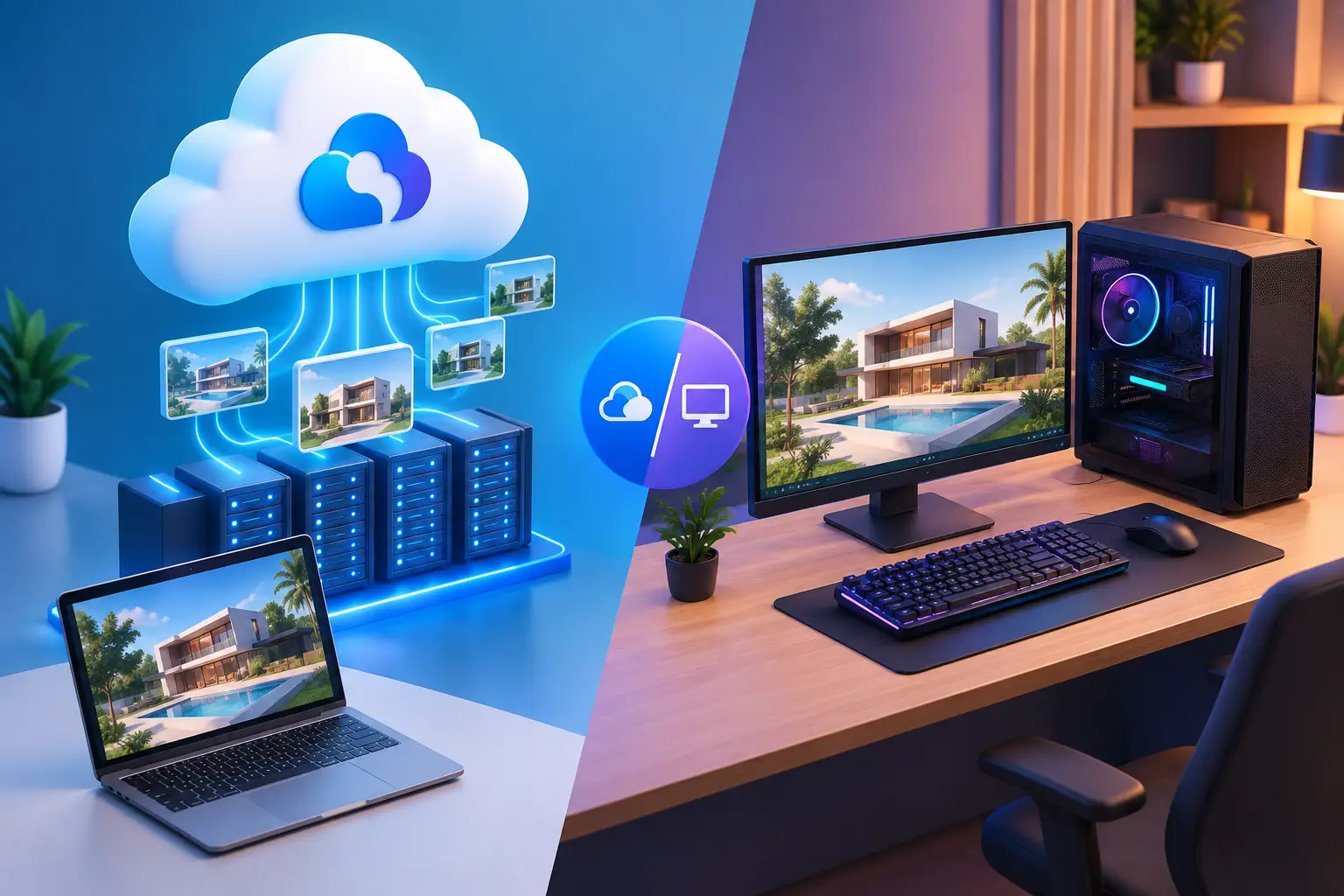
There are three practical ways to scale workstation performance: upgrade the current machine, buy a more powerful computer, or access a cloud workstation when needed. The best option depends on how often you need the extra performance and how much control you need over the hardware.
| Upgrade Current PC | Buy New Workstation | Cloud Workstation | |
|---|---|---|---|
| Best for | A clear single bottleneck on an otherwise current desktop | Daily, heavy, long-term use | Bursty, project-based, or occasional need |
| Upfront cost | Cost of one component | $1,500–$3,000+ | $0 |
| Works on laptops/Macs? | Usually not — components aren't upgradeable | N/A (new purchase) | Yes — any device becomes the access point |
| Control & offline access | Full | Full | Depends on internet connection |
| Risk | Wrong component guess wastes money | Capacity sits unused during light periods | Charges add up with constant daily use |
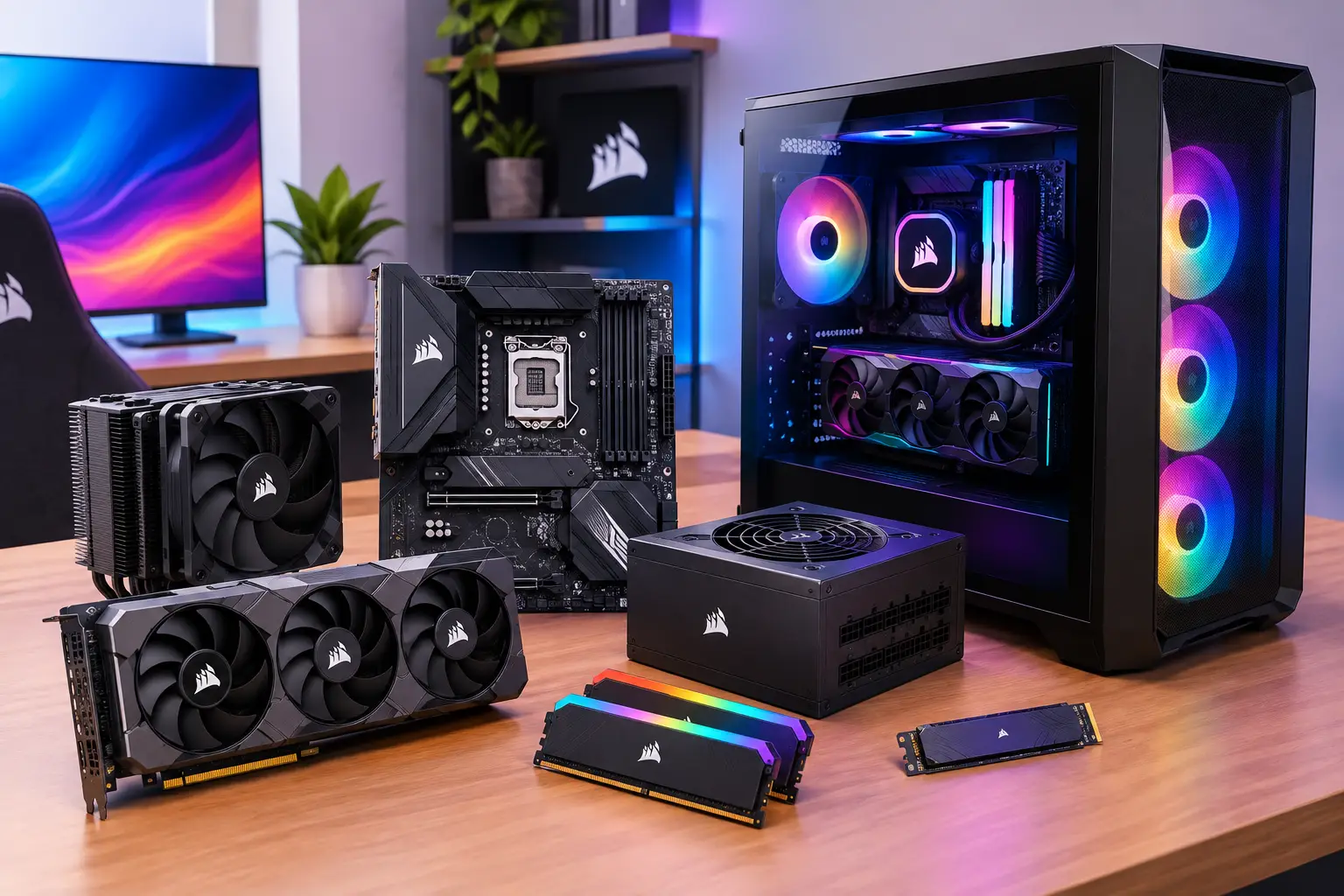
Upgrading a desktop can be the most cost-effective route when the system is still current and the bottleneck is clear — adding RAM, replacing storage, or installing a compatible GPU may extend its useful life. This approach is less practical for many laptops and Macs, where major components simply aren't upgradeable.
Buying a new physical workstation makes sense if demanding work is your full-time routine. If you render, compile, train models, or game heavily every day from a stable location, ownership offers predictable access without relying on an internet connection, plus full control over local peripherals and specialized hardware. The trade-off is the upfront cost, maintenance, heat, noise, repairs, and the eventual upgrade decision — a premium workstation can sit underused when your heavy workloads come in bursts rather than every day.
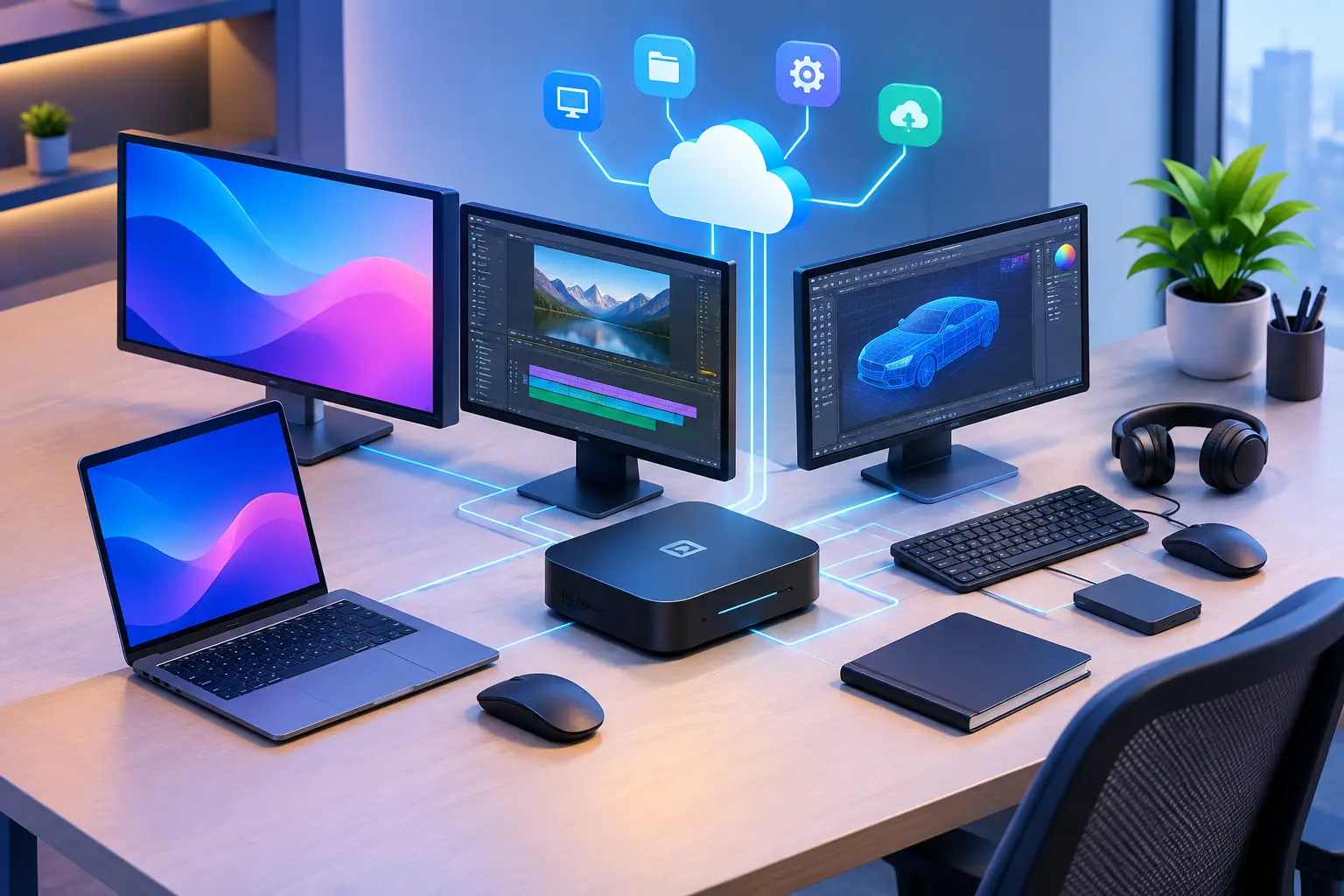
A cloud workstation is often the smarter fit when you need serious power for specific projects, short-term capacity, travel, or occasional heavy sessions. Instead of replacing your laptop or desktop, you use it as the device that connects you to a more capable Windows environment — useful for Mac users, students, remote professionals, and anyone whose current computer is fine until the workload suddenly isn't.
SensePC offers this model with cloud-based Windows 11 workstations, dedicated NVIDIA L4 GPU configurations, persistent SSD storage, and CPU and RAM tiers built for different levels of demand. You choose capacity based on the project, then access the same desktop from a compatible desktop, laptop, Mac, or supported browser.
How to Scale Power With a Cloud PC Specifically
Cloud capacity works best when you approach it with the same discipline as a hardware purchase. Start with the application, project size, and expected session frequency, then choose a configuration that supports that need without overcommitting.
For a short creative render, a software testing window, an AI learning project, or a demanding game session, hourly access may give you the best cost control. For ongoing development, remote work, or a long project with files and applications you need to keep in place, a longer billing option may make more sense.
Connection quality matters here. A cloud workstation sends video to your local device and receives your keyboard and mouse input — a stable, low-latency connection generally creates a better experience than an unreliable one. Your distance from the available cloud region, home network congestion, Wi-Fi quality, and the type of work you do can all affect responsiveness.
Cloud workstations aren't a universal replacement for local hardware. They're less suitable for fully offline needs, highly specialized local peripherals, or workflows that depend on an inconsistent connection. But they remove the wait for a hardware delivery, the large upfront purchase, and the need to maintain a powerful computer that may only be needed occasionally.
Avoid Paying for Power You Don't Use
The fastest way to overspend is choosing the highest specification because it sounds safer. A better method is to test a workload, measure the result, and scale one level at a time.
Use a typical project, not a tiny sample file. Open the applications you normally run together. Monitor CPU, memory, GPU, GPU memory, and storage activity during the slow part of the workflow — if one resource consistently reaches its limit, you have a clear direction for the next upgrade or configuration change.
It also helps to separate interactive work from batch work. You may need a high-performance GPU workstation for rendering or model testing, but not for writing code, answering email, or reviewing documents. Using powerful capacity only when the workload requires it is where flexible cloud access can be financially efficient.
Build for the Work You Need Next
Your workstation shouldn't dictate which projects you can accept or which tools you can learn. At the same time, it shouldn't become an oversized expense based on a workload that appears twice a year.
Start with the bottleneck. Add CPU, RAM, GPU, or storage where it has a real effect. Choose owned hardware when sustained local performance is worth the investment, and use on-demand cloud capacity when flexibility matters more. The best workstation strategy isn't the biggest machine — it's the one that gives you enough power when the work gets serious. See SensePC's CPU, RAM, and GPU tiers to match capacity to your next project.
How do I know if my workstation needs more RAM, CPU, or GPU power?
Watch for when slowdowns happen. General slowness with several apps open points to RAM. Slow renders, AI inference, or GPU-accelerated effects point to the GPU. Pinned CPU usage during compiles, exports, or simulations points to CPU capacity. Monitor resource usage during your slowest task to confirm the real bottleneck before upgrading anything.
Should I upgrade my current PC, buy a new one, or use a cloud workstation?
Upgrade if your current desktop is still reasonably current and the bottleneck is one clear component. Buy new if demanding work is your daily routine and you need full local control. Use a cloud workstation if your need for extra power is occasional, project-based, or seasonal — it avoids the upfront cost of ownership entirely.
Can a cloud workstation fix a GPU or RAM bottleneck without buying hardware?
Yes. A cloud workstation gives you a configuration with dedicated GPU power, RAM, and CPU sized to the job, accessed from your existing laptop, Mac, or desktop. You're not limited by your local device's components for the workload running remotely.