Short answer: A cloud desktop is a complete computer hosted remotely — you connect over the internet and use its OS, applications, storage, CPU, RAM, and GPU as if they were on your desk, with files and settings persisting between sessions. A virtual workstation is the higher-performance version of that idea, built for workloads needing more CPU, memory, graphics power, or storage speed than a standard office desktop — video editing, 3D work, game development, software builds, or AI experimentation. The terms overlap in casual use, but "cloud desktop" usually describes the experience while "virtual workstation" describes the performance level.
A thin laptop, a Mac, or an aging desktop can become the access point for serious Windows computing. That's the practical value of cloud desktops and virtual workstations: demanding hardware runs in a data center while you connect to a full desktop from the device you already own — no expensive tower under the desk, no heat, parts shopping, or upgrade cycle. But cloud computing isn't magic, and it isn't the right fit for every workload.
What Is a Cloud Desktop?
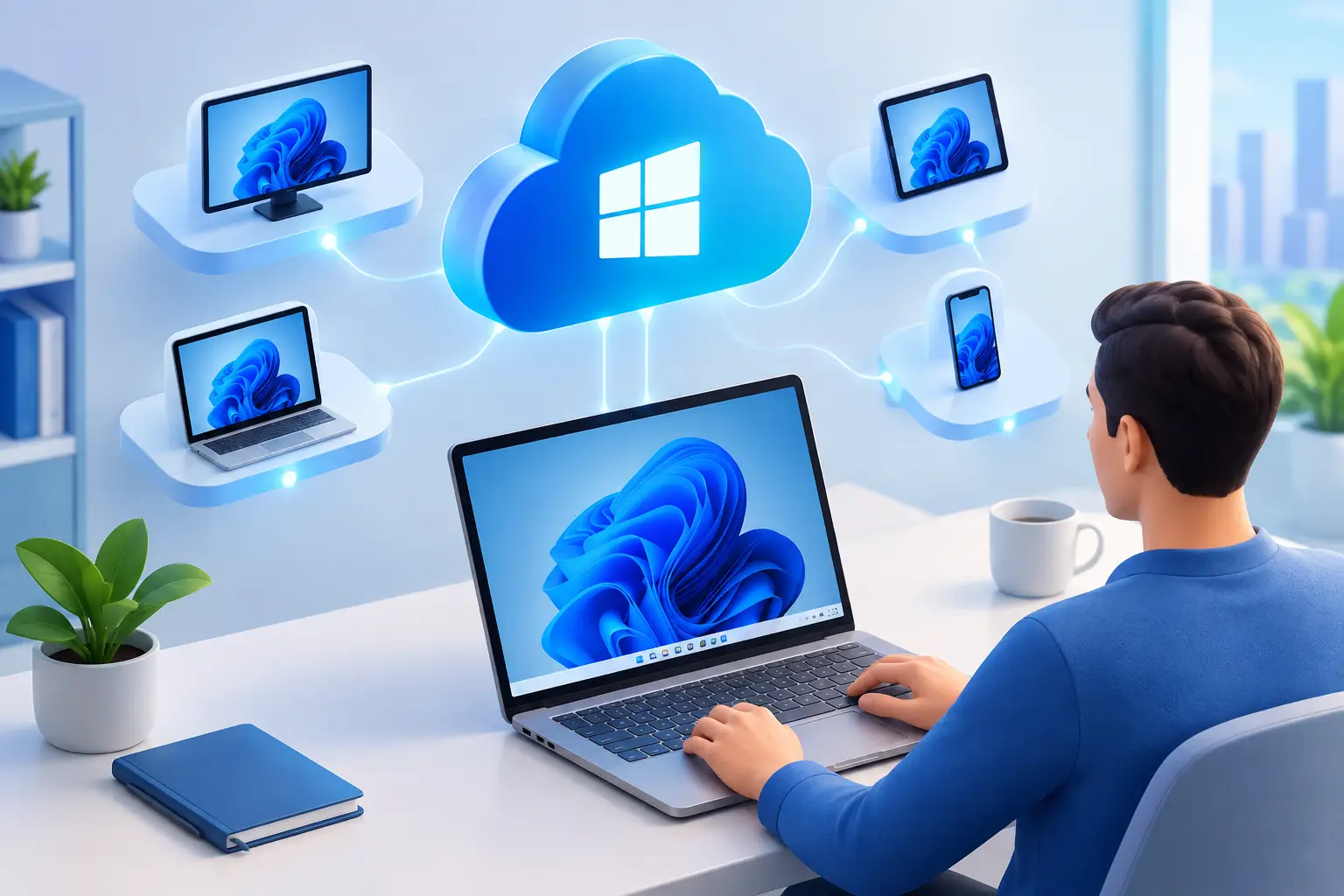
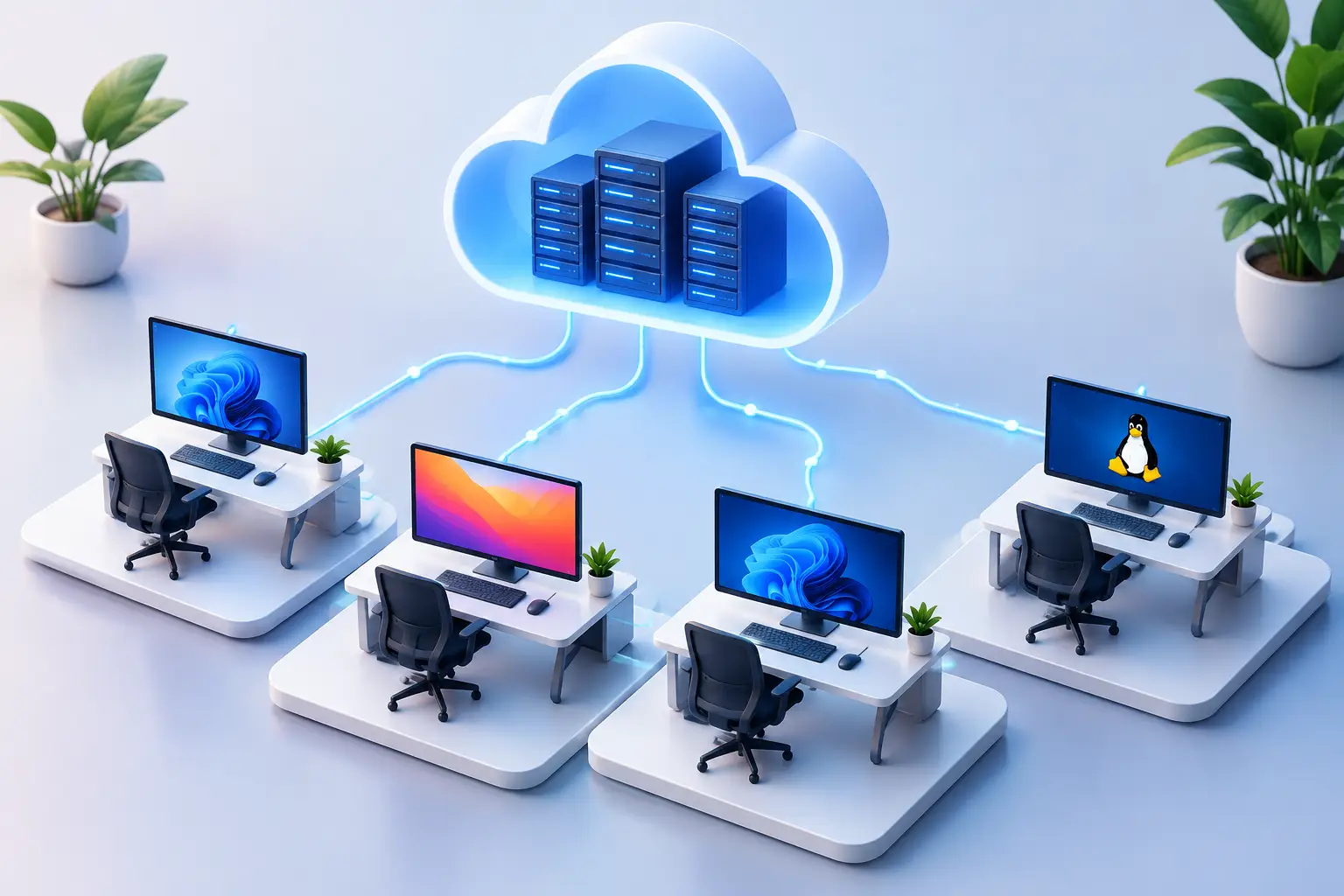
A cloud desktop is a complete computer hosted remotely. You connect to it over the internet and use its operating system, applications, storage, CPU, RAM, and GPU as if they were on your desk — for many users, that means accessing a Windows 11 environment from a Windows PC, Mac, laptop, or supported browser.
The key difference from a simple remote-access tool is that the cloud desktop is its own machine — it doesn't depend on a home PC being powered on. Your files, installed applications, settings, and projects remain on persistent storage between sessions.
Cloud Desktop vs. Virtual Workstation: The Real Difference
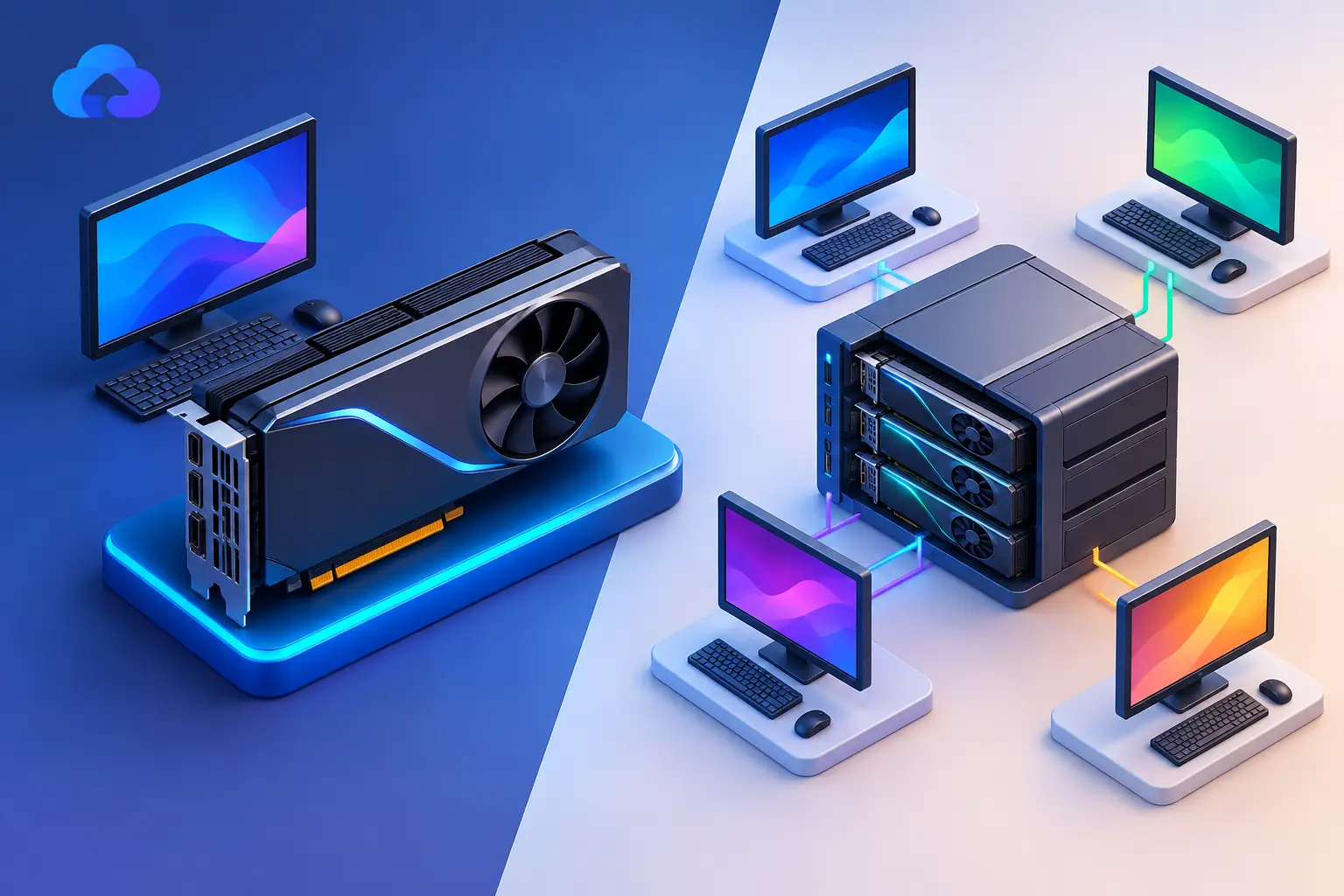
The terms often overlap, but the intended use matters. A cloud desktop usually describes the experience: a remote Windows computer you can open from different devices — potentially enough for remote work, school software, coding, business tools, and day-to-day productivity.
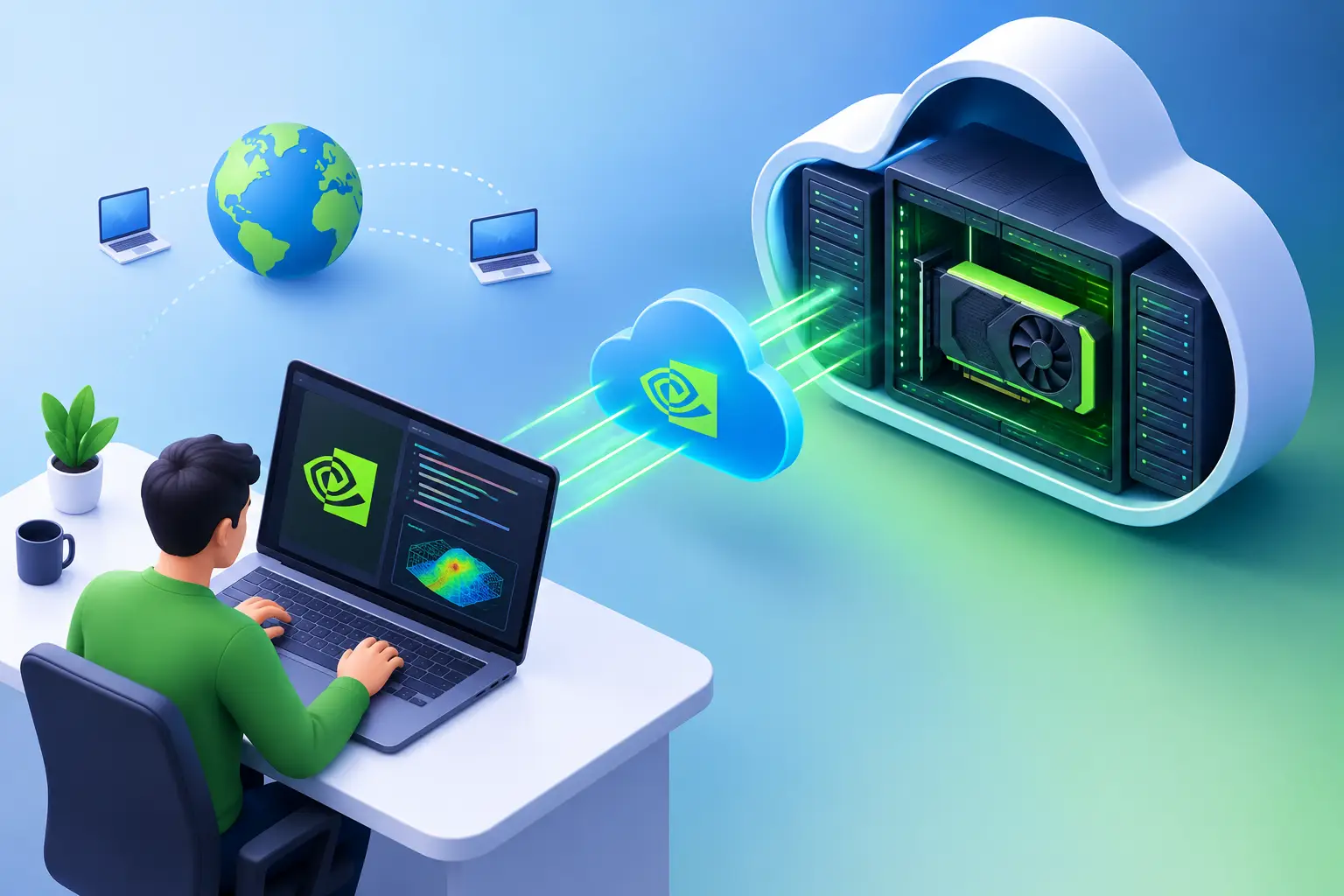
A virtual workstation describes the performance level — designed for users needing stronger specifications, often including dedicated GPU resources. A creator exporting a project, a developer running demanding tools, or an AI learner testing CUDA-based software needs more than a basic remote desktop; they need a machine configured for sustained work. What dedicated GPU access means specifically matters here.
For a user, the best choice comes down to the applications being run. Browser tabs, documents, and light coding don't need a GPU-heavy workstation. Windows-only software, rendering capability, game performance, or a dedicated environment for technical projects points toward a higher-tier virtual workstation.
The Main Benefits of a Cloud Desktop Over a Traditional Desktop
This is the question worth answering thoroughly, since it's the actual deciding factor for most people weighing this option.
No large upfront hardware cost. Buying a high-end PC means committing to significant spending before you know how often you'll actually need the power. A cloud desktop shifts that to paying for access based on real usage — hourly access for a weekend project, a software test, a rendering task, or a few evenings of gaming; daily and monthly options when the workstation becomes part of your regular routine.
No maintenance burden. Ownership means handling storage limits, heat, repairs, and eventual upgrades yourself. A cloud desktop removes that responsibility — the provider maintains the underlying hardware.
Device freedom. A lightweight laptop is easy to carry but limited by local CPU and graphics hardware. A Mac may be excellent for everyday work but still leave you needing Windows applications or GPU tools. With a cloud desktop, the local device just handles the connection while the remote machine does the heavy work — you're not choosing between portability and power.
Access from anywhere, on your own or someone else's device. Because the desktop lives in the cloud rather than on physical hardware in one location, you can pick up the same environment from a home office, while traveling, or on a borrowed device.
Scales with changing needs. You may need GPU power this month, a larger memory configuration next month, and no high-performance machine at all during a slower period. A physical PC's specs are fixed at purchase; a cloud desktop's aren't.
What a traditional desktop still does better: direct control over peripherals and upgrades, no dependency on internet quality, and — for daily, years-long heavy use — often better total cost of ownership. The detailed cloud vs. physical PC cost comparison covers exactly where that break-even point sits.
Why People Choose Cloud PCs Over New Hardware
Beyond the direct benefits above, the practical shift is in how cost and commitment work. Ownership works well for people using demanding hardware daily for years. A cloud PC changes that model entirely — pay for access based on how often you need it, rather than owning capacity that may sit idle.
This doesn't mean every task belongs in the cloud. Your internet connection and distance from the data center affect the experience — fast-paced interactive work is more sensitive to connection quality than email, coding, or batch rendering. Test the service with your own network, location, and applications before treating it as your primary setup.
How to Choose the Best Cloud Workstation Provider for Your Needs
Choosing a cloud workstation is less about finding "the best" provider in the abstract and more about matching the provider to your workload, GPU needs, software, and budget.
For GPU-based work, confirm the machine includes a dedicated GPU rather than shared graphics. GPU memory, CPU allocation, and system RAM should be considered together — a powerful GPU can still be held back if a large project runs out of RAM or the CPU is undersized for compilation and encoding.
Persistent SSD storage is essential, not optional. A disposable session works for temporary testing but creates friction when you need to reinstall applications and move files every session.
Connection technology matters. A high-performance desktop needs an experience designed for responsive visual workloads, not just static office screens. SensePC uses a native Performance Mode powered by NICE DCV, built to deliver a responsive remote desktop experience for compatible use cases — actual responsiveness still depends on your network conditions, device, and location.
Look at setup and billing. A cloud workstation shouldn't feel like managing a server — the value is creating a machine, connecting, and getting to work without configuring enterprise infrastructure. Fast provisioning and clear hourly, daily, or monthly options make it easier to control both time and cost. SensePC's virtual workstation configurations are built around this.
Security Measures to Consider
Using a cloud remote desktop shifts part of your attack surface to the provider's infrastructure and your own account practices — it doesn't eliminate security considerations, it redistributes them. At minimum: strong, unique credentials and MFA where available, an encrypted connection method, careful handling of what you store there, and good backup discipline independent of the platform. The complete security checklist covers this in full, including where provider responsibility ends and yours begins.
Which Users Benefit Most?
Cloud workstations are especially useful when performance needs are real but not constant. A student might need a stronger Windows machine for an engineering assignment or AI course, but not every day of the year. A developer may need a clean Windows environment with more memory or GPU capacity than their local laptop provides. A creator may use a virtual workstation for a demanding editing project rather than buying a new desktop for one production cycle.
Gamers benefit when they want access to a capable Windows PC without building or upgrading a physical system — though game experience depends heavily on network quality, server location, and the specific game's requirements. Remote professionals may value a persistent desktop more than raw graphics power, keeping a consistent Windows environment accessible from a home office, travel laptop, or Mac.
Cloud Workstation vs. Physical PC vs. Enterprise VDI vs. Cloud Servers
A physical PC is usually the better long-term value for daily high performance over several years — no internet dependency, direct control over peripherals and local files.
Traditional enterprise virtual desktop systems serve a different buyer entirely — built around centralized administration and large-scale policy management, useful for large organizations but excessive for an individual developer, student, creator, or gamer. Cloud servers are another separate category, designed for infrastructure and command-line administration rather than a usable personal computing environment. The full category comparison across provider types maps all of these out in detail.
Getting the Most From a Cloud PC
Start by choosing a configuration based on the work you actually do — more power only helps when the application can use it. Check CPU, RAM, GPU, and storage requirements for your core tools, then leave headroom for multitasking and future projects.
Use a reliable wired connection when possible, or strong Wi-Fi close to your router. Keep important projects organized on persistent storage, and plan backups for work that can't be replaced. Separate occasional tasks from regular ones — use hourly access for short jobs and testing, and consider longer commitments only after confirming the workstation fits your workload and schedule.
What are the main benefits of using cloud desktops over traditional desktops? No large upfront hardware cost, no ongoing maintenance burden, access from multiple devices and locations, and the ability to scale performance up or down as your needs change month to month — a traditional desktop's specs are fixed at purchase, while a cloud desktop's aren't. The trade-off is dependency on a stable internet connection and, for daily heavy use over years, potentially a higher total cost than ownership.
How do I choose the best cloud workstation provider for my needs? Match the provider to your actual workload rather than looking for a universal "best" — confirm dedicated (not shared) GPU access if you need graphics performance, check that storage is persistent between sessions, evaluate the connection/streaming technology for responsiveness, and compare billing flexibility (hourly, daily, monthly) against how often you'll actually use it.
What security measures should I consider when using cloud remote desktops? Strong unique credentials with multi-factor authentication where available, confirming the connection method is encrypted, careful decisions about what sensitive data you store in the environment, and independent backup discipline for critical files — security responsibility splits between the provider's infrastructure and your own account and usage practices.
Can I run resource-intensive applications on cloud virtual machines? Yes — cloud virtual machines and workstations are specifically built to handle resource-intensive applications like machine learning training, video rendering, big data analytics, and heavy databases, as long as the specific configuration chosen provides enough CPU, memory, storage, and GPU capacity for that workload.