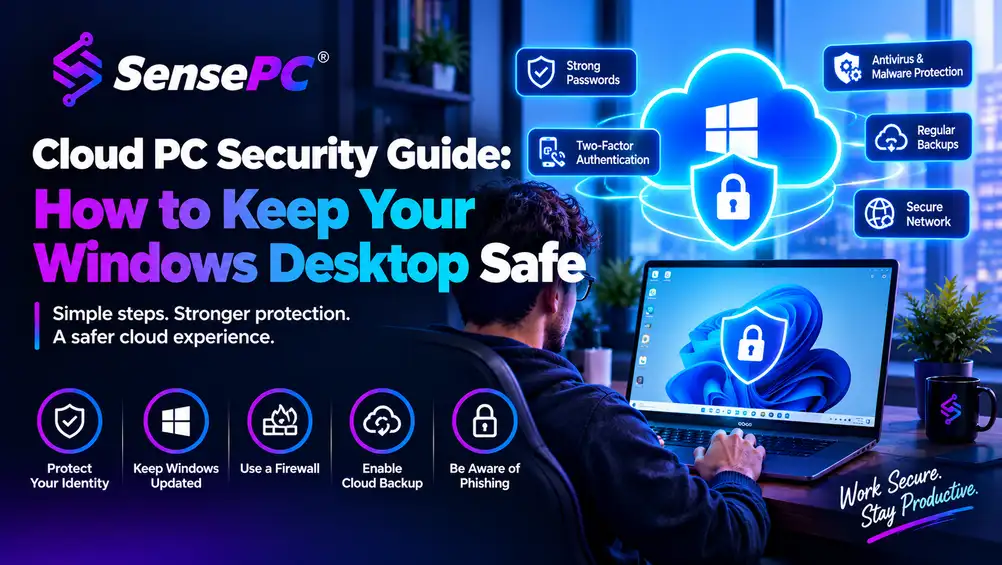
Short answer: A cloud PC is as secure as the account, device, and habits used to reach it. Security is shared: the provider protects the data center, network, and hosted Windows environment, while you control the sign-in, your local device, what gets installed inside Windows, and backups. SensePC streams sessions over Amazon DCV, which encrypts screen video and user input with TLS, so the bigger risks are a stolen password, an infected local device, or unsafe downloads, not the stream itself. The highest-impact steps are a unique password of at least 15 characters, multi-factor authentication (which cut compromise risk by 99.22% in a Microsoft Research study of commercial accounts), current updates, and a backup outside the cloud PC, because persistent storage is not a backup.
Cloud PC security checklist: six habits that cover most of the risk
| Habit | What to do | Why it matters |
|---|---|---|
| 1. Lock down your account | Unique 15+ character password, MFA on, secured recovery email | Credential abuse shows up in 39% of breaches (Verizon 2026 DBIR) |
| 2. Secure your local device | Automatic updates, screen lock, full-disk encryption | Exploited software flaws are now the #1 way attackers get in (31% of breaches) |
| 3. Be careful on public Wi-Fi | Verify the network, keep your screen private, prefer a phone hotspot | Fake hotspots and prying eyes get around even an encrypted stream |
| 4. Keep Windows clean | Trusted software only, Windows Update and Microsoft Defender on | Malware inside a cloud PC acts like malware on any PC |
| 5. Back up what matters | Keep a second copy outside the cloud PC | Persistent storage is not a backup |
| 6. Close sessions properly | Lock when you step away, sign out on shared devices, use a password manager | An open session skips every sign-in protection you set up |
Your cloud PC may run in a data center, but your account, files, browser sessions, and access habits still matter. A powerful Windows desktop you can open from a Mac, a lightweight laptop, or a browser means you don't have to carry expensive hardware. It doesn't remove the need for basic security discipline. If you're new to the concept, start with what a cloud PC is.
This cloud PC security guide is written for individual users, not IT departments managing fleets of machines: gamers, creators, developers, students, and freelancers running their own cloud PC. You don't need to become an IT administrator. You need a strong account, a trusted connection, an updated device, and clear rules for where sensitive files live. Build those habits early, especially if your cloud PC holds client work, code, creative projects, or schoolwork.
Who Is Responsible for Cloud PC Security?
Cloud PC security is shared between you and the provider. The provider secures the physical servers, the network, and the hosted Windows environment. You control who can sign in to your account, what happens inside your Windows desktop, which files you download, and whether the device you connect from is safe.
| The provider handles | You handle |
|---|---|
| Physical data centers and hardware | Your password, MFA, and recovery email |
| Network infrastructure | The device and network you connect from |
| The hosted Windows environment and streaming connection | Everything you install and run inside Windows |
| Keeping the platform running | Where your files live and how they're backed up |
With SensePC, that split has three layers. SensePC cloud PCs run on AWS infrastructure, so AWS secures the physical data centers and hardware. [EDITOR: confirm you're OK naming AWS; delete this sentence if not.] SensePC runs the cloud PC platform and streams your desktop over Amazon DCV, which encrypts both the video stream and your keyboard and mouse input using TLS. Only an encrypted image of your screen reaches your device; your files stay on the cloud PC unless you download or transfer them. The third layer, your account and everything inside Windows, is yours.
That split matters. A cloud PC keeps your main work environment off a laptop that could be lost or stolen, but anyone who signs in to your cloud account can still open that environment. Likewise, malware from a suspicious download affects the Windows session even though the PC is hosted remotely.
Treat your cloud PC like a serious workstation you can reach from anywhere, with the same care you'd give a physical PC holding valuable projects, saved credentials, source code, personal documents, or licensed software.
How Do I Secure My Cloud PC Account?
Use a long, unique password, turn on multi-factor authentication (MFA), and protect the email you'd use to recover the account. Your account is the front door: anyone who signs in as you gets your whole desktop, your files, and your saved sessions, no matter where the hardware sits.
Stolen and reused credentials are still one of the most common ingredients in real breaches. Verizon's 2026 Data Breach Investigations Report found credential abuse somewhere in the attack chain of 39% of the breaches it analyzed.
Password. Create one used only for your cloud PC. Length beats complexity: NIST's current guidance, SP 800-63B-4 (published in 2025), sets 15 characters as the minimum for a password used on its own and drops forced symbol-and-number rules. A passphrase of four or five random words is easier to remember and harder to crack than "P@ssw0rd1!". Never reuse a password from gaming platforms, email, school, or social media; a breach there becomes a risk here.
MFA. Turn it on wherever it's offered. Microsoft researchers found that MFA reduced the risk of account compromise by 99.22%, and by 98.56% for accounts whose passwords had already leaked. The same study found authenticator apps outperformed SMS codes, so pick an authenticator app, or a passkey where supported, over text messages. [EDITOR: if SensePC supports MFA, add: "On SensePC, turn on MFA under ___."]
Recovery email. Give it its own unique password and MFA. Whoever controls your email can often reset access to everything else.
Sign-in pages, texts, and calls. A legitimate provider will never ask for your password in a chat message or email reply. Sign in through the official site or app you already trust, not a link in an unexpected message. Be just as skeptical of texts and calls claiming to be support: Verizon's 2026 DBIR found that fake texts and voice calls succeed 40% more often than email phishing. If you're setting up a new cloud PC, turn on MFA during setup; our guide on how to set up a cloud gaming PC covers the rest of the process.
How Do I Secure the Device I Connect From?
Keep your laptop or desktop updated, lock it with a strong PIN or biometric, turn on full-disk encryption, and avoid shared computers. Your local device displays every session and may store browser data, downloads, and saved logins, so a cloud PC is only as private as the device you use to reach it.
Updates. Keep the operating system, browser, and remote access client (for SensePC, the Amazon DCV client) current. Turn on automatic updates and restart when prompted instead of delaying patches for weeks. This is where attackers are focusing: in Verizon's 2026 DBIR, exploited software vulnerabilities overtook stolen credentials as the most common way attackers got in, the initial entry point for 31% of breaches.
Screen lock. Use a strong device password, PIN, or biometric so a lost or unattended laptop doesn't hand someone your session.
Full-disk encryption. Turn on FileVault on macOS, or BitLocker on Windows (called Device Encryption on Windows Home). It protects downloaded project files and saved session data if the device is lost or stolen, which matters most for laptops you carry.
Shared computers. Avoid library PCs, hotel business centers, and borrowed devices; they can carry unknown software, saved browser profiles, or keyloggers. If you have no other option, use a private browser window, don't save passwords, and sign out fully when you finish. A trusted personal device is always the better choice.
Is It Safe to Use a Cloud PC on Public Wi-Fi?
Generally yes, with precautions. Reputable cloud PC services encrypt the connection, and SensePC streams over Amazon DCV, so another person on the same network can't watch your session in transit. The real risks sit around the stream: fake hotspots, lookalike sign-in pages, people who can see your screen, and unstable connections that tempt risky shortcuts.
Home internet and trusted office networks are still the simplest option. On public Wi-Fi:
- Confirm the network name with the venue, and skip lookalikes imitating a coffee shop, airport, or hotel.
- Be wary of sign-in portals that ask for more than a room number or a click-through, especially anything that looks like your cloud PC or email login.
- Keep your screen out of view when working with client material, financial data, or private code.
- Use your phone's hotspot for sensitive work if the venue network looks doubtful.
Network quality matters too. A cloud PC depends on a stable connection for a responsive desktop. A slow network isn't a security failure, but it can push you toward risky workarounds, such as disabling protections or copying sensitive files between devices just to finish a task. Plan ahead for work that needs dependable access; our low-latency cloud gaming guide covers connection targets.
How Do I Keep Windows Clean Inside a Cloud PC?
Treat it like a high-value local workstation: install software only from trusted sources, keep Windows Update and Microsoft Defender turned on, and keep risky experiments away from important work. Malware inside a cloud PC behaves the same way it would on a physical PC; the remote location doesn't stop it.
Risky sources. Browser extensions, free utilities, unofficial game mods, cheat tools, cracked applications, and unknown development packages are common paths for malware and credential theft.
Security warnings. Some specialized workflows need configuration changes, but don't disable protections just to make a warning go away. Find out why it appeared and verify that the tool, driver, or installer is legitimate.
Separation. If you use your cloud PC for client work or professional development, keep random downloads, experimental software, and personal browsing out of it. One environment can handle many tasks, but clear boundaries stop a risky test from reaching important files.
For developers and AI builders. Verify repositories, package names, and install commands before running them. A one-letter typo in a package name or a command copied from an untrusted forum can introduce more risk than the cloud setup itself. Use project-specific environments (Python virtual environments, conda, or containers), keep API keys out of your code, and read any script that asks for administrator rights. [EDITOR: link your developer workstation post here.]
Does a Cloud PC Back Up My Files?
Not unless your provider explicitly says so. Persistent storage keeps your apps, settings, and projects between sessions, but persistence isn't a backup: if a file is deleted, corrupted, or encrypted by ransomware, the persistent copy goes with it. Keep a second copy of anything important outside the cloud PC.
SensePC cloud PCs use persistent storage, so your installed apps and projects are waiting when you reconnect. That's convenience, not a backup strategy. [EDITOR: if SensePC offers snapshots or backups, say so here.]
A simple standard is the 3-2-1 rule: three copies of important data, on two different types of storage, with one copy kept off-site. In practice:
- Code: a Git repository with sensible access controls and regular commits.
- Creative work: exported versions at meaningful milestones, stored somewhere separate.
- Documents: whatever storage your school, employer, or client requires.
Don't leave sensitive data scattered across the desktop and Downloads folder. Use a clear folder structure, and delete temporary exports and installers you no longer need. It makes cleanup easier and reduces the chance of sharing the wrong file.
Encryption helps for especially sensitive files, but it adds responsibility. If you encrypt a file with a key or password, store the recovery information somewhere safe. Strong protection is useless if the only copy of the key disappears.
How Should I Manage Sessions and Saved Passwords?
Lock your screen whenever you step away, sign out when you finish on any shared device, and keep passwords in a dedicated password manager instead of every browser profile. Locking takes seconds and stops anyone nearby from opening files, sending messages, or installing software as you.
On your local device, press Windows + L on Windows or Control + Command + Q on a Mac. Sign out of the cloud PC when you're done for the day, especially on a household computer used by several people.
Be selective about saved passwords in browsers. A password manager is usually a better choice than letting every browser profile remember credentials. If you do save passwords in the browser, make sure your cloud PC account and local device have strong sign-in protection.
Review active sessions and connected devices whenever your provider shows them. [EDITOR: if SensePC shows active sessions, name where to find them.]
What to Do If Your Cloud PC Account Looks Compromised
- Change your cloud PC password from a trusted device.
- End any sessions you don't recognize, if your provider allows it.
- Check your recovery email and MFA settings for changes you didn't make.
- Change your recovery email password, plus any account that shared the old password.
- Run a full Microsoft Defender scan inside the cloud PC and review recently installed apps.
- Contact your provider's support through its official website.
Quick action limits the damage.
How Much Security Does Your Workload Need?
Match the setup to the data. Everyone needs the baseline: a unique password, MFA, updated devices, and trusted software. Beyond that, a student on a short project needs little more, while a developer holding production credentials needs separate access policies and proper secret management.
| User | Main risk | Add to the baseline |
|---|---|---|
| Student | Phishing, shared or school computers | Use a personal device when possible; keep coursework in approved storage |
| Gamer | Account takeover, malicious mods and cheat tools | Official stores and launchers only; never share your login with friends or boosting services |
| Creator | Leaked unreleased client assets | Strict sharing permissions, encrypted local storage, milestone exports |
| Developer or AI builder | Exposed API keys and credentials, malicious packages | Least-privilege access, a secrets manager, verified dependencies |
| Regulated work (health, finance, legal) | Compliance requirements | Confirm what your employer or regulator allows before using any cloud PC |
The same logic applies when choosing between cloud and physical hardware. A cloud PC is a practical choice when you want high-performance Windows computing without buying and maintaining a premium machine. SensePC gives you a persistent Windows desktop on a dedicated NVIDIA L4 GPU for gaming, creative work, and development, with hourly or monthly billing. [EDITOR: match billing wording to /pricing.] Safe use still depends on your account controls, local device, connection, and workflow.
If you work mostly offline, handle extremely sensitive material under strict compliance rules, or need direct control over every layer of your environment, a local workstation or managed corporate setup may fit better. Security isn't about declaring one option universally safer. It's about matching the setup to the data, access needs, and risks involved.
What Security Features Should a Cloud PC or Cloud Gaming Service Offer?
Before you choose a cloud PC or cloud gaming service, check how it protects your account, your connection, and your data. Performance and price get most of the attention, but these five questions show whether a service takes security seriously.
- Does it support MFA? Without a second sign-in factor, your whole desktop sits behind one password.
- Is the stream encrypted? Look for TLS or equivalent encryption covering both the video stream and your inputs.
- Can you see and end active sessions? Session visibility lets you spot and shut down access you don't recognize.
- Is your storage private to your account? Know whether your files live on storage dedicated to you, and what happens to them when you cancel.
- Is the data policy clear? You should be able to find, in writing, who can access your machine and how your data is deleted.
[EDITOR: add one line stating which of these SensePC meets, e.g. "SensePC encrypts every session with Amazon DCV and supports ___." If SensePC lacks MFA or session controls, cut this section for now.]
The Bottom Line
A few consistent habits go a long way: protect the account, patch your devices, use trusted software, back up valuable work, and sign out when you're finished. Do that, and your cloud PC stays what it should be: powerful computing you can reach from anywhere, with you in control.
Can a cloud PC get a virus?
Yes, a cloud PC can get a virus because it runs a full Windows session: malware you download or install behaves the same way it would on a physical PC. Keep Microsoft Defender on and install software only from trusted sources.
Is cloud gaming safe?
Cloud gaming is safe for most players as long as the account is protected. The biggest risks are account takeover and unofficial downloads like cheats or cracked mods, not the game stream itself, so use a unique password, turn on MFA, and stick to official stores.
Can someone access my cloud PC if they get my password?
Yes, if multi-factor authentication is off, a password alone is enough to sign in. Microsoft researchers found MFA cut the risk of compromise by 98.56% even for accounts whose passwords had leaked.
Do I need antivirus on a cloud PC?
Windows includes Microsoft Defender Antivirus, and keeping it on and updated is a solid baseline for most users. Third-party security software is optional unless your employer or client requires it.
Do I need a VPN to use a cloud PC?
You don't need a VPN for the cloud PC connection itself when the stream is already encrypted, as it is with SensePC. A VPN mainly protects your device's other traffic on untrusted networks, and it can add latency to your session.
Is a cloud PC more secure than a regular PC?
A cloud PC isn't automatically more secure than a regular PC; the risks are different. It keeps your files off a device that can be lost or stolen but adds account-based risk, so it's only safer when the account is locked down with a unique password and MFA.
Sources
- Verizon, 2026 Data Breach Investigations Report and release, May 19, 2026
- Meyer et al., Microsoft Research, How effective is multifactor authentication at deterring cyberattacks? (2023)
- NIST, SP 800-63B-4: Digital Identity Guidelines, Authentication and Authenticator Management (2025)
- AWS, Amazon DCV