Short answer: "Cloud-based 3D CAD software" means two different things. Browser-native CAD (such as Onshape or AutoCAD Web) runs in a web browser with models and collaboration stored online. The other option is running established desktop CAD on a cloud Windows workstation, where the application, files, CPU, RAM, and GPU live in a data center and you connect from a Mac, laptop, or browser. Browser CAD prioritizes access and sharing; a cloud workstation prioritizes application compatibility and performance for heavy or Windows-only workflows.
A complex assembly should not come to a stop because a laptop runs out of RAM, its GPU is outdated, or the workstation you need is sitting in another location. Cloud-based 3D CAD software changes where design work happens, but the real advantage depends on what is running in the cloud and how demanding your projects are.
What Cloud-Based 3D CAD Software Actually Means
The phrase can describe two very different setups.
First, it can mean CAD software built to run directly in a web browser. Your models, version history, and collaboration tools live online, and little or no local installation is required. This approach is often a good fit for early-stage design, education, lightweight assemblies, and teams that need fast sharing.
Second, it can mean traditional or Windows-based CAD software running on a cloud workstation. The application runs on a remote Windows PC with the CPU, RAM, GPU, and storage needed for the job. You connect from a Mac, laptop, desktop, or supported browser and work inside a familiar Windows environment.
These approaches overlap, but they are not interchangeable. Browser CAD prioritizes access and collaboration. A cloud workstation prioritizes application flexibility and performance for workflows that are too heavy, specialized, or Windows-dependent for a basic local device.
| Option | Where the app runs | Strength | Main limit |
|---|---|---|---|
| Browser-native CAD (e.g., Onshape, AutoCAD Web) | In your browser, with data stored online | Easy sharing, little installation, built-in versioning | May not support every legacy workflow, plugin, or advanced feature |
| Cloud-connected desktop CAD (e.g., Autodesk Fusion) | On your own computer, with cloud data management | Cloud storage and collaboration with a desktop app | Still limited by your local hardware |
| Desktop CAD on a cloud workstation (e.g., SensePC) | On a remote Windows PC | Runs the software you already use, with stronger hardware | Needs a stable connection; licensing is your responsibility |
| Local CAD workstation | On your own desk | No network dependence, direct control | Upfront cost, upgrades, one location |
Why 3D CAD Puts Pressure on Local Hardware
Opening a simple part is not the same as managing a detailed assembly, complex surfaces, large drawings, simulation outputs, or high-resolution renderings. As project size grows, CAD workloads can tax several parts of a computer at once.
The CPU handles many modeling calculations, rebuilds, imports, exports, and parts of simulation. RAM determines how comfortably the system can keep large assemblies, reference files, and other applications available. The GPU affects viewport navigation, visual styles, and GPU-accelerated work. Fast storage helps with project files, caches, and loading time.
That is why a thin laptop can feel fine during concept work and frustrating during a deadline. It may not be broken. It may simply be the wrong machine for the current job.
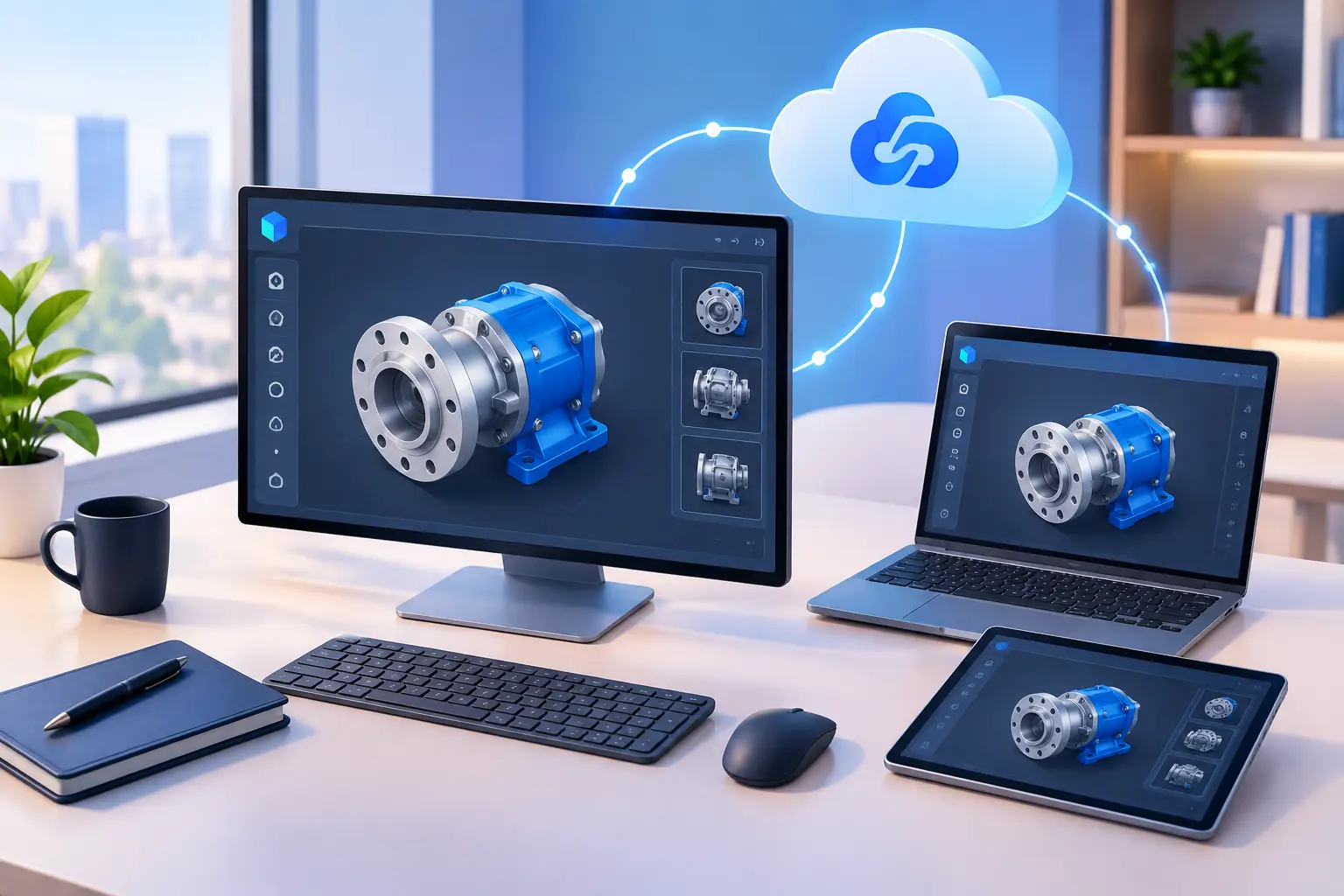
A cloud workstation lets you separate the device you carry from the hardware that does the work. You can use a lightweight laptop or Mac to access a higher-performance Windows desktop when the project requires it. No expensive tower under every desk. No waiting for a hardware refresh cycle just because one workload became more demanding.
Browser CAD vs. a Cloud Windows Workstation
Browser-native CAD has clear strengths. It reduces installation work, makes sharing easier, and helps teams avoid mismatched file versions. If collaborators need to review or make basic edits from different locations, browser access can remove friction.
The trade-off is that browser platforms may not support every legacy workflow, extension, manufacturing tool, file type, or advanced feature your work requires. Performance also depends on the application design, the project, and the browser environment. A browser is convenient, but it is not automatically the best home for every professional CAD workflow.
A cloud Windows workstation takes a different path. Rather than changing the software workflow, it provides stronger remote hardware for the software you already use. This can be useful when your projects rely on desktop applications, Windows-only tools, rendering software, engineering utilities, custom plugins, or project folders that need to remain in a persistent environment.
It also comes with trade-offs. Your internet connection affects the experience, especially with interactive 3D viewports. Peripheral setup, file transfers, and software licensing should be planned before a deadline. Cloud workstations are practical, but they are not magic. A poor or unstable connection can limit the value of even a powerful remote PC.
When a Cloud CAD Workstation Makes Sense
A cloud workstation is most useful when high performance is needed sometimes, often, or urgently, but owning and maintaining premium hardware is not the best financial choice. That can include a student handling a semester-long engineering project, a freelancer taking on a large rendering job, or a remote employee who needs Windows CAD access from a Mac.
It can also work well for distributed teams that need consistent project environments. Instead of trying to make every personal device match, users can connect to an assigned Windows desktop with the right software, files, and performance tier. The work stays on persistent cloud storage rather than being scattered across several local machines.
SensePC is designed for this type of flexible computing. Users can create a Windows 11 cloud PC, choose a configuration suited to their workload, and connect from the hardware they already own. Dedicated NVIDIA L4 GPU options, persistent SSD storage, and hourly-first access make it a practical option for CAD users who need serious capacity without committing to a new workstation purchase. You bring your own CAD licenses; SensePC provides the Windows computer.
This does not mean a cloud PC is always the right choice. If you use demanding CAD and visualization software all day, every day, work mostly from one location, and already own a capable workstation, local hardware may offer better long-term value, and it avoids dependence on a network connection.
The cloud model is strongest when flexibility matters: variable workload, short-term projects, remote access needs, limited local hardware, or a need to scale up without buying equipment that may sit idle later.
How to Choose the Right Setup for Your CAD Workflow
Start with the application, not the hardware label. Check whether your preferred CAD program runs in a browser, requires Windows, has GPU or driver requirements, depends on plugins, or needs companion tools for rendering, simulation, CAM, or file conversion. A cloud environment should support the complete workflow, not just the main modeling application. Check your CAD vendor's published GPU and driver support before relying on any cloud GPU for a production deadline.
Next, look at your actual project size. Small parts and simple models can run well on modest systems. Large assemblies, dense meshes, visualizations, and multi-application workflows need more headroom. Choose CPU, RAM, and GPU capacity based on the heaviest task you expect, not the easiest file you open.
Then consider where your data lives. CAD projects rarely consist of one file. They may include linked parts, textures, drawings, libraries, exports, and revision folders. Persistent storage keeps the working environment available between sessions, so you do not rebuild a project setup every time you need more performance. Persistent storage is not a backup, so keep separate copies of important design files.
Finally, test the remote experience before committing to a major deliverable. Evaluate viewport responsiveness, display quality, input behavior (3D mouse and tablet support in particular), access from your usual device, and the reliability of your internet connection. A fast, stable connection makes remote CAD practical. A connection with frequent interruptions may point you toward a local workstation for critical work.
Cost Is More Than the Price of a Workstation
Buying a physical CAD workstation gives you direct control and can be cost-effective for constant, long-term use. But the purchase price is only the first cost. Hardware ages. GPUs become less capable. Storage fills up. Software requirements change. A machine that was ideal three years ago may not be ideal for the next project. See the full rent-vs-buy cost breakdown.
A cloud workstation shifts that decision from ownership to usage. You pay for access when you need it, with the option to choose a more powerful configuration for heavier periods of work. That can help users avoid paying upfront for peak capacity they only use a few weeks each year.
There is no universal winner. A full-time designer with steady workloads may prefer a physical workstation. A student, contractor, remote professional, or team with changing project demands may value the lower upfront commitment and access from multiple devices.
Build Around the Work, Not the Machine
The best CAD setup is the one that lets you open the right tools, work comfortably with real project files, and finish without turning every hardware limitation into an IT problem. For some users, that is browser-based CAD. For others, it is a powerful desktop workstation. For many, a cloud Windows workstation creates a useful middle ground.
Keep the device you like using. Put more computing power behind it when the work calls for it. That is often a more practical way to handle demanding 3D design than buying hardware for every possible future project.
What is cloud-based 3D CAD software?
It describes two setups: CAD built to run in a web browser, with models and collaboration stored online, and traditional desktop CAD running on a cloud Windows workstation that you control remotely. Browser CAD emphasizes access and sharing; a cloud workstation emphasizes running the software you already use on stronger hardware.
Which cloud-based 3D CAD software is best for beginners?
Onshape is commonly recommended as an easy starting point because it runs entirely in a browser with no installation, and it has offered a free plan with restrictions. Terms and limits change, so check the vendor's current plan details, including whether free-plan documents are public and whether commercial use is allowed. Autodesk Fusion is another common beginner choice, working as a desktop app with cloud data management.
Which cloud CAD solutions are most popular among professionals?
There is no single authoritative market-share ranking, because "cloud CAD" covers different products. Professionals use browser-native platforms such as Onshape, cloud-connected tools such as Autodesk Fusion, and established desktop applications such as AutoCAD or SolidWorks, which can also run on a cloud Windows workstation. The right choice depends on your industry, file formats, and collaborators.
Can I collaborate easily with cloud-based CAD tools?
Yes. Browser-native platforms are built around shared documents, version history, and multiple people working on the same design. With desktop CAD on a cloud workstation, collaboration depends on how you share the environment or files, so agree on folder structure, naming, and who owns the master file before the project starts.
What are the main advantages of cloud-based 3D CAD over traditional software?
Access from more devices, easier sharing, less installation, and version control that reduces mismatched files. A cloud workstation adds stronger hardware on demand for large assemblies and rendering, without buying a new machine. The trade-offs are dependence on a stable internet connection and, for browser CAD, possible gaps in advanced or legacy features.
How secure is my data when using cloud-based CAD?
Cloud CAD can be quite secure, sometimes more than a poorly managed local setup, but it depends on the provider and your own configuration. Security is shared: the provider protects the infrastructure, while you control account passwords, multi-factor authentication, who has access, and what is stored. On a cloud PC such as SensePC, you also manage Windows account security and installed software. See what actually protects a remote Windows session. If your designs are subject to contractual or regulatory requirements, verify them with the provider before moving files.
What are the benefits of using AutoCAD in the cloud?
AutoCAD Web gives browser access to drawings from almost anywhere, with cloud storage that makes sharing and review easier. It typically offers a subset of desktop AutoCAD's features, so check whether your workflow needs commands or add-ons it lacks. If it does, the full desktop version can run on a cloud Windows workstation, subject to your license terms.
How does cloud computing improve CAD workflows?
It moves heavy processing off your local device, lets you scale performance up for a deadline and back down afterward, keeps project files and software in one persistent environment, and makes the same setup reachable from multiple devices. It does not remove the need for a good connection or a backup process.