Short answer: Editing video remotely means either connecting to a physical desktop at home/office, or using a cloud workstation that runs your editing software and stores project media in the cloud. The real work is less about the connection itself and more about media management — deciding where footage lives, using proxies for heavy files, and matching workstation power to the actual job rather than the resolution printed on the camera box.
A client sends revision notes while you're away from your main computer. Your laptop can open the project, but playback stutters, exports take forever, and the footage is sitting on a drive at home. Learning how to edit video remotely solves that problem without forcing you to carry a heavy workstation everywhere.
Remote editing isn't just about controlling a computer from another location. A workable setup needs the right editing machine, dependable access to project media, a clean handoff process, and realistic expectations about your internet connection. Get those pieces right and you can cut, review, revise, and export from the devices you already own.
How to Edit Video Remotely: Choose the Right Setup
There are two common ways to work remotely. The first is connecting to a physical desktop in your office or home. The second is using a cloud workstation that runs your editing software and stores your project files in the cloud.
A physical workstation can be a good choice when you already own a powerful desktop, have fast upload speed where it sits, and do most of your editing in one place. You control the hardware and local storage. The trade-off is that the machine must stay powered on, patched, maintained, and reachable — if the home internet goes down, so does your editing room.
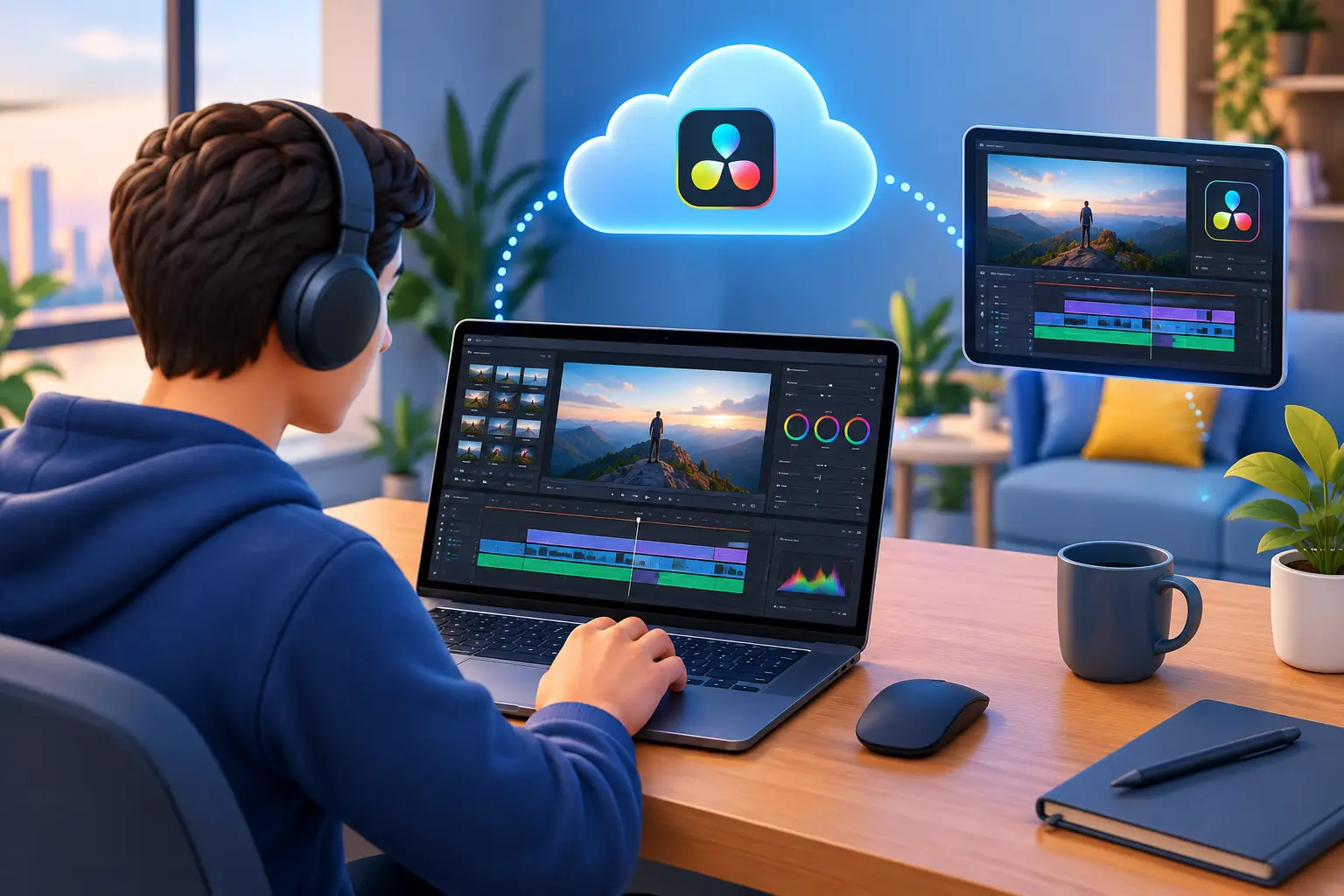
A cloud workstation shifts the processing work away from your laptop or Mac. Your local device sends keyboard and mouse input, then displays a live stream of the remote Windows desktop. This can make sense when you need GPU acceleration, more CPU and RAM than your local device has, or access to Windows-only creative tools from a lightweight laptop or Mac.
SensePC is one option for creators who want an on-demand Windows cloud PC with persistent SSD storage and dedicated GPU configurations. Instead of buying a new editing tower for a short project or occasional demanding work, you can choose a machine level based on the workload and how often you need it. See the full rent-vs-buy cost breakdown if you're weighing this against ownership.
Neither approach is automatically better. If you edit every workday, work with huge source files, and have a permanent studio, owning hardware may still offer better long-term value. If your workload changes, your local device is underpowered, or you need workstation access from multiple locations, remote computing can offer more flexibility.
Not the Same as Cloud Live Production
Worth distinguishing: "cloud-based video production" often refers to live broadcast workflows — livestreams, virtual events, multi-camera switching, graphics, remote guests — run through dedicated cloud production platforms. That's a different job from what this article covers, which is an individual or small team editing recorded footage asynchronously on a cloud workstation. If you're producing live shows, you want a live-production-specific tool; if you're cutting, reviewing, and exporting recorded projects, a cloud workstation is the more direct fit.
Start With the Media, Not the Editing App
Most remote editing problems are media problems. A project file is usually small. Raw camera files, proxies, graphics, sound libraries, cache files, and exports are not.
Before opening your editor, decide where the master media will live. Keeping it on the remote workstation's persistent storage is often simplest for an individual editor — the editing software, cache, project files, and footage stay close to the same machine. You avoid repeatedly downloading large files to a local laptop just to work for a few hours.
For team projects, shared cloud storage can work well, but it needs rules. Everyone should use the same folder structure, file names, and version labels. If one editor calls a clip Interview_Final_NEW.mov and another imports interview final v2.mov, relinking media becomes an avoidable mess.
A practical project structure might include folders for footage, audio, graphics, project files, proxies, exports, and archive files. Keep the structure consistent from the first upload — it takes minutes to organize at the start and can save hours during a rushed revision round.
If your source footage is large, upload it before the edit day begins. Uploading several terabytes over a typical home connection isn't a quick task. For high-resolution multicam footage, consider whether you can create proxies near the footage source, then upload those smaller files for the edit. Keep the originals organized and ready for final conforming or delivery.
Match Workstation Power to the Actual Job
Editing a short social clip is different from cutting a multicamera interview, grading 4K footage, or building a motion-heavy timeline. Don't choose a workstation only by the resolution printed on the camera box — codec type, effects, color work, number of video layers, audio processing, and export settings all change the load.
For lighter edits, responsive CPU performance, enough memory for your timeline, and fast storage may matter more than maximum GPU power. For GPU-accelerated effects, color tools, 3D work, or demanding exports, a dedicated GPU makes the workflow more practical.
The goal isn't to rent more computing power than you need — it's to avoid wasting time waiting for a machine that can't keep up. Run a short test with a representative project before a client deadline: add a few effects, scrub through a busy section, test a preview export, and check how the remote session feels from the location where you'll work.
Configure the Remote Connection for Editing
Remote editing feels different from browsing a website or working in a spreadsheet. You're sensitive to cursor delay, image compression, dropped frames, and color changes — your connection settings matter.
Use a wired Ethernet connection when possible. Strong Wi-Fi can work, but it's more vulnerable to interference and inconsistent performance. Close cloud backups, game downloads, video streams, and other heavy traffic while you edit. A fast download plan alone isn't enough — connection stability, upload speed, and the distance between you and the workstation also affect the experience.
Remote desktop software often lets you balance image quality against responsiveness. For active editing, favor responsiveness first — a slightly more compressed preview is usually easier to work with than a sharp image that reacts late. Increase image quality for detailed review or color checks, then return to a lower-latency setting while cutting.
Don't treat a remote preview as your only color reference. Displays vary, remote streaming can alter what you see, and uncalibrated laptop screens are unreliable for critical color decisions. For client review, export a controlled review file and use an approved feedback process. For final grading, use a calibrated display when the project requires it. See what actually protects a remote Windows session for the security side of working this way.
Use Proxies When the Timeline Gets Heavy
Proxies are lower-resolution or lower-bitrate versions of your original footage. They're one of the most effective ways to make remote video editing more responsive, especially with high-resolution, long-GOP, or camera-native files that are difficult to decode.
Create proxies using the same naming convention as the originals, then let your editing software manage the connection between them. You edit with the smaller files, but export from the original media when the project is ready — faster playback without giving up final quality.
Proxies aren't always necessary. If your footage is already editing-friendly and the workstation has enough performance, they can add unnecessary prep time. But for documentary footage, multicam projects, travel edits, or deadline-driven client work, they're often worth it.
Build a Remote Workflow Your Team Can Trust
Remote collaboration falls apart when editors, producers, and clients have different versions of the project. Set simple rules before the first cut: decide who owns the master project file, where approved assets go, how revisions are named, and which exports are safe to share.
Use clear version names such as BrandFilm_V03_ClientNotes rather than final_final_reallyfinal. Put the date in review exports when several rounds may overlap. Keep a short change log in the project folder so another editor can understand what changed without comparing every timeline manually.
For feedback, ask reviewers to give timecoded comments. "The middle feels slow" is hard to act on. "At 01:42, cut the pause before the product shot" is clear. A better notes process reduces remote back-and-forth more than any hardware upgrade.
Protect Projects and Plan for Interruptions
Remote access gives you freedom, but it also means you need a recovery plan. Save project files frequently, enable automatic backups in your editing application, and keep backup copies in a separate location. Persistent storage helps keep work available between sessions, but it's not a reason to skip a real backup process.
Before a travel day or client review, test access from the device and network you plan to use. Confirm that your editor opens, media paths are correct, storage has room for cache and exports, and you can transfer the final deliverable if needed. Small checks are faster than troubleshooting when everyone is waiting.
Remote editing works best when the computer is treated as part of the production system, not a last-minute emergency tool. Put the media in the right place, use enough performance for the timeline, and test the connection before the deadline arrives. Then the device in your bag can stay light while the editing environment stays ready.
What equipment do I need for remote video editing?
Beyond your editing software, the core pieces are: a workstation (physical or cloud-based) with enough CPU, RAM, and GPU for your actual footage and effects; a wired Ethernet connection where possible, since Wi-Fi is more vulnerable to interference; a lightweight device to connect from (laptop or Mac); and enough local or cloud storage for cache, proxies, and exports. A calibrated display matters specifically for final color grading — a laptop screen over a remote connection isn't reliable for that decision.
Should I use a physical workstation or a cloud workstation for remote editing?
It depends on how often and how heavily you edit. A physical workstation makes sense if you edit daily, work with very large source files, and have a permanent studio with fast upload speed. A cloud workstation makes more sense for occasional or changing workloads, GPU-acceleration needs beyond your local device, or needing Windows-only creative tools from a Mac or lightweight laptop.
Do I need proxies to edit video remotely?
Not always, but they help a lot with high-resolution, long-GOP, or camera-native files that are hard to decode over a remote connection. Edit with the smaller proxy files for responsiveness, then export from the original media when the project is ready — you keep final quality without fighting playback stutter during the edit.
How do I keep remote video editing collaboration organized?
Set rules before the first cut: a consistent folder structure and file-naming convention, clear version names instead of vague ones like "final_final," and a short change log so collaborators don't have to compare timelines manually. Ask for timecoded feedback ("at 01:42, cut the pause") rather than vague notes — it reduces back-and-forth more than any hardware upgrade.
Can I trust a remote preview for color grading decisions?
Not as your only reference. Displays vary, remote streaming can alter what you see, and uncalibrated laptop screens aren't reliable for critical color work. Use a controlled export and an approved review process for client feedback, and a calibrated display for final grading when the project requires it.