Short answer: AirGPU, SensePC, GeForce NOW, Shadow PC, and Boosteroid all sit in the cloud gaming/cloud PC space, but they're not interchangeable. GeForce NOW and Boosteroid stream games you already own through a limited client — not a full Windows desktop. AirGPU and SensePC both give you a complete, persistent Windows PC you can install anything on. The real choice isn't about brand names — it's whether you need a full computer or just game access, and how often you'll actually use it.
A powerful Windows machine shouldn't require a major hardware purchase every time your workload gets heavier. When people search for alternatives to AirGPU vs. SensePC, they're usually trying to solve a practical problem: get GPU performance for games, development, creative work, or AI tools without buying and maintaining a high-end computer.
The best choice depends less on brand labels and more on how often you need power, what software you run, and whether you want a complete desktop or raw cloud infrastructure. A cloud PC can remove the upfront cost and upgrade cycle. It also introduces a dependency on internet quality and remote access performance. That trade-off is worth understanding before you commit.
AirGPU, SensePC, and the Other Names You'll See
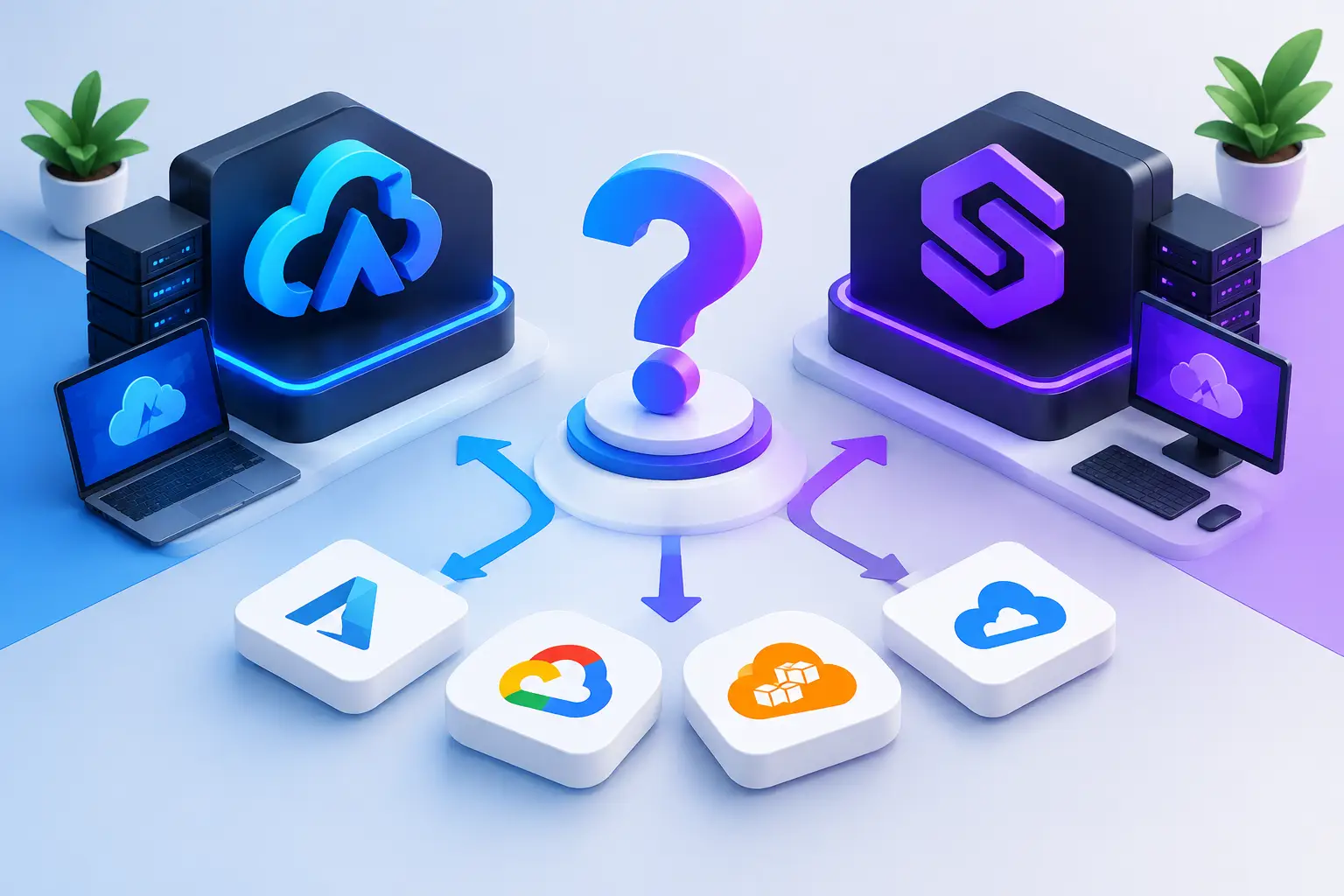
If you've searched for AirGPU alternatives, you've likely run into a mix of genuinely different products wearing similar marketing language. Here's how they actually compare on the things that matter for a buying decision:
| Service | What you get | Game library | Best for |
|---|---|---|---|
| AirGPU | Pay-as-you-go full virtual Windows PC, streamed via Moonlight | Install anything | Technical users comfortable configuring their own setup |
| SensePC | Persistent Windows 11 cloud PC, dedicated NVIDIA L4 GPU, hourly-first | Install anything, including non-gaming software | Users who want a full desktop for gaming, creative work, dev, or AI — not just games |
| GeForce NOW | Streams games you already own on Steam/Epic | Limited to supported titles | Users who just want to play existing game libraries, not run other software |
| Shadow PC | Full virtual Windows PC with powerful hardware configs | Install anything | Users wanting maximum flexibility, similar category to SensePC/AirGPU |
| Boosteroid | Affordable game-streaming service, AAA title support | Supported titles, subscription-based | Budget-conscious players who only need game access |
| Xbox Cloud Gaming | Part of Xbox Game Pass Ultimate | Console game library | Xbox ecosystem users wanting to play on multiple devices |
The split that matters most: AirGPU, SensePC, and Shadow PC give you an actual Windows desktop — everything else in that group streams a specific game library through a client. If you need Windows for anything beyond gaming (development tools, creative software, AI frameworks), the game-streaming services aren't a substitute, no matter how their pricing compares.
Start With the Workload, Not the Brand
AirGPU and SensePC belong to the broader cloud computing category, but not every cloud option is interchangeable. Some services are built around a remote Windows desktop experience. Others are closer to GPU servers that require more technical setup. Physical PCs and traditional virtual desktop platforms sit at different points on the same spectrum.
Start by asking one question: do you need a computer, or do you need computing infrastructure?
If you want to open Windows, install your applications, save files between sessions, and work or play from a Mac, laptop, or desktop, a persistent cloud PC is often the more natural fit — you're renting access to a familiar full desktop rather than configuring a server from scratch.
If you need to run command-line jobs, deploy containers, manage remote Linux environments, or build an automated pipeline, a cloud GPU server may make more sense. It offers more control, but it also requires more technical knowledge. That's not a drawback for every developer — it's simply a different product. See the full Cloud IDE vs. cloud PC vs. cloud server breakdown if that's your actual use case.
Cloud PC Platforms: Best for Full Windows Access
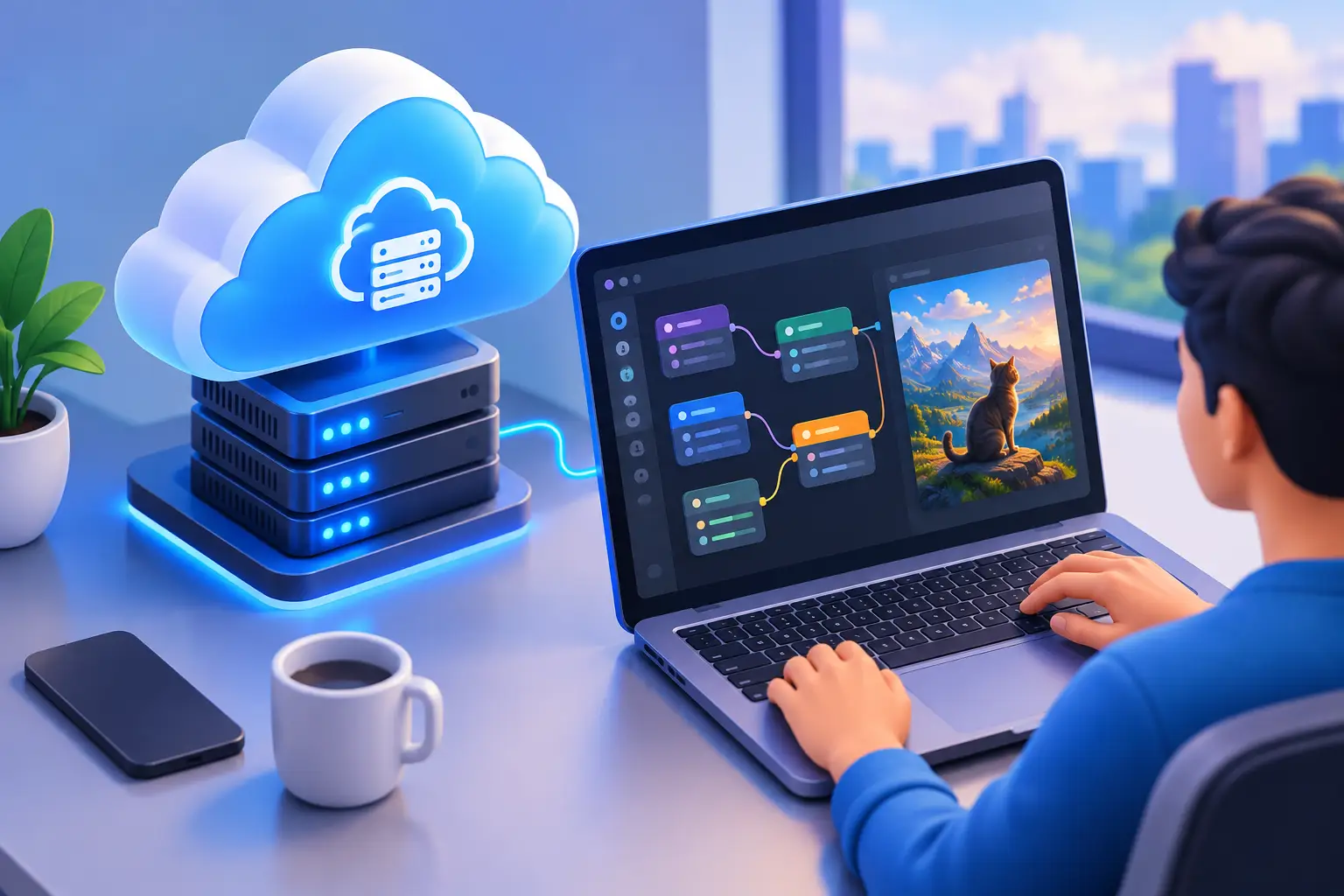
A cloud PC is designed for people who want serious Windows performance without owning the physical machine. You connect remotely, use the desktop like a normal PC, and keep your files and installed apps available through persistent storage.
This model works well for several types of users. A gamer may want access to a stronger Windows system without building a desktop. A creator may need GPU acceleration for a time-sensitive project. A student may need engineering, coding, or design software for a semester. A developer may want a separate Windows environment with more CPU, RAM, or graphics power than their local laptop provides.
SensePC takes this approach with dedicated NVIDIA L4 GPU configurations, persistent SSD storage, and tiered Windows machine options. Its hourly-first model is useful when you need performance for a focused session, not another device sitting under a desk all month. Setup is intended to be fast, which matters when the project is waiting and the local computer is the bottleneck.
A cloud PC isn't automatically the lowest-cost choice for every user. Someone who plays or renders for many hours every day may find that owning hardware becomes more economical over time — see the full rent-vs-buy cost breakdown. But for occasional use, changing workloads, temporary projects, and users who don't want to manage upgrades, it's a more controlled way to access performance.
Where Cloud PCs Have an Advantage
The practical appeal is flexibility. You can access a capable Windows environment from a less powerful device and avoid a large initial purchase. You also avoid many of the chores that come with ownership: choosing components, installing upgrades, troubleshooting heat issues, and replacing aging parts.
Cloud PCs are especially useful when performance needs change. A lightweight laptop may be enough for email and documents, then fall short for Unreal Engine, CUDA development, 3D work, local AI applications, or demanding PC games. Renting stronger hardware only when needed can be easier than owning a workstation sized for the occasional heavy task.
The limits are just as real. Your experience depends on a stable internet connection, your distance from available infrastructure, and the sensitivity of your workload to remote input and display streaming. Competitive players and professionals doing color-critical finishing work should test carefully before making a cloud PC their primary setup.
Physical Gaming PCs and Workstations: Best for Constant Demand
Buying a desktop workstation or gaming PC gives you local control. There's no video stream between you and the machine, and you choose your own monitor, peripherals, storage, and upgrade path. For people who use high-performance hardware intensely every day, ownership can be the simpler long-term choice.
Local hardware also makes sense for workloads that can't tolerate a remote connection. Fast-twitch competitive gaming, certain studio production environments, and large data workflows involving frequent file transfers can favor a machine in the same room.
The cost comes before the work begins. A capable GPU system requires upfront spending, and the real total includes storage, peripherals, electricity, maintenance, repairs, and future upgrades. Hardware also depreciates — the machine that feels fast today may need attention sooner than expected as games, creative tools, and AI software demand more resources.
No expensive gaming rig, no upgrade cycle, no hardware waiting game — that's the appeal of a cloud PC. Still, a purchased desktop remains a smart option when you know you'll use it heavily for years and want the lowest possible local latency.
High-End Laptops: Best When the Hardware Must Travel
A high-performance laptop combines portability and local power, but comes with compromises. Strong GPU laptops are expensive, heavier, louder under load, and limited by battery life and thermal headroom. They're useful when you need to work without dependable internet or need the same machine in multiple physical locations.
For everyone else, a lighter laptop plus a cloud PC can be a practical split. The laptop handles daily tasks; the cloud machine handles Windows-only software, GPU tools, rendering, development environments, or demanding games. You carry less hardware without giving up access to a stronger system when the work requires it.
This approach is particularly relevant for Mac users. Rather than replacing a preferred Mac with a separate Windows workstation, they can use a cloud-based Windows desktop for applications that need Windows or dedicated GPU resources — a flexible option, not a universal replacement for local software or offline work.
GPU Cloud Servers: Best for Technical AI and Compute Projects
A GPU server is often the right alternative when the desktop interface is secondary. AI developers may need to train a model, run notebooks, test CUDA environments, process batch jobs, or use containers. These workflows can benefit from infrastructure-style services where the focus is compute, not a polished remote Windows experience.
The trade-off is setup and administration. You may need to configure an operating system, storage, networking, security rules, remote access, and development tools. You may also need to monitor instance costs closely, especially if resources remain active when you're not using them.
For hands-on AI experimentation, visual tools, Windows development, or GPU-accelerated apps, a full cloud PC can reduce that friction — you get a recognizable desktop workspace instead of an environment that expects you to be your own systems administrator. For production-scale training and automated workloads, a dedicated GPU server may still be the more appropriate tool.
Traditional VDI: Best for Managed Business Desktops
Traditional virtual desktop infrastructure is built for organizations that need centralized control over employee desktops. It can support policy enforcement, managed application delivery, identity controls, and standardized environments across a large workforce.
That makes it valuable for IT teams. It can also feel oversized for an individual creator, student, gamer, or independent developer who simply needs a powerful Windows machine now. Enterprise VDI deployments may involve approvals, contracts, complex provisioning, and administrative processes that don't fit a self-serve use case.
For a single user or small team, the better question is whether you need enterprise desktop governance or direct access to a capable personal workspace. Those are different needs, even when both products are described as virtual desktops.
How to Choose Without Overpaying
Use frequency as the first filter. If you need high-end computing a few times each month, hourly or short-term cloud access can prevent a large purchase from sitting idle. If you use it most days for long sessions, compare the ongoing cloud cost against buying and maintaining a physical system.
Then look at the software. Confirm that your intended operating system, applications, account requirements, storage needs, and peripherals fit the environment. Don't assume every game, launcher, plug-in, anti-cheat system, or specialized application will behave the same way in a remote setup.
Finally, test your connection and expectations. A cloud PC is only as comfortable as the route between your device and the remote machine. Try the experience with the actual tasks you care about before shifting an important project or your primary workflow.
The smartest option is the one that gives you enough performance without forcing you to pay for unused hardware, unused cloud time, or complexity you never wanted to manage.
Can you game with a cloud GPU?
Yes. A cloud GPU — whether accessed through a full cloud PC like SensePC or AirGPU, or a game-streaming service like GeForce NOW — lets you run GPU-demanding games without owning the hardware locally. A persistent cloud PC also lets you install any game or launcher yourself, while streaming services are limited to their supported title list.
Does cloud gaming use your GPU?
No — that's the point of it. Cloud gaming runs the game on a remote server's GPU and streams the video to your device. Your own computer only needs to decode and display the video stream, which is why cloud gaming can work on a Mac, Chromebook, or older laptop that couldn't run the game locally.
How do I get a cloud GPU for gaming?
Sign up for a cloud PC or cloud gaming service, choose a GPU/hardware tier, and connect from your device — a laptop, Mac, or even some smart TVs, depending on the service. A full cloud PC (like SensePC) gives you a persistent Windows desktop to install games on yourself; a streaming service (like GeForce NOW) gives you access to a supported game library without a full desktop.
How do I use a cloud GPU for gaming once I have access?
Connect through the service's app or remote desktop client, confirm your account and game ownership are linked (for a full cloud PC, install your launchers and games as you would locally), and test your connection quality before relying on it for anything time-sensitive. A wired connection generally gives more consistent results than Wi-Fi.