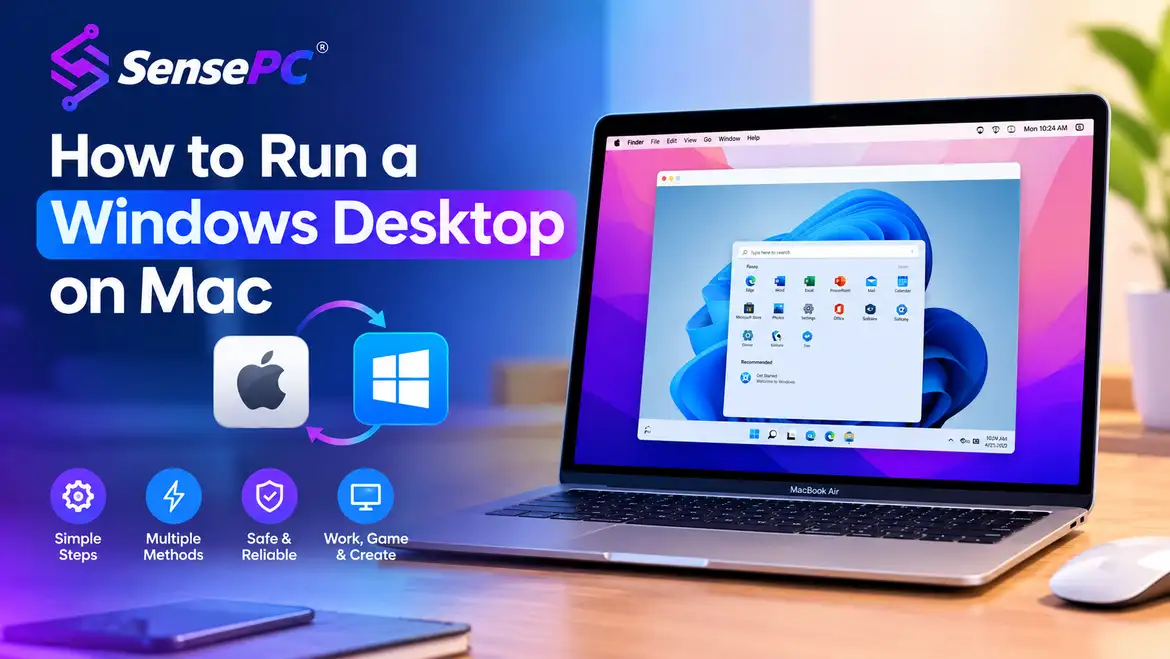
Short answer: There are three practical ways to run Windows on a Mac. Virtualization (Windows in a window on your Mac) works well for office apps, browsing, and light coding, but shares your Mac's CPU, memory, and graphics — and has more compatibility caveats on Apple Silicon. Remote access to a Windows PC you already own works if that PC stays powered on and maintained. A cloud PC streams a full Windows desktop from remote hardware, which is the strongest option when you need real CPU, RAM, or GPU power beyond what your Mac or an existing PC can provide.
A Mac can be an excellent daily computer until you need software, games, drivers, or GPU tools built for Windows. Instead of replacing a laptop you already like, you can access a full Windows environment when the job calls for it — a Windows-only accounting or engineering tool, Visual Studio, CUDA-based AI tools, a PC game library, or a creative workflow needing more graphics power than your Mac provides.
Why Run a Windows Desktop on Mac?
Mac hardware is fast, portable, and reliable, but macOS doesn't run every Windows application natively — this matters more on Apple Silicon Macs, where traditional dual-boot options are limited and many older Windows workflows were designed around x86 hardware.
A Windows desktop gives you access to applications still built around Microsoft's operating system: Windows development tools, line-of-business software, game launchers, 3D applications, CAD tools, testing environments, and certain AI frameworks. It also creates useful separation — your Mac stays your personal machine for browsing, communication, and everyday work, while the Windows desktop becomes a dedicated space for a project, client environment, game library, or technical workload.
Your Three Options, Compared
| Virtualization | Remote Access (PC you own) | Cloud PC | |
|---|---|---|---|
| Best for | Office apps, browsing, light coding | Occasional access to hardware you already have | GPU-heavy or high-performance work |
| Uses your Mac's resources | Yes — shares CPU, RAM, GPU | No | No |
| Requires owning a Windows PC | No | Yes | No |
| Works offline | Yes, once set up | No | No |
| Apple Silicon compatibility | More limited — verify per app | N/A (Mac just connects) | N/A (Mac just connects) |
| Upfront cost | Software license only | Cost of the PC you already own | $0 — usage-based |
Option 1: Virtualization for Everyday Windows Tasks
Virtualization software runs Windows in a window on your Mac — often a good fit for office apps, browser-based work, basic coding, school assignments, and software testing that doesn't need heavy graphics acceleration.
This is convenient because it can work without a remote connection once Windows and your applications are installed, with direct access to local files and peripherals. The trade-off: Windows shares your Mac's CPU, memory, storage, and graphics resources, so if your Mac is already under pressure from large projects, the virtual machine feels that pressure too.
Virtualization can also require more attention on Apple Silicon — software compatibility, Windows versions, processor architecture, and application support may vary. Check whether the specific Windows apps you need are supported in that environment before committing to a local setup.
Option 2: Remote Access to an Existing Windows PC
If you already own a Windows desktop at home or the office, remote access lets your Mac control it from another location — cost-effective since you're using hardware you already purchased.
The limitation is straightforward: that physical PC must stay available, powered on, maintained, and connected. You're still responsible for upgrades, storage, cooling, repairs, and electricity, and performance depends on both your location and the connection where the PC sits. This route works well if you already have a capable desktop and only need occasional remote access — it's less appealing if buying that desktop is the problem you're trying to solve.
Option 3: A Cloud PC for Higher-Performance Workloads
A cloud PC runs Windows on remote hardware and streams the desktop to your Mac, which becomes the access device while CPU, RAM, SSD storage, and GPU resources come from the cloud machine.
This is especially useful for users needing more than basic Windows access — GPU-assisted creative work, Windows development, AI experimentation, rendering, demanding applications, and PC gaming where compatible. You're not trying to force your laptop to become a workstation; you connect to a workstation-class Windows desktop when you need one.
SensePC is built around this use case: configurable Windows 11 cloud PCs, persistent storage, dedicated NVIDIA GPU options, and usage plans fitting short projects or more regular work. Setup can be much faster than researching parts, building a machine, installing Windows, and configuring drivers from scratch. See GPU-heavy Windows work specifically for AI and creative workloads in more depth.
Cloud access isn't automatically better for every task — it relies on a stable internet connection, and interactive performance is affected by distance from the cloud PC, network conditions, display settings, and the type of work you're doing. For offline work or constant daily use over many years, owning hardware may still be the better value. The broader cloud vs. local hardware trade-off applies here just as it does for any workstation decision.
How to Use a Cloud PC for Windows on Mac
The process is straightforward, but choosing the right configuration matters. Start with the workload, not the biggest available specs.
- Decide what you need Windows to do. Basic productivity and browser work need far less power than Unreal Engine development, video rendering, 3D design, or AI tools. A developer compiling large projects prioritizes CPU cores and RAM; a creator using GPU-accelerated applications needs stronger graphics capacity; an AI learner working with CUDA-based tools should focus on dedicated GPU access and enough storage for models and datasets.
- Choose a Windows configuration that matches that workload. Avoid paying for high-end resources you won't use, but don't undersize a machine that will spend its time swapping memory or running out of disk space. Persistent SSD storage keeps installed software, files, and configuration available between sessions.
- Connect from your Mac using the supported desktop client or browser option for your cloud PC. Use the platform's performance-focused connection mode for more responsive visual workloads — a wired Ethernet connection is ideal, but strong modern Wi-Fi can work well for many users.
- Treat the cloud PC like your own Windows computer. Install the applications you need, organize your files, apply updates, and set up your environment. The work stays ready for your next session — you're not starting over each time.
What Affects the Experience Most
The quality of a cloud-based Windows desktop isn't only about the machine's specs — your connection plays a major role. A stable connection with low congestion generally matters more than a high advertised download speed alone; video calls, large uploads, or other devices on your network can affect more interactive work.
Display choices matter too. A higher resolution uses more bandwidth and can make small text easier to read, but isn't necessary for every task — start with a practical resolution and adjust based on clarity and responsiveness. Your peripherals are another consideration: a standard keyboard and mouse usually cover productivity work, but developers, designers, and gamers should confirm support for specialized keyboards, controllers, drawing tablets, multiple monitors, or USB devices before building a workflow around them.
Cloud PC Versus Buying a Windows Machine
Buying a physical Windows PC gives direct local performance and full control over the hardware — a strong long-term choice if you use demanding software every day, need reliable offline access, or prefer to own and customize your equipment, without depending on a remote connection.
The cost arrives upfront, though. A capable gaming desktop or workstation can require a significant purchase before you've opened your first project, then come maintenance, upgrades, repairs, heat, space, and the eventual point when the hardware no longer meets your needs.
A cloud PC shifts that decision — you pay for access based on the plan and usage that fit your situation rather than committing to one fixed machine for years, useful for serious performance for a course, a contract, a game release, a creative deadline, or an AI project without buying premium hardware for occasional use. Match your billing to occasional vs. regular Windows use once you've decided cloud fits.
The trade-off is usage frequency: if you need a high-performance Windows desktop for hours every day, compare ongoing cloud costs with the cost of owning a machine over the same period. If your needs are irregular or your local computer is a Mac you don't want to replace, flexible cloud access can be a much cleaner fit.
Choose the Setup That Keeps You Moving
A Windows desktop on a Mac isn't about abandoning macOS — it's about removing the moments when your hardware or operating system becomes the bottleneck. Keep the Mac you enjoy using, then bring in Windows power when a project, application, or workload demands it.
Start with the software you actually need and the performance it requires. From there, choose local virtualization for lighter tasks, remote access for hardware you already own, or a cloud PC when flexibility and serious Windows performance matter more than owning another box under your desk.