Short answer: Windows 365 and a performance-focused cloud PC solve different problems, even though both stream a Windows desktop from the cloud. Windows 365 is built for managed, standardized, persistent business desktops — ideal when IT needs centralized control over software, security, and access across many users doing office work, line-of-business apps, and everyday tasks. A performance cloud PC is built around flexible, on-demand access to stronger CPU, RAM, and dedicated GPU resources — the better fit for 3D design, video editing, AI experimentation, software builds, or gaming, especially when the need is occasional rather than a standing IT deployment.
A Windows 365 Cloud PC changes the question from "which laptop should I buy?" to "what Windows desktop do I need, and where should it run?" For organizations and individual users needing a consistent Windows environment from multiple devices, that shift removes a lot of hardware friction. But cloud PCs aren't all built for the same job.
Quick Comparison
| Windows 365 Cloud PC | Performance Cloud PC (e.g., SensePC) | |
|---|---|---|
| Built for | Managed, standardized business desktops | Flexible, on-demand high-performance access |
| Best for | Office work, line-of-business apps, onboarding | 3D/GPU work, AI, video editing, gaming, dev builds |
| Managed by | IT team, centralized policy | Self-serve, individual user |
| GPU options | Limited/not the focus | Dedicated GPU configurations available |
| Billing | Per-user, per-month subscription (Business/Enterprise editions) | Often hourly-first, scaling to daily/monthly |
| Setup overhead | Requires IT/admin configuration | Self-serve, minutes to start |
What Is a Windows 365 Cloud PC?
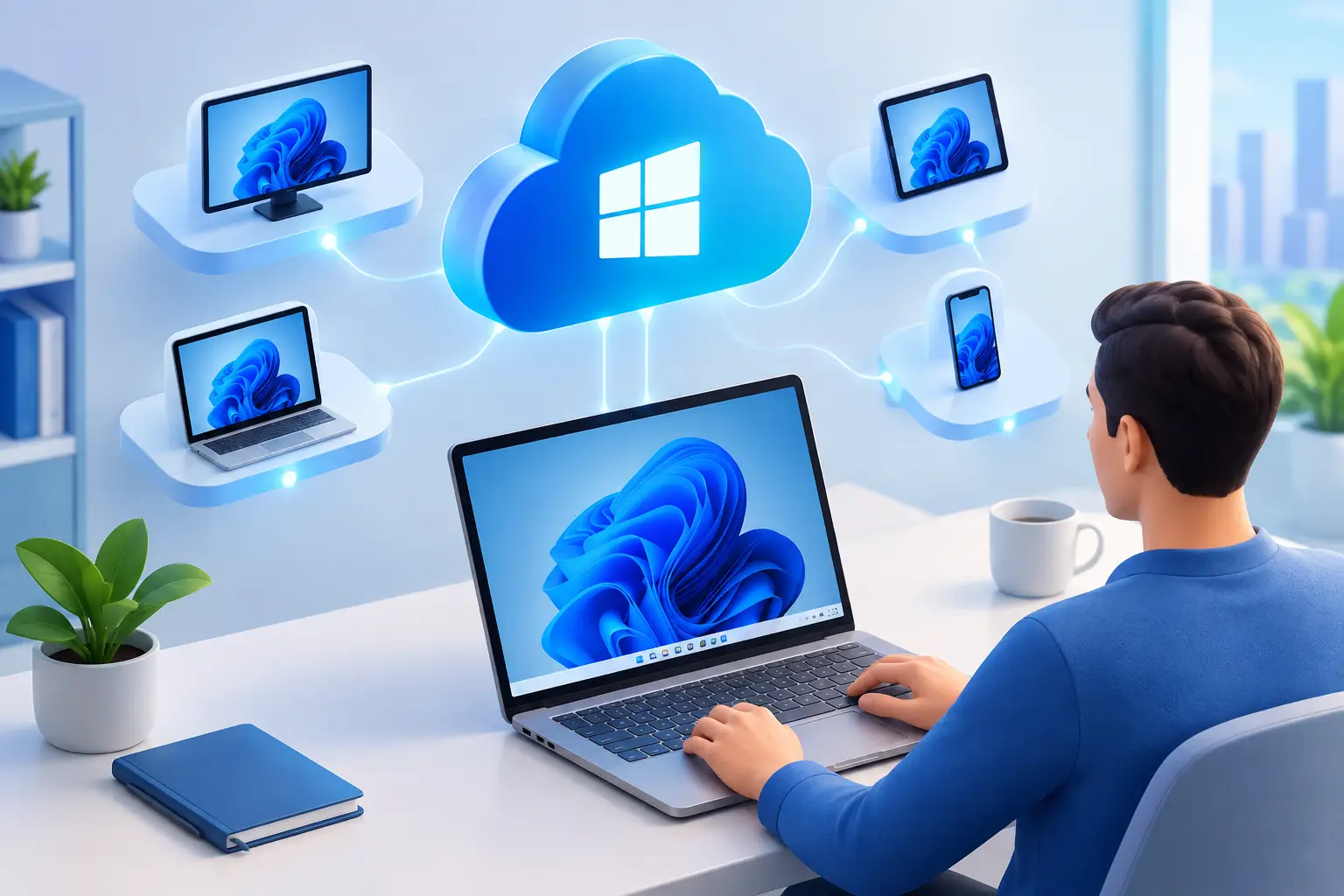
Windows 365 is Microsoft's cloud desktop service — it gives a user a dedicated Windows environment hosted in the cloud and accessed from another device, with apps, files, settings, and the desktop remaining in place between sessions rather than disappearing at sign-out.
For a company, the appeal is clear: a new employee can receive a ready-to-use Windows desktop without waiting for a laptop to be purchased, shipped, configured, and enrolled — and can open that same managed desktop from home, while traveling, or on a personal device. This model is especially useful for IT teams needing control, since they can standardize software, security policies, updates, and access rules around one Windows environment.
For an individual, a Windows 365 Cloud PC can also help when Windows-only software must be available from a Mac or lightweight laptop — the primary device becomes the screen, keyboard, and connection point.
Where Windows 365 Fits Best
Windows 365 makes the most sense when consistency matters more than raw compute power — remote employees using Microsoft 365 apps, line-of-business software, browser tools, accounting platforms, or internal company systems. These workloads need a dependable Windows desktop, not necessarily a high-end GPU workstation.
It also simplifies onboarding — instead of preparing a physical machine for every contractor, temporary worker, or new hire, an organization assigns a cloud desktop with the required configuration, and IT manages access changes centrally. The persistent desktop matters here: users don't rebuild their setup every session; installed applications, files, preferences, and active work remain in place.
The trade-off: managed cloud desktops are shaped by company policies, licensing requirements, user administration, and IT workflows — useful for a business with established controls, but can feel like too much overhead for a student, creator, developer, or gamer who simply needs more performance for a few hours or a few days.
When a High-Performance Cloud PC Makes More Sense
A standard work desktop and a performance workstation are different products, even both running Windows. If your work involves 3D design, video editing, software builds, GPU-accelerated applications, AI experimentation, game development, or demanding Windows games, the hardware profile becomes the real decision.
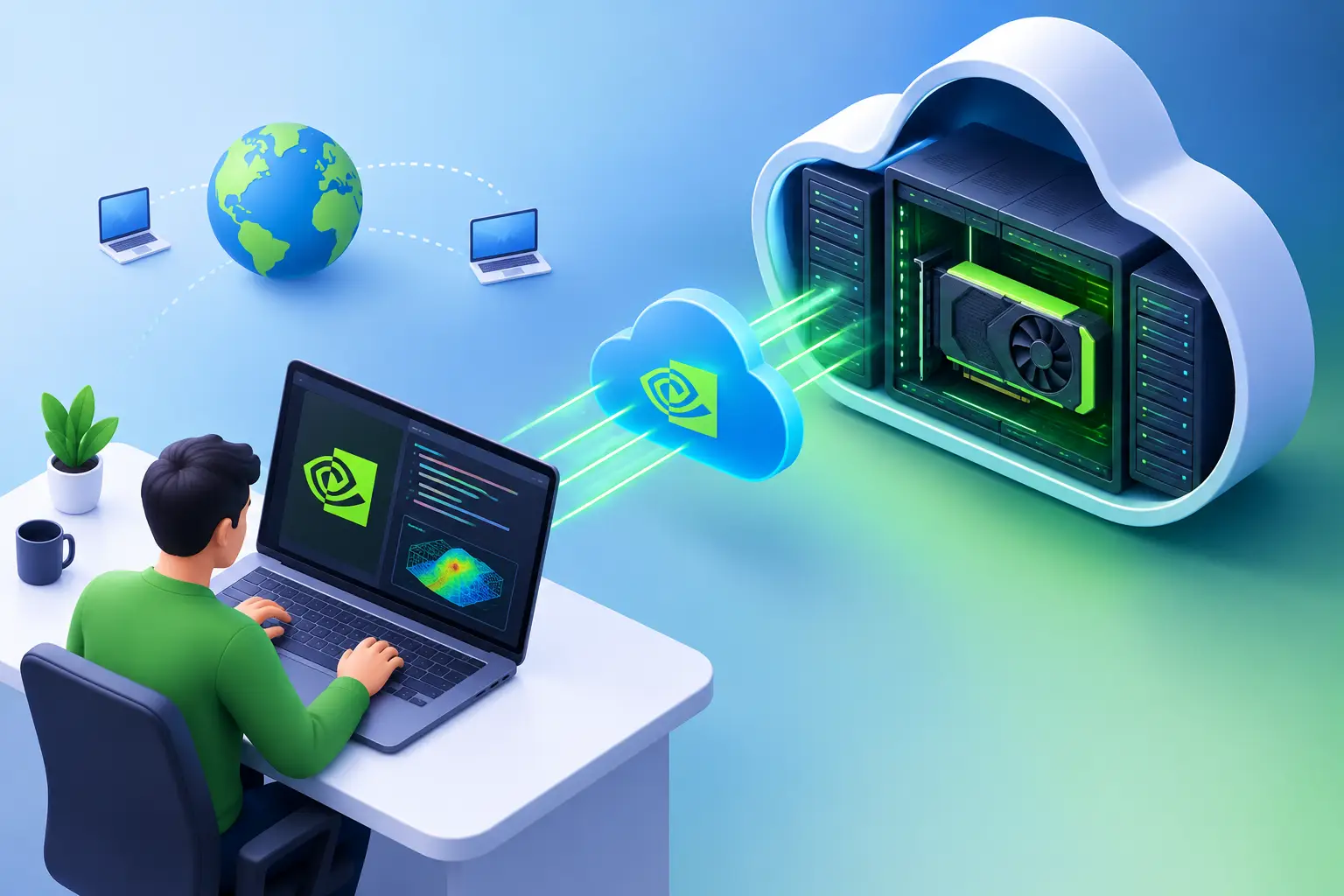
A cloud PC built for performance lets you choose resources around the workload — more CPU capacity for compiling code, more RAM for large projects, persistent SSD storage for active files, or a dedicated GPU for visual and compute-heavy tasks. You're not limited by the hardware inside the laptop on your desk.
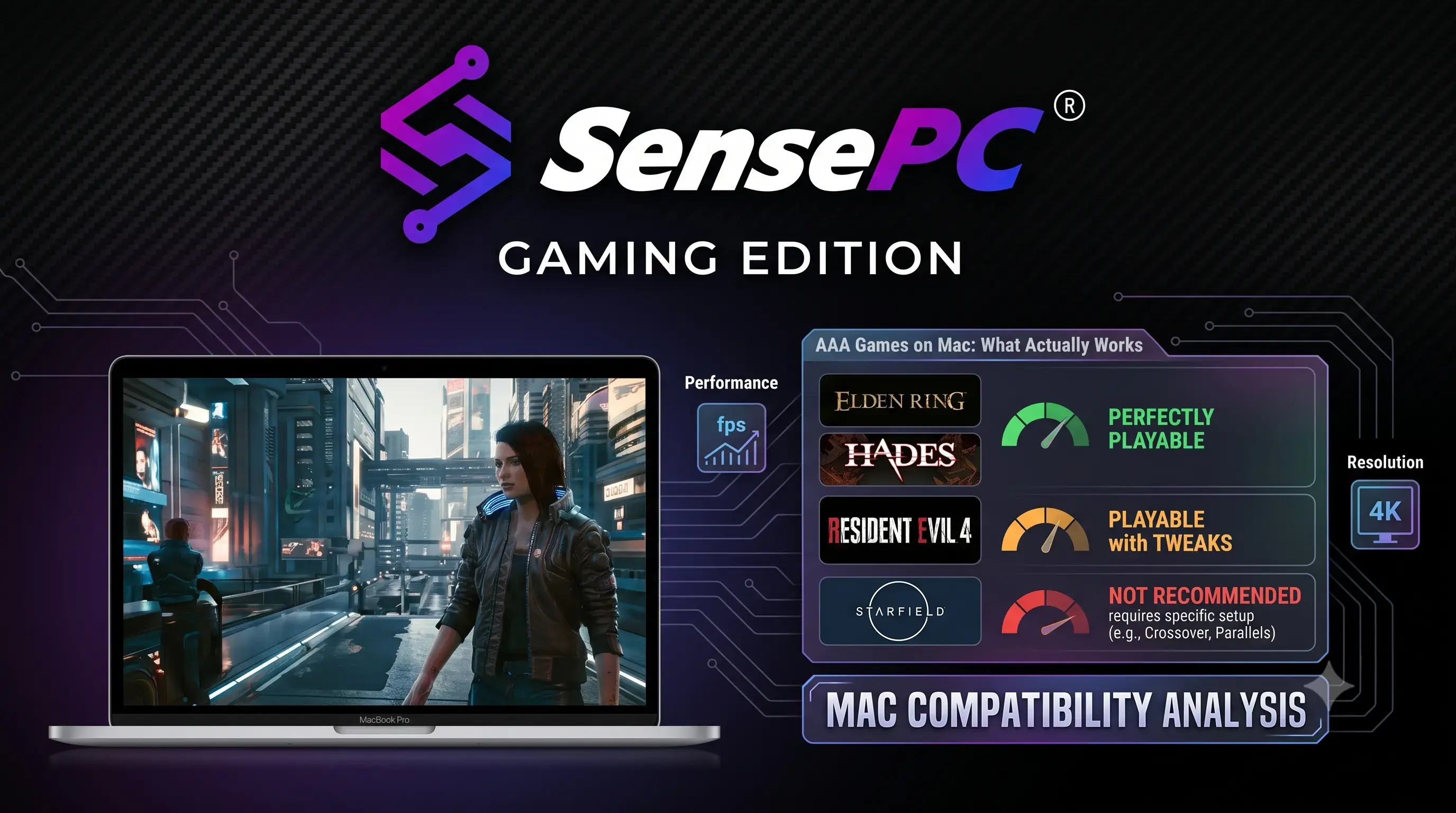
SensePC takes a different approach from a traditional managed virtual desktop here — built for users who want a full Windows 11 machine with performance-focused configurations, including dedicated NVIDIA L4 GPU options, without setting up cloud infrastructure or committing to a physical workstation purchase. A developer can use a stronger environment for a project sprint. A student can access demanding engineering or AI tools during a course. A creator can use extra compute for a deadline. A Mac user can open Windows software that isn't practical to run locally. When the workload ends, there's no unused tower collecting dust under a desk. See the full range of these use cases.
That doesn't mean every task belongs in the cloud — if you render, compile, or game for many hours every day, a physical desktop may deliver better long-term value.
Windows 365 vs. Buying a Computer (and Where a Performance Cloud PC Fits Between)
Buying a physical PC gives direct control: you own the hardware, use it without relying on an internet connection, and keep it running as long as it meets your needs. For someone with a stable, daily high-performance workload, ownership can be the simpler and more economical path over time.
The downside is upfront cost — a capable Windows workstation or gaming PC requires a large purchase before you open your first application, then come upgrades, failed components, heat, noise, and driver maintenance.
A cloud PC (either Windows 365 or a performance-focused option) shifts that model — no major hardware purchase, no local GPU to maintain, connecting from whatever desktop, laptop, or Mac you already own. It's particularly attractive when high performance is occasional, project-based, or hard to justify as a permanent purchase.
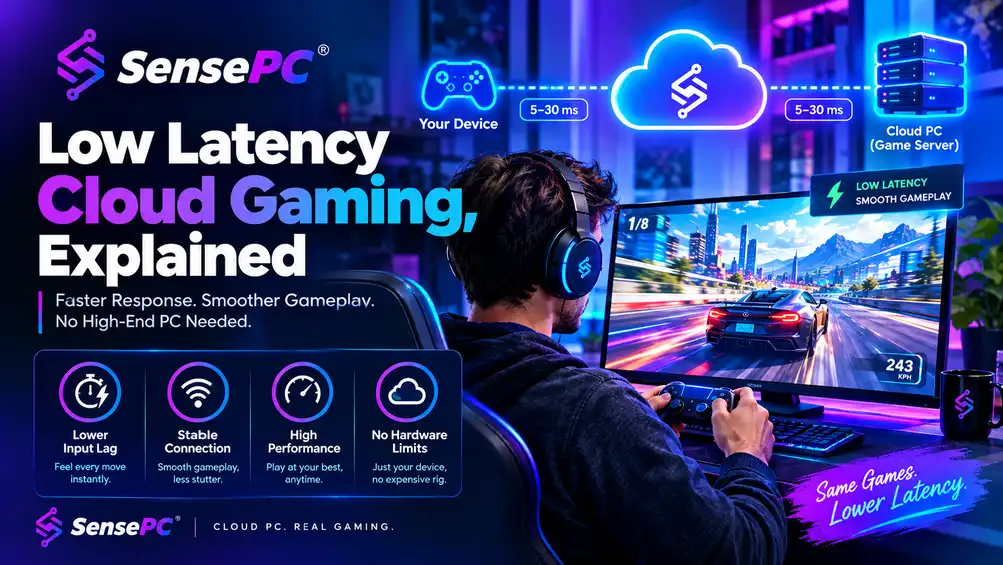
There's still a real dependency either way: your connection. Cloud desktop quality depends on internet stability, available bandwidth, distance from the hosting region, and the type of task. Basic office work is forgiving; fast-paced gaming, interactive 3D work, and color-sensitive creative tasks demand more careful testing.
The Cost Question Is About Usage Frequency
The best comparison isn't cloud PC versus physical PC in the abstract — it's monthly access cost versus the total cost of ownership for hardware you might buy, maintain, and replace.
If you need stronger computing power for a few hours each week, usage-based access can prevent paying thousands of dollars for capacity that sits idle — hourly-first options suit testing a new workflow, completing a short project, running a software lab, or handling a temporary workload. If you need a persistent machine for most of every workday, monthly access may be easier to budget — compare it honestly against a physical purchase, including hardware cost, expected lifespan, upgrades, electricity, repairs, and multi-location access.
For organizations, also factor in IT time — a managed cloud desktop like Windows 365 can reduce device setup and support work. For an independent user, the value is simpler: no hardware waiting game, no expensive upgrade cycle, no carrying a heavy workstation everywhere.
What to Check Before You Choose
Start with the applications you actually use — check Windows version requirements, GPU needs, storage demands, licensing terms, and whether they behave well in a remote desktop environment. Don't assume every game, launcher, plugin, peripheral, or specialized application works identically remotely.
Then test your connection where you plan to work or play — wired is often the best starting point, and if you move between locations often, test each one before a longer commitment.
Finally, choose for the workload, not the label. A remote worker handling documents may need a managed Windows desktop (Windows 365). An AI learner testing CUDA tools may need dedicated GPU access (a performance cloud PC). A creator may need storage and graphics performance. A user on the same demanding workload every evening may be better served by owning a powerful desktop outright.
What do I need to set up a Windows 365 Cloud PC at home or in my office? Setting up is lightweight because the heavy computing happens in Microsoft's cloud — you need a supported device (Windows, Mac, iPad, Android, or a browser), a stable internet connection, and the appropriate Windows 365 license (Business or Enterprise) assigned by an administrator. Requirements vary slightly depending on the edition chosen.
Can Windows 365 Cloud PC be used for remote work across multiple devices? Yes — this is one of its core design goals. Your Cloud PC lives in Microsoft's cloud rather than on any single device, so you can connect to the same personalized desktop, apps, and files from your office computer, a home PC, a tablet, or a Mac.
How does Windows 365 Cloud PC compare to traditional PCs in terms of performance? It can feel close to a traditional PC for everyday office work, but the two behave differently at the extremes — a Windows 365 Cloud PC depends on your internet connection and Microsoft's assigned virtual hardware tier, while a traditional PC's performance is fixed and local. For GPU-intensive or highly interactive work, a performance-focused cloud PC with dedicated GPU options is generally a better fit than a standard Windows 365 configuration, which is built around business productivity rather than GPU-heavy workloads.