For most cloud gaming PC sessions, about 25 Mbps of download speed is a realistic minimum for 1080p, and 50 Mbps is a more comfortable target for one player. Choose 100 Mbps or more if you want higher image quality or share the connection with other people. Speed is only part of the answer: latency, connection stability, Wi-Fi quality and other traffic on your network matter just as much. A reliable 50 Mbps wired connection with low latency can feel better than a 300 Mbps plan with high latency or packet loss.
SensePC publishes this guide and sells cloud gaming PCs. The numbers below are general guidance, not SensePC measurements.
Why cloud gaming needs more than online gaming
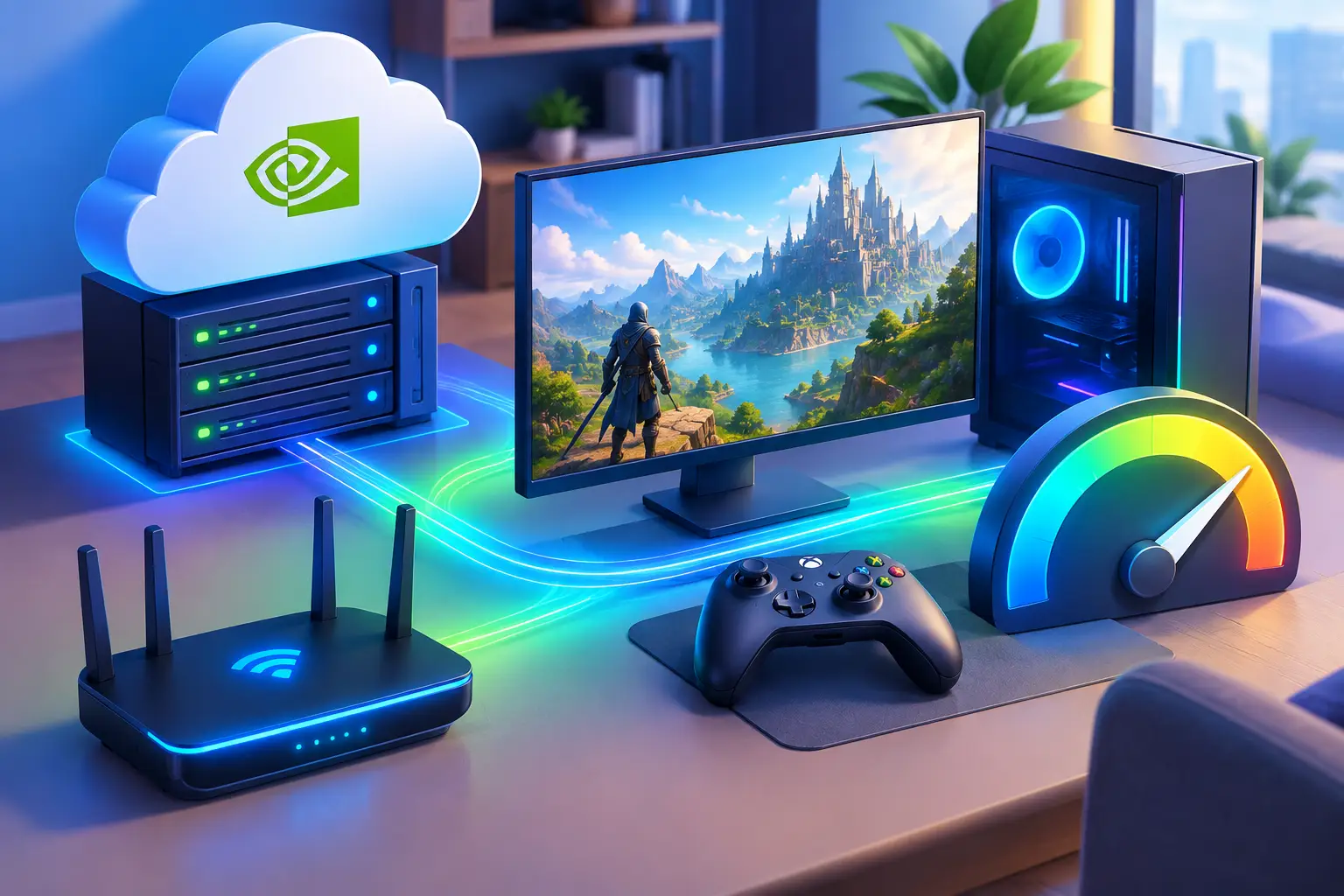
Ordinary online gaming sends small packets: your inputs and other players' positions, usually a few Mbps at most. Cloud gaming is different. The game runs on a remote Windows PC, and your device receives a live video stream of it while your keyboard, mouse or controller inputs go back. That video is what uses bandwidth, and the round trip happens constantly. So the "any plan is fine for gaming" advice you see for online games does not apply to cloud gaming.
What internet speed is enough for a cloud gaming PC?
Use these starting points for one player on a stable connection:
| Goal | Download speed to plan for | Notes |
|---|---|---|
| 1080p at standard settings | 25 Mbps minimum | Works when the connection is stable and nobody else uses much bandwidth |
| 1080p with higher quality or fast competitive games | 50 Mbps | More room in busy scenes |
| 1440p or 4K | 50 to 100 Mbps or more | Depends on the service's settings and your refresh rate |
| Shared household or several devices | 100 Mbps or more | Add headroom for everyone else |
For context, NVIDIA's published GeForce NOW requirements list 15 Mbps for 720p at 60 FPS, 25 Mbps for 1080p at 60 FPS, 35 Mbps for 1440p at 120 FPS and 45 Mbps for 4K at 120 FPS, with a wired or 5 GHz connection recommended, requirements change]. Those are another service's figures, but they show the same range. These are minimums, not guarantees.
Our bitrate guide covers the stream's bitrate setting, which is smaller than your internet speed. A stable 25 Mbps stream suits a stable 50 Mbps connection.
Download vs. upload speed for cloud gaming
Download speed carries the video stream to you, so it matters most. Upload speed carries your inputs, voice chat and anything else you send. A stable 5 to 10 Mbps upload is typically enough for controller inputs, voice and normal use. Higher upload helps if you also stream your gameplay, upload content or work from the same cloud PC. Fiber plans often have matching upload and download speeds; cable and DSL are usually slower on upload.
Latency matters more than a huge speed number
Latency is the delay between your action and the response on screen, measured in milliseconds (ms). In cloud gaming it includes your home network, your provider's route, the distance to the data center, video encoding and your display. As a rule of thumb:
| Latency | What to expect |
|---|---|
| Under 20 ms | Excellent |
| 20 to 40 ms | Very good for most games |
| 40 to 60 ms | Still works for story games, racing, strategy and many multiplayer games |
| Above 60 ms | Input delay is noticeable, especially in shooters, fighting and rhythm games |
NVIDIA, for example, requires under 80 ms to its data centers for GeForce NOW. A speed test ping is useful but does not measure the whole streaming path. The best test is to launch a game and watch mouse response, controller input and camera movement.
Distance matters. A nearby region usually beats a distant one, so regional availability can be more valuable than a faster internet tier. SensePC's gaming guidance is about 500 miles or less to your region.
Stability: packet loss and jitter
Cloud gaming is a continuous live stream, so it needs a connection that stays consistent minute after minute.
- Packet loss means small pieces of data do not arrive. Even minor loss can cause blurry video, audio glitches, stutters or delayed controls.
- Jitter means latency keeps changing. A connection that jumps from 18 ms to 80 ms and back can feel uneven even when its average speed looks strong.
Cable and fiber often provide more consistent performance than older DSL, congested fixed wireless or some satellite connections, though local conditions, routing and peak-hour congestion all matter. Mobile 5G can work well with a strong, stable signal, but treat it as a connection to test, not a guaranteed replacement for a wired home line.
Ethernet vs. Wi-Fi
A wired Ethernet connection is the simplest upgrade. It avoids interference from walls, neighboring networks and crowded wireless channels, so use it for competitive games or long sessions when you can. Wi-Fi can still work well: use 5 GHz or 6 GHz rather than 2.4 GHz, stay close to the router, keep the router out of cabinets, and place any mesh nodes carefully, since a poorly placed node can add delay. See our Wi-Fi 6 vs. Ethernet guide.
Your local device does not need to be a gaming desktop. A Mac, a lightweight Windows laptop or a supported browser device can connect to a cloud PC, but it needs a capable network adapter and a stable path to your router.
How to calculate the speed your household needs
Start with the stream, then add everything else running at the same time. As an example, assume your stream uses up to 35 Mbps in a high-quality session. Add 25 Mbps for another person watching 4K video and 10 Mbps for browsing and video calls. That is 70 Mbps, and you still need room for bursts and overhead, so a 100 Mbps plan is a practical floor, not overkill.
Do not rely on the advertised plan. Run a speed test at the time you normally play, from the same device and location, over the same Wi-Fi or Ethernet connection. Evening congestion can change results.
Is a faster plan always better?
No. Once you have enough bandwidth, extra speed does not reduce latency. A 300, 500 Mbps or gigabit plan helps with large game downloads and busy households, but it does not fix a distant region, weak Wi-Fi or packet loss. Internet speed also does not change your frame rate: the remote PC produces the frames, and your connection only delivers them.
Fix common cloud gaming network problems
- Pause large downloads, cloud backups and software updates.
- Check whether another device is streaming video or on a call. Many routers let you prioritize a device with quality of service (QoS) settings.
- Switch from Wi-Fi to Ethernet, or move closer to the router and use 5 GHz or 6 GHz.
- Test at different times of day. If speed tests look good but controls lag, that points to local congestion or routing.
- Lower the stream resolution or frame rate slightly. A stable 1080p stream often feels better than a sharper one that stresses an inconsistent connection.
- Close browser tabs, sync tools and active downloads on your device. A VPN can add latency, so test with and without it.
- If problems continue, restart an older router or consider newer hardware, and contact your internet provider about packet loss.
SensePC's Session Live panel shows stream quality, latency, bandwidth and FPS during a session, so you can see what your connection is doing. Read our low-latency guide.
Match the cloud PC to your connection
A cloud PC cannot cancel out a weak connection. Treat internet quality as part of the setup, along with GPU power, CPU cores, RAM and persistent SSD storage. SensePC's Xtreme plans use a dedicated NVIDIA L4 with 24 GB and Standard plans share an L4, and SensePC has published no bandwidth or latency benchmarks. You can connect from the browser or from Performance Mode, a native Amazon DCV client for supported Windows, macOS and Linux computers.
You do not need gigabit internet. For many people, a stable 50 Mbps connection, low latency and Ethernet are enough to turn a basic laptop or Mac into a serious Windows gaming setup. Test your real connection, leave room for the rest of your household, and improve stability before paying for speed you may never use. An Hourly session is a low-commitment way to run that test. SensePC is a cloud PC service from Senseminder LLC that lets you launch a full Windows 11 cloud gaming PC with NVIDIA L4 graphics, persistent SSD storage, browser access and Performance Mode, with flexible Hourly, Daily or Monthly access. See pricing and the FAQ.
What internet speed do I need for a cloud gaming PC?
About 25 Mbps of download is a realistic minimum for 1080p, and 50 Mbps is a more comfortable target for one player. Choose 100 Mbps or more for higher quality or a shared household. Latency and stability matter as much as speed.
How many Mbps do I need for cloud gaming?
Plan for 25 Mbps at 1080p, 50 Mbps for better quality or fast games, and 50 to 100 Mbps or more for 1440p or 4K. Add headroom for other devices on your network.
Is 50 Mbps enough for cloud gaming?
Yes for one player on a stable, low-latency connection, especially wired. It may feel limited if several people stream or download at the same time.
Is 25 Mbps enough for cloud gaming?
It supports 1080p when the connection is stable and nobody else uses much bandwidth. It leaves little room for busy scenes or other devices, so 50 Mbps is more comfortable.
Is 100 Mbps good for cloud gaming?
Yes. It handles one player at high quality and leaves room for a few other devices. A stable low-latency connection still matters more than extra speed.
Is 200 Mbps fast for gaming?
Yes. 200 Mbps is more than enough bandwidth for cloud gaming and for several people in a household. Latency, jitter and packet loss decide how it feels beyond that.
Is 300 Mbps enough for cloud gaming?
Yes, in bandwidth terms. A 300 Mbps plan with high latency or packet loss can still feel poor, so check latency and use Ethernet.
Is 500 Mbps or 1 Gbps worth it for cloud gaming?
Usually not for the stream itself. Faster plans help with large downloads and busy households, but they do not reduce latency or fix a distant region or weak Wi-Fi.
Does internet speed affect FPS?
No, not directly. The remote PC produces the frames, so frame rate depends on its hardware and the game. A weak connection can make the stream stutter, which looks like low FPS.
Is download or upload speed more important for cloud gaming?
Download speed matters more because it carries the video stream. Upload carries your inputs and voice chat, and a stable 5 to 10 Mbps is typically enough.
What upload speed do I need for cloud gaming?
A stable 5 to 10 Mbps is typically enough for controller inputs, voice chat and normal use. You need more if you also stream your gameplay or upload content.
Why is cloud gaming different from online gaming for internet speed?
Online gaming sends small packets, usually a few Mbps. Cloud gaming receives a live video stream, so it needs much more bandwidth, plus low latency.
What is a good ping for cloud gaming?
Under 20 ms is excellent, 20 to 40 ms is very good for most games, and 40 to 60 ms can work for slower games. Above 60 ms, input delay is noticeable in fast games. These are rules of thumb.
Why is my cloud gaming laggy even with fast internet?
Speed tests measure a short burst. Lag usually comes from latency, jitter, packet loss, Wi-Fi interference, a distant region or other traffic. Try Ethernet, a nearer region and different times of day.
What are packet loss and jitter?
Packet loss means data does not arrive, which causes blur, glitches and stutter. Jitter means latency keeps changing, which makes controls feel uneven.
Is Ethernet better than Wi-Fi for cloud gaming?
Usually yes, because a cable gives more consistent latency and avoids interference. Strong 5 GHz or 6 GHz Wi-Fi near the router can also work well.
What is the best Wi-Fi for cloud gaming?
Use 5 GHz or 6 GHz rather than 2.4 GHz, stay close to the router and keep it out of cabinets. A newer router standard helps, but placement and congestion matter as much.
Is fiber internet best for cloud gaming?
Fiber often gives low latency, stability and matching upload speed, which suits cloud gaming. A stable cable connection can also work well. Test your actual connection.
Can I use 5G or mobile internet for cloud gaming?
Sometimes, with a strong, stable signal. Latency and consistency can change with signal strength, weather, traffic and movement, so test it before relying on it.
How do I calculate the internet speed my household needs?
Add the stream (for example 35 Mbps) to everything else running at once (for example 25 Mbps for 4K video and 10 Mbps for browsing and calls), then add headroom. That example gives 70 Mbps, so a 100 Mbps plan is a practical floor.
How much data does cloud gaming use?
It depends on the stream bitrate. As a rough formula, data per hour in GB is Mbps ÷ 8 × 3.6. A 25 Mbps stream is about 11 GB an hour before overhead. See our bitrate guide.
Does a VPN affect cloud gaming?
It can add latency, so test with and without it. Use one only when you need it.
How far should I be from the data center?
Closer is better. SensePC's gaming guidance is about 500 miles or less to your region, and it offers eight regions.
How do I check my connection while playing?
SensePC's Session Live panel shows stream quality, latency, bandwidth and FPS during a session. Also run a speed test at your usual play time on the same device and network.
Do I need a powerful computer to use a cloud gaming PC?
No. A Mac, a lightweight laptop or a supported browser device can connect, but it needs a capable network adapter and a stable path to your router. Phones and iPads cannot stream a SensePC session.