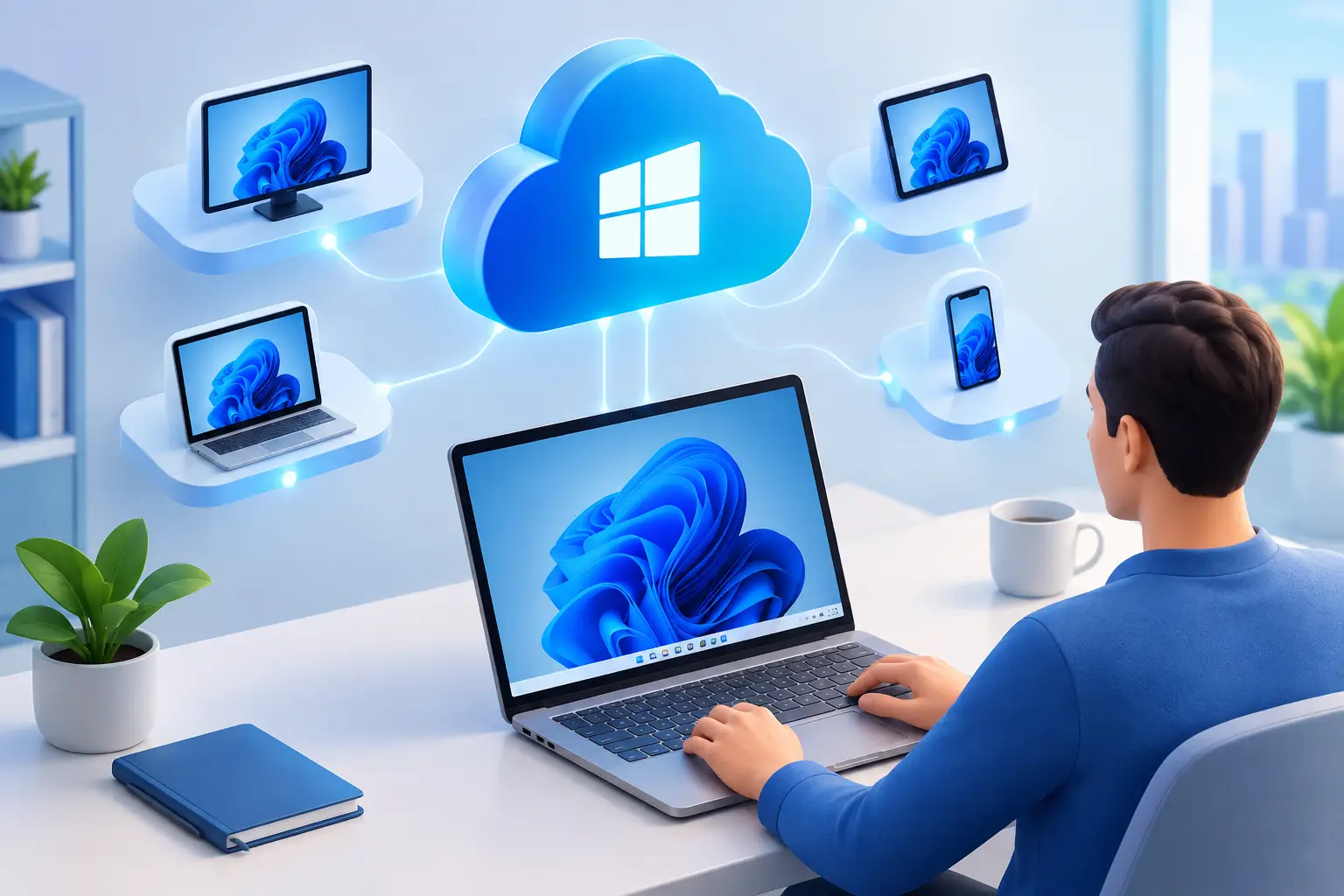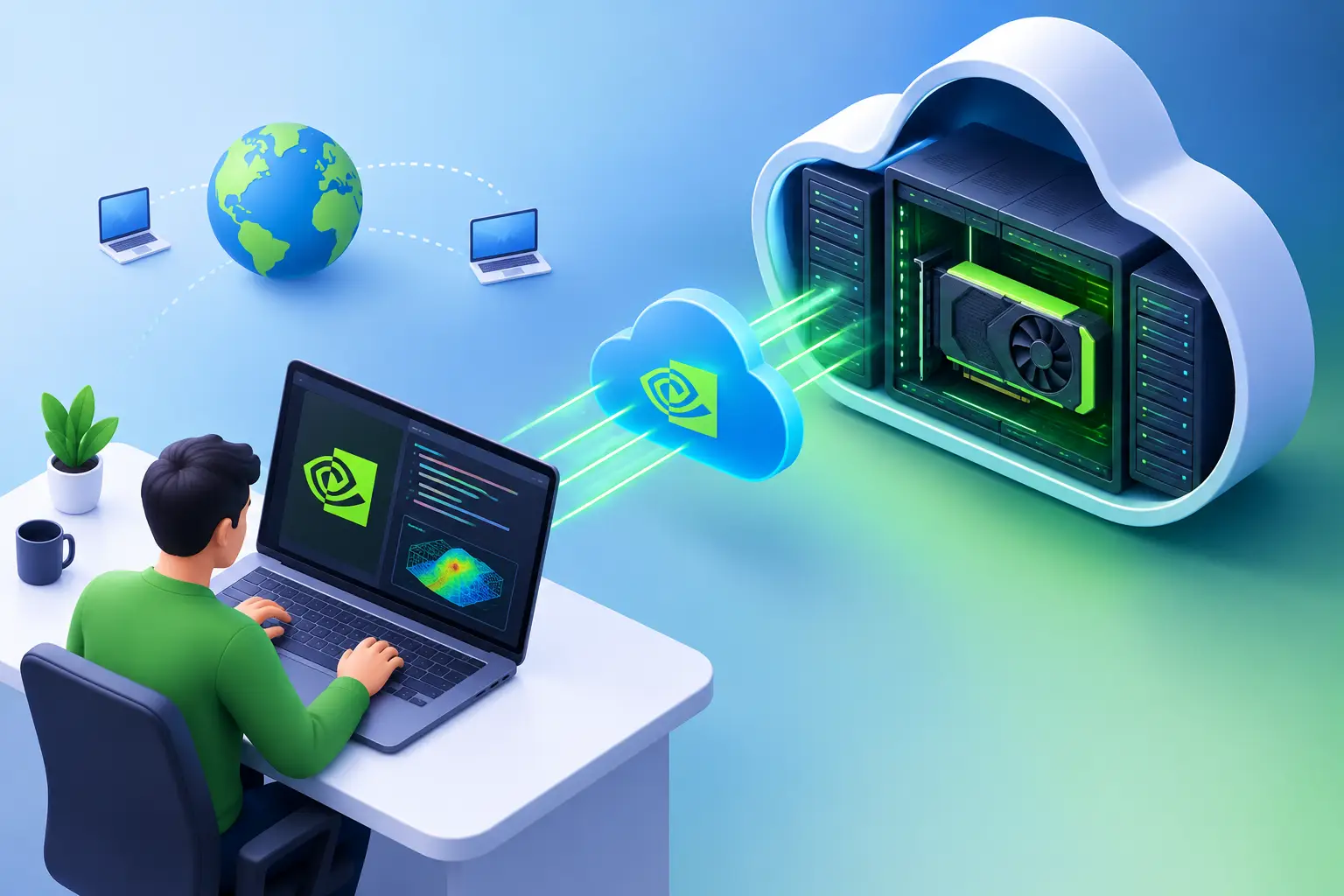
Short answer: There are two genuinely different ways to launch virtual Windows. A local virtual machine runs inside your own computer's existing hardware — useful for light testing, but it doesn't add any power your device doesn't already have. A cloud PC runs on remote hardware in a data center — your device becomes just the screen, keyboard, and connection point, while the cloud machine handles all the actual processing. If your local device struggles with demanding software, only the second option actually solves that problem.
A lightweight laptop, Mac, or older desktop doesn't have to limit the Windows software you can use. If you know how to launch virtual Windows, you can access a full Windows desktop with the CPU, RAM, GPU, and storage your workload needs — without buying a new machine first.
What Does It Mean to Launch Virtual Windows?
Launching virtual Windows means starting a Windows computer that runs on remote hardware rather than the device in front of you — you connect over the internet and use its desktop much like a physical PC.
A local virtual machine runs on your own computer's available processor power, memory, and storage. It's useful for light testing when your device has headroom to spare, but it's still bound by your local hardware — adding a virtual machine won't create GPU power your laptop doesn't already have.
A cloud PC takes the heavy work off your local device entirely. Your laptop, desktop, or Mac becomes the screen, keyboard, and connection point; the cloud machine handles the Windows applications and processing. This is the more practical route when you need stronger hardware for short-term projects or regular high-performance work. The broader overview of cloud desktop options covers this category more generally.
How to Launch Virtual Windows With a Cloud PC
1. Choose performance based on the work, not the label
Start with your actual workload. A remote worker using browser-based business tools may only need a balanced CPU and RAM configuration. A developer running local builds, containers, or several tools at once needs more memory and faster storage. A creator editing video, working in 3D, or using GPU-accelerated design software benefits from a dedicated GPU configuration.
AI projects need even more care — tools like PyTorch, CUDA-based workflows, Stable Diffusion, and ComfyUI have specific GPU memory, driver, and software requirements. Check what your application needs before choosing a machine; more hardware only helps when your project can actually use it.
SensePC offers cloud Windows PCs with tiered CPU and RAM options, persistent SSD storage, and dedicated NVIDIA L4 GPU configurations — a clearer alternative to trying to turn a thin laptop into a workstation.
2. Create the machine and let it provision
After choosing a configuration, create the machine from the platform dashboard. A cloud PC needs a short provisioning period while the Windows environment, storage, and selected hardware profile are prepared — with SensePC, setup is typically measured in minutes rather than days spent researching parts, assembling a desktop, or waiting for a new laptop shipment.
Once ready, you'll receive access details and connection options. Keep your account credentials secure with a strong, unique password, and enable multi-factor authentication if available. Account security steps before you start covers this in more depth.
3. Connect from the device you already own
Cloud Windows works best with a reliable internet connection — wired is ideal when available, especially for games, creative work, or anything where responsiveness matters. Strong Wi-Fi can also work well, but distance from the router, network congestion, and other devices sharing the connection can affect the experience.
Use the recommended connection method for your provider. A native performance-focused client typically offers better control over display settings, audio, keyboard input, and graphics responsiveness than a basic remote desktop connection — browser access is convenient for compatible use cases, particularly when you need to get to your Windows desktop quickly from another computer.
Before starting serious work, set the display resolution to match your local screen and test keyboard shortcuts, audio, clipboard sharing, and file transfer options — a few minutes of setup can prevent frustration later.
4. Install your software and save work to persistent storage
A virtual Windows desktop is only useful if it stays ready for the next session. Install the applications you need, sign in to your licensed accounts, configure your development environment, and organize project files as you would on a physical computer.
Persistent storage means installed apps, settings, and files remain on the cloud PC after you log out or stop a session, subject to your plan and platform policies — you shouldn't need to reinstall a large toolchain or re-download project assets every time you launch Windows. Keep a backup strategy regardless: persistent storage is convenient, but critical work (code, client projects, creative source files, research data) should still have copies in a trusted storage location or version control system.
5. Start, stop, and manage time deliberately
A cloud PC gives you flexibility, but it works best when you manage it actively — start the machine when you need it, save your work before stopping it, and understand how your billing model handles running time, stopped time, storage, and longer commitments.
Hourly access suits a student finishing a project, a developer testing a GPU workflow, or a creator handling occasional renders. Daily or monthly options may be more economical for full workdays or a consistent remote Windows desktop need. Managing time and billing deliberately covers how to decide based on usage frequency rather than the lowest advertised rate.
Get the Connection Right Before Judging Performance
Cloud Windows performance has two parts: the remote machine's power and the quality of your connection to it. A powerful GPU can't fully compensate for unstable local internet, and a fast connection can't make an underpowered virtual machine suitable for a heavy 3D render. What affects responsiveness technically covers this in depth.
Close unnecessary downloads and streaming apps on your local network for best results. Avoid connecting through crowded public Wi-Fi for sensitive work. Selecting an available service region closer to you can help reduce the distance your input and display data travel, though real-world responsiveness still depends on network conditions.
If the desktop feels slow, check the basics first: test your local connection, try a wired network, lower the streaming resolution, and confirm another device isn't consuming bandwidth. Then check the virtual machine itself — high CPU, RAM, disk, or GPU usage inside Windows can signal you need a different configuration for the task.
Cloud Windows Versus Buying a Physical PC
A cloud PC isn't automatically right for everyone. If you use high-performance hardware every day for years, a well-chosen physical desktop may cost less over time, and it gives direct local performance without depending on internet quality. Users with unreliable internet or specialized peripherals may prefer to own their workstation.
Cloud Windows is strongest when flexibility matters — avoiding a large upfront hardware purchase while accessing serious Windows computing power from devices you already own. It's a smart fit for temporary projects, seasonal workloads, travel, school terms, testing, and anyone needing more performance than their laptop provides without needing a powerful desktop running all day.
Common Setup Mistakes to Avoid
Choosing a machine based on a vague idea of "powerful enough." Check requirements for the exact application, project size, and number of simultaneous tools you plan to run — a coding environment, a 4K video timeline, and an AI image workflow have very different needs.
Treating the connection as an afterthought. Test your network before committing to an important deadline or competitive gaming session — your experience depends on local internet quality, distance, display settings, and the application's demands.
Leaving file management until the end. Decide where active projects live, how you'll back them up, and how you'll move files between your local device and Windows before you need the answer urgently.
Virtual Windows works best when you treat it as a purpose-built computer you call up when the job demands more power — pick the configuration for the work in front of you, keep your connection clean, and pay only for the level of performance you can actually use.
What's the difference between a local virtual machine and a cloud PC for running Windows? A local virtual machine runs inside your own computer using its existing hardware — it doesn't add power your device doesn't already have. A cloud PC runs on remote hardware in a data center, with your device acting only as the connection point, which is what actually solves the problem of an underpowered local machine.
How long does it take to launch a virtual Windows desktop? On a self-serve cloud PC platform, provisioning is typically measured in minutes rather than the days it takes to research parts, assemble a physical desktop, or wait for a new laptop shipment.
Do I need a powerful computer to launch virtual Windows through a cloud PC? No — your local device just needs to reliably handle the video stream, keyboard, and mouse input. The actual Windows processing happens on the remote machine, not your device.
Will my files and installed software still be there the next time I launch virtual Windows? Yes, with persistent storage — your installed applications, settings, and files remain on the cloud PC between sessions, subject to your plan's policies. Keep independent backups of critical work regardless, since persistent storage isn't the same as a dedicated backup system.
Why does my virtual Windows desktop feel slow even with a powerful configuration? Performance depends on both the remote machine's power and your connection quality — a strong GPU can't compensate for unstable local internet. Check your local network first (try wired, lower streaming resolution, close bandwidth-heavy apps) before assuming the virtual machine's configuration is the problem.