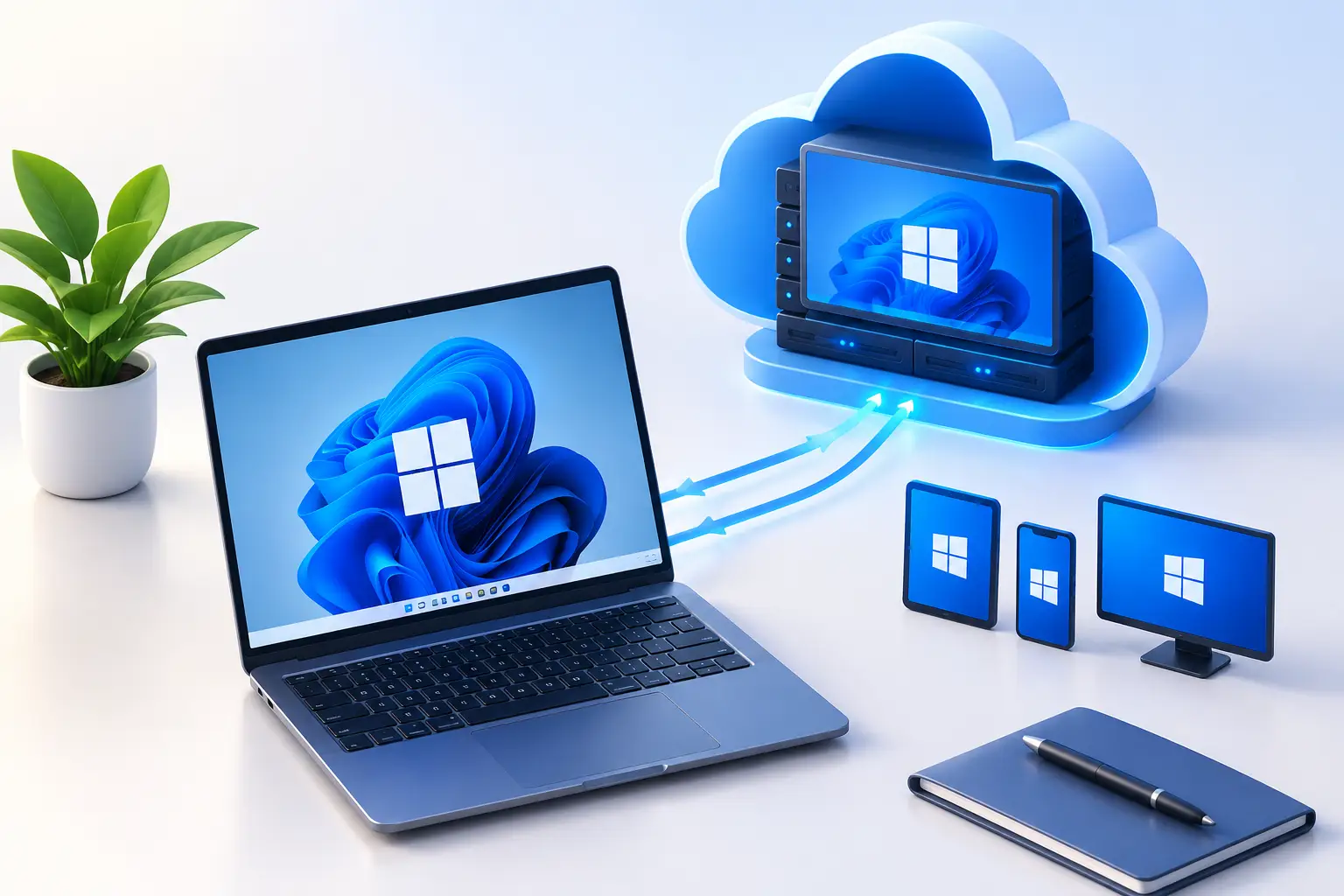
A Windows cloud PC is a persistent Windows computer that runs in a data center while you control it from your own laptop, Mac or desktop. With SensePC, setup is: choose a Windows plan and region, build the PC (usually about 3 to 5 minutes), connect in your browser, then optionally switch to Performance Mode for lower latency.
Published by SensePC, which sells cloud PCs. This guide covers SensePC. "Windows 365 Cloud PC" is a separate Microsoft product with different setup steps: see Microsoft's documentation for that.
Quick setup path
| Step | What to do | Typical time |
|---|---|---|
| 1 | Decide what the PC must do | 5 minutes |
| 2 | Check your device and connection | 5 minutes |
| 3 | Choose OS, plan, region and storage, then build | a few minutes |
| 4 | Wait for provisioning | about 3 to 5 minutes |
| 5 | Connect in the browser | under a minute |
| 6 | Switch to Performance Mode (optional) | a few minutes the first time |
| 7 | Install apps and test a real task | your own pace |
What a Windows cloud PC is
A cloud PC is a computer that lives in a data center. Your local device handles the display, keyboard, mouse and audio. The cloud PC handles the heavy work: CPU tasks, memory-intensive apps, GPU processing, storage and the Windows environment itself. It is persistent, so installed apps and files remain between sessions, unlike a temporary remote session that resets.
It is not the best answer for everyone. Your internet connection, location, workload and how often you need high performance all matter. See What Is a Cloud PC? for the full explainer.
Step 1: Start with the work, not the biggest plan
Decide whether the work is mainly CPU-bound, memory-heavy, GPU-accelerated or storage-dependent.
- Office work, browsing, coding, coursework: prioritize enough CPU and RAM. You may not need a dedicated GPU.
- Demanding games, GPU-accelerated editing, rendering, 3D and AI tools: prioritize the GPU and system memory.
Also decide how long you need it. Hourly access suits short projects, game sessions, testing or a deadline week. Daily or Monthly suits regular use. A physical workstation can still win if you use heavy hardware every day for years.
Step 2: Check your device and connection
Your local computer doesn't need to be powerful, but it needs to be dependable: an updated operating system, a current browser, and a comfortable keyboard and mouse.
- Wired Ethernet is usually the strongest option. On Wi-Fi, stay close to the router and avoid crowded networks.
- Download speed matters, but consistency, latency and packet loss matter just as much for interactive work.
- SensePC streaming sessions need a supported desktop or laptop. Launching and streaming a session is not supported on phones or iPads, though the dashboard works on mobile for account tasks.
See the Wi-Fi 6 vs. Ethernet guide.
Step 3: Choose your configuration and build
In the SensePC dashboard, build a PC (the Help Me Choose option can guide you). You will choose:
- Operating system: Windows 11 (Ubuntu is also available).
- Compute profile: Xtreme plans use a dedicated NVIDIA L4 with 24 GB and are recommended for gaming. Standard, Pro and Ultra plans share an L4 and suit cost-efficient desktop, development and creator work.
- Storage: persistent SSD.
- Region: choose the closest to where you connect. SensePC suggests about 500 miles or less for gaming. There are 8: New York, Chicago, California, London, Berlin, Madrid, Stockholm and Brazil.
- Billing plan: Hourly, Daily or Monthly. Only the Hourly plan supports on-demand CPU and memory resize later, and disk size can be increased but not decreased.
You also need your account and billing ready (provisioning includes account and wallet readiness). Check pricing for current rates, which are dynamic.
Step 4: Wait for provisioning
A standard personal SensePC build normally takes about 3 to 5 minutes. It can take longer when the chosen location has temporary capacity pressure, or for larger custom business setups. If the Connect button is unavailable, the PC is usually still provisioning, stopped or starting. Use the wait to prepare installers and license details.
Step 5: Connect in the browser
Launch the PC from the dashboard. If the remote desktop window doesn't open, check that your browser isn't blocking pop-ups or redirects. After connecting, check the basics: resolution, keyboard layout, audio and mouse behavior. Windows 11 follows a bring-your-own-license approach unless your dashboard or a written agreement says otherwise, and may be unactivated by default, so confirm your license permits cloud use.
Set a strong account password, turn on the security options available, and don't share credentials, especially when the machine holds code, client work or licensed software.
Step 6: Switch to Performance Mode (optional)
Performance Mode moves an active browser session to the Amazon DCV native client for lower latency and more native-like input.
- Install the Amazon DCV desktop client on your Windows, macOS or Linux computer.
- Connect in the browser first.
- Open the right-side session panel and select Performance Mode, then confirm the dialog.
- Allow your browser to open the Amazon DCV application.
- If the automatic launch fails, download the .dcv connection file and open it manually in the client.
- Once the client opens, you can close the browser tab.
Performance Mode isn't available on phones or tablets, and results still depend on your network, region and game.
Step 7: Install what you need first, then test
Start with the apps that define your workflow: a game launcher, IDE, creative suite, AI framework or collaboration app. Note versions and dependencies so you can rebuild later. Some launchers, games and licensing systems have their own cloud rules, so check their current terms.
Finish your first session with a real test: open the software you need, load a real project, and work long enough to judge it. On SensePC, watch Session Live for stream quality, latency, bandwidth and FPS.
Know how to stop, disconnect and bill
| Action | What happens |
|---|---|
| Disconnect or close the browser | Ends your view only. The PC keeps running and compute billing continues |
| Reconnect | Rejoins the existing session, or starts a new session on the same PC |
| Stop | Shuts the PC down and ends Hourly compute usage; the persistent SSD can remain billable |
| Reboot | Restarts the PC |
| Delete | Permanently removes the PC and its SSD data, so back up first |
To stop all charges for a PC: stop it, move any files you need, then delete it. Turning off auto-renew only prevents the next renewal. A stopped PC with no wallet funds for more than 3 days can be terminated and its disk can't be recovered. See the backups guide.
Tune the desktop and keep it healthy
Set Windows display scaling for the screen you use, set power and sleep settings to match your habits, and install updates when you don't need the machine for a deadline. Keep an eye on storage before downloading large projects, libraries or AI models. Don't chase maximum settings by default: the best configuration gives stable, usable performance at a cost that fits your schedule.
Build a cloud PC · Cloud gaming on SensePC
1. What is a Windows cloud PC?
A Windows cloud PC is a persistent Windows computer that runs in a data center while you control it from your own device. The cloud PC does the processing and storage, and your device shows the screen and sends input.
2. What is Windows 365 Cloud PC, and is SensePC the same thing?
Windows 365 Cloud PC is Microsoft's own cloud PC product. SensePC is a separate service from Senseminder LLC with its own setup flow. For Windows 365 steps, use Microsoft's documentation.
3. How do I set up a Windows cloud PC on SensePC?
Choose Windows 11, a compute profile, storage, region and billing plan in the dashboard, then build the PC. It normally takes about 3 to 5 minutes. Then connect in your browser.
4. How long does it take to set up a SensePC?
A standard personal build normally takes about 3 to 5 minutes. It can take longer if the location has temporary capacity pressure or for larger custom business deployments.
5. How do I connect to my SensePC?
Launch it from the dashboard once it is ready, and allow pop-ups or redirects if your browser blocks the session window. If Connect is unavailable, the PC may still be provisioning, stopped or starting.
6. What is Performance Mode?
Performance Mode switches an active browser session to the Amazon DCV native client for lower latency and more native-like input. It requires the Amazon DCV desktop client on a supported Windows, macOS or Linux computer.
7. How do I start Performance Mode?
Connect in the browser first, open the right-side session panel, select Performance Mode, confirm the dialog, and allow your browser to open the Amazon DCV application. If it fails, use the .dcv connection file.
8. Can I use a SensePC from a phone or iPad?
No. Launching and streaming a session is not supported on phones or iPads. The mobile dashboard supports some account tasks, but the remote desktop needs a desktop or laptop.
9. Do I need a powerful computer to use a cloud PC?
No. Your device mainly displays the stream and sends input. A dependable device, an updated browser or client, and a stable connection matter more than local power.
10. What internet connection do I need?
A stable, low-latency connection matters more than raw speed. Use wired Ethernet or strong 5 GHz Wi-Fi, and test with your real work before committing.
11. Which Windows version does SensePC use?
Windows 11 cloud PCs are available, and Ubuntu 24.04 with a graphical desktop is also offered.
12. Does SensePC include a Windows license?
Windows 11 cloud PCs follow a bring-your-own-license approach unless the dashboard or a written agreement says otherwise, and Windows may be unactivated by default. Check that your license permits cloud use.
13. Which region should I choose?
Choose the closest available region. SensePC suggests about 500 miles or less for gaming, and the 8 regions are New York, Chicago, California, London, Berlin, Madrid, Stockholm and Brazil.
14. Can I resize my SensePC after it is created?
Only the Hourly plan supports on-demand CPU and memory resize. Disk size can be increased but not decreased.
15. What happens if I close my browser or disconnect?
Closing the browser ends your view only. The PC keeps running and compute billing continues, and you can reconnect to the same PC.
16. How do I stop being charged for a SensePC?
Stop the PC to end compute usage, move any files you need, then delete the PC to stop attached SSD charges. Turning off auto-renew alone doesn't remove the PC. Sense Cloud is billed separately.
17. Are my files kept between sessions?
Yes, the cloud PC is persistent, so installed apps and files remain. A deleted or terminated PC cannot be recovered, and persistent storage is not a backup, so keep your own backups.
18. How much does a Windows cloud PC cost?
SensePC bills Hourly, Daily or Monthly, with compute and storage as separate items. Prices are dynamic, so check the pricing page for current rates.