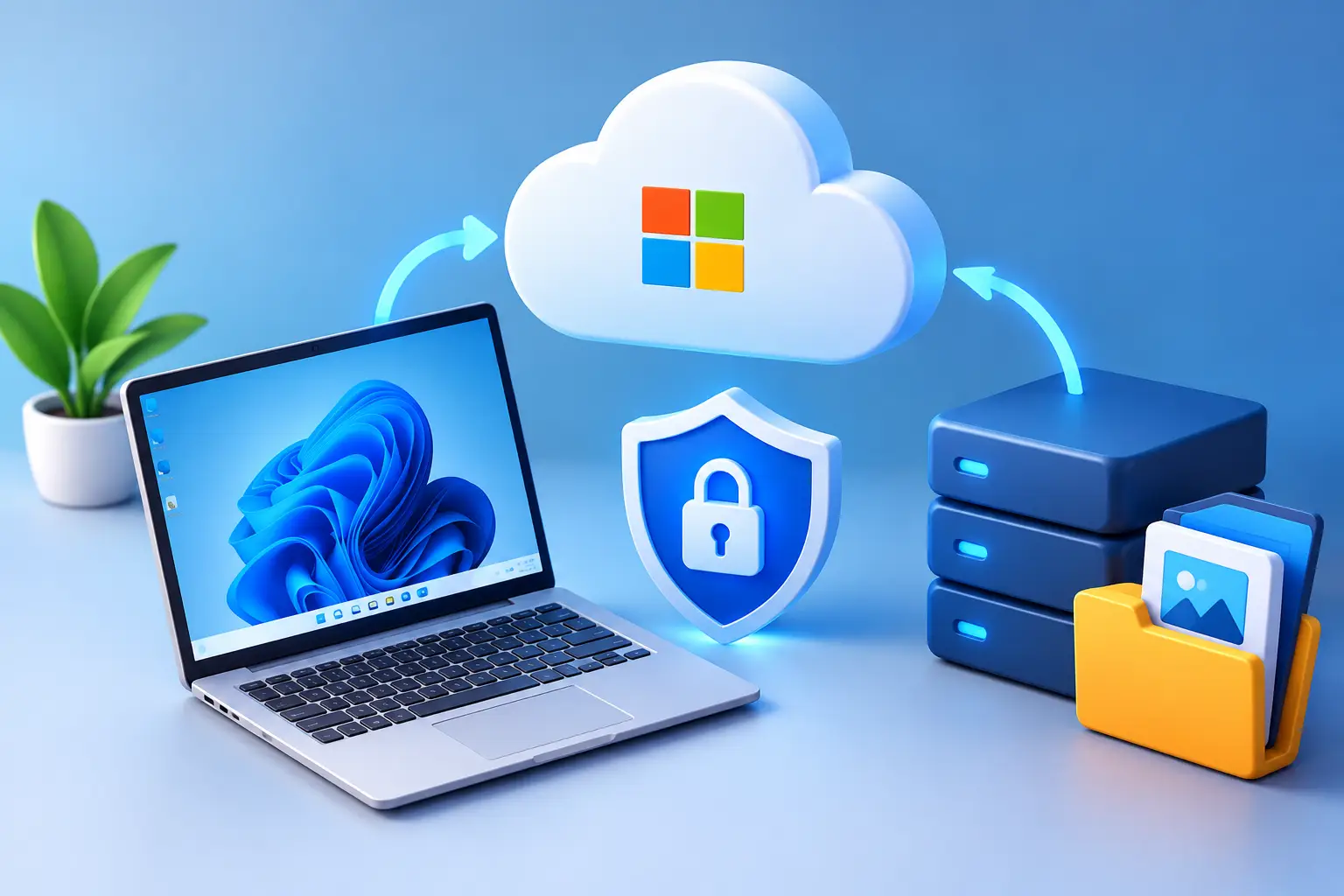
Persistent storage keeps your cloud PC's files between sessions, but it is not a backup. A backup is a separate, recoverable copy you can restore from an earlier point in time. Follow the 3-2-1 rule: three copies, two kinds of storage, one copy kept outside the cloud PC. Then test a restore.
Persistent storage, sync and backup are different things
| What it does | What it does not protect against | |
|---|---|---|
| Persistent storage | Keeps files and installed apps on the cloud PC between sessions | Deleting a file; a deleted PC; an unpaid, terminated PC |
| File sync | Keeps the same files on more than one device | Mistakes, since a deletion or overwrite can sync everywhere; ransomware |
| Backup | A separate copy you can restore to an earlier point in time | Nothing if you never test it, or keep it only in the same place |
Persistent storage is valuable: you install tools once and return to your workspace. But deleting a file from it can persist too, and sync copies bad changes as efficiently as good ones.
What a cloud PC backup should protect
Real work is what needs protecting: source code, client edits, school projects, game saves, AI workflows, render projects, and software settings that took hours to configure. Most losses are ordinary: deleting the wrong folder, saving over a good version, a cleanup gone wrong, or an update that changes a setting.
High-performance cloud PCs make this worse because they generate data fast. Hours of rendering produce large outputs. AI experiments create notebooks, configurations and generated assets. Developers keep local databases and environment files that are hard to rebuild.
Start with the 3-2-1 rule
Keep 3 copies of important data, on 2 different kinds of storage, with 1 copy separate from your main working environment.
For a cloud PC user that could mean:
- Copy 1: the active project on the cloud PC's persistent storage.
- Copy 2: a backup in separate cloud storage, such as Sense Cloud or a versioned cloud service.
- Copy 3: a copy on an external drive or an independent storage account.
You don't need to back up every temporary file. Focus on data that would cost real time or money to recreate. Large source media, installers, caches and reproducible outputs need a decision: restore from backup, or re-download.
Organize files so backups are easy
Keep active work in clearly named folders, not scattered across the desktop, Downloads and application directories.
- Creators: active edits, source media, exports, archive.
- Developers: repositories, environment files, databases, build outputs.
- AI users: workflows, prompts, custom nodes, datasets, results.
It doesn't need to be perfect. It needs to be predictable.
Choose a backup method
| Method | Good for | Watch out for |
|---|---|---|
| Versioned cloud storage | Documents, code, project files, settings exports | Retention limits; sync conflicts on huge, constantly changing folders |
| Scheduled backups of selected folders | Larger project folders, daily or weekly | Storage use and upload time |
| System image or snapshot | Rebuilding installed apps and settings | Limited frequency or retention; restores more than you need; not a replacement for file backups |
Check your cloud PC provider's documentation for what persistence, restore options and snapshots are actually included. Don't assume an option exists or covers every folder.
How backup works on SensePC
From SensePC's FAQ:
- File Transfer moves files among your local device, a running SensePC and Sense Cloud, in any direction, through the session panel in the browser.
- Back up all to Sense Cloud scans the SensePC Desktop, creates a timestamped backup folder in your selected Sense Cloud location, recreates the folder structure and copies the files. If one file fails, the backup continues and reports skipped files at the end.
- Because each run creates a timestamped folder, you can keep several restore points. Each one uses Sense Cloud storage.
- Sense Cloud is separate storage, billed on its own tiers. After a first successful recharge, up to 20 GB has no charge. Deleting a SensePC does not delete Sense Cloud files or stop Sense Cloud billing.
- Traffic between you and Sense Cloud is encrypted in transit.
Know the limits. "Back up all" scans the Desktop, so files kept in other folders need to be copied separately. SensePC's FAQ does not describe automatic scheduling, versioned restore or snapshots, so treat Sense Cloud as a separate copy and confirm any additional features on the live site before relying on them.
Know the risks. A stopped SensePC with no wallet funds for more than 3 days can be terminated, and once terminated its disk and installed apps cannot be recovered. A stopped PC still has SSD storage charges. SensePC itself advises keeping an external backup of important files. Back up before you delete a PC, change regions, or remove a payment method.
Back up the things people forget
- Developers: keep repositories in a remote source-control workflow, plus configuration files, database exports and notes needed to rebuild the environment. Never put passwords, private keys or tokens in an unprotected backup; use encryption and access controls.
- Creators: project files, presets, plug-in settings, color profiles, licensed fonts where allowed, and a map of source media locations.
- AI users: workflow files, prompts, configurations, requirements lists and model notes. Model files can be huge, so document their source and version if a second copy isn't practical.
- Gamers: save files and mod lists, if the game doesn't use cloud saves. Save locations vary by title, so verify before relying on any one method.
Test your recovery before you need it
A backup you've never restored is a plan on paper.
- Restore a small folder, then a file from last week. Open it and confirm it's the right version.
- Test a larger restore when you have time, not on deadline.
- Note how long recovery takes, because cheap storage can be slow to retrieve.
- Write a recovery note: backup locations, how to access them, encryption details and what each job covers. Keep it somewhere other than the cloud PC.
Match the plan to how you use compute
If you rent a cloud PC in short bursts, back up final outputs and active project files after each session. If it is your daily workstation, use automated, versioned backups and regular recovery points. Start small: pick one folder you can't afford to lose, make a separate recoverable copy, and open it from somewhere else. See SensePC plans and pricing and the FAQ.
1. Do I need to back up a cloud PC?
Yes. Persistent storage keeps files between sessions, but it doesn't protect against deletion, overwriting, ransomware or a deleted PC. A backup is a separate copy you can restore.
2. What is the difference between persistent storage and a backup?
Persistent storage keeps the files on the cloud PC available between sessions. A backup is an independent copy you can restore from an earlier point in time, even if the original is missing or changed.
3. Is file sync the same as a backup?
No. Sync keeps files matching across devices, so a deletion, overwrite or ransomware encryption can sync everywhere. A backup keeps earlier versions. Services built for collaboration, such as Box, are not automatically backups, so check version history and retention.
4. What is the 3-2-1 backup rule?
Keep three copies of important data, on two different kinds of storage, with one copy kept separate from your main environment. It is simple and works for cloud PC users too.
5. What should I back up on a cloud PC?
Back up data that would cost time or money to recreate: project folders, documents, source code, export presets, application settings, AI workflows and important game saves. Decide separately about large media, installers and caches.
6. How do I back up files from a SensePC?
Open File Transfer in the session panel and copy files to Sense Cloud or to your local device, or use Back up all to Sense Cloud for the SensePC Desktop. Also keep an external copy of important files.
7. What does "Back up all to Sense Cloud" do?
It scans the SensePC Desktop, creates a timestamped backup folder in the selected Sense Cloud location, recreates the folder structure and copies the files. If a file fails, it continues and reports skipped files.
8. Does Back up all cover my whole PC?
It scans the SensePC Desktop, so files kept elsewhere need to be copied separately. Keep important work in folders you back up.
9. Does SensePC keep snapshots or versions of my PC?
SensePC's FAQ does not describe snapshots, versioned restore or scheduled backups. Confirm on the live site, and until then treat Sense Cloud as a separate copy and keep your own versioned backup.
10. What happens to my files if my SensePC is deleted or terminated?
Once terminated, a PC's attached disk and installed apps cannot be recovered. Back up before you delete a PC or change regions.
11. Can a stopped SensePC be terminated?
Yes. A SensePC that stays stopped for more than 3 days with no wallet funds can enter automatic termination after reminders. Add funds and resolve the status before the deadline.
12. Does a stopped PC still cost storage?
Yes. A stopped SensePC can still have SSD storage charges because the disk is kept to preserve data, though compute billing for an Hourly plan stops.
13. Are Sense Cloud files deleted when I delete a SensePC?
No. Sense Cloud is separate storage, and deleting a SensePC does not delete its files or stop its billing.
14. How much does Sense Cloud backup storage cost?
Sense Cloud is billed in automatic tiers from the highest usage in a billing cycle. After a first successful recharge, up to 20 GB has no charge. Check the pricing page for current rates, which are dynamic.
15. How often should I back up my cloud PC?
Match it to how fast your work changes. Daily is enough for lower-risk work, and fast-moving projects need more frequent backups or saved milestones before big changes. If you rent in short bursts, back up after each session.
16. Should I use versioned cloud storage or system images?
Use versioned cloud storage for everyday files, because you can recover earlier file versions. Use system images or snapshots, where available, as an extra layer to rebuild apps and settings. They aren't a substitute for file-level backups.
17. How do I test that my backup works?
Restore a small folder, then a file from last week, and open it to check the version. Later, test a larger restore and note how long it takes. Write down your recovery steps and keep the note outside the cloud PC.
18. How do I back up code and sensitive files safely?
Keep code in remote source control and encrypt backups. Don't store passwords, private keys or tokens in unprotected backups, and use access controls and your normal secure credential process.