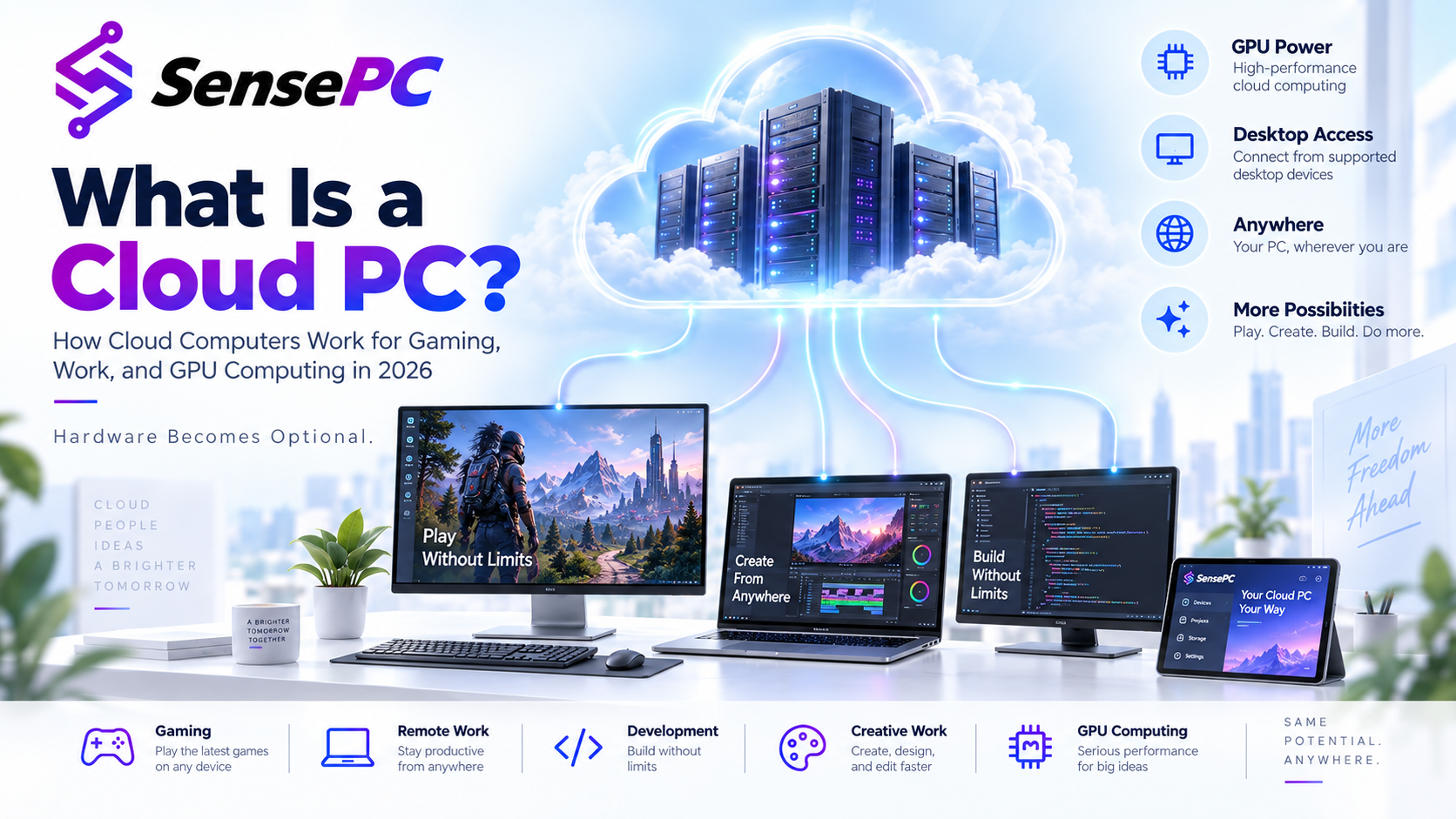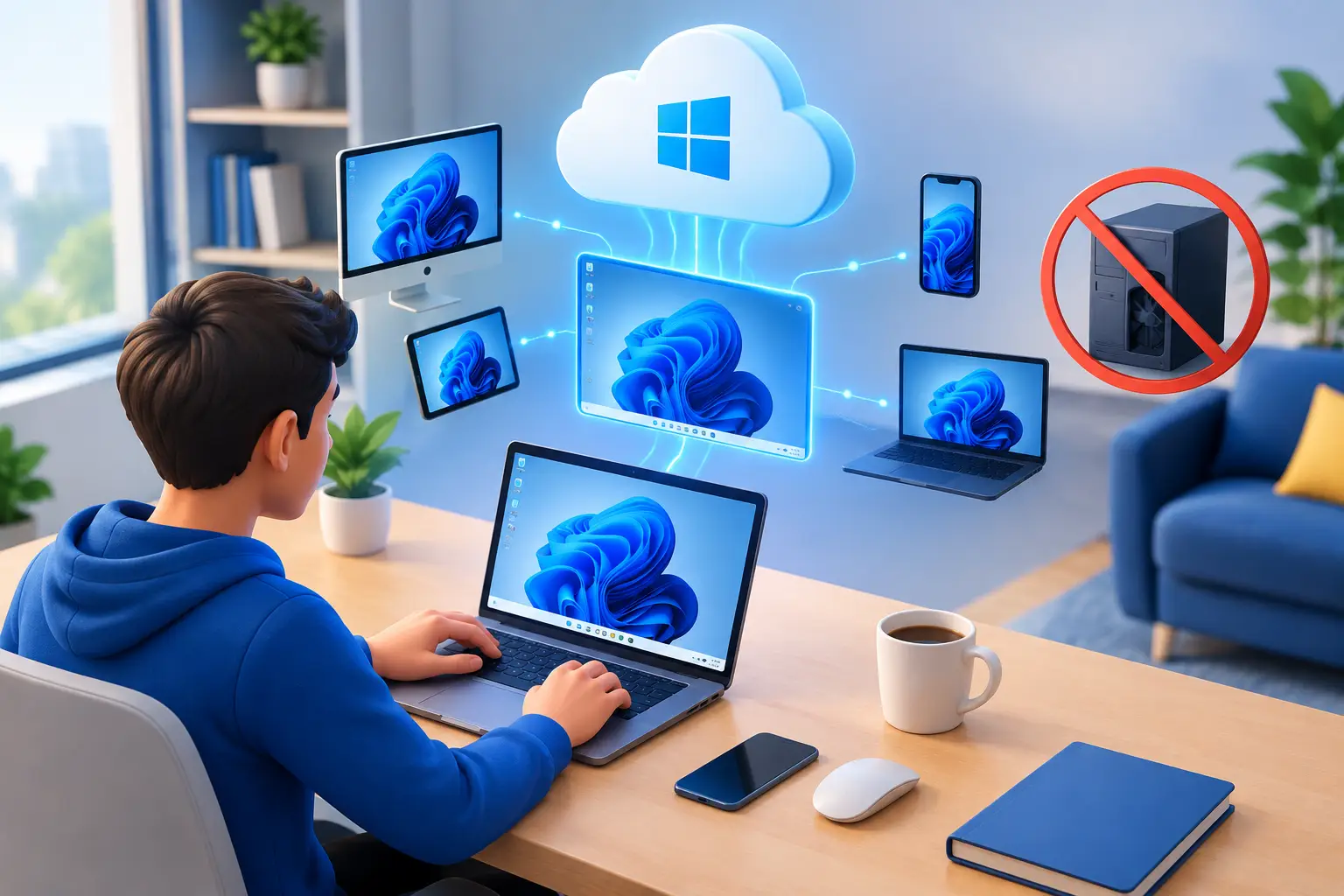
A cloud PC is a full Windows desktop that runs in a data center instead of under your desk, and you connect to it from the laptop, Mac, desktop or supported browser you already own. Using one daily means treating it as your main high-performance workspace: your software, files and settings stay on persistent storage, and you start the machine when the work needs more power than your local device can provide. It works best when the flexibility solves a real problem, such as underpowered hardware, a Mac that needs Windows, or a need for serious performance without a large upfront purchase.
This guide explains what daily cloud PC use looks like, who benefits, how to build a routine that controls cost, how your internet connection affects the experience, and how a cloud PC compares with a physical computer, an enterprise virtual desktop and a serverless GPU platform.
What daily cloud PC use looks like
A lightweight laptop is enough for email, browsing and meetings. It becomes the weak link when you compile code, edit video, run Windows-only tools, test GPU workloads or play a demanding PC game. With a cloud PC, your local device no longer has to carry the full performance burden. For a plain-language introduction, see what a cloud PC is and how it works.
For daily use, the goal is not to treat the machine like a temporary remote screen. Install the software you rely on, organize project folders, save work to the persistent drive and build a routine around starting and stopping the machine. You keep the device you like using and gain access to more CPU, RAM, SSD storage and dedicated GPU power when the work calls for it, with no case to open and no GPU upgrade to wait for.
SensePC is built around this model. It provides cloud-based Windows 11 machines that can be set up in minutes and reached through a native Performance Mode or other supported connection options. The important part is not the remote connection itself. It is having a persistent, capable Windows environment available without managing physical workstation hardware.
Who benefits from using a cloud PC every day
Daily access is most useful when performance needs are real but uneven. You might need a powerful machine every weekday for development and barely use it on weekends, or have a regular class, freelance workload or creative project that needs better hardware for a few hours at a time.
Developers can keep a consistent Windows environment for IDEs, build tools and test environments. This helps when a personal laptop is fine for writing code but slow for compiling large projects or running several tools at once.
AI developers and learners can use GPU-equipped cloud PCs for CUDA-based tools, model experiments, image-generation workflows and local AI applications. A dedicated GPU does not make every workload instantly fast, and large datasets still need planning, but it gives a practical place to learn and test without buying a high-end GPU for one project.
Creators benefit when rendering, 3D work, design applications or video projects outgrow the local machine.
Remote professionals can keep work files and software on one persistent desktop instead of recreating the setup across a home computer, a travel laptop and an office device. Mac users who need Windows-only software can see how to run Windows apps on a Mac without buying a Windows PC.
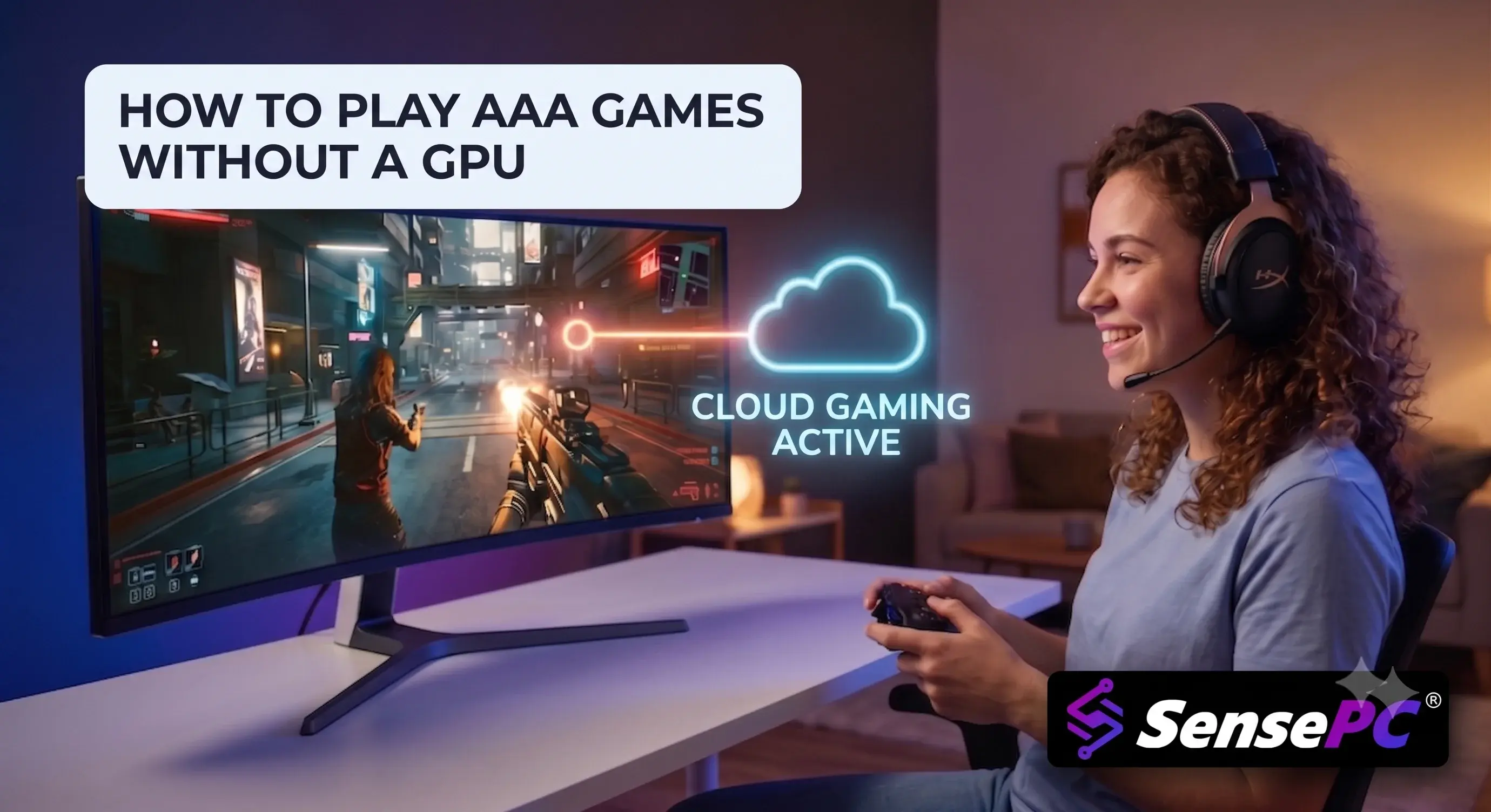
Gamers get access to a Windows gaming environment without buying and maintaining a full gaming desktop. Results depend on your connection, your distance from the service infrastructure, the game and third-party compatibility. A cloud PC is not a blanket substitute for every competitive or anti-cheat-protected game setup. It is a flexible option for people who want PC-level hardware access without owning the hardware.
How to build a daily routine that controls cost and friction
The first week matters. Set up a cloud PC with the same care you would give a new physical computer: install your most-used applications, apply updates, configure the desktop and create folders for active work. Persistent storage is what makes daily use practical, because core tools and files stay in place between sessions. To see how it works, read about persistent cloud PC storage.
Then decide when the machine should run. Hourly billing suits people who need power for focused sessions rather than all day, every day. Stop the machine when a rendering job, coding session or game night ends. If you need a workstation for a full-time schedule, compare daily, monthly or longer-use options against the cost of buying and maintaining similar local hardware. Our guide to whether an hourly billed computer is worth it walks through that comparison.
A simple daily routine has four parts:
- Start the PC only when the work or entertainment needs more power than the local device provides.
- Keep active projects, settings and files organized on persistent storage.
- Use a stable wired connection when possible, especially for visual work, real-time development or games.
- Stop the session according to your plan when the work is complete.
The point is to avoid waste. A high-performance machine should be available when you need it, not consuming budget while idle.
How your internet connection affects a cloud PC
A cloud PC moves the processing to the cloud, but the display, keyboard, mouse and audio still travel over your internet connection. A strong, stable connection usually matters more than a headline download speed. Wired Ethernet is often the best option for a fixed setup. Quality Wi-Fi can work well, but crowded home networks, distance from the router and unstable signal can add lag or reduce image quality.
Your use case matters too. Writing, administration, web research and many coding tasks tolerate minor variation. Fast-action games, detailed color work and precise interactive creative tools are more sensitive. Native low-latency connection technology can improve the experience, but it cannot fully overcome a poor local network. If your connection is inconsistent, test a short session before committing to a daily workflow, and read our explanation of low-latency cloud gaming to understand what to look for.
Do you need to install anything to use a cloud PC?
A cloud PC runs its software on the remote machine, so applications install on that machine rather than on your local device. Your local device needs only a way to reach the desktop, such as a supported browser or a lightweight client, and the available connection options depend on the service and the device. Check which options your device supports, and note that a native connection mode is designed for lower latency than a browser connection in general.
Cloud PC compared with other options
Option | What it is | Best fit | Main trade-off |
|---|---|---|---|
Physical PC | A computer you own and keep nearby | Heavy daily use with a stable workstation setup | Upfront cost, repair risk, heat, noise, depreciation and upgrade cycle |
Cloud PC | A persistent Windows desktop in a data center | Uneven or occasional demand, Windows on a Mac, short-term projects | Needs reliable internet and active usage planning |
Enterprise virtual desktop | A centrally managed desktop fleet for organizations | Large deployments with central IT controls | Provisioning and administration designed for organizations, more than individuals need |
Serverless GPU platform | Code or models run on a GPU that scales to zero between jobs | Inference, batch jobs and API-style AI workloads | Not a desktop; you package and deploy code instead of using Windows applications |
Buying a physical PC makes sense when you use high performance heavily every day and prefer direct local control. Over several years, a well-chosen desktop may be the more economical option for constant demand, and it avoids depending on the internet for core work. A cloud PC makes more sense when the upfront cost of a premium laptop, gaming desktop or GPU workstation is hard to justify, or when you want freedom to move between devices.
How to choose the right performance level
Start with the workload, not the biggest specification. A developer running standard tools may prioritize CPU, RAM and storage. An AI learner, 3D creator or GPU-accelerated application user may need dedicated GPU capacity. A gamer may care most about the GPU tier, session responsiveness and storage for game installs.
Look at the applications you use, the size of your files, how many tools run at once and whether the workflow is CPU-heavy, memory-heavy or GPU-heavy. If you are unsure, begin with a configuration that fits your current project and scale up when you have a clear reason. You are not locked into a hardware purchase made for a future you cannot predict.
Can I use a cloud PC every day?
Yes. A cloud PC keeps applications, files and settings on persistent storage, so it can serve as a daily workspace. Start it when you need it and stop it when you are done.
What does it mean to use a cloud PC without owning a rig?
It means getting the CPU, RAM, storage and GPU of a high-performance Windows machine from a data center, so you do not buy, build, house or upgrade the hardware yourself.
Is a cloud PC cheaper than buying a PC?
It depends on usage. For focused sessions, hourly billing can cost less than buying a premium machine. For constant full-time use over several years, owning hardware can be the cheaper choice.
Do I need a fast internet connection?
A stable connection matters more than a fast one. Wired Ethernet is usually the most consistent, and sensitive tasks such as fast games and color work need steadier conditions than office work.
Can I use a cloud PC on a Mac?
Yes. A Mac can reach a Windows cloud PC and run Windows-only software on the remote machine.
Is a cloud PC the same as a serverless GPU?
No. A cloud PC is a persistent Windows desktop you use interactively. A serverless GPU platform runs code or models on a GPU that scales to zero between jobs, and you do not get a desktop.
Is a cloud PC the same as an enterprise virtual desktop?
Both are remote desktops, but enterprise systems are built around central IT administration for large organizations, while an individual cloud PC is aimed at users who need a capable Windows machine quickly.
Summary
A cloud PC works as a daily performance layer: keep the laptop or Mac you already like for the screen, keyboard, meetings and travel, and let the cloud machine handle Windows applications, GPU workloads, heavy projects and demanding games. Set it up carefully in the first week, keep work on persistent storage, run it only when you need it, test your connection honestly and choose the performance level that fits the workload in front of you.