Short answer: Optimal PC building starts with the workload, not the parts list. Answer three questions: which applications you run, which task feels slow today, and how many hours a week you need high performance. Then size the CPU, GPU, RAM and storage in balance, add a quality power supply and cooling, and decide between building, upgrading or using a cloud PC based on usage frequency, upfront budget, portability and how much maintenance you will tolerate. Build locally for steady daily demand, offline use or specialized peripherals. Use a cloud PC when performance is needed in bursts.
A slow computer rarely fails because one part is weak. More often, the entire setup is mismatched. A high-end GPU paired with too little RAM, a fast CPU trapped by limited storage, or a powerful desktop that sits unused between projects can all be poor value. Optimal PC building and requirements start with the work you need done, how often you need it, and where you need access.
No expensive gaming rig by default. No upgrade cycle by habit. Start with the workload, then choose the hardware model that makes financial and practical sense.
Start With the Workload, Not the Parts List
The right PC for a student learning Python is not the right PC for a creator rendering 4K video. A system for competitive games has different priorities from a machine running local AI tools, compiling large projects or opening complex design files.
Before looking at GPUs or processors, answer three questions:
- What applications will you run?
- Which task feels slow today?
- How many hours per week do you need high performance?
| Workload | What it leans on most |
|---|---|
| Gaming | GPU, especially at higher resolutions and visual settings |
| Software development | CPU and RAM, depending on tools, virtual environments, containers and project size |
| AI development | Compatible GPU acceleration, enough video memory for the models, plenty of system RAM |
| Video editing and 3D | Every major component: CPU, GPU, memory and fast storage |
Your local device still matters if you plan to use a cloud PC. It does not need workstation-level specs, but it should run a modern browser or desktop client reliably and have a stable internet connection. Connection quality, distance from available infrastructure and the application itself all affect the experience.
Optimal PC Building Requirements by Component
A balanced build avoids spending heavily on one component while creating a bottleneck somewhere else. The goal is not the most expensive part. It is enough performance for your actual workload, with reasonable room to grow.
| Component | What to check | Common mistake |
|---|---|---|
| CPU | Cores for jobs you actually run; per-core speed for many games | Paying for a high core count the software can't use |
| GPU | Resolution and frame rate (gaming); software support and video memory (AI, 3D, creative) | Choosing for the title, not the resolution; ignoring CUDA or software requirements |
| RAM | 16 GB can be workable for general use and light gaming; 32 GB is more comfortable for multitasking, development, creative apps and many AI workflows | Underspeccing memory next to a strong GPU |
| Storage | SSD for OS, apps, active projects and favorite games; enough capacity for assets, datasets and backups | A small drive that fills quickly |
| Power supply | Quality unit with headroom for your components | Treating it as an afterthought |
| Cooling and case | GPU length, cooler height, radiator size and airflow support | Oversized cooling that doesn't solve a real problem |
CPU: choose cores for the jobs you actually run
For web work, school tasks and light coding, a modern midrange CPU is often enough. Demanding development, heavy multitasking, rendering, simulation and large code builds benefit from additional cores and stronger sustained performance. Don't assume more cores improve every task: many games and everyday applications respond more to strong per-core speed. Check what your main software uses well before paying for a CPU built for parallel work you don't have.
GPU: match it to resolution, acceleration and memory
The GPU is usually the most expensive choice in a gaming or GPU-accelerated workstation build. A GPU that is comfortable at 1080p may not deliver the same results at 1440p or 4K. For AI, 3D, creative apps and GPU computing, software compatibility and video memory can matter as much as raw speed. Some workflows need NVIDIA CUDA support; others rely on different acceleration methods or lean on the CPU. Confirm the requirements of your tools before buying. For AI specifically, see which GPU to choose for AI training.
RAM and storage: the parts people underestimate
Memory shortages make a capable PC feel slow. Fast storage improves load times, file transfers, startup and the responsiveness of large project files. Capacity matters too: a small drive fills quickly once you add source assets, game libraries, datasets and backups.
Power, cooling and case space
These aren't exciting purchases, but they decide whether a build stays stable under load. Choose a quality power supply with headroom, and confirm the case supports your GPU length, cooler height, radiator size and airflow. A quiet, well-cooled PC can be worth paying for if it runs for hours in a home office or studio.
If You Build: A Short Assembly Checklist
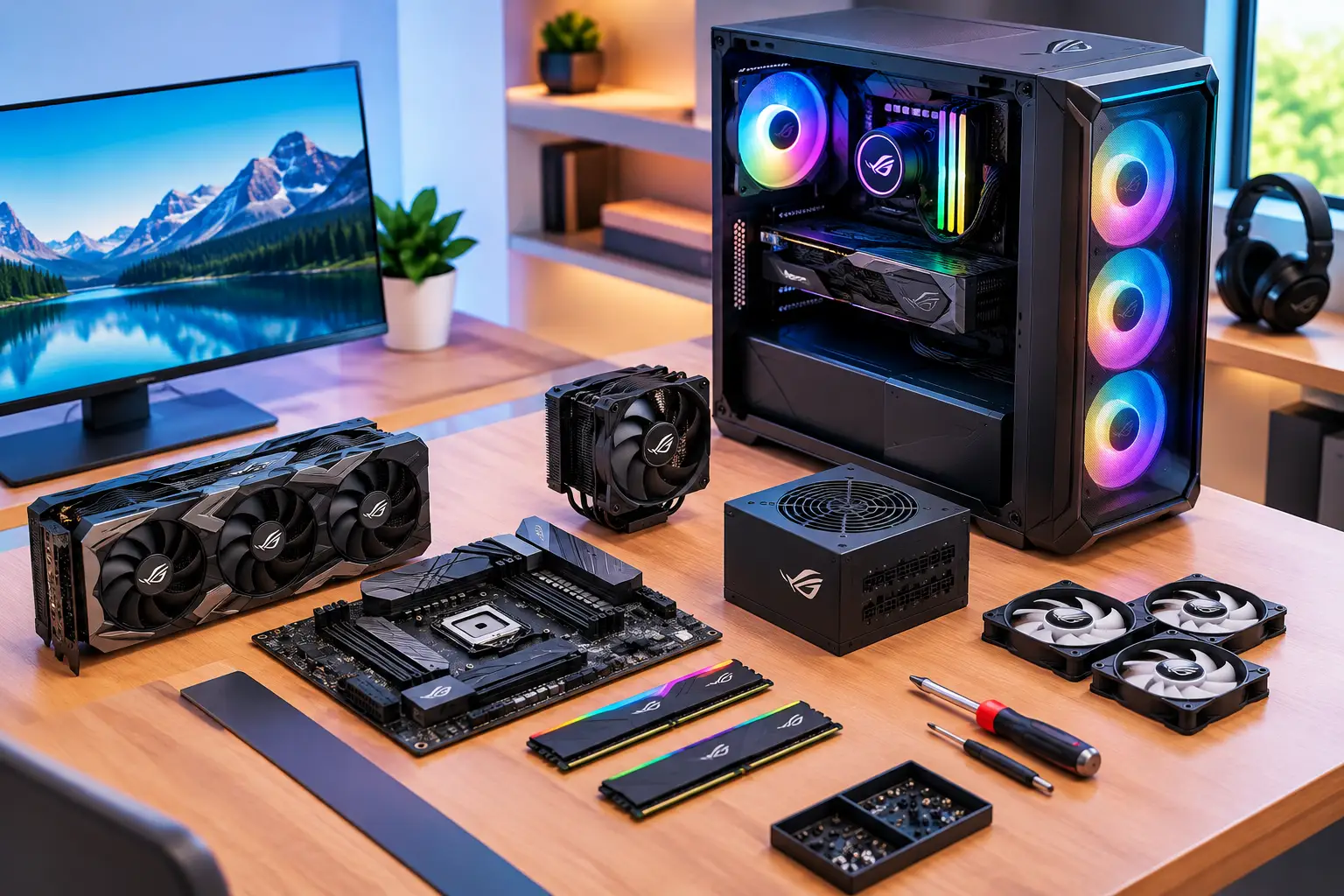
- Confirm compatibility first: CPU socket and motherboard, RAM type, case clearance, power supply connectors.
- Install the CPU, RAM and any M.2 storage on the motherboard before it goes into the case.
- Mount the motherboard, power supply and cooling in the case.
- Install the GPU, then connect power and front-panel cables.
- Check the cabling, boot into BIOS/UEFI and confirm every part is detected.
- Install Windows, drivers and updates, then stress-test temperatures before relying on the machine.
Build for Ownership or Use a Cloud PC?
Buying a physical PC makes sense when you need consistent local performance, work without dependable internet, use specialized peripherals, or run demanding tasks many hours every week. Ownership suits people with a stable workload and a long-term plan for the machine.
The trade-off is upfront cost. A strong gaming PC or workstation can require a large purchase before it runs a single game, build, render or model. You also handle setup, Windows maintenance, heat, noise, hardware failures, storage expansion and the eventual upgrade decision.
A cloud PC changes that calculation. Instead of purchasing a high-performance machine, you access one when the workload calls for it. That suits students on short-term projects, developers who need a stronger Windows environment, Mac users who need Windows applications, creators with occasional heavy renders, and gamers who don't want to buy a full desktop.
SensePC provides cloud-based Windows 11 PCs with dedicated NVIDIA L4 GPU configurations, persistent SSD storage and tiered CPU and RAM options. You can reach the same persistent desktop from a supported desktop, laptop, Mac or browser, instead of moving files between local machines. See the rent vs. buy breakdown.
This is not a claim that cloud access is better for everyone. If you use high-end performance every day for long periods, already own a strong machine, or have unstable internet, a physical PC may be the better fit. If your demand comes in bursts, hourly-first access can reduce the cost of hardware that would otherwise sit idle.
A Practical Decision Framework
| Factor | Favors building or owning | Favors a cloud PC |
|---|---|---|
| Usage frequency | Daily, long-duration workloads | Occasional, bursty high-performance needs |
| Upfront budget | You can fund the hardware now | You prefer to spread cost over actual use |
| Portability | One fixed location | Reach the same desktop from different supported computers |
| Maintenance tolerance | You want direct control and accept the upkeep | You want less hardware burden, while still managing apps and files |
There is also a middle option: keep a capable laptop or desktop for daily tasks, then use cloud GPU and workstation power for heavier projects. This hybrid approach works when you need mobility most of the time and serious performance only at specific moments.
Avoid These Common PC Planning Mistakes
- Buying on a single benchmark. Benchmarks are useful, but they don't show how your full workflow behaves with your files, applications, browser tabs and background tasks.
- Treating every future need as certain. Leave room to grow, but buying far beyond current needs wastes budget. If your AI project lasts two months or your video work is occasional, on-demand compute may beat a permanent purchase.
- Ignoring the environment around the PC. A powerful system needs a suitable monitor, stable networking, desk space and reasonable cooling. For cloud PC use, stable internet and a nearby service location can matter as much as the specs of the device in front of you.
Choose Performance You Can Actually Use
The best computer setup is not defined by the longest specification sheet. It is defined by whether it gives you enough power at the moment you need it, without forcing you to pay for capacity you rarely touch.
Build locally when ownership, offline access and steady demand support it. Use a cloud PC when flexibility, fast setup, persistent access and cost control matter more. The smarter choice is the one that lets you spend less time managing hardware and more time gaming, creating, coding or getting the work done.
What should I consider when choosing a desktop computer for professional use?
Start with your actual workload, then reliability, upgradeability and support, rather than buying the machine with the highest specifications. Identify the applications you run, the task that feels slow, and how many hours a week you need high performance. If that demand is occasional, a cloud PC can be an alternative to buying a workstation.
What are the essential specifications for a good budget gaming PC?
Balance matters more than any single part: a capable CPU, enough RAM for multitasking, a good-value GPU matched to your target resolution, an SSD, and a quality power supply. Spend where your games actually benefit, and check current prices, since they change often.
Can you recommend the best budget PC components for work and gaming?
Prioritize a balanced build: a midrange CPU with enough cores, 16 GB of RAM at minimum (32 GB for heavier multitasking), a good-value GPU, a fast SSD with enough capacity, and a reliable power supply. Check current reviews and prices at the time of purchase.
What should I consider when building a custom gaming PC for the first time?
Compatibility and balance matter more than buying the most powerful parts you can afford. Verify CPU socket and motherboard fit, RAM type, GPU length against the case, cooler height and power supply connectors before buying. See the assembly checklist above.
How can I optimize my PC setup for streaming and gaming?
Balance gaming frame rate, stream quality, thermals and noise instead of maxing one part. Streaming adds CPU and GPU encoding load, so leave headroom, keep background apps closed, and make sure your network can handle both play and upload.
How do system requirements differ between Windows 11 and earlier versions?
Windows 11 raises the hardware-security bar rather than simply demanding a faster PC. It requires a supported 64-bit processor, TPM 2.0, UEFI firmware with Secure Boot, at least 4 GB of RAM and 64 GB of storage, which older Windows 7/8-era systems typically don't meet. Confirm the current list on Microsoft's requirements page. A cloud Windows 11 PC such as SensePC avoids the compatibility check on your own hardware.
Are there AI tools that can help me design a gaming PC?
Yes, several tools turn a budget, games, resolution and upgrade plans into a parts list. Treat the result as a starting point, and verify compatibility, current prices and your own workload before buying.
Is it better to build a PC or use a cloud PC?
Build when you need consistent local performance, offline access, specialized peripherals or daily heavy use. Use a cloud PC when your performance needs come in bursts, you want to work from a Mac or lightweight laptop, or you don't want to buy a full desktop. A hybrid of both also works.