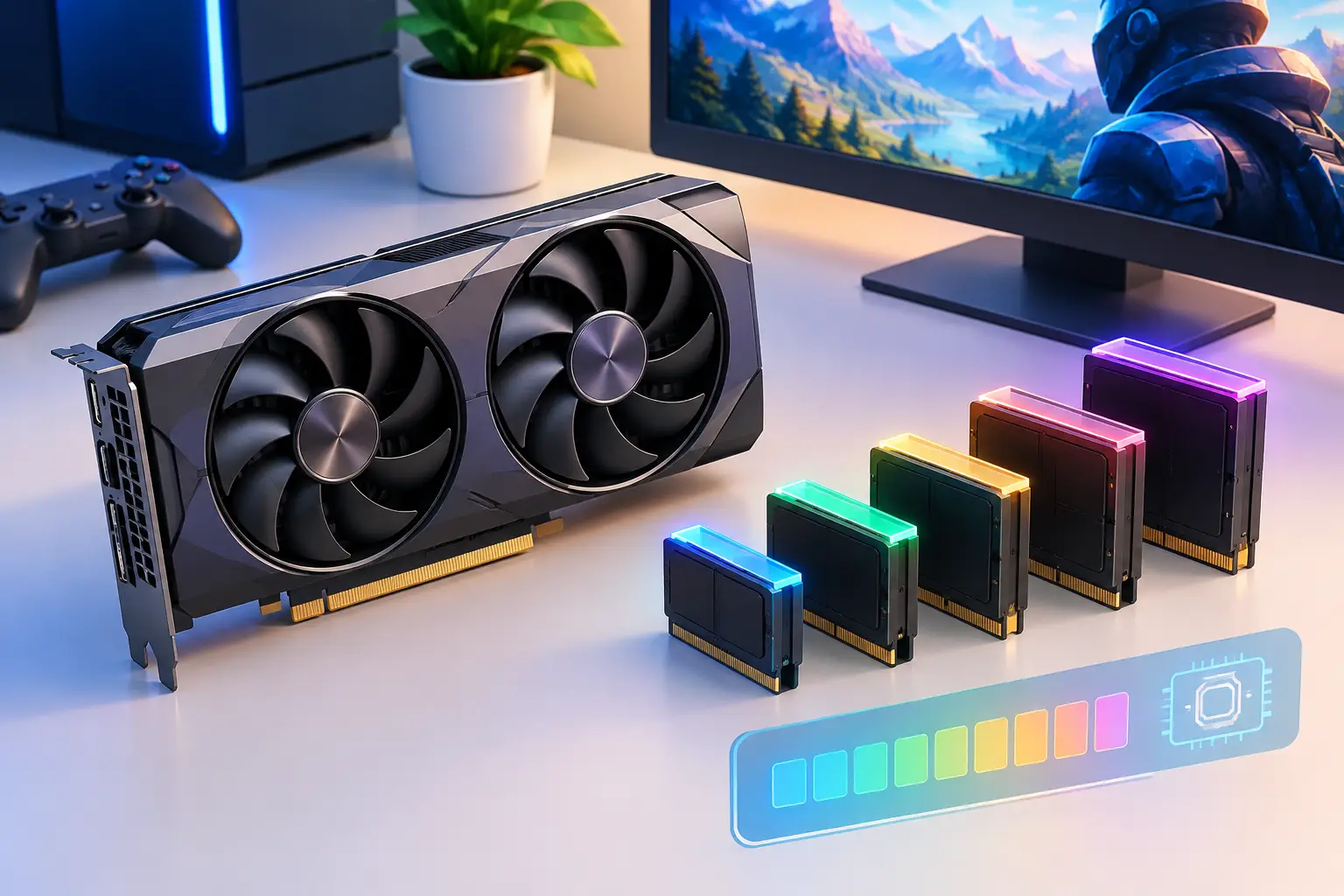
Short answer: VRAM is the dedicated memory on a graphics card. As a rule of thumb, 8 GB suits 1080p gaming and light creative work, 12 GB suits 1440p gaming and 4K video editing, and 16 GB or more suits 4K gaming, heavy 3D rendering and larger AI work, with 24 GB-class cards for bigger AI models. These are starting points, not guarantees. The right amount depends on your games' settings, your project sizes and your software, and more VRAM does not make a GPU faster by itself.
A GPU can have a fast processor and still run out of room. That room is VRAM, the high-speed memory a graphics card uses to hold textures, frames, models and other visual or compute data while you work. GPU VRAM requirements matter because when an application runs short on it, performance can drop sharply, settings may need to come down, or the workload may not run at all.
The right amount is not one number for everyone. A gamer playing at 1080p has different needs than a creator editing 4K footage. An AI developer loading a local model has a different limit again. Buying too little can create a bottleneck you cannot fix with a CPU upgrade. Buying far more than you use can waste money that would be better spent on faster compute, more system RAM or flexible cloud access.
How Much VRAM Do You Need? Quick Answer
Rules of thumb. Actual needs vary with settings, project size and software.
| Workload | Practical starting point | More comfortable |
|---|---|---|
| Browsing, coding, light games | Integrated graphics or 4-6 GB | 8 GB |
| 1080p gaming | 8 GB | 12 GB |
| 1440p gaming | 10-12 GB | 16 GB |
| 4K gaming | 12 GB | 16 GB or more |
| 1080p video editing | 6-8 GB | 12 GB |
| 4K video, motion graphics | 12 GB | 16 GB |
| 3D rendering, GPU rendering | 12-16 GB | 16 GB or more, scene-dependent |
| AI: learning, small models, basic image generation | 8-12 GB | 16-24 GB |
| AI: larger models, higher resolution, fine-tuning | 24 GB or more | Depends on model and precision |
What VRAM Does and Why It Runs Out
VRAM is memory attached directly to the GPU. It stores the data the GPU needs immediately, including game textures, geometry, render buffers, video frames, 3D scenes and AI model weights.
When a workload fits comfortably in VRAM, the GPU can work efficiently. When it does not, an application may move data between VRAM and system memory or storage. That transfer is much slower. In a game, that can look like stuttering, texture pop-in or sudden frame-time spikes. In creative or AI software, it can mean slower previews, reduced batch sizes, errors or failed model loading.
VRAM capacity is only one part of GPU performance. A card with more memory is not automatically faster. GPU architecture, compute power, memory bandwidth, drivers, CPU performance and the software itself all matter. Still, capacity sets a hard ceiling. If the job needs more memory than the GPU has available, raw GPU speed cannot solve the problem.
VRAM vs RAM vs GPU: What Is the Difference?
People often mix these up.
| Term | What it is |
|---|---|
| GPU | The graphics processor itself, the chip that does the graphics and parallel computing work |
| VRAM | Fast memory attached to the GPU, used only for the GPU's data |
| RAM (system memory) | Main memory used by the CPU and the operating system |
So VRAM and the GPU are not the same thing. VRAM is the GPU's own memory, and it is separate from system RAM. When VRAM is full, plenty of system RAM can make the situation less severe, but it does not turn system RAM into fast GPU memory.
Integrated graphics and Macs: many laptops with integrated graphics use shared system memory instead of a separate VRAM chip. Apple silicon Macs use unified memory shared by the CPU and GPU, so there is no separate VRAM number to compare against a PC graphics card.
GPU VRAM Requirements by Workload
Start with the application and the settings you actually plan to use. Resolution, texture quality, ray tracing, project size, model size and batch size can all change VRAM use significantly.
Gaming
For many current games at 1080p, 8 GB of VRAM remains a practical baseline. It can handle a wide range of games with sensible settings, although the newest titles can push beyond it when high-resolution texture packs, ray tracing or ultra presets are enabled.
At 1440p, 10 GB to 12 GB provides more breathing room. This is often the more comfortable range for players who want high textures and want their GPU to stay useful for longer. At 4K, 12 GB can work in many cases, but 16 GB or more is a safer target for demanding games, detailed textures and advanced lighting settings.
Resolution is not the only factor. A game at 1080p with ultra textures and heavy ray tracing may use more VRAM than a lighter title at 1440p. Upscaling can reduce rendering load, but it does not always reduce every part of memory use. Check texture quality, shadow quality, ray tracing and texture streaming first when VRAM is tight.
Video Editing, Motion Graphics and 3D
For basic 1080p editing, a GPU with 6 GB to 8 GB can be enough for many projects. The demand rises quickly with 4K timelines, high-bitrate media, color grading, effects, multicamera edits and GPU-accelerated exports. In that range, 12 GB is a more practical starting point for users who want fewer compromises.
3D work can be less predictable. A simple viewport may feel fine on modest VRAM, while a detailed scene with high-resolution textures, complex geometry, simulations or GPU rendering can consume far more. For regular 3D rendering and serious 4K creative work, 16 GB or more gives useful headroom. The exact requirement depends on the scene and rendering engine, not just the software name.
If your projects have grown beyond your laptop's GPU, you do not always need to replace the laptop. A cloud workstation can give you access to a dedicated GPU for intensive edit, render or design sessions while your local device remains your everyday machine. See how to edit video remotely without a workstation and cloud-based 3D CAD software.
AI Development and Local Models
AI workloads are where VRAM limits become especially visible. Model weights, context length, precision format, image size, batch size and supporting processes all compete for GPU memory. A small experiment might run comfortably on 8 GB. The same workflow can need 16 GB, 24 GB or more after increasing image resolution, batch size, model size or context length.
A rough way to estimate the weights alone: multiply the number of parameters by the bytes per parameter. At 16-bit precision that is about 2 bytes per parameter, so a 7-billion-parameter model needs roughly 14 GB for weights before you add context memory and overhead. Lower-precision (quantized) formats use less. Training and fine-tuning need substantially more than inference. For a deeper guide, see which GPU to choose for AI training.
For learning CUDA, PyTorch, basic inference and smaller image-generation workflows, 8 GB to 12 GB may be enough to get started. For more room to test larger models or run more capable image workflows, 16 GB to 24 GB is a stronger range. Quantization, reduced precision, smaller batches, offloading and optimized attention methods can lower memory demand, but they bring trade-offs in speed, output quality or setup complexity. If you need a workflow to run reliably rather than merely fit, leave headroom instead of targeting the absolute minimum.
How to Check Your VRAM
| Where | How |
|---|---|
| Windows (Task Manager) | Press Ctrl + Shift + Esc, open the Performance tab, select your GPU, and read "Dedicated GPU memory" (and "Shared GPU memory" for integrated graphics). This also shows live usage. |
| Windows (DirectX Diagnostic Tool) | Press Win + R, type dxdiag, open the Display tab and read the display memory. |
| NVIDIA GPUs (any OS) | Run nvidia-smi in a terminal to see memory used and total. |
| Mac | Apple menu, About This Mac. Apple silicon shows total unified memory, not a separate VRAM figure. |
Monitor real usage rather than guessing. Watch it during the scenes, exports, games or model runs that represent your normal work.
Can You Upgrade or Increase VRAM?
On a desktop graphics card, no. VRAM is soldered onto the card, so the only way to get more is to replace the GPU.
On a laptop, also no, for a dedicated GPU. Laptop VRAM is part of the graphics chip's board and cannot be upgraded. An external GPU enclosure is a different (and costly) route.
With integrated graphics, some systems let you change how much system memory is reserved for graphics in the BIOS or UEFI. This changes the allocation, not the speed. It can help a program that checks for a minimum number, but it does not turn integrated graphics into a high-end GPU. Adding more system RAM is often the practical step.
If you hit the limit repeatedly, your options are to lower memory-heavy settings, upgrade the GPU, or use a GPU with more VRAM on demand.
RTX 3080 VRAM: 10 GB, 12 GB and the "16 GB" Question
| Model | VRAM | Memory type | Bus width |
|---|---|---|---|
| RTX 3080 (desktop, original) | 10 GB | GDDR6X | 320-bit |
| RTX 3080 12 GB (desktop, announced January 2022) | 12 GB | GDDR6X | 384-bit |
| RTX 3080 Laptop GPU | 8 GB or 16 GB | GDDR6 | 256-bit |
Is there a 16 GB RTX 3080? Not as a standard desktop card. The 16 GB version is a laptop GPU. If a listing shows a "3080 16GB" for a desktop, check the model number carefully.
For gaming, 10 GB is workable at 1440p and many 4K cases, but it is on the lower side for the newest texture-heavy games, which is why the 12 GB version and cards with 16 GB or more are often considered more future-proof. Check recent benchmark reviews for the games you play.
Test and Troubleshoot Video Memory
Most people never need to test VRAM. Check it if you see visual artifacts (flickering or strange colors), crashes under load, or errors after overclocking.
- Stability and error tests: tools such as OCCT and memtest_vulkan are commonly used to check video memory for errors. Download them only from their official sites, since fake monitoring apps are a known malware risk.
- Usage monitoring: use Task Manager,
nvidia-smior the application's own memory display. - Common problems: running out of VRAM (stutter or out-of-memory crashes), artifacts from failing memory, high memory temperatures, and background apps (browsers, overlays) using VRAM.
If a game or AI tool runs out of VRAM, lower texture quality, ray tracing, resolution, batch size or context length, and close other GPU-using apps.
How Much VRAM Should You Choose?
Match VRAM to your highest-value task, not your easiest one. If you mainly browse, code and occasionally play lighter games, 8 GB may be perfectly reasonable. If you regularly play recent AAA games at 1440p, edit 4K projects or use GPU-accelerated creative tools, 12 GB to 16 GB is a more balanced target.
Choose 16 GB or more when your work depends on larger 3D scenes, GPU rendering, heavier AI experimentation or high-resolution gaming settings. Choose 24 GB-class access when your AI models, image workflows or professional scenes clearly need it. More VRAM gives flexibility, but it should serve a real workload rather than a spec-sheet goal.
Do not ignore system RAM and storage. Demanding creative and development work needs both, and large projects, games, models and caches benefit from fast SSD performance. See what an optimal PC build needs.
Buying Hardware vs. Using GPU Power on Demand
Owning a powerful GPU makes sense when you use it heavily and consistently. A desktop workstation gives you local control, no dependence on internet quality and immediate access. It can be the right long-term investment for users who render, train, develop or play demanding games every day.
The trade-off is upfront cost. A high-VRAM GPU often means a more expensive PC build, along with power use, heat, noise, maintenance and a future upgrade decision. Laptop users face tighter limits because mobile GPUs often offer less VRAM and less sustained performance than desktop hardware, and laptop VRAM cannot be upgraded.
On-demand cloud GPU access is useful when demand is uneven. You may need serious VRAM for a weekend project, a class assignment, a game launch, a client render or a short AI test cycle, then need little or none the next week. SensePC offers a persistent Windows 11 desktop with dedicated NVIDIA L4 GPU configurations. The L4 is a 24 GB data-center GPU built for efficiency, so it gives a lot of VRAM per card but is not a top-end gaming card. Confirm the GPU on the plan you choose, and see hourly vs monthly access.
This option still depends on a stable internet connection, your location relative to available infrastructure and the responsiveness your workload requires. It is not a universal replacement for a local PC. It is a practical way to avoid buying premium hardware before you know how often you will use it.
Check VRAM Use Before You Hit a Limit
If usage repeatedly reaches the card's limit, lower the settings that consume memory first. For gaming, start with texture quality and ray tracing. For video and 3D, simplify preview settings, proxy media, texture sizes or scene complexity where appropriate. For AI, reduce batch size, image resolution or context length, or use a smaller or quantized model.
If those compromises hurt the result or slow down your work, that is your signal to move up. The best VRAM choice is not the biggest number. It is enough capacity to run your real workload comfortably, with room for the next project rather than just the current one.
SensePC at a Glance
| What it is | A Windows 11 cloud PC you access from a Mac, laptop, desktop or supported browser |
| GPU | Dedicated NVIDIA L4 configurations (24 GB data-center GPU, not a top-end gaming card) |
| Storage | Persistent SSD storage |
| Billing | Hourly, daily and monthly |
| Remote access | Performance Mode powered by NICE DCV |
| You provide | Your own software, game licenses and a stable internet connection |
| Not ideal for | Offline work, or daily heavy use where owning hardware costs less |
How much VRAM do I need?
As a rule of thumb: 8 GB for 1080p gaming and light creative work, 12 GB for 1440p gaming and 4K video editing, 16 GB or more for 4K gaming, heavy 3D rendering and larger AI work, and 24 GB-class cards for bigger AI models. Needs vary with settings and software.
Is 8 GB of VRAM enough?
For 1080p gaming and everyday work, usually yes, with sensible settings. The newest games can exceed 8 GB with ultra textures or ray tracing, and 4K video, 3D and larger AI models often need more.
Is 16 GB of VRAM enough?
For most 1440p and entry 4K gaming, creative work and small to medium local AI models, yes. Very large scenes, bigger AI models and fine-tuning can need more.
Are VRAM and GPU the same thing?
No. The GPU is the graphics processor chip. VRAM is the fast memory attached to it for the GPU's data.
What is the difference between VRAM and RAM?
VRAM is dedicated to the GPU. System RAM is used by the CPU and operating system. Plenty of RAM does not replace VRAM, because system memory is much slower for GPU work.
How do I check how much VRAM I have?
On Windows, open Task Manager (Ctrl + Shift + Esc), go to Performance and select your GPU to see dedicated GPU memory, or run dxdiag and open the Display tab. On NVIDIA GPUs, run nvidia-smi. On Apple silicon Macs, About This Mac shows unified memory.
Can you upgrade VRAM on a laptop?
No. A laptop's dedicated VRAM is part of the graphics hardware and cannot be upgraded. On some integrated-graphics systems you can adjust how much system memory is allocated to graphics in the BIOS, but that does not add real GPU memory.
How can I increase VRAM?
You cannot add VRAM to a desktop or laptop discrete GPU, so the options are replacing the GPU, lowering memory-heavy settings, or using a GPU with more VRAM on demand. With integrated graphics, adding system RAM and adjusting the graphics allocation can help.
How much VRAM does an RTX 3080 have?
The original desktop RTX 3080 has 10 GB of GDDR6X. A later 12 GB version was announced in January 2022. The RTX 3080 Laptop GPU comes in 8 GB or 16 GB versions.
Is there a 16 GB RTX 3080?
Not as a standard desktop card. The 16 GB RTX 3080 is a laptop GPU.
How do I test my VRAM for errors?
Tools such as OCCT and memtest_vulkan are commonly used for video-memory stability tests. Download them only from the official sites, and test if you see artifacts, crashes or errors after overclocking.