Short answer: A cloud workstation fits engineering work well when your need for heavy compute is occasional or project-based — a capstone project, a design review cycle, a Mac user needing Windows-only CAD tools, or a contractor with a time-sensitive job. It's not automatically the right move for every workflow: software licensing terms, model size, connection stability, and required peripherals all need checking first, and daily heavy users with strict data-handling requirements are often still better served by a local workstation.
Engineering projects don't pause because a laptop runs out of RAM, a GPU can't handle a large model, or a workstation is stuck in the office. A cloud workstation for engineering software gives you another option: access a high-performance Windows desktop from the device you already have, then keep your project files and setup available for the next session.
Why Engineering Workloads Outgrow Local Computers
Engineering software can be demanding in several different ways. A 3D CAD assembly may need strong single-core CPU performance to stay responsive while editing parts and constraints. Finite element analysis, computational fluid dynamics, and rendering can need far more CPU cores, memory, or GPU capacity. Point clouds, BIM models, visualizations, and large drawings put pressure on storage and graphics memory too.
The problem is rarely just opening an application — it's working comfortably once a project becomes large. Rotating an assembly, rebuilding a model, exporting a drawing set, running a simulation, or rendering a design can turn a decent laptop into the bottleneck.
Buying a workstation solves that for some users but creates a different set of commitments: pay upfront, choose specifications before knowing every future project, maintain the system, and eventually face another upgrade. For an engineer running heavy workloads every day, that can still be the sensible choice. For someone with changing needs, it may be more machine and more expense than necessary.
What a Cloud Workstation Changes
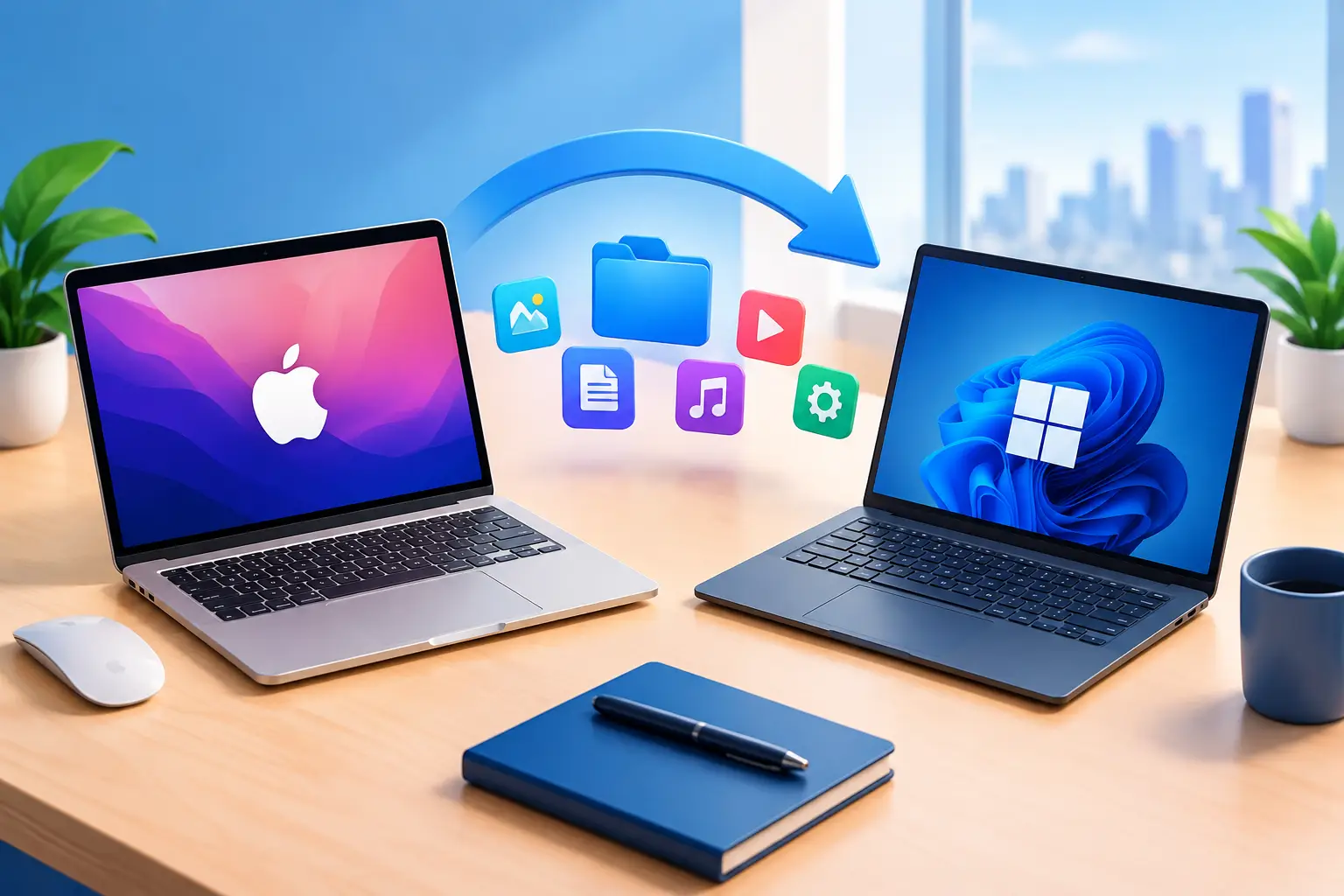
A cloud workstation moves the high-performance Windows environment away from your desk. Your laptop, desktop, or Mac becomes the access device, while CPU, RAM, GPU, and persistent SSD storage sit in the cloud.
The immediate benefit is flexibility: a student can use a powerful Windows environment for a capstone project without buying a workstation that sits unused after graduation; a remote engineer can continue work from a home office or while traveling without copying large project folders between machines; a design contractor can create a machine for a time-sensitive job, then avoid keeping expensive hardware idle between projects.
With a platform like SensePC, the goal is straightforward: create a Windows 11 cloud PC, connect from a supported device or browser, and use a persistent desktop rather than building and managing a server. Reinstalling specialized applications, reconfiguring toolchains, and moving project data every time you need more performance wastes time — persistent storage makes a cloud workstation feel more like a personal machine, not a temporary remote session.
What to Check Before You Commit
Don't choose a cloud workstation based on the word "GPU" alone. Engineering applications use hardware differently, and the best configuration depends on the work you actually do.
| Task type | What matters most |
|---|---|
| Parametric CAD, everyday modeling | Responsive CPU performance and enough RAM more than raw GPU cores |
| Large assemblies, complex drawings, multiple apps open | Memory is critical — running out forces swapping to storage, slowing the whole session |
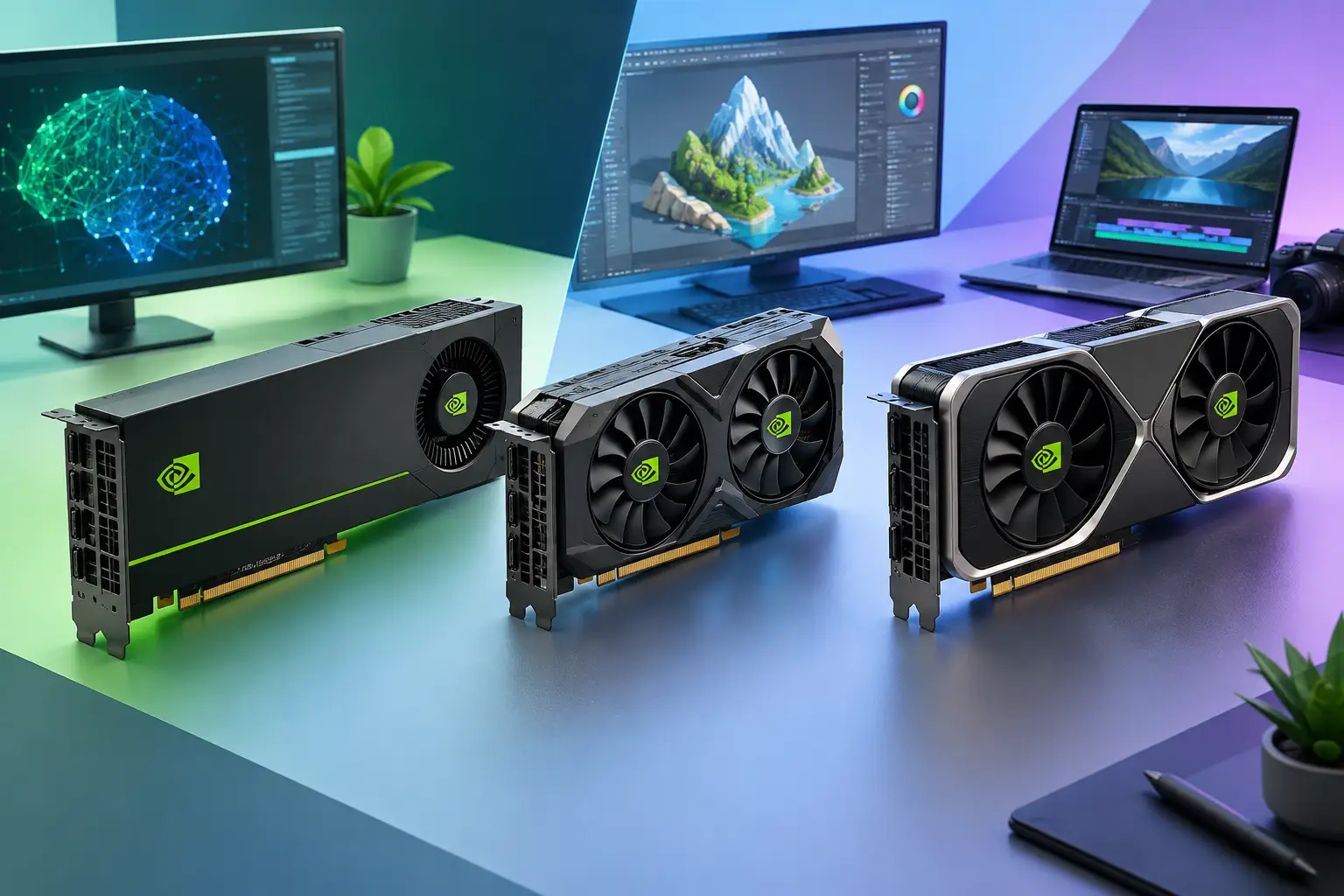
| Real-time visualization, GPU-accelerated rendering, 3D design, point clouds | GPU capacity matters directly |
| AI-assisted engineering workflows | May require CUDA-capable GPU resources depending on the tools (see GPU/VRAM guidance) |
| Simulation (FEA, CFD) | Varies by solver — some rely on CPU cores and system memory, others use GPU acceleration; check your specific solver's requirements |
Don't assume one high-end configuration is best for everything — check the requirements and recommended hardware guidance for your specific software.
Software Licensing and Certification Need Attention
Many engineering applications have specific licensing rules for remote use, named users, license servers, virtual machines, or GPU configurations. Some vendors also publish certified graphics hardware lists. A cloud workstation may work well for your use case, but verify these policies before moving a production workflow.
This matters especially for regulated projects, company-managed licenses, and teams using specialized plugins. Ask your software administrator:
- Can the license be activated remotely?
- Is a license server reachable from a cloud environment?
- Can project data be stored in the intended environment, per your organization's data handling rules?
Licensing terms vary significantly by vendor and change over time — this is worth confirming directly with your software provider or IT administrator rather than assuming compatibility.
Your Connection Affects the Experience
A cloud workstation sends the desktop image to your local device and receives your keyboard and mouse input, so internet quality matters directly. A stable wired connection is usually preferable for detailed modeling, remote visualization, and long sessions — strong Wi-Fi can work well, but crowded networks, packet loss, and distance from the router can affect responsiveness.
Location also matters: the farther you are from the hosted workstation, the more noticeable delay may become. Test your actual workflow early, especially if your work depends on precise sketching, fast viewport movement, or high-resolution visual output. Performance Mode powered by NICE DCV is designed for responsive remote desktop use, but no remote setup removes the physics of an unstable connection — if your internet is unreliable, a local workstation remains the safer primary tool for deadline-critical work.
Screens, Storage, and Peripherals Are Part of the Setup
Engineers often work with more than raw compute power — multiple monitors, a 3D mouse, pen input, USB license keys, specialized controllers, and calibrated displays can all shape the decision. Confirm that your required peripherals and display workflow are supported by the remote access method you plan to use before committing.
Also consider where data lives. Persistent SSD storage keeps active files, applications, and settings in place, but large source datasets, scan files, renders, and backups need a storage plan — estimate project sizes, upload time, download time, version control needs, and your organization's retention policies.
When Cloud Access Is the Smarter Spend
A cloud workstation is often strongest when demand changes over time: advanced simulation resources needed only during a design review cycle, a lightweight laptop that's fine for email but weak for CAD, Windows-only tools needed while working from a Mac, or a separate persistent environment that doesn't compete with your personal machine.
Usage-based access simplifies cost control in these situations — instead of paying for a premium desktop, extended warranty, upgrades, electricity, and repairs, you pay for computing power when the work calls for it. It also reduces friction for distributed work: rather than transporting a workstation or syncing large folders between several computers, you connect to the same desktop from different supported devices. See other situations where cloud access pays off for more examples.
When Buying a Physical Workstation Still Makes Sense
Owning hardware remains a strong choice for people using demanding engineering applications for most of every workday. If you have reliable local infrastructure, need extremely low input delay, work offline, or rely on devices difficult to use remotely, a physical workstation may provide the most predictable experience — and it can be more economical over time if utilization is consistently high.
A local machine is also simpler when your company requires all work to stay on a specific internal network or has strict data handling rules that don't permit a cloud-based desktop. Cloud access should support your security process, not bypass it. The general cloud vs. physical PC trade-off covers this comparison in more depth.
The practical answer is often a mix: keep a capable local computer for everyday tasks and offline work, then use a cloud workstation for engineering software when a larger model, GPU task, Windows-only application, or deadline needs extra power.
A Practical Way to Test the Fit
- Start with one real project, not a synthetic benchmark. Install the tools you use and open a representative assembly or dataset.
- Perform the actions that usually slow you down — rotate models, rebuild features, run a small solver job, export drawings, and use your normal displays and peripherals.
- Evaluate the whole experience, not just raw speed — check connection stability, file transfer time, licensing, application behavior, visual quality, and the cost for the hours you expect to use each month.
If the setup removes a real bottleneck without creating new workflow problems, it's doing its job. The best workstation isn't always the one under your desk — it's the one that gives your project the performance it needs, when you need it, without forcing you into the wrong hardware commitment.
Can I run CAD software on a cloud workstation?
Often yes for performance, but licensing is the part to check first — many CAD applications have specific rules for remote use, named users, or license servers. Confirm with your software vendor or license administrator before moving production work to a cloud environment.
Do I need a dedicated GPU for engineering software?
It depends on the task. Parametric CAD and everyday modeling often need CPU performance and RAM more than GPU power. Real-time visualization, GPU-accelerated rendering, 3D design, and point-cloud work benefit directly from a dedicated GPU.
Is a cloud workstation good for finite element analysis or simulation?
It can be, but requirements vary significantly by solver — some rely heavily on CPU cores and system memory, others use GPU acceleration. Check your specific solver's requirements rather than assuming one configuration fits every simulation tool.
Will my engineering license work on a cloud PC?
It depends entirely on your software vendor's licensing terms for remote use, virtual machines, and license servers. This varies by vendor and can change, so confirm directly with your software administrator before relying on a cloud workstation for licensed engineering tools.
Is a cloud workstation suitable for regulated or company-controlled engineering data?
Only if it aligns with your organization's specific data handling and network requirements. Some companies require all work to stay on an internal network, which a cloud desktop may not satisfy — check with your organization's IT and security policies before moving regulated project data.