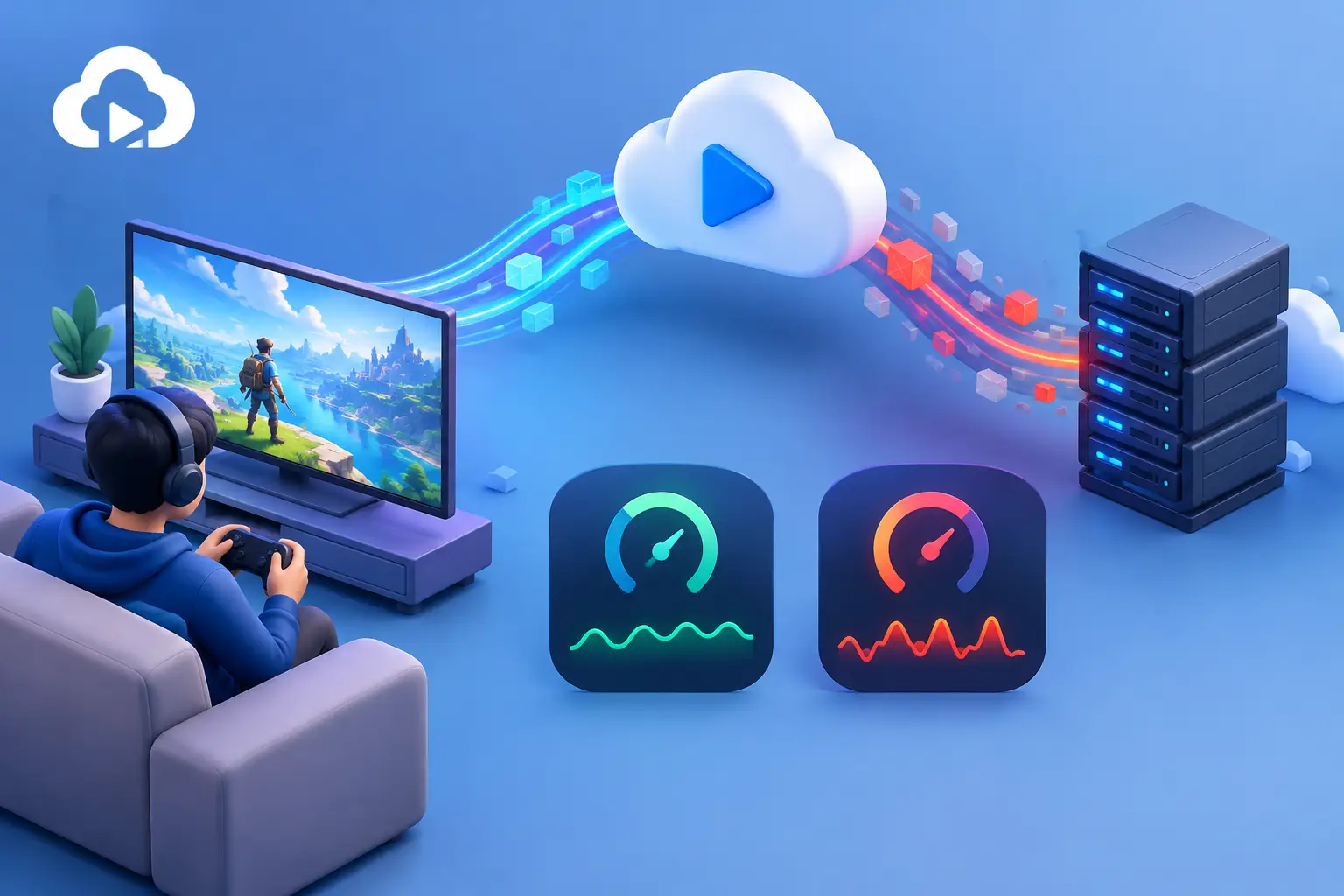
Ping is the round-trip delay between your device and a cloud PC, measured in milliseconds. Packet loss is the share of data that never arrives or arrives too late to use. In a cloud streaming session, high but steady ping makes controls feel consistently behind, while packet loss causes frozen frames, blocky video, audio pops and erratic input. Network routing, meaning the path your data takes from your device through your internet provider to the cloud region, affects both. A fast speed test does not rule out either problem, because it measures capacity, not reliability.
This guide explains the difference between ping, packet loss and jitter, how routing shapes each of them, what Amazon DCV does when the network degrades, how to diagnose the problem step by step, and which fixes help most.
Ping, packet loss and jitter compared
Measure | What it is | What you notice in a session | Typical first fix |
|---|---|---|---|
Ping (latency) | Round-trip time for a small packet to reach the cloud PC and return, in milliseconds | Mouse and keyboard feel steadily behind your hand; the picture stays clean | Shorter or better route; closer cloud region |
Packet loss | Percentage of packets that never arrive or arrive too late | Smeared or frozen image, crackling audio, sudden stalls that come and go | Wired Ethernet; fix the congested hop |
Jitter | Variation in latency from one packet to the next | Fine for a few seconds, then briefly unstable | Remove competing traffic; stable connection |
Bandwidth | How much data the connection can carry per second | Quality drops or low frame rate when the stream needs more than is available | Lower resolution, frame rate or quality target |
Ping is about delay. Packet loss is about missing data. A useful comparison: ping is the travel time of a delivery truck, and packet loss is the truck arriving with boxes missing. A truck that is always a little late is predictable. Missing boxes interrupt the work.
What ping means in cloud streaming
Ping is the time a small piece of data takes to travel from your device to a server and back. In a cloud PC session, every input you make travels to the remote Windows machine, the machine renders the next frame, encodes it as video, and sends it back. Network latency is one stage in that chain. Encoding on the cloud PC, decoding on your local device, low-latency cloud gaming your display’s refresh rate and the application itself add their own time.
A low ping is therefore a strong starting point, not a complete verdict on responsiveness. Ping also matters differently by task. A developer editing code or a student using a desktop application can tolerate more latency than someone playing a fast competitive game or adjusting a 3D viewport.
What packet loss means in cloud streaming
Cloud streaming sends a continuous flow of video, audio and session-control data in small packets. When packets are dropped, delayed past the point of use or have to be resent, the streaming client has less information to build the next frame. The visible results are blocky video, brief freezes, skipped frames, audio pops and sudden quality drops.
Packet loss is usually more disruptive than steady delay because it is irregular. A clean image one second and a smeared one the next is harder to adapt to than a constant lag.
Why a fast speed test can still mean a poor stream
A speed test measures available bandwidth. It does not show whether each packet arrives reliably or at an even pace. A 300 Mbps connection with intermittent loss can feel worse for streaming than a stable 50 Mbps connection. For cloud streaming, consistency matters more than peak capacity.
What jitter is and why it looks like packet loss
Jitter is variation in latency. If ping holds near 25 ms, the connection is predictable. If it jumps between 25 ms and 90 ms, the stream has to compensate for each swing. Frames that arrive too late to be displayed are effectively lost, so high jitter can look very similar to packet loss on screen.
How network routing affects stream quality
Network routing is the path your packets take from your device to the cloud PC: your home network, your internet provider, any networks between the provider and the cloud region, data center locations and finally the data center. Each hop can add delay, and any congested or faulty hop can drop packets.
Routing affects streaming in four ways:
- Path length, not just distance. Ping reflects the route the data actually takes. Two users the same distance from a data center can see different ping if one provider’s route is more direct.
- Congestion at specific hops. A link between your provider and another network can become crowded at busy hours, producing loss or jitter only in the evening even when your home network is healthy.
- Peering and exchange points. The handoff between networks is a common place for problems. A temporary issue at one exchange point can affect a session while everything else on your side looks normal.
- Local network conditions. Weak Wi-Fi, interference, a distant router and busy household traffic cause loss before your data ever leaves home. Uploads matter too: input, microphone data and session control travel upstream, so backups or large uploads on the same connection add delay and instability.
Because routing is decided by networks outside your control, the practical approach is to measure where the problem sits and then choose the fix that matches.
How Amazon DCV responds to network conditions
Amazon DCV is a remote display protocol used to stream a desktop from a remote machine to a client. Its documentation describes two behaviors that matter for loss and ping:
Adaptive streaming. Amazon DCV uses an adaptive protocol that automatically optimizes the streaming mode depending on network capabilities. The user can still choose a preference in the client: Best responsiveness reduces image quality to improve frame rate and response times, while Best quality favors image quality and may lengthen response times. On a network with intermittent loss, Best responsiveness is often the more usable setting; on a stable network, Best quality shows the full image.
Transport protocol. By default, the Amazon DCV client uses QUIC, which is based on UDP, for data transport when it is available. If it is not available, the client falls back to WebSocket, which is based on TCP. According to the documentation, QUIC is available only if the server is configured to support it and the network allows UDP traffic between the client and the server, and it is supported only for direct connections with no intermediate proxy, gateway or load balancer. By default Amazon DCV listens on TCP port 8443, and on UDP port 8443 when QUIC is enabled.
This matters for troubleshooting. A network that blocks or restricts UDP, such as some corporate, school or hotel networks, can push a session onto the TCP-based path. TCP guarantees ordered delivery, so a lost packet is resent and later data waits for it. In practice, loss on a TCP path tends to show up as stalls and added delay rather than missing pieces of the picture. Behavior on any given network varies, so treat this as a reason to test, not as a fixed rule.
How to see which protocol a session is using. In the native client, the Streaming Mode dialog shows the protocol in use, and “QUIC” appears in the title bar when QUIC is active. If a session on a restricted network feels worse than the same session on a home connection, check which protocol is active.
What the client shows. The Amazon DCV client can display streaming metrics for the current connection. The documented metrics for the web client are frame rate, network latency and bandwidth usage. Packet loss is not among the listed metrics, so measure it separately with the tools below.
How to diagnose packet loss, ping and jitter
Start with the pattern, then narrow down the location.
- Observe the pattern. Constant delay throughout the session points to ping. A clean stream that breaks apart at random points to packet loss or jitter. Problems only in the evening point to congestion on your local network or your provider.
- Turn on streaming metrics. Watch frame rate, network latency and bandwidth over several minutes, not a single moment. A single ping result does not describe a session; the trend does.
- Compare wired and wireless. Connect directly to the router with Ethernet for one session. If stability improves, the problem is on the Wi-Fi side: placement, band selection or router load.
- Remove competing traffic for a short test. Pause large downloads, uploads, game updates and video streams on the same network. This isolates whether the connection has enough headroom while the stream is active.
- Measure the path. Run a sustained ping to the cloud PC’s address, for example
ping -n 100 <address>on Windows, and note the percentage of lost replies and the spread between fastest and slowest times. Runtracert <address>to list the hops, orpathping <address>on Windows andmtr <address>on macOS or Linux to see loss and delay at each hop. Loss that begins at one hop and continues on every hop after it points to a problem at or near that hop. Loss that appears at one hop only is often a router limiting replies to test traffic and may not affect real streaming. - Try another network. Repeat the test from a mobile hotspot or a different location. If the problem follows you, look at the device or the cloud route. If it disappears, the original local network or provider path is the cause.
- Rule out local decoding. An older laptop, an overloaded browser or a high-resolution external display can struggle to decode the incoming stream and cause stutter on a clean connection. Check local CPU use and test another client.
There is no single loss percentage that applies to every case. The ideal is zero, and any sustained loss during an interactive session is worth investigating.
Fixes that make the biggest difference
Use wired Ethernet. A direct wired connection removes many Wi-Fi variables and is the cleanest baseline for gaming and real-time creative work. If Ethernet is not practical, use a strong 5 GHz or 6 GHz connection, stay close to the router and avoid crowded channels.
Choose stability over maximum quality. A lower resolution, frame rate or quality target can give a better session if it reduces dropped frames. Switch the streaming preference to Best responsiveness when the network is inconsistent.
Reduce upstream traffic. Pause backups, cloud sync and large uploads while streaming.
Allow UDP where possible. If you control the network and the session is falling back to TCP, ask your network administrator whether UDP traffic to the cloud PC’s address is allowed. Where QUIC is available, the client uses it by default.
Report routing problems to your provider with data. If tests show loss or high delay only at certain times or beyond a certain hop, send your provider the timestamps, the destination address and the path-test output. That is more useful than reporting that the internet feels slow.
Test a different route. Because routing decides the path, a different network, such as a mobile hotspot, can reveal a provider-side problem. A VPN changes your route and can help or hurt depending on the path it creates, so test it rather than assume.
Restart networking equipment. This helps when a router has been running poorly for days, but it does not fix a congested provider route.
Which matters more: packet loss or ping?
For fast games, remote control of a 3D application and live creative work, both matter. Low, stable ping keeps controls responsive and low packet loss keeps the video intact. If you can fix only one first, fix packet loss and heavy jitter before chasing a few milliseconds of ping. A stable 40 ms connection often feels better than a 20 ms connection with regular loss.
For coding, documents, browsing and many office tasks, moderate ping is usually acceptable if the connection is stable. For video editing, GPU-accelerated design and AI development, the impact depends on how interactive the work is. A long process running on the cloud PC tolerates higher latency, while precise timeline, canvas or viewport adjustments expose it.
What this means for SensePC sessions
A SensePC cloud PC is a remote Windows machine with a dedicated GPU, accessed over the network and streamed with Amazon DCV. The GPU determines what the remote machine can render. It cannot compensate for an unstable path between that machine and your screen. Treat the network as part of the setup: use wired Ethernet when possible, check the streaming metrics, and test at the times you plan to work.
The figures in this guide, such as a stable 40 ms feeling better than an unstable 20 ms, reflect general networking behavior and the Amazon DCV documentation. They are not SensePC measurements, and individual results depend on your device, provider and route.
What is the difference between packet loss and ping?
Ping is the round-trip delay between your device and the cloud PC, in milliseconds. Packet loss is the percentage of data that never arrives or arrives too late. Ping causes consistent delay; packet loss causes frozen frames, artifacts and erratic input.
Is packet loss or ping worse for cloud gaming?
Packet loss is usually more disruptive because it is irregular and breaks the picture. A stable, moderate ping is often easier to play with than a low ping with regular loss.
What is jitter?
Jitter is the variation in ping over time. A connection that swings between 25 ms and 90 ms is harder on a stream than one that holds at 40 ms.
Why does my cloud PC lag when my speed test is fast?
A speed test measures bandwidth, not reliability. Loss, jitter or a poor route can degrade a stream on a fast connection.
Does Amazon DCV use UDP or TCP?
By default the Amazon DCV client uses QUIC, which runs over UDP, when it is available, and falls back to WebSocket over TCP when it is not. QUIC requires server support and a network that allows UDP between client and server.
What are the best streaming settings for an unstable connection?
Try Best responsiveness, which lowers image quality to keep the frame rate and response time up, and reduce competing traffic on the network.
How can I tell if the problem is my Wi-Fi?
Connect with Ethernet for one session. If stability improves, the Wi-Fi link is the weak point.
How do I test for packet loss?
Run a sustained ping or a path test such as pathping or mtr to the cloud PC’s address and read the percentage of lost packets and where along the path the loss begins.
Can network routing change from day to day?
Yes. Congestion and routing between networks can vary by time of day, which is why a problem that appears only in the evening often points to a provider or local network.
Does a faster internet plan fix packet loss?
Not necessarily. More bandwidth does not repair a lossy Wi-Fi link or a congested route. Fix the location of the loss first.
Summary
Ping is delay, packet loss is missing data, and jitter is delay that varies. Routing influences all three because it decides which networks your packets cross. Amazon DCV adapts to network conditions and lets you favor responsiveness or quality, and it prefers a UDP-based QUIC transport when the network allows it. To improve a session, observe the pattern, measure the path, remove local causes such as Wi-Fi and competing uploads, and give your provider timestamped test results if the problem lies on the route. Stable packets first, predictable latency next.