Short answer: A virtual machine (VM) is a computer created in software and run on physical server hardware, assigned its own CPU, memory, storage, and sometimes a GPU to you, it can look and behave like a normal computer even though the hardware lives in a data center. A virtual desktop is the actual environment you see and use on that VM: the interface, your apps, settings, and files. In cloud computing, VMs show up everywhere web hosting, software testing, enterprise virtual desktop infrastructure, and personal cloud PCs but not every VM is built to be a responsive, personal desktop you'd actually want to work or game on.
A lightweight laptop can be perfect for email and meetings, then fall apart the moment you open a large project, render video, compile code, or launch a GPU-heavy app. Virtual machines and desktops offer another path: use serious Windows computing power from the device you already own, without first buying a high-end PC.
That doesn't mean a cloud-based computer is automatically the right answer for everyone. Your internet connection, the software you use, how often you need performance, and whether you need to work offline all matter. But for many users, a virtual desktop can remove the biggest friction in high-performance computing: the large upfront hardware purchase.
What Virtual Machines and Desktops Actually Mean
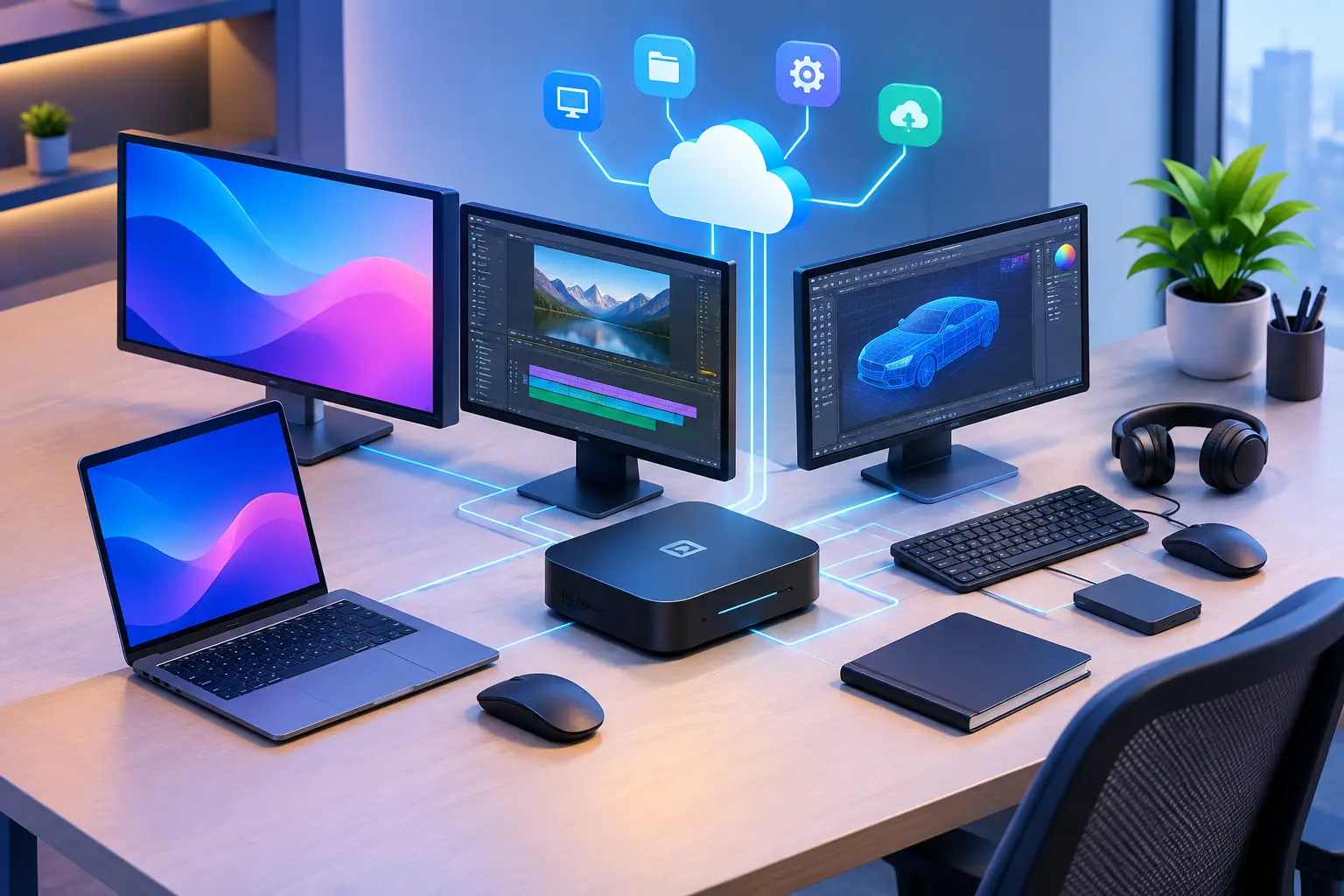
A virtual machine, or VM, is a computer created in software and hosted on physical server hardware. It gets assigned resources such as CPU cores, memory, storage, and sometimes a dedicated GPU. To you, it can look and act like a normal Windows PC, even though the hardware is running in a data center instead of under your desk.
A virtual desktop is the desktop environment you connect to and use. It includes the Windows interface, your apps, settings, and files. In practical terms, the VM is the computing engine and the virtual desktop is the familiar workspace you see on your screen.
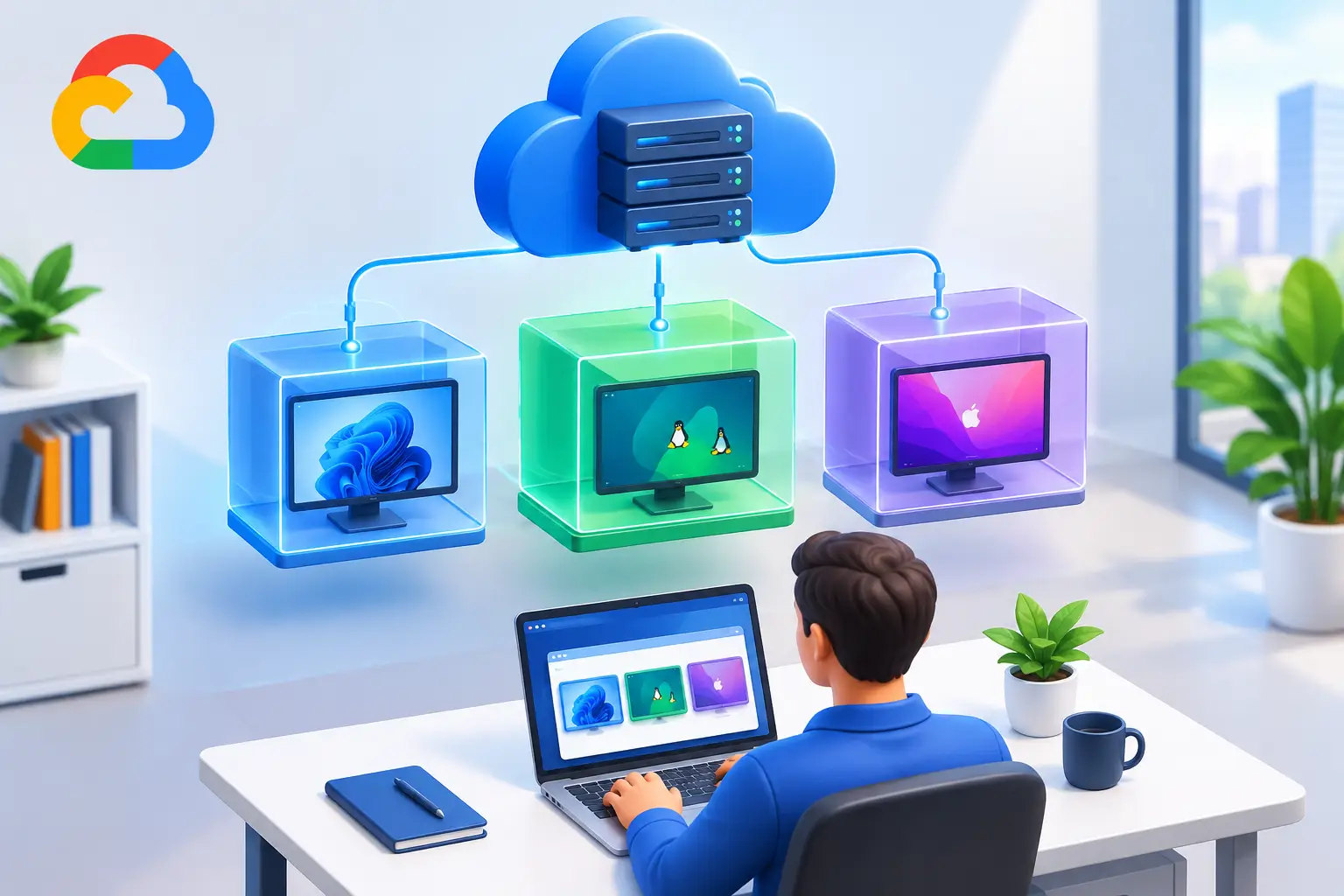
For a user who wants to code, edit, design, play supported PC games, or run GPU tools, the distinction is less important than the experience. You sign in from a Mac, desktop, laptop, or supported browser, connect to a Windows desktop, and do the work there. The demanding processing happens remotely. Your local device handles the display, keyboard, mouse, and connection.
Real Examples of Virtual Machines in Cloud Computing
The term "virtual machine" covers a wide range of products, and the best way to understand it is by example rather than definition alone:
| Example | What it's for | Who uses it |
|---|---|---|
| A server VM (AWS EC2, Azure VM, Google Compute Engine) | Running websites, backend services, or applications | Developers, IT teams, businesses |
| A disposable test VM | Testing an OS, a build, or a piece of software in isolation | Developers, QA engineers, students |
| Enterprise VDI (Virtual Desktop Infrastructure) | Centrally managed desktops for a company's workforce | IT departments, large organizations |
| A personal cloud PC | An actual Windows desktop for individual, self-serve use | Gamers, creators, developers, students, remote professionals |
A developer may create a small VM to test an operating system. A company may run hundreds of server VMs for internal services. Those machines are useful, but they're not always designed as interactive, personal Windows computers a server VM optimized for background processing is a very different thing from a VM built to feel responsive under your mouse and keyboard in real time.
Not Every VM Is a Cloud PC
A cloud PC is built around the desktop experience specifically. It should give you a persistent Windows environment, practical storage, clear access controls, and a connection method that feels responsive enough for real work. For graphics-heavy tasks, GPU access matters too. A VM with no meaningful graphics capability may be fine for a web server, but it's not the right fit for 3D work, CUDA development, rendering, or many modern creative tools.
This is the distinction worth understanding before shopping for "a virtual machine" when what you actually want is a usable personal computer in the cloud: look for a product built as a desktop experience (persistent storage, GPU options, a low-latency display protocol), not a general-purpose VM that happens to have a desktop installed on it.
Can You Use a Virtual Machine for Gaming?
This deserves its own honest answer, since it's a genuinely different question from "what is a virtual machine."
Running games inside a self-hosted VM on your own hardware (VirtualBox, VMware Workstation/Fusion) is technically possible but limited for modern titles. Standard consumer hypervisors generally lack robust GPU acceleration for demanding 3D games a basic virtual display adapter leaves significant performance on the table. Getting near-native performance requires GPU passthrough (dedicating your physical GPU directly to the VM, often via VFIO on Linux), which is a real technical undertaking: driver configuration, hardware compatibility checks, and troubleshooting that goes well beyond installing a VM and launching a game.
A hosted cloud PC solves a related but different problem. Instead of configuring GPU passthrough on your own physical machine, you connect to a remote Windows desktop that already has dedicated GPU access configured for you. SensePC provides this with NVIDIA L4 GPU options, persistent storage for your installed games, and a low-latency Performance Mode — you install Steam, Epic, or another launcher and play, without building or maintaining the virtualization layer yourself.
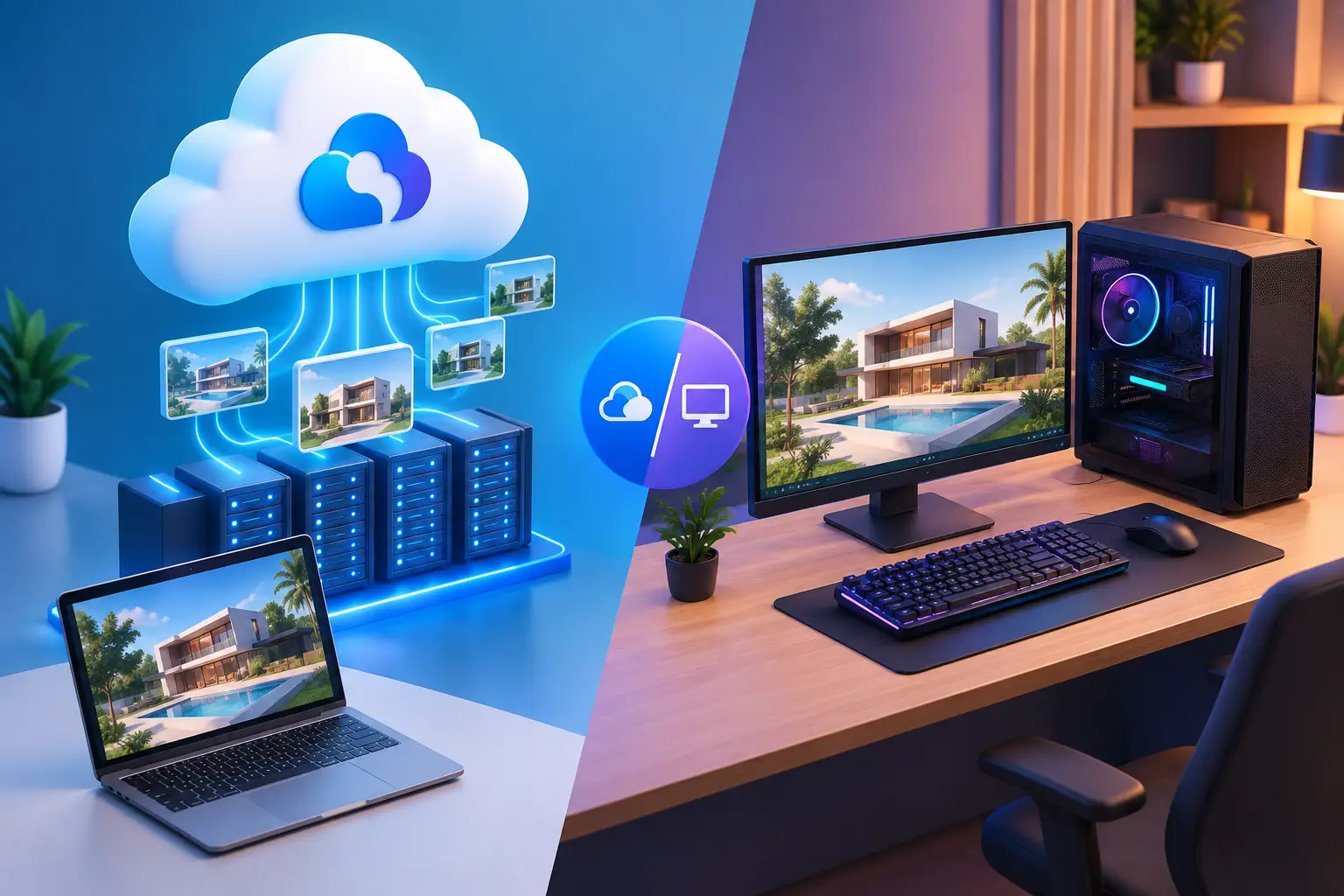
The honest trade-off: local GPU passthrough, done correctly by someone comfortable with the setup, can deliver performance very close to running the game directly on that hardware, with zero network dependency. A cloud PC removes the setup complexity entirely but depends on a stable internet connection and introduces some latency versus local hardware. If you're technically inclined and already own a capable GPU, passthrough is a legitimate (if involved) path. If you want to skip the configuration work entirely, or don't own gaming-capable hardware in the first place, a cloud PC is the more direct route to the same result.
Cloud Desktops Versus Buying a Physical PC
A physical desktop or workstation still makes sense for people who use demanding software every day, need to work without internet, or want full control over local hardware. Once purchased, it's always available. A stable local setup also avoids the dependency on connection quality that comes with remote computing.
The trade-off is ownership. A strong gaming PC or workstation can require a major upfront purchase. You also handle upgrades, repairs, heat, noise, storage limits, drivers, and the moment when your once-fast machine stops meeting the needs of new software. A laptop adds portability, but high-performance models often cost more and can be harder to upgrade.
A cloud desktop shifts that model. Instead of paying for maximum performance years before you know how much you'll use it, you can choose computing power when a workload requires it. This can work well for a student finishing an engineering project, a creator handling occasional renders, or a developer testing a GPU workflow without committing to new hardware.
It depends on usage frequency. If you run intensive tasks for many hours every day, comparing longer-term cloud costs against the cost of ownership of a local system is sensible. If your heavy workloads arrive in bursts, usage-based access can be easier to justify. No expensive gaming rig. No upgrade cycle. No hardware waiting game. But you do need a capable internet connection and realistic expectations for remote access.
Performance Is More Than a Spec Sheet
CPU, RAM, SSD space, and GPU model all affect what a machine can do. Yet remote performance also depends on the connection between you and the cloud PC. Distance from the data center, network stability, local Wi-Fi conditions, display resolution, and the application itself can change the experience.
For office work, coding, and many creative tasks, a good cloud desktop connection can be a practical fit. Fast-moving games, precise creative work, and real-time applications are more sensitive. Before making cloud access your main setup, test it with your own location, device, connection, and workflow — that's more useful than relying on a generic claim about latency.
Who Gets the Most Value From a Cloud Desktop?
Cloud desktops are especially useful when your local device is good enough to connect but not powerful enough to run the workload. A Mac user may need Windows-only development software. A student may need a stronger machine for a short project. A remote professional may want the same persistent desktop from home and while traveling, without carrying a heavy workstation.
Developers can keep tools, source files, and test environments in one Windows workspace instead of rebuilding a local setup on every device. AI learners and developers can access GPU-backed environments for experimenting with frameworks, image generation tools, or model testing. Creators can use a stronger system for editing, rendering, and GPU-accelerated applications when their local laptop reaches its limit.
Gamers are another fit, with a condition: game compatibility and connection quality should be checked before committing. Cloud hardware can avoid the cost of building a new gaming desktop, but the experience still depends on the game, the platform, the connection, and your expectations for responsiveness.
What to Check Before Choosing a Virtual Desktop
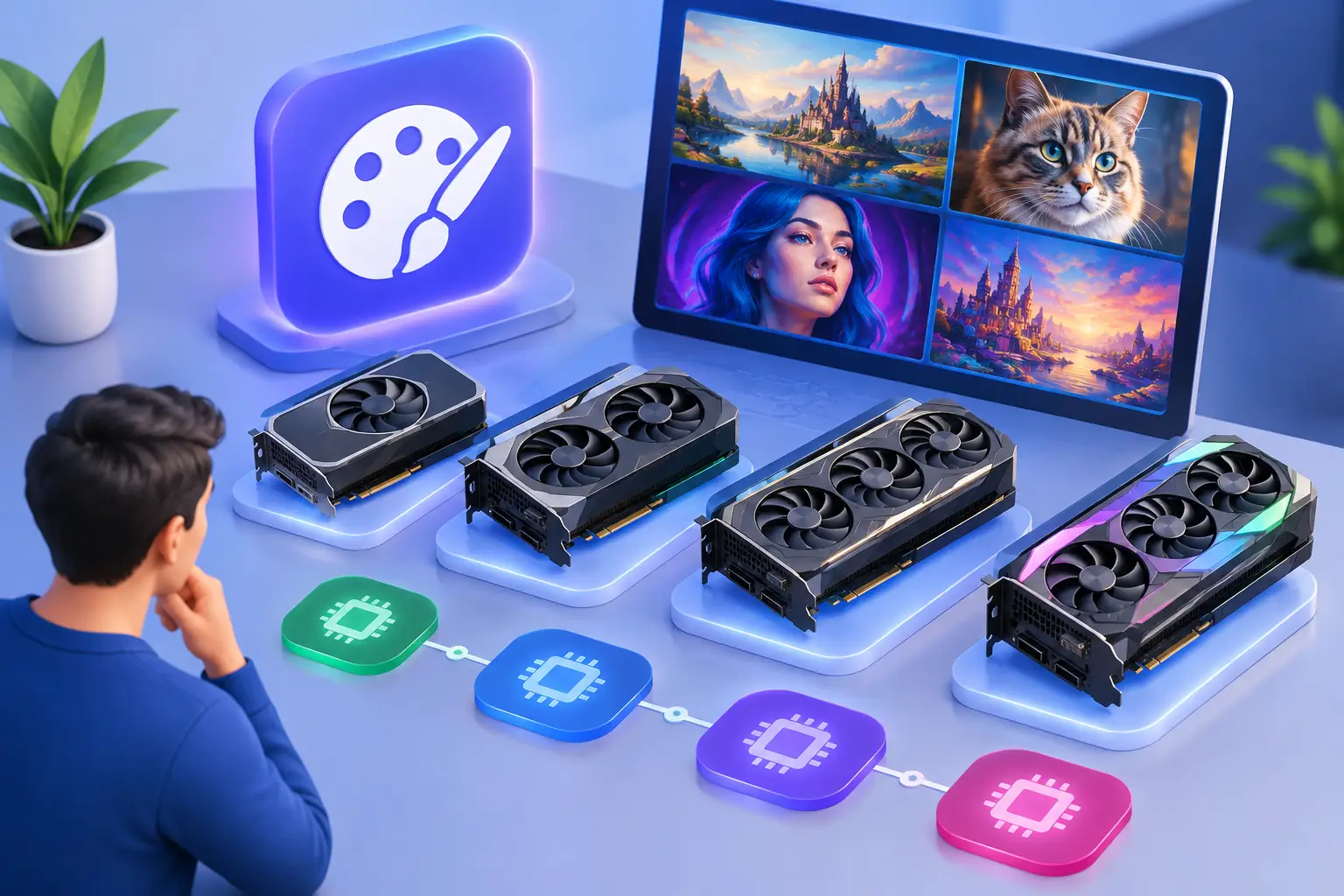
Start with the workload, not the biggest available configuration. A browser-based business app doesn't need the same resources as Unreal Engine, a large codebase, video rendering, or an AI project. Choose CPU and memory based on the applications you run at the same time. Choose GPU power when your software can use GPU acceleration or when graphics performance is central to the task.
Persistent storage is equally important. A temporary machine can be useful for a quick test, but a personal cloud desktop becomes much more practical when your applications, files, settings, and project data remain available between sessions. Confirm how storage works, how much is included, and how you'll back up important work.
Also look at access and billing. A platform should make it clear how quickly a machine can be created, what devices can connect, how sessions are started, and whether pricing fits occasional or regular use. Hourly access is useful for short, demanding tasks. Daily or monthly options may make more sense when the cloud PC is part of your routine.
SensePC is designed around this practical model, with persistent Windows 11 cloud PCs, dedicated NVIDIA GPU configurations, and hourly-first access for users who need performance without managing a complex server environment. Its Performance Mode uses NICE DCV to support responsive desktop access, while tiered configurations let users match resources to the job rather than buying one physical machine for every possible task.
A Smarter Way to Plan for Performance
Virtual desktops are not about pretending that hardware no longer matters. They're about choosing where that hardware lives and when you pay for it. A local PC gives you direct control and offline availability. A cloud PC gives you flexibility, access from the devices you already own, and a way to scale up when a project demands more.
If your computer is holding back your work only some of the time, start by identifying those moments. A single render, software lab, development sprint, Windows-only application, or GPU experiment may be the right reason to use a virtual desktop. Choose the setup that fits the work in front of you, not just the hardware you think you're supposed to own.
What are virtual machines used for?
Common uses include hosting websites and backend services, testing software or operating systems in isolation, running centrally managed enterprise desktops (VDI), and providing a personal, self-serve Windows desktop for individual users — each is a different kind of VM built for a different job.
What's the difference between a virtual machine and a virtual desktop?
A virtual machine is the underlying computing resource CPU, memory, storage, sometimes GPU created in software and hosted on physical server hardware. A virtual desktop is the actual environment you see and interact with on that VM: the interface, apps, settings, and files. A VM is the engine; a virtual desktop is the workspace.
How do virtual machines work in cloud computing?
A cloud provider allocates a slice of physical server hardware CPU cores, RAM, storage, and sometimes GPU to your VM. You connect to it over the internet, and your input (keyboard, mouse) and its output (the display) stream back and forth, while the actual processing happens on that remote hardware rather than your local device.
What are the main types of virtual machines?
Broadly, VMs split by purpose: server/infrastructure VMs (hosting applications or services), development/test VMs (disposable environments for testing), and desktop VMs (built for interactive, personal use — including enterprise VDI and individual cloud PCs). The right type depends entirely on whether you need background compute or a responsive desktop experience.