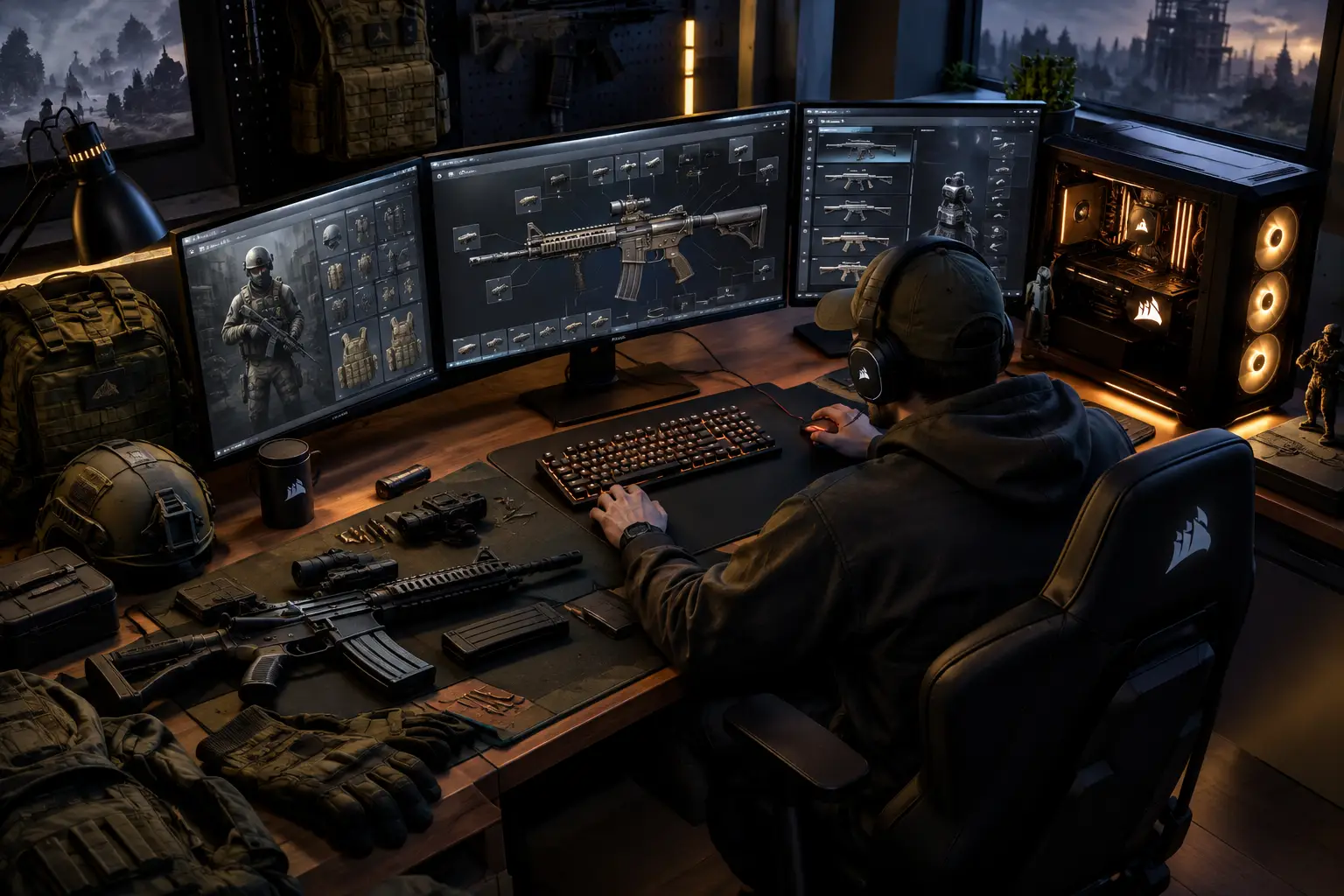
Short answer: "Escape from Tarkov mods and setup" means two completely different things depending on which Tarkov you mean. For the official live game, there is no legitimate modding — any third-party files, injectors, or gameplay alterations violate the rules and put your account at risk of a BattlEye ban. For a separate offline experience, most players mean SPT (Single Player Tarkov), a community-built framework that runs independently of the live game and supports extensive mods, AI changes, and customization. Mixing the two — or assuming what applies to one applies to the other — is where players get into trouble.
Tarkov is demanding before you add anything. It puts pressure on CPU performance, RAM, storage speed, and network quality at the same time. A clean setup matters more than a long list of tweaks. If you're considering mods, the first rule is even simpler: keep anything modded completely separate from the official live game.
Live Game vs. SPT: Know the Boundary
| Official Live Tarkov | SPT (Single Player Tarkov) | |
|---|---|---|
| What it is | The real, online multiplayer game | A separate, offline single-player framework |
| Mods allowed? | No — strictly prohibited | Yes — built around community mods |
| Risk of modding | Permanent BattlEye ban | None to your live account (fully separate) |
| Connects to live servers? | Yes | No — fully offline |
| What it changes | Nothing — vanilla only | AI behavior, loot, progression, visuals, quality-of-life |
The official Escape from Tarkov live experience is not a mod-friendly sandbox. Do not add third-party files, altered game data, injectors, or tools to a live installation. Do not use modifications to gain information, automate actions, change visibility, or gain an advantage over other players. Those tools violate game rules and put your account at risk — BattlEye anti-cheat is explicit about this, and the consequence is a permanent ban, not a warning.
When players discuss Tarkov mods in a legitimate context, they usually mean SPT and its community mod ecosystem — a separate, offline project built for private, single-player play, where users can change AI behavior, progression pace, trader inventories, quest flow, weather, visuals, or quality-of-life settings. It's not a route into online raids, and it should never be connected to the official multiplayer environment.
That separation isn't optional housekeeping — it's the foundation of a safe setup. Use distinct folders, follow the current instructions from the single-player project you choose, and keep backups before changing files. A legal copy of the base game may be required by some projects, but requirements and policies can change — check the current documentation and the game publisher's terms before installing anything.
Start With the Right Tarkov PC Setup
A modded offline setup can add CPU and memory load, especially when it changes AI behavior, adds larger loot pools, or increases the number of entities in a raid. Start with a stable Windows installation and enough free SSD space — Tarkov, its launcher, backups, mod packages, and future updates can consume more storage than expected (the base game alone needs roughly 80GB free).
Prioritize your setup in this order: a stable internet connection for the live game, a strong CPU, sufficient RAM, fast SSD storage, then GPU headroom for your resolution and graphics settings. A powerful graphics card helps, but Tarkov isn't a game where GPU specs alone tell the whole story. Many stutters and inconsistent frame times are tied to CPU limits, memory pressure, storage activity, or poorly balanced settings.
For a physical PC, that may mean a targeted upgrade instead of a complete rebuild. Adding RAM or moving the game to an SSD can make more sense than replacing a functioning system. If your laptop is thin, aging, or limited by soldered components, upgrades may not be practical — that's where a high-performance Windows cloud PC can be worth considering for occasional or seasonal play.
SensePC provides access to persistent Windows desktops with dedicated GPU options, so you can install and keep your own game files and settings without buying a full gaming tower. It's a practical option when your local laptop or Mac isn't built for Windows gaming. Still, cloud play depends on your internet connection, distance to available infrastructure, and your tolerance for streamed-input latency — it's not automatically the better choice for every Tarkov player.
Build a Clean Offline Modding Workflow
The best modding setup is cautious and reversible. Do not start by installing every popular package. Begin with the base offline project, confirm that it launches, then add one mod at a time. Launch the game after each change and test a short raid. That process takes longer at the beginning, but it makes conflicts much easier to identify.
Before you install anything, create copies of the working folders and save files. Name backups clearly by date and version. Major Tarkov updates, single-player project updates, and mod updates don't always arrive at the same time — a mod that worked last month may fail after one component changes.
Use version matching as your main filter. Check the required game version, the offline framework version, and the specific mod version. Don't assume a newly uploaded file is compatible with your build. Read the install notes and known issues first, especially for mods that alter traders, quests, bots, loot tables, or core progression systems.
A practical first mod list usually focuses on one goal. If you want more realistic AI, test one AI-focused mod before changing loot and economy. If you want a less punishing learning environment, adjust progression or practice-oriented settings first. If you want a visual refresh, use a small number of graphics or interface changes. Stacking several mods that edit the same systems often produces strange behavior, crashes, or data corruption.
Settings That Usually Matter More Than Tweaks
For the official live game, start with settings that reduce unnecessary load rather than chasing a specific frame-rate number. Match your resolution to what your GPU can sustain. Avoid maxing every visual option just because it's available — shadows, draw distance, post-processing, and texture choices can create large performance swings depending on your hardware.
Keep other background programs under control. Browser tabs, recording software, RGB utilities, launchers, sync tools, and overlays can compete for RAM and CPU time. Close what you don't need before launching a raid. If you stream or record, test that workflow separately — a system that feels smooth while playing alone may behave differently once encoding is added.
Storage management also matters. Leave room on the SSD instead of running it nearly full, and avoid installing large games on slow external drives if you have a better internal option. For cloud PCs, persistent storage is especially useful because you don't need to rebuild your Windows settings and reinstall large files at the start of every session.
Network tuning has limits. A wired Ethernet connection is usually preferable to unstable Wi-Fi, but no local setting can fully compensate for poor routing, congestion, or distance from game servers. For a cloud PC, you're adding another connection path between your device, the cloud desktop, and the game service — test at the times you actually play before committing to a long-term plan.
Live Game Setup vs. Offline Mod Setup: Keep Them Separate
Keep these environments separate enough that you cannot confuse them during a rushed launch. Separate folders are the minimum. Separate desktop shortcuts and clearly labeled backups help even more. Do not point a mod manager, installer, or file tool at the official live directory.
It also helps to think of them as different use cases. The live game is for the intended multiplayer economy, progression, and competitive risk. An offline mod setup can be a controlled training space where you learn maps, weapon behavior, medical systems, or AI encounters at your own pace. Neither replaces the other for every player.
If your goal is to improve in live raids, use offline mods for repetition, not for assumptions. AI behavior, loot, recoil settings, and progression rules may differ from the official game. Practice can build familiarity, but it cannot perfectly recreate a live raid with real players, server conditions, and changing game balance.
When a Cloud PC Makes Sense for Tarkov
Buying a gaming desktop remains the right move for players who use it heavily, have reliable space for it, and want direct local performance without streaming variables. Ownership can be more economical over time when you play or work on demanding software almost every day.
A cloud PC is more compelling when you need performance without the upfront purchase, only play at certain times, travel between devices, or need a Windows machine for other GPU-heavy work. No expensive gaming rig. No opening a laptop to chase an upgrade. No rebuilding your desktop environment every time you switch locations.
Before using any cloud PC for Tarkov, confirm current launcher and anti-cheat compatibility yourself — these systems can change, and no provider should promise that every game or third-party service will work in every environment. Run a short test session, check input feel, verify your preferred display settings, and make sure persistent storage is configured before downloading a large game library.
The smart approach to Escape from Tarkov mods and setup isn't to install more tools. It's to build a clean, separate environment, change one variable at a time, and choose hardware or cloud performance based on how often you actually need it.
Can I use mods in the official live Escape from Tarkov game?
No. The official live game does not support mods of any kind — third-party files, injectors, or gameplay alterations violate the rules and risk a permanent BattlEye ban. Legitimate Tarkov modding happens entirely in SPT (Single Player Tarkov), a separate offline project that never connects to live servers.
What is SPT (Single Player Tarkov)?
SPT is a community-built, offline framework that replicates the Tarkov experience against AI bots instead of real players, fully separate from the official live game. It's the standard, safe route for mods — changing AI behavior, loot, progression, visuals, or quality-of-life settings — without risking your live account.
How do I install mods safely for SPT?
Start with the base SPT install, confirm it launches, then add one mod at a time, testing a short raid after each change. Check that the mod's required SPT version matches your installed version before adding it, and back up your working folders before any change — version mismatches are the most common source of crashes and conflicts.
What's the best PC setup for playing Tarkov solo?
Prioritize a stable internet connection, a strong CPU, sufficient RAM, and fast SSD storage before GPU headroom — Tarkov's stutters are more often tied to CPU and memory pressure than GPU limits. For solo play specifically, a clean, well-tested setup matters more than chasing maximum graphics settings.